Working with an electronic digital signature
The online document management solution supports working with an electronic digital signature (EDS, legally a qualified electronic signature).
Access to the EDS is granted to users with the Employee and Manager roles for the EDS management function. Otherwise, users simply do not see the tab of the same name on the document card:
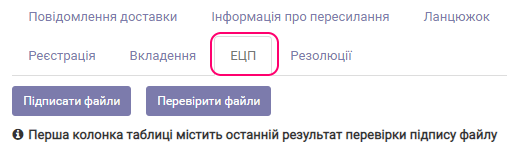
The Employee role allows verifying a signature; the Manager can additionally sign the files attached to the card with an EDS.
Signing files with an EDS
To sign all files attached to a document (incoming/outgoing letter, internal document), go to the EDS tab and click the Sign files button. A dialog appears:
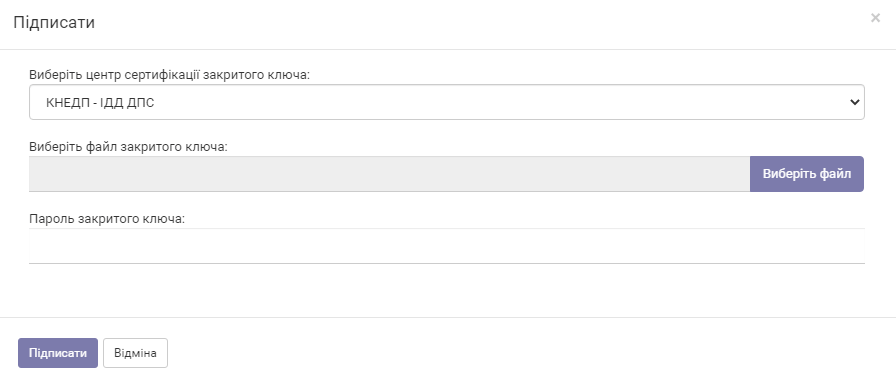
Select a certification authority (EDS provider) from the list, specify the private key file and enter its password. Click Sign. All files attached to the card will be signed.
If you need to sign only some of the files attached to the document, go to the Attachments tab and click the "lock" icon next to each file you want to sign with an EDS.
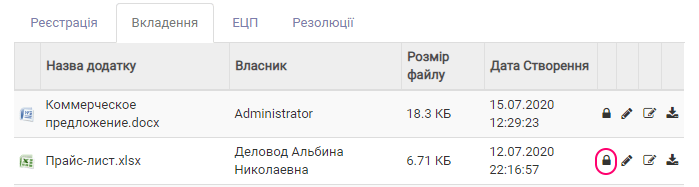
The dialog described above then appears.
Verifying an EDS
To verify files signed with an EDS, go to the EDS tab and click the Verify files button:
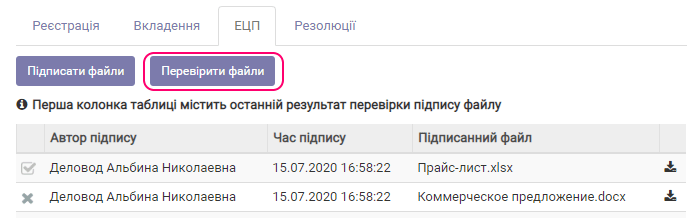
The result of the last verification is shown as icons:

Valid files are marked with a "check mark", and those that failed verification with a "cross".
Downloading the public key
You can download the EDS public key used to sign the files. To do so, click the button:

You can then verify this key in an online service, for example on the website of the Ministry of Justice.