Importing products and partners
ERP FOSS lets you automate entering your database of products and services (products) into the system, as well as the list of customers and suppliers (partners), by importing data from Excel files.
Preliminary steps
Partner import is available by default. To enable product import, contact our technical support to have a special add-on installed.
After the add-on is installed, go to the Settings module. Two menu items are available: Import Partners and Import Products:
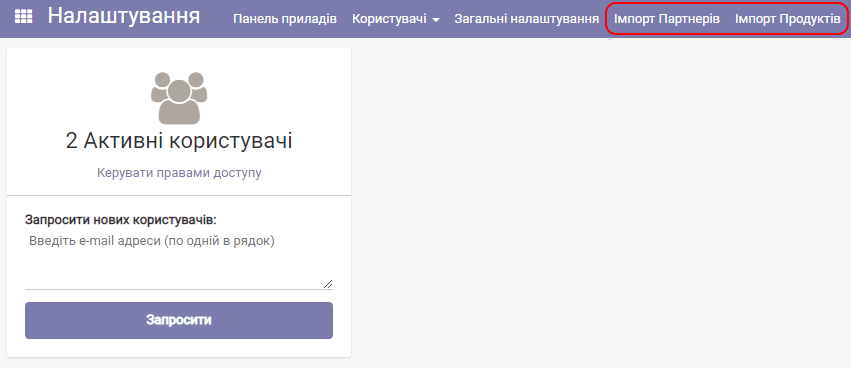
You can import only products, only partners, or both imports, as you wish.
You also need to download the import template files for products and/or partners in Microsoft Excel format using the links below and fill them in with your data.
Product import template
You can download the Excel template file for importing regular products/services by clicking the button:
Fill in this template with your data on products/services. You do not have to fill in the values of all columns, but you must follow several rules:
- Within the file, the values in the "Internal article number" column, or the "Name" column, or their combination, must be unique.
- If you use barcodes for products, the values in the "Barcode" column must also be unique within the file.
- The values in the columns "Base unit of measure" and "Purchase unit of measure" must be filled in, for example "pcs".
- The value in the "Product type" column must be filled in (1 - a consumable product, which in general is not intended for sale, 2 - a service, 3 - a stock product). The value 3 is used most often.
For products such as clothing/footwear and the like, the template has the columns "Variant name" and "Variant value", for example, the variant name is "Size" and the variant value is "XL". By filling in the values in these columns you can create several variants of the same product.
There is also an extended template for importing auto parts, which includes fields such as alternative code, parts manufacturer, and so on. Download
Partner import template
You can download the Excel template file for importing partners by clicking the button:
Fill in this template with your data on customers and suppliers. Filling in the file has a number of specifics:
- You must fill in the value in the "Full name" column: either the customer's full name or the organization name.
- In the "Type" column, be sure to enter 0 if you are entering the data of an individual, or 1 for a company (legal entity).
- In the "Buyer/Supplier" column, be sure to enter 0 if you are entering the data of a customer (buyer), or 1 for a supplier.
- The value in the "Language (full name)" column must be filled in to specify the language in which the partner name or full name is entered (0 - Ukrainian, 1 - Russian, 2 - English).
Product import
To import products (goods and services), start the import wizard using the menu item of the same name in the "Settings" module:
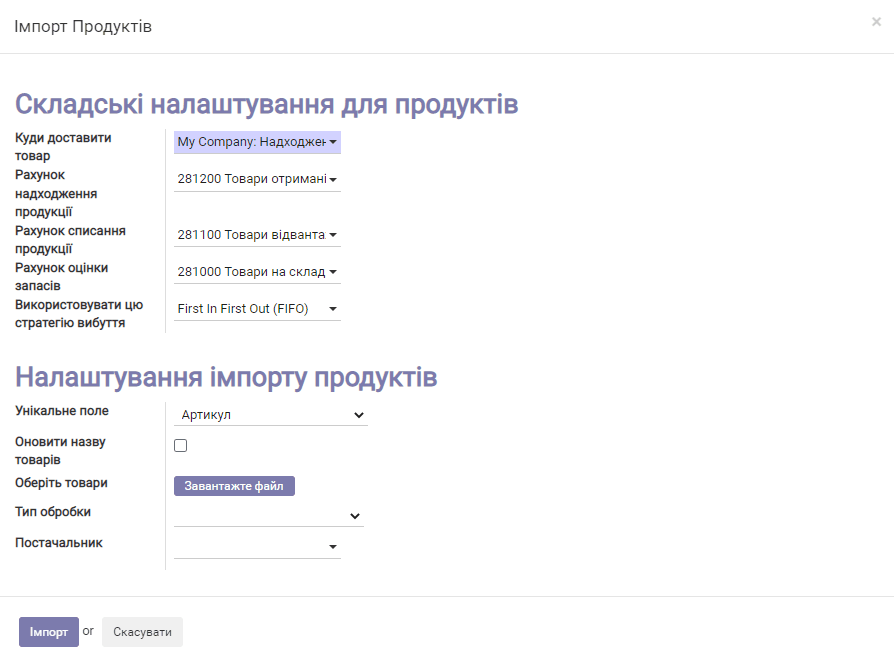
Then do the following:
- Click the Upload file button and, in the dialog that appears, specify the product and service import file prepared from our template.
- In the "Unique field" list select the field that distinguishes your products: "Article number", "Name", "Barcode" or the combination "Article number and Name". If you are loading products with variants, select the name as the unique field.
- Leave the "Processing type" field empty if you want to load only the product nomenclature. Use "Purchase order" if you are going to enter the products into the system as a purchase. "Inventory count" - the following entry of products takes place in the stock balance inventory count mode.
- In the "Supplier" field, create or select the product supplier if "Purchase order" is selected in the "Processing type" field.
- Click Import.
The import procedure may take quite a long time, especially if the processing type is not empty. Wait for it to finish.
After the import finishes, you will see the created products in the system.
If the processing type was "Inventory count", you then need to go to the "Warehouse" module, select the menu item Warehouse/Stock adjustment, select the latest inventory count record and confirm it.
If the processing type was "Purchase order", you need to go to the "Purchases" module, select the menu item Purchase/Purchase orders, select the latest order and confirm it.
Replacing names
The import wizard can be used to change product names in bulk. For this operation your products must differ by the unique field "Article number" or "Barcode". In the import wizard, set either of these fields as unique, select the checkbox "Update product names", upload the Excel file with the updated names and click Import. As a result, the product names are replaced.
Changing prices
You can also change product prices in bulk. To do this, enter the new price data (purchase and/or sale prices) in the import file you already used and run the same import as before. The prices change.
Partner import
To import partners (customers and suppliers), start the import wizard using the menu item of the same name in the "Settings" module:
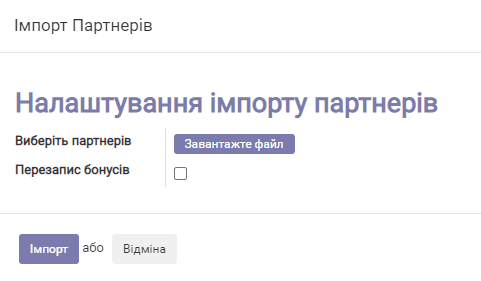
Click the Upload file button and specify the prepared partner import file in the dialog. Then click Import and wait for it to finish.
You can see the result in the "Sales" module, menu "Sales/Customers", and also in the "Purchases" module, menu "Purchase/Suppliers".