Working with internal documents
This section covers all the capabilities for working with your organization's internal documents (orders, memos, internal letters and so on).
Access rights
Users can work with internal documents if the access rights settings for the Internal documents management function specify the Employee or Manager role. A user with the Employee role can create and edit only their own documents; a Manager can edit documents created by other users.
Typical internal document processing flow
The typical workflow for internal documents includes the following stages:
- creating and filling in the internal document card;
- creating a resolution for the internal document and having the manager approve it;
- executing the resolution.
The stages of this process are described below.
Internal letter card
An internal letter is intended for sending a message within the organization. It can be created as a reply to an incoming letter or independently of an incoming one, as a new letter.
Select the Correspondence/Internal folder and click Create.
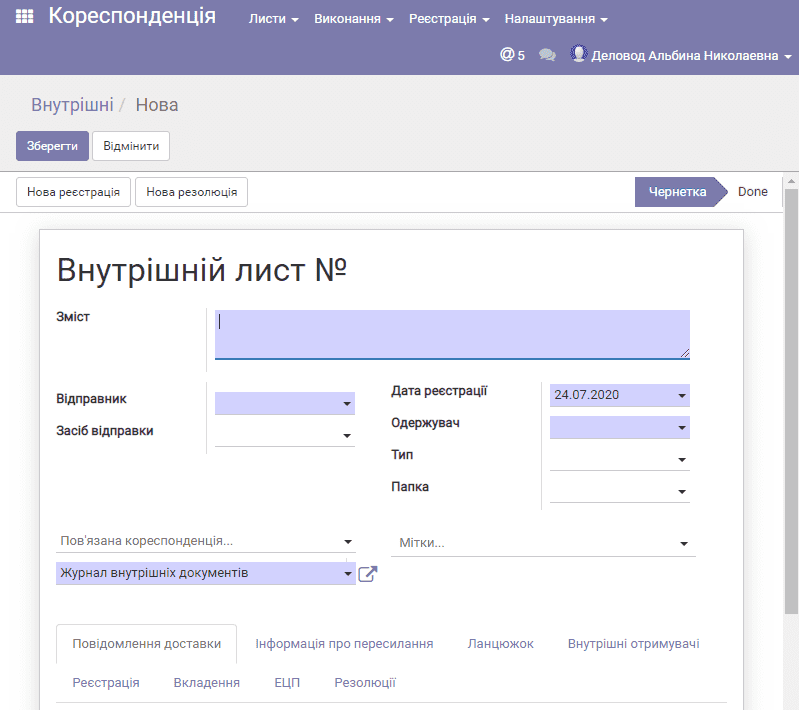
Fill in the field values. The purpose of each field is described in detail below.
| Field name | Description |
|---|---|
| Content | Brief content, subject of the letter |
| Sender | The employee on whose behalf the letter is sent |
| Delivery method | The way the letter is sent |
| Registration date | The date the letter was registered in the sending organization |
| Recipient | The employee or the recipient organization |
| Type | The type of correspondence, a reference field (you can configure the list of types as you wish, for example, "order", "directive", etc.) |
| Folder | The folder the document is intended for, a reference field (configured as you wish, for example, "orders" or "information letters") |
| Related correspondence | A link to correspondence related to this letter |
| Tags | Tags on the letter, a reference field (configured as you wish, for example, "urgent" or "restricted") |
| Internal documents log | A link to the log of registration records for internal documents |
Capabilities when working with the internal document card
All capabilities are the same as those described for incoming correspondence: printing the card, attached files, copying/deleting and so on.
Working with resolutions. Executing an internal document
After the document card is created and saved, it has the draft status and its own registration number (numbering is covered in more detail in a separate section). Next, move it to the Sent status by clicking the Send button on the document card.
You can see the status in the list of internal documents.
If the document needs to be executed or approved before sending, use the resolutions mechanism: the New resolution button.
Further actions with resolutions are fully the same as those described for an incoming letter.