Creating a sale with Nova Poshta delivery
Introduction
The Sales module is used to manage sales.
To use the Nova Poshta delivery method, you must set up the program for integration with Nova Poshta. This article describes all the possible actions of the program when selling products with the "Nova Poshta" delivery method.
Sales order with Nova Poshta delivery
Go to the menu item Sales / Sales orders and click Create. Select a customer and add the list of products you will sell to them. Then select the delivery method (Nova Poshta delivery), the city and the branch. Fill in the recipient's full name (a sales order can be issued to one customer while the recipient has a completely different full name) and the mobile phone number. In the payment field, select who pays for the delivery, the Sender or the Recipient, and use the checkbox to specify whether it is cash on delivery or not.
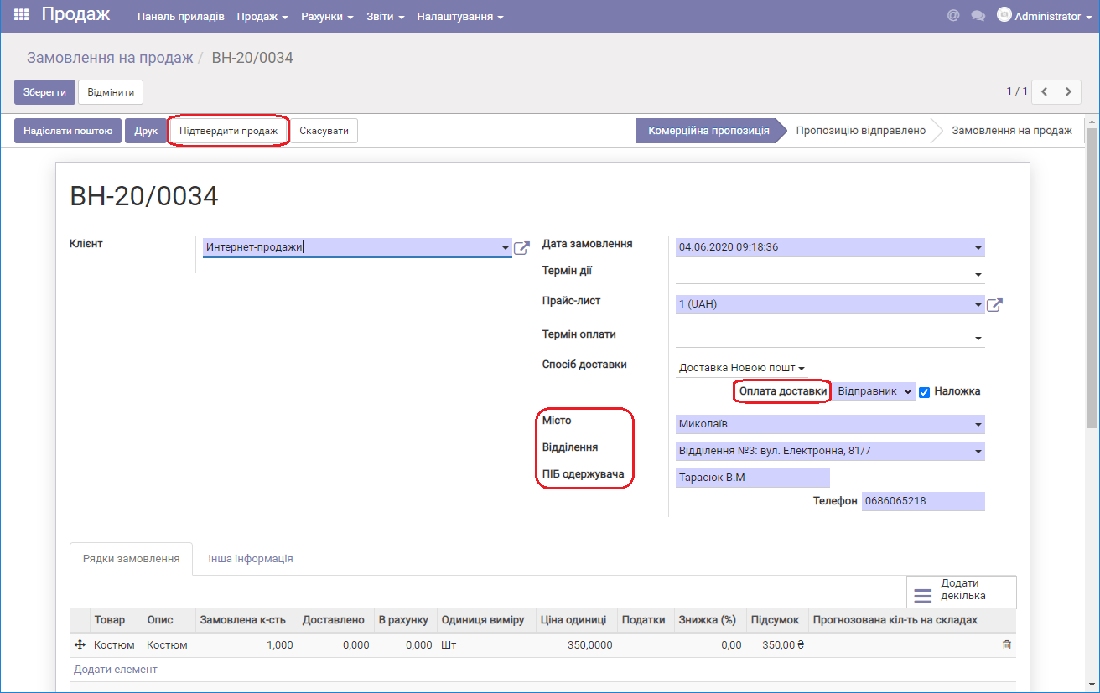 Creating a Nova Poshta delivery
Then click Save and Confirm sale. After it is confirmed, the quotation gets the status Sales order and the Delivery button becomes available.
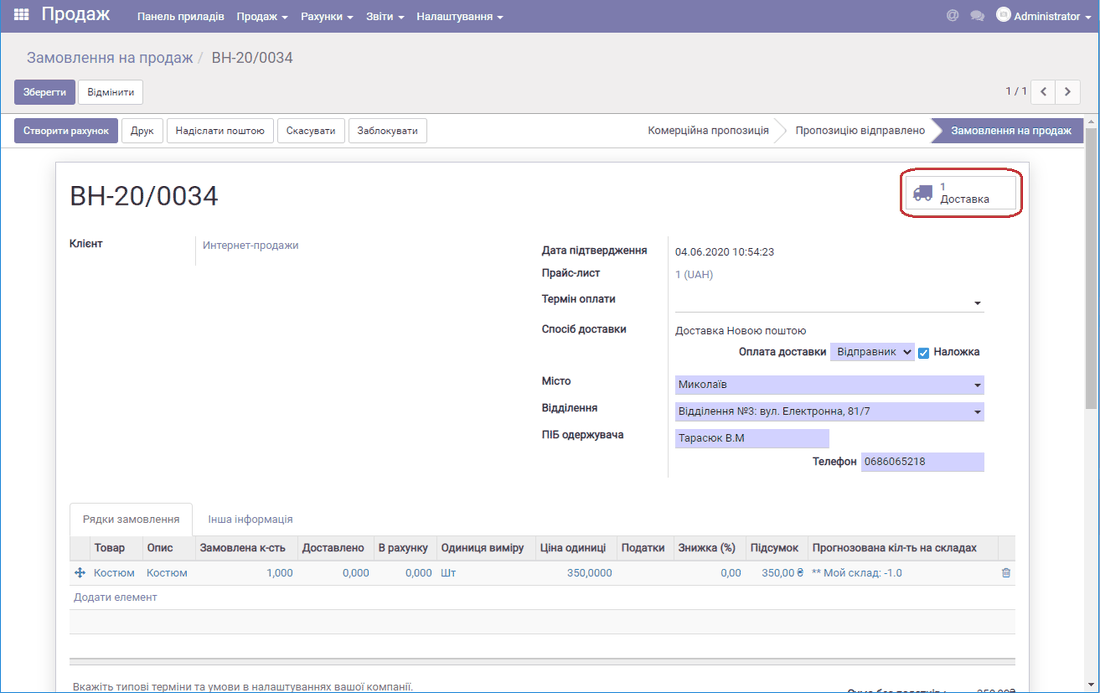
Then go to Delivery, where you can change the parcel weight and the insurance value. By default the parcel weight is 0.500 g. If you need to decrease or increase the weight, go to the "Additional info" tab, click Edit and change the weight for Nova Poshta to the value you need.
[
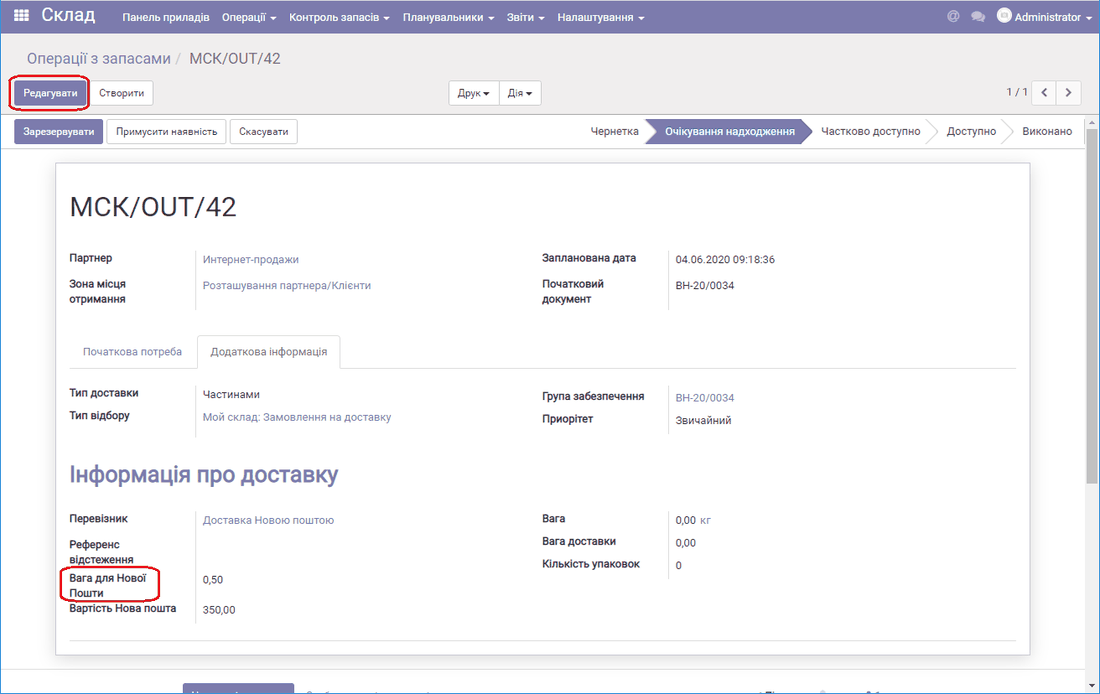 ](/files/erpfoss-docs-e7823534-3-3-ua.png) Weight for Nova Poshta
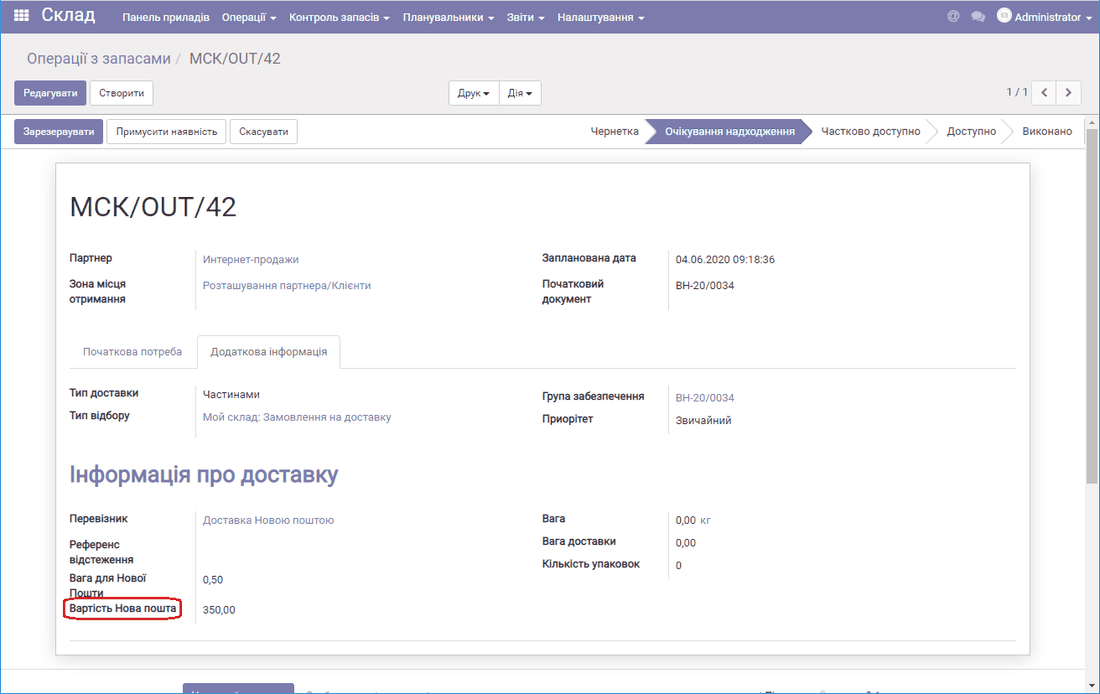 Insurance value
Error when creating a delivery
If you have already Confirmed the Sales order and Generated the tracking link, and the customer has called and asked you to send the parcel to another branch, or has changed their mind about paying cash on delivery, you must edit the information in the sales order (do not edit it through the Nova Poshta app, otherwise you will not see the changes in the program).
To do this, in Delivery click Cancel for the Tracking reference (after cancellation it is deleted in your Nova Poshta personal account).
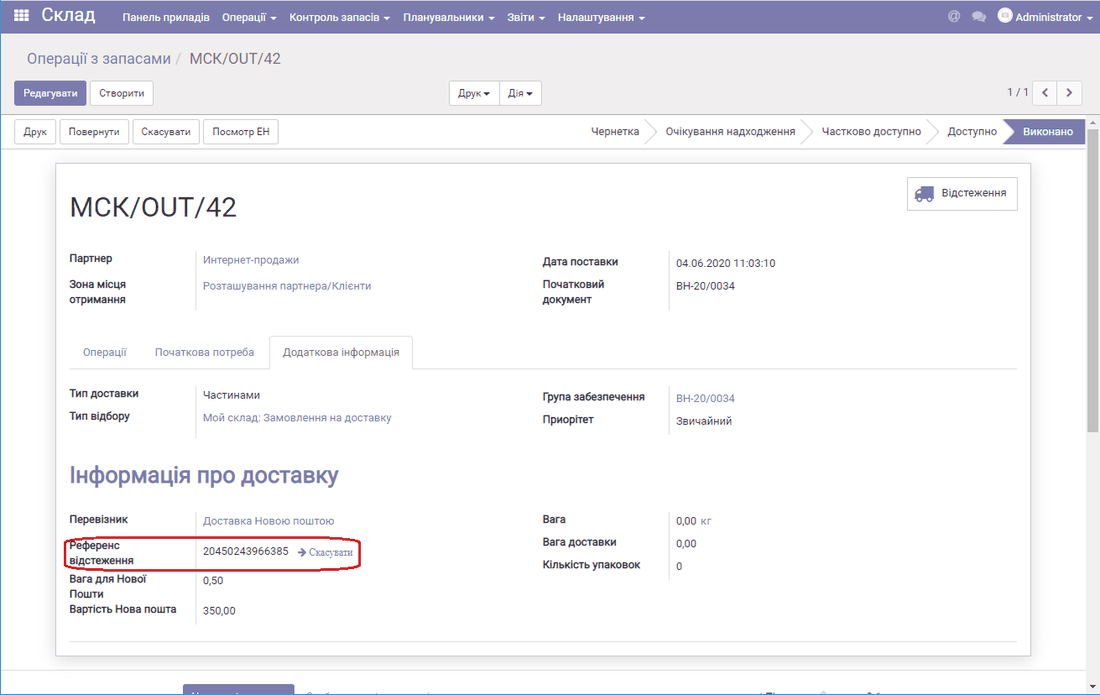 Tracking reference
Tracking the delivery status
To track the delivery status, go to the module Sales / Sales orders and group by Delivery service status.
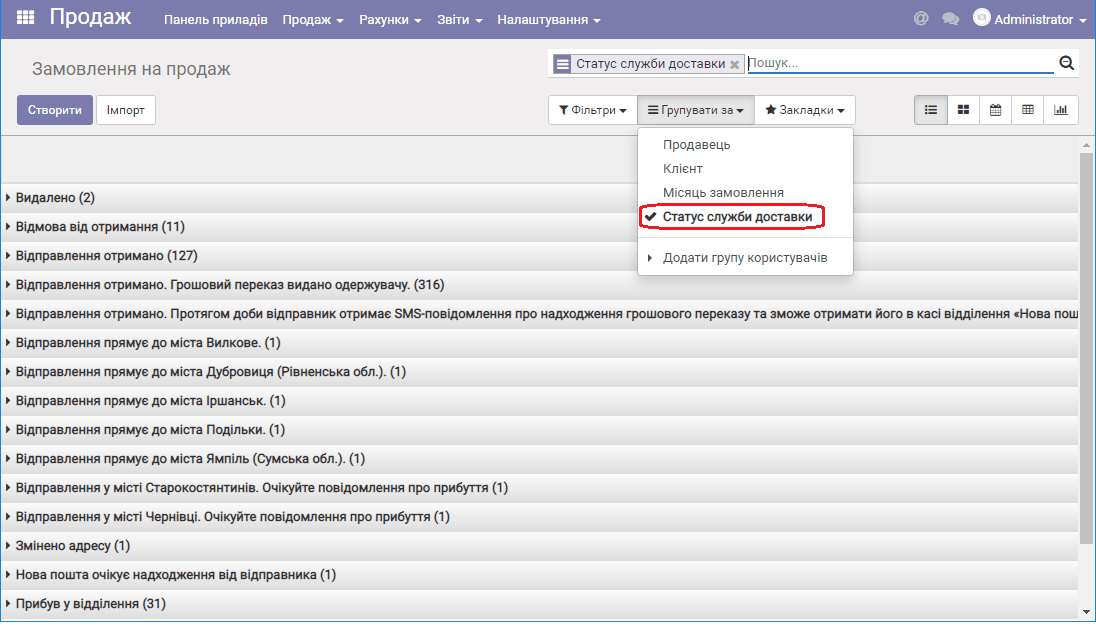 Delivery service status
Registering cash on delivery payments
To register cash on delivery payments, go to the module Accounting / Sales / Customer invoices. Find the invoice by the tracking link and the recipient's full name, select it with the checkbox and click Action / Register payments (you can register several payments at once). You can also filter by unpaid invoices, find the one you need and register it.
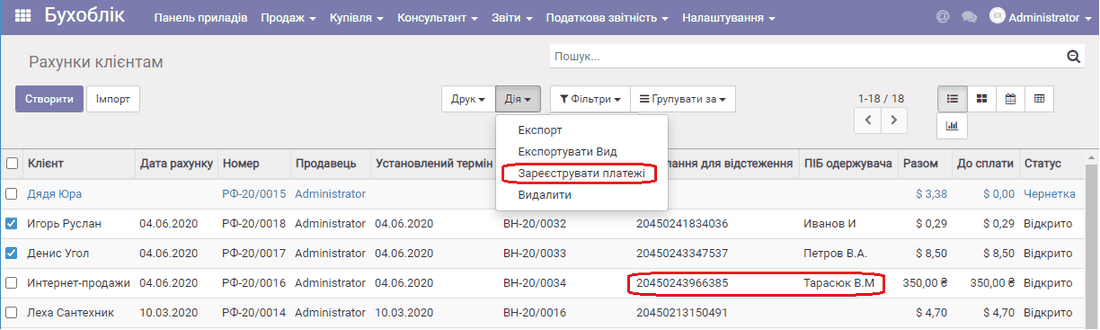 Register payments
Using the Nova Poshta module simplifies your work and reduces the number of errors.
You can find more details about the module settings in the article Setting up the "Nova Poshta Integration" module.