Getting started with the demo version
Registering in the program
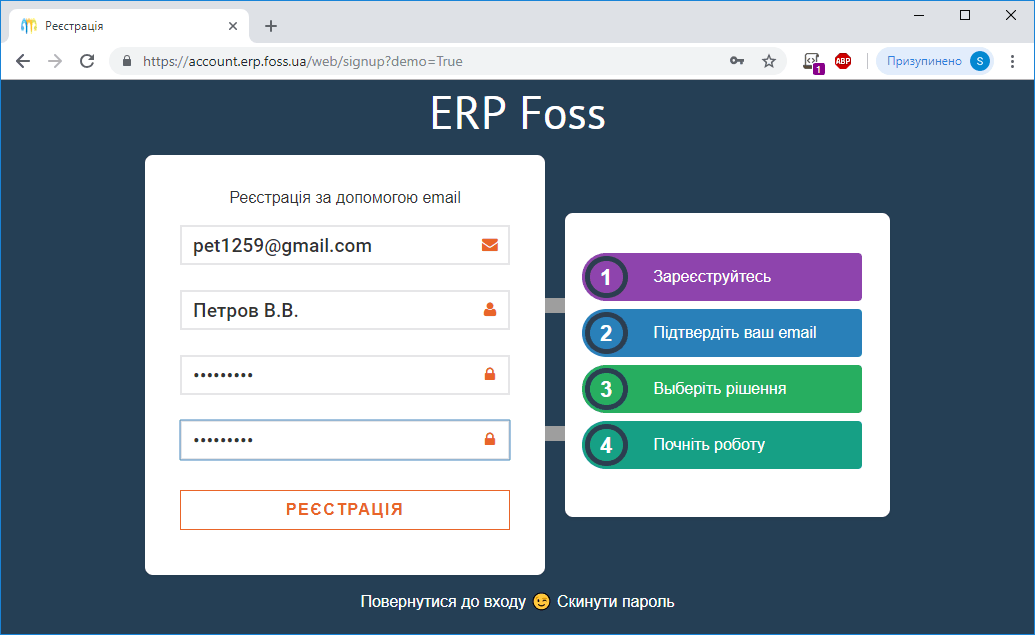
You can start working with ERP FOSS by trying the demo version of the program. To do this, click Try on the website and register in the program.
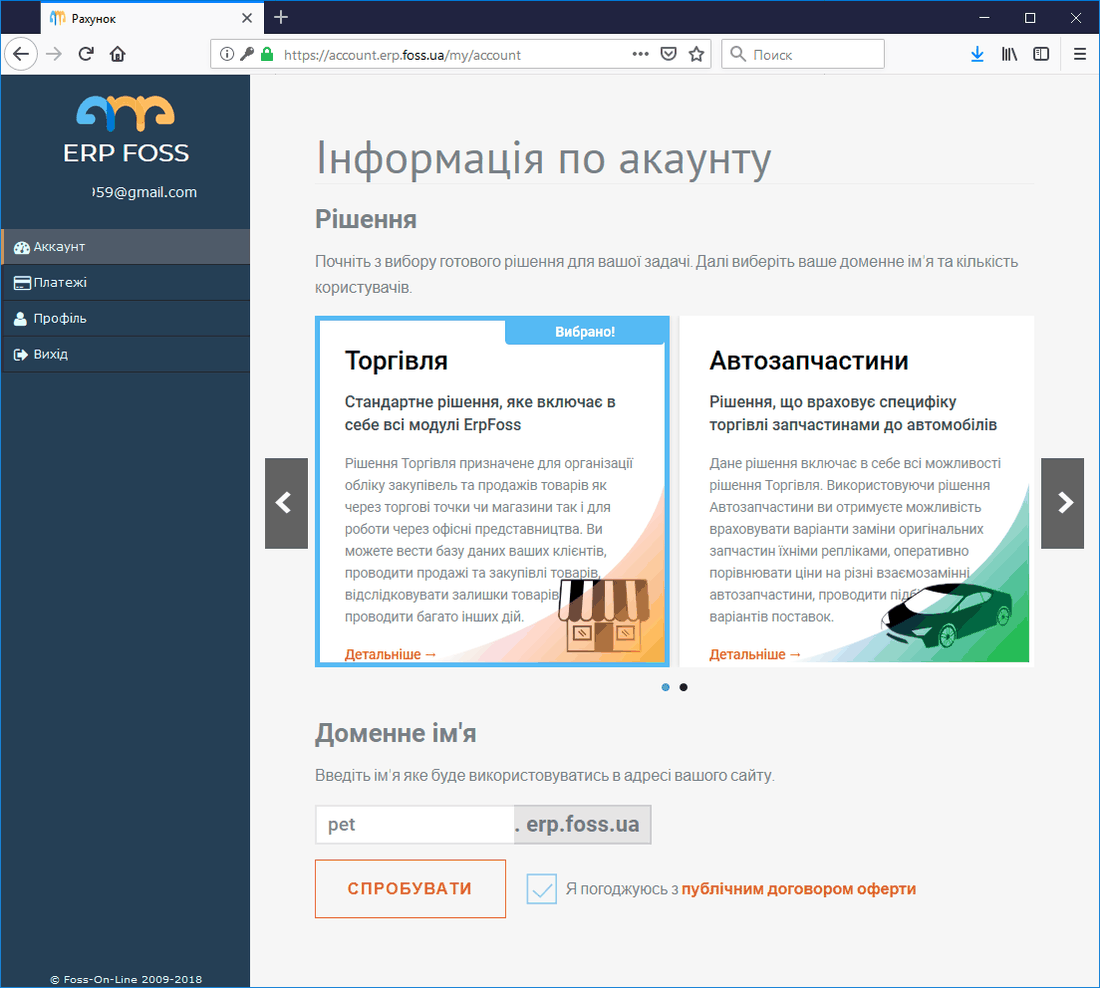
An email with further instructions is sent to the address you entered during registration. Follow the link in this email and enter the password you set during registration. Then you can choose the solution that best suits your business. You can switch to another solution later if you wish. You also need to enter the domain name that will be used in the address where your information is hosted. Then click Try.
The program redirects you to the demo database login page at the address you chose for the domain name. To log in, enter the Email and Password you used during registration.
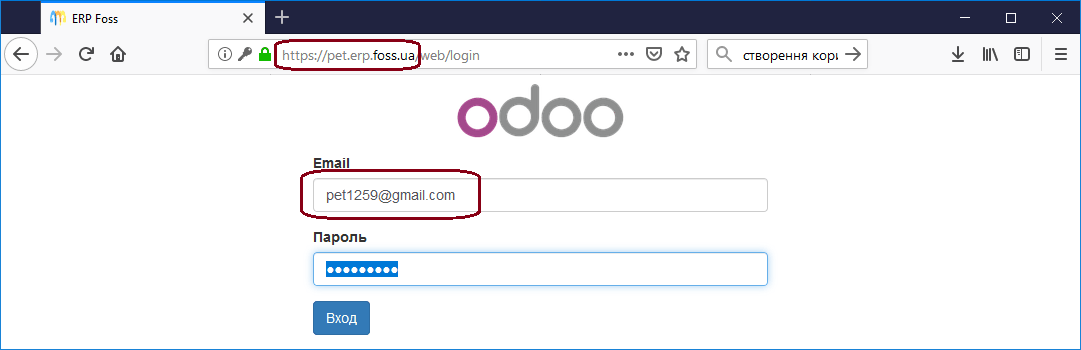
From now on, you can open your program by entering your domain address in the browser. In our case (see the figure above) it is https://pet.erp.foss.ua.
Before you start working with the demo version, we recommend reading the article Interface, which describes the features of the program interface. After that, create a few suppliers and customers. How to do this is described in the article Customers and suppliers. The next step is to create the products you will buy and sell. Working with products is described in the article Products. Instead of creating products and customers manually, you can import your partners and products from an Excel spreadsheet, as described in the section "Importing products and partners" of the article Program settings. Now you are ready to perform the standard purchase and sale operations. These operations are described in the article "Purchases and sales. Standard actions".
For a fuller overview of the program's features, read the other articles on the website. To look for specific features, you can use the website search.
While working with the program, keep in mind that some data cannot be deleted from it. If this data gets in your way and is no longer needed, you can create a new "clean" program using the Start over option in the User account.
User account
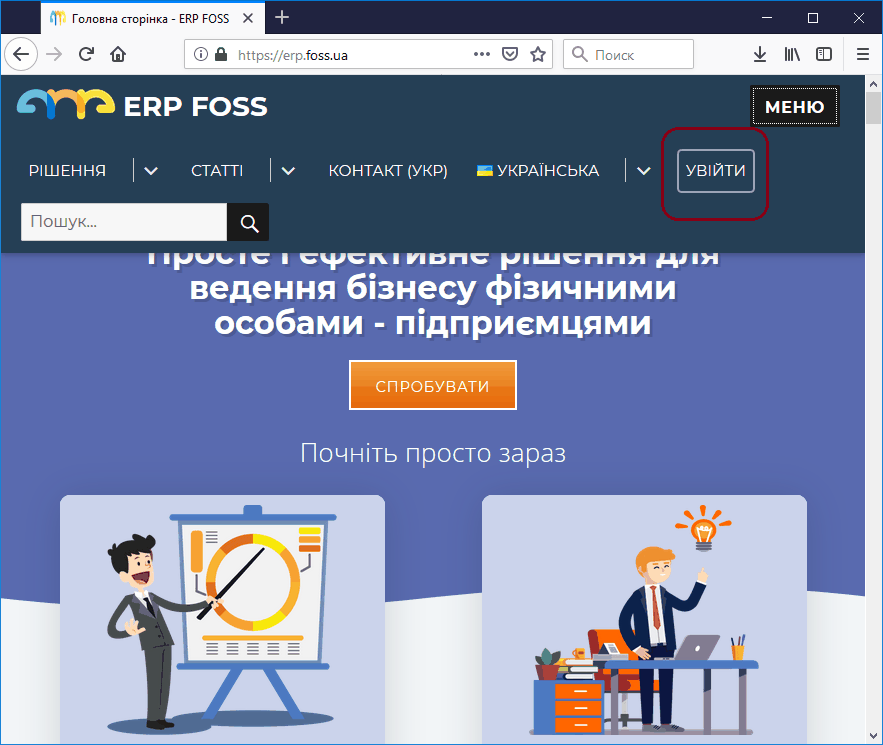
After registering in the program, you get access to your account. To log in, go to the erp.foss.ua website and select Log in.
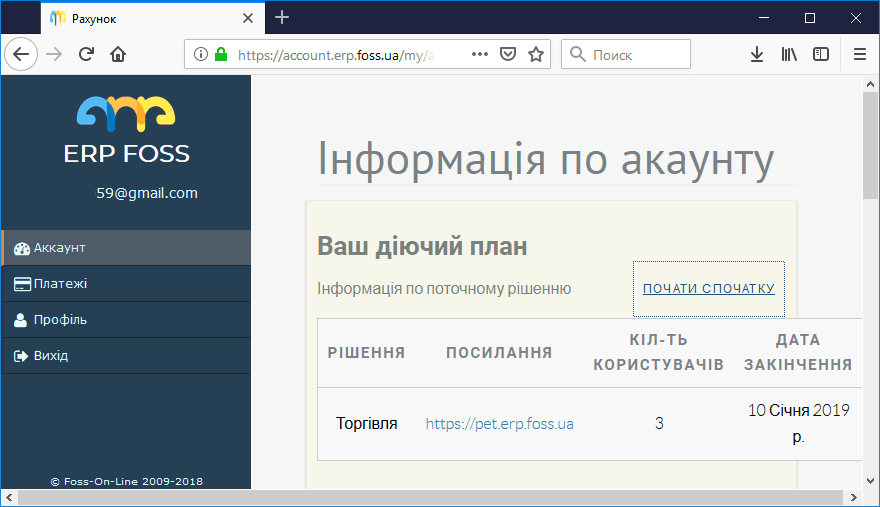
On the left side of the screen you can see your details, including payments, if any were made. The upper right part shows information about your current plan.
- Solution – the solution you selected
- Link – the Internet address where your Solution is hosted. The link matches the domain name you selected. When you click the link, you open the working program.
- Number of users – the number of users who can connect to your Solution. For the demo version, three users are set by default. You can change this number later.
- Expiration date – the date until which your plan is valid. If the current date is later than this date, you cannot access your solution.
Start over – this item lets you switch from one solution to another and destroys all information in your database. You can use Start over on both the demo version and the working version of the program. Keep in mind that the database is created anew and you lose all data entered before.
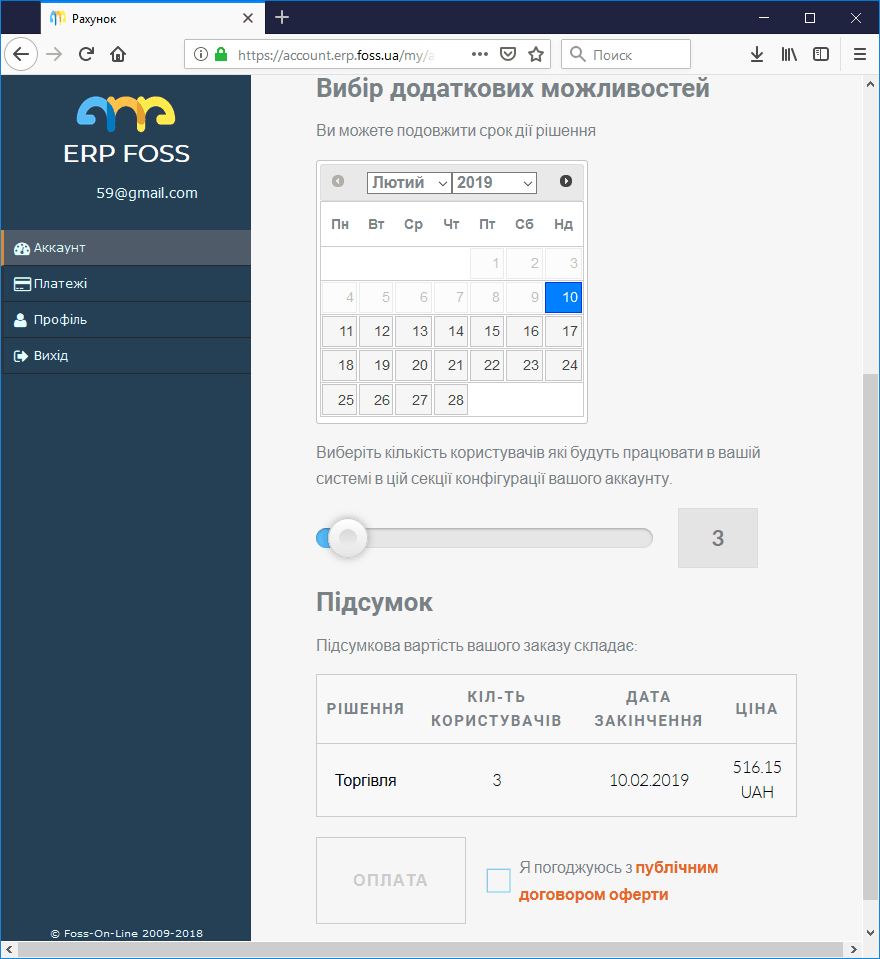
In the lower right part of the screen you can extend the validity period of your solution and change the number of users. You can change the Solution only by destroying all data in the program (the Start over item). After selecting the necessary options, you can pay their cost shown in the Price column. After the payment is made, your active plan is changed according to your choice.