How to change the selling price
Introduction
When purchasing and selling products, you need to react to changes in your suppliers' prices and promptly change the selling prices for your customers. Let us look at how to change the selling price of products using a specific example. Suppose you have the two products listed below. The program shows the selling price of these products, their purchase cost (what they were bought for earlier), and the internal category they belong to.
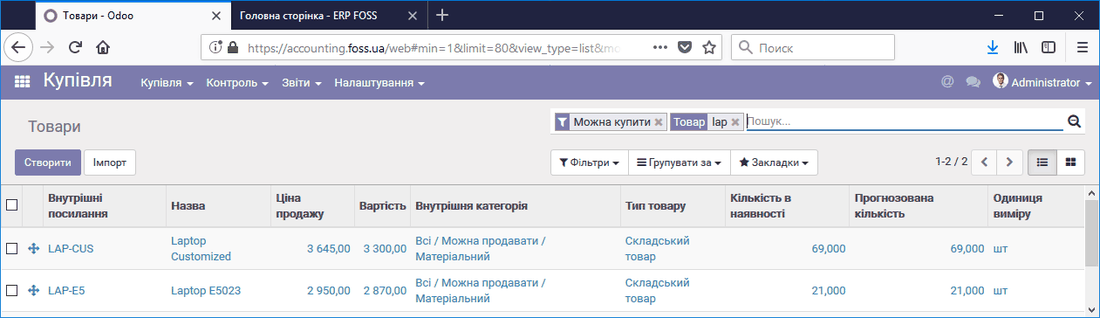 Product list
Setting the markup
In the category settings you can set the Markup on purchase price (%). In our case it is 10%. This markup is used to change the selling price of the products included in this category, depending on their purchase price.
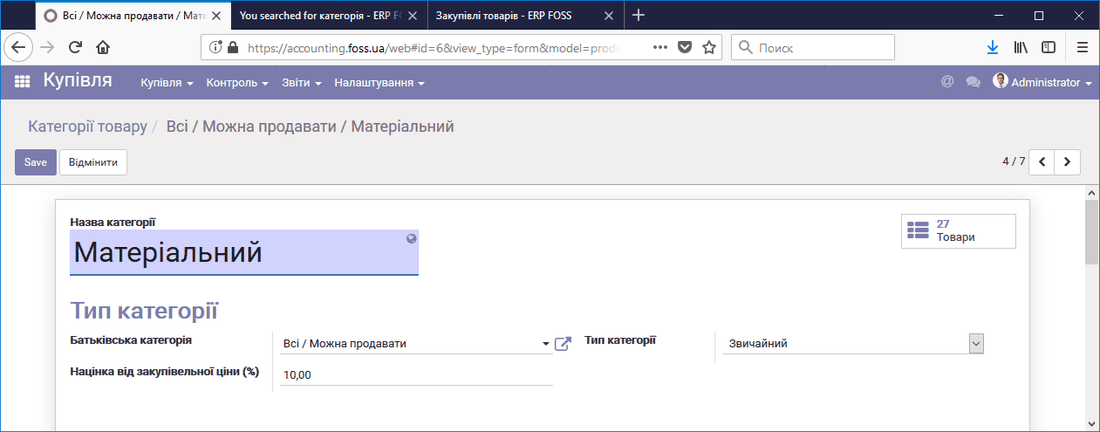 Setting the markup on the purchase price
Let us see how to use it. We purchase the products above at the prices specified in the Purchase order.
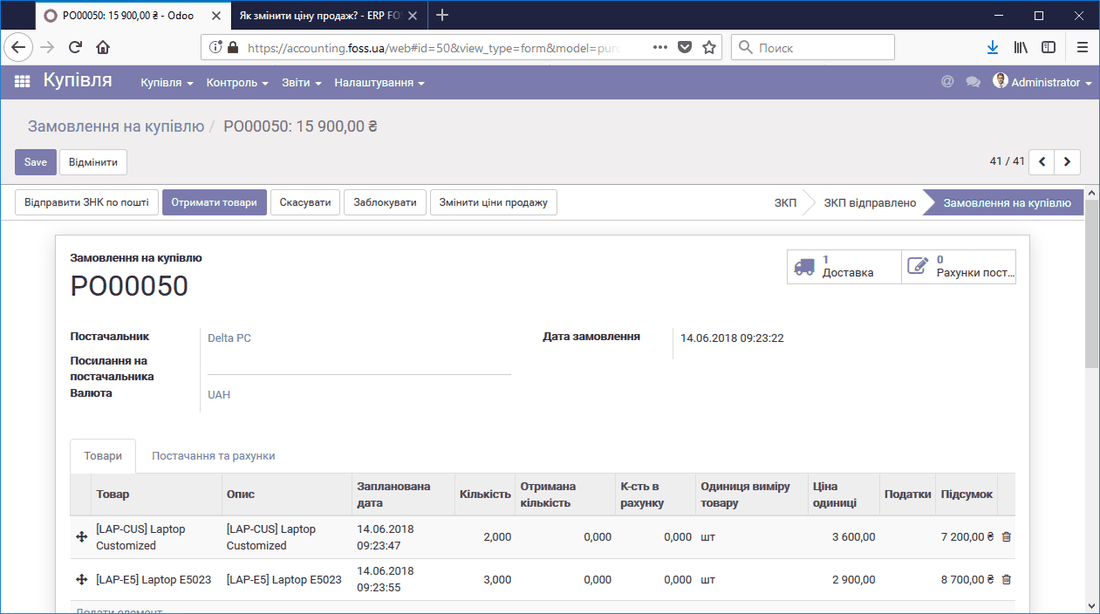 Purchase order
Now, if we select Change selling price, the program offers to set a new selling price for the products, taking into account the markup set for them in the category. The current selling price is shown alongside. We can confirm the proposed price change or reject it by deleting the corresponding rows.
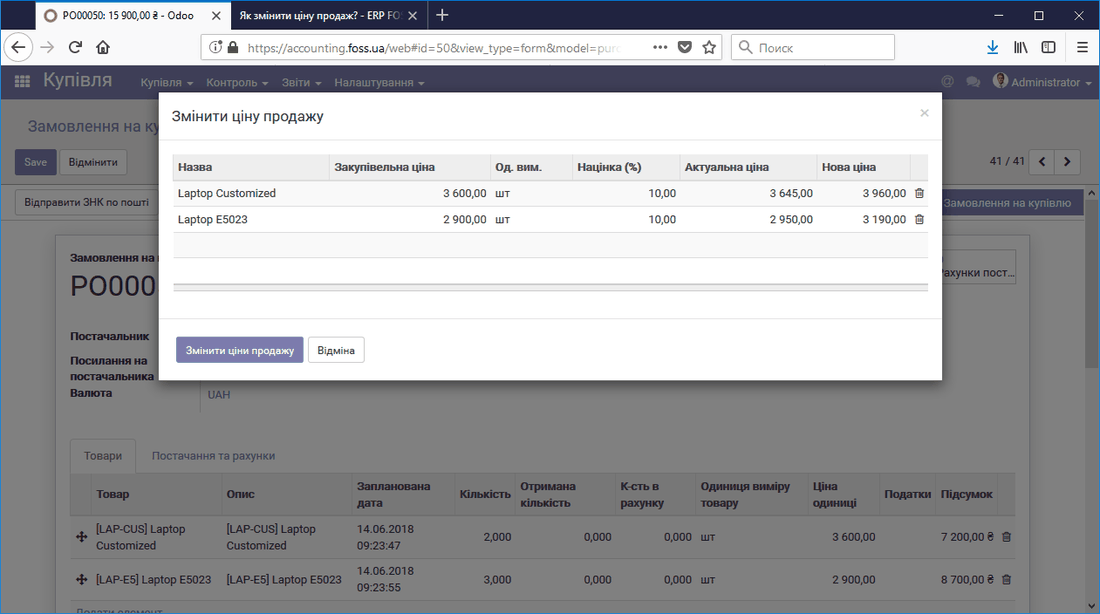 Changing the selling price
You can also edit the new price value at your discretion.
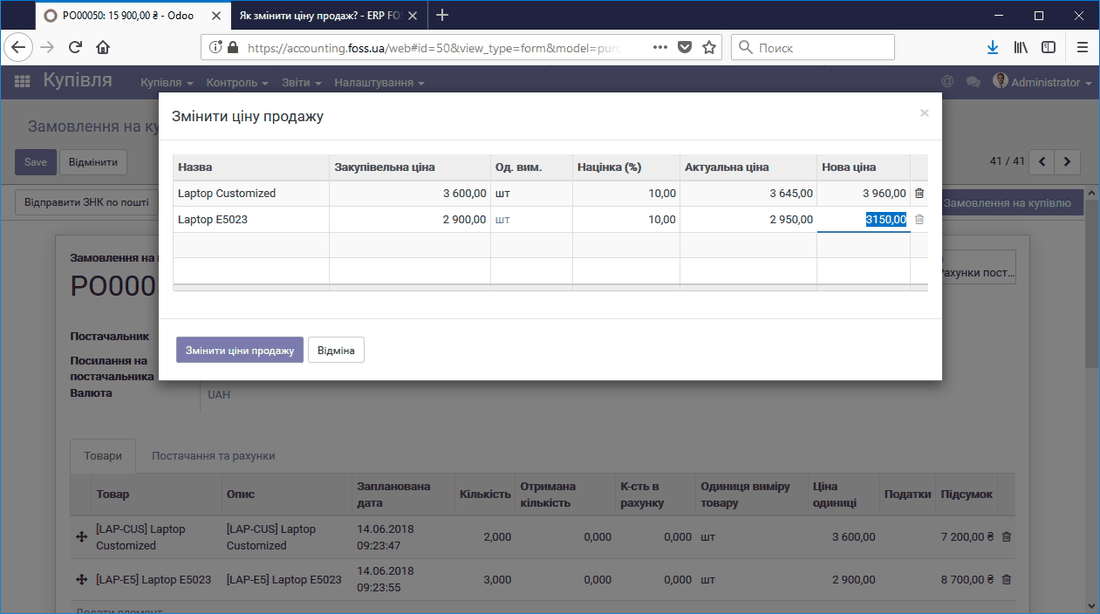 Editing the selling price
After confirming the selling price change, we get new selling prices for each of the products.
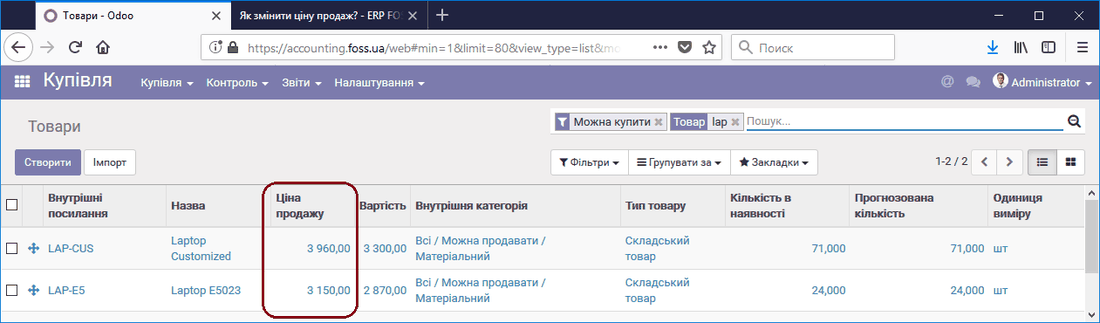 New selling price