Working with the Prom.ua marketplace
Working with Prom.ua is fully supported in the ERP FOSS cloud service for trade. To integrate with the Prom.ua marketplace you need to install a separate add-on in our program and make some settings. To install the Prom add-on, contact our technical support.
The Prom integration add-on lets you:
- Set up access to your Prom account.
- Load products from Prom to ERP FOSS.
- Receive orders from Prom in ERP FOSS and process them.
- Export products from ERP FOSS to Prom.
- Synchronize stock balances and product prices from ERP FOSS to Prom.
- Load wholesale prices from Prom to an ERP FOSS price list.
Let us look at these features in more detail.
Setting up access to Prom
For products, prices and orders to be synchronized between Prom.ua and ERP FOSS, you need to set up mutual access between these two services.
Setup in your Prom account
In the seller account on Prom.ua go to Settings -> API token management and create an access token:
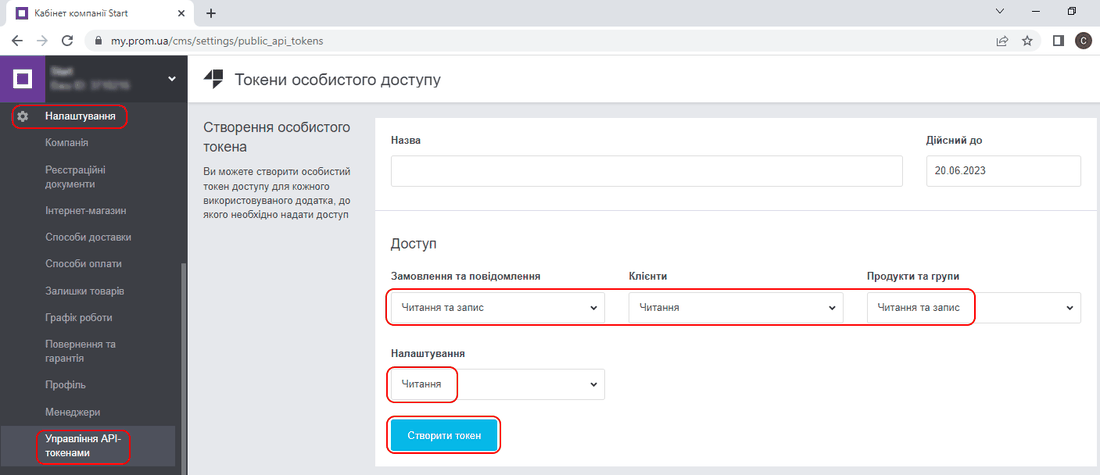
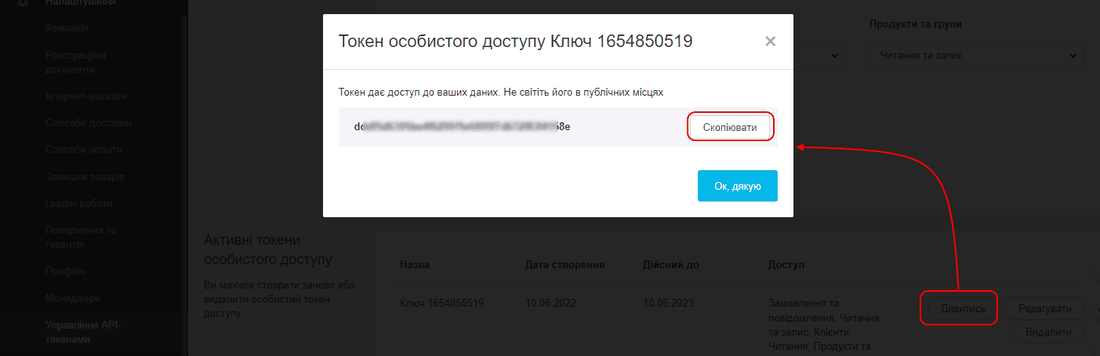
After the token is created, click View and copy the token:
Setup in ERP FOSS
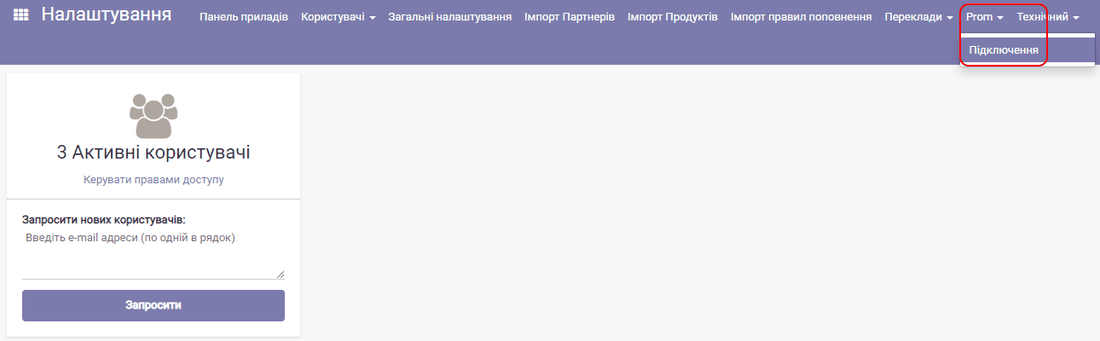
In your own account at YOUR-DOMAIN.erp.foss.ua go to the Settings module, menu Prom -> Connection:
Click Create. In the connection edit form enter a name, for example "Prom", paste the saved token into the "Access token" field and save the settings:
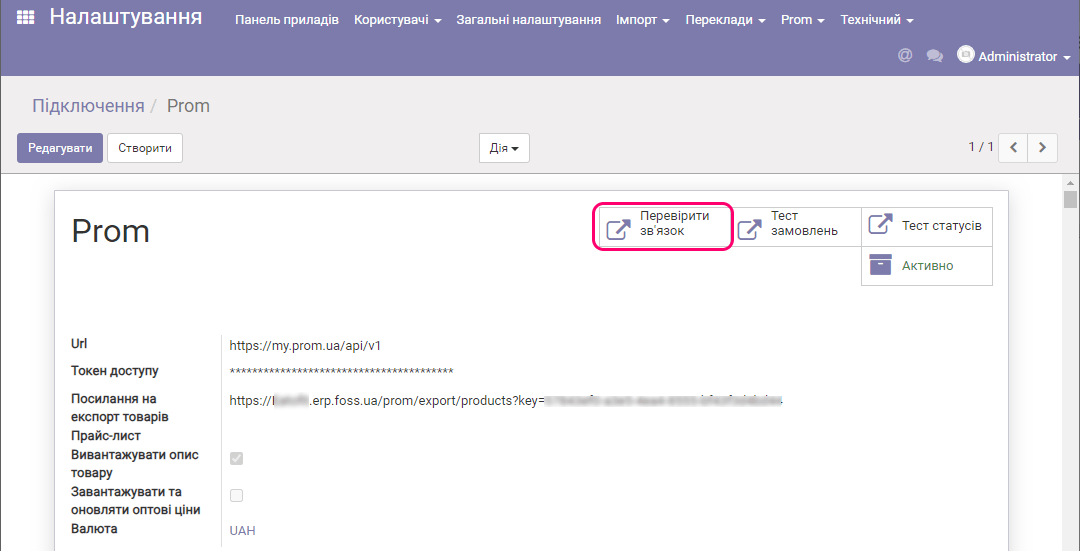
The Product export link field shows the link address for exporting ERP products to Prom. To check the connection with Prom.ua, click Check connection.
Loading products from Prom to ERP FOSS
This is the most typical scenario for working with Prom.ua: you already have a Prom account with products and need to move them to ERP FOSS. After that, in ERP you will receive orders from Prom, deliver products, and send product stock balances and prices from ERP to Prom.
To load products from Prom, go to the Settings module and select the menu Prom -> Update product list.
Wait for the loading to finish. As a result, the products from Prom appear in ERP FOSS. The Prom groups become the internal categories of ERP.
Processing Prom orders in ERP FOSS
After a customer creates an order on Prom, it arrives in ERP FOSS.
Working with orders
The order arrives in ERP FOSS as a draft quotation in the Sales module. On the toolbar, click Quotations and apply the prom.ua filter:
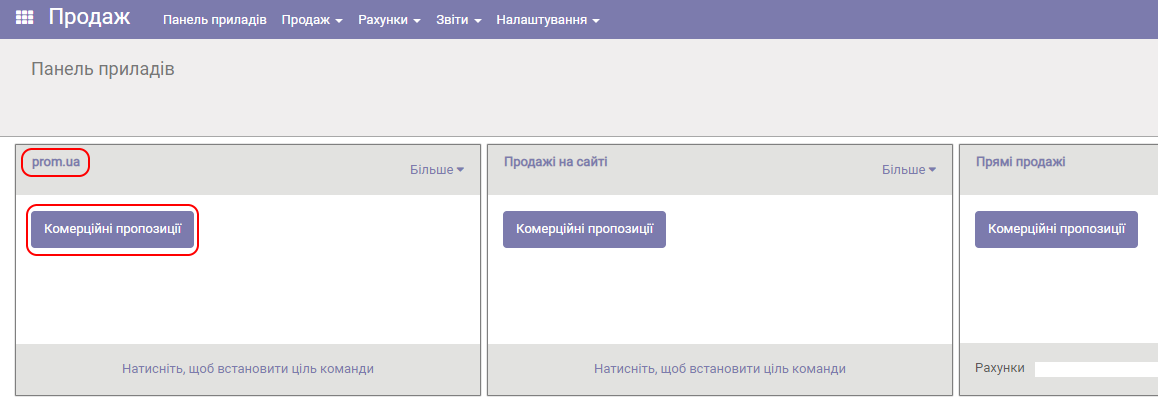
The list of quotations - new orders from Prom - opens:
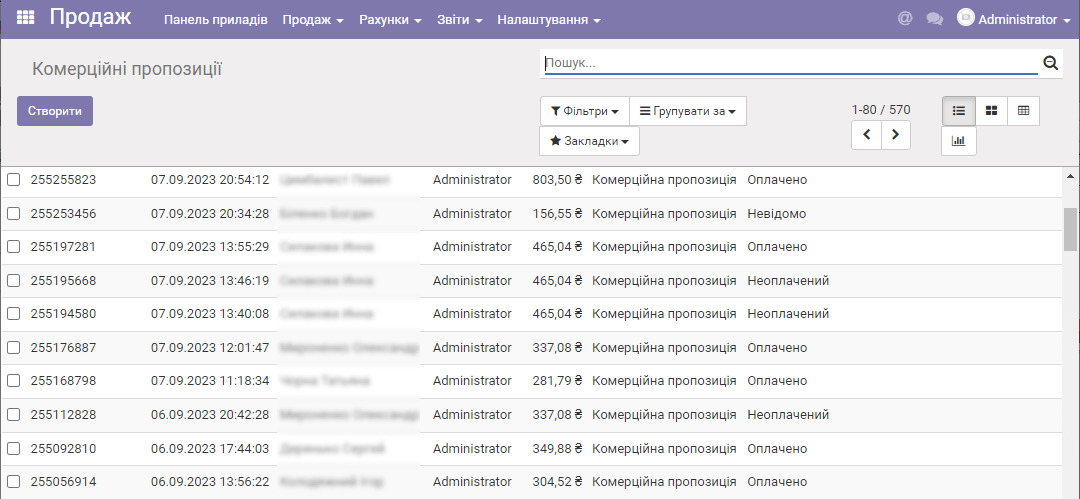
The quotation numbers are the same as the order numbers on Prom. The customer data from Prom, together with the phone number, goes to the customer list in ERP FOSS (menu Sales -> Customers). A separate column shows information about payment for the order made through Prom (paid, unpaid, unknown).
Open the quotation and confirm it:
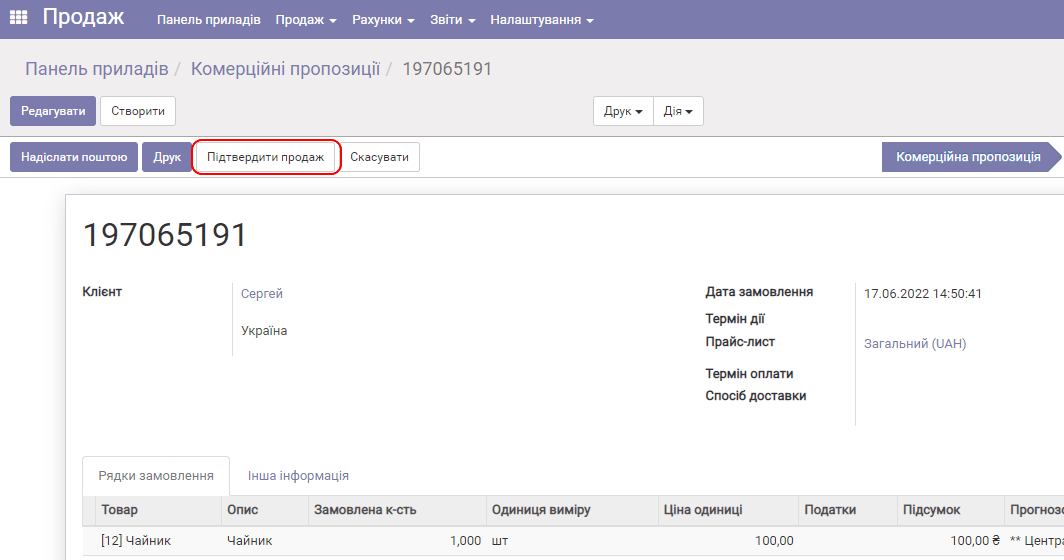
As a result, the selected order on Prom changes its status from New to Accepted.
Then we work with the order in ERP FOSS as usual: we process and carry out the delivery (also possible by Nova Poshta), create an invoice and accept payment.
Setting the Prom polling interval
In ERP FOSS you can set how often Prom is polled for new orders. The polling interval is usually 10 minutes. To change it, go to the Settings module, menu Technical -> Scheduled actions:
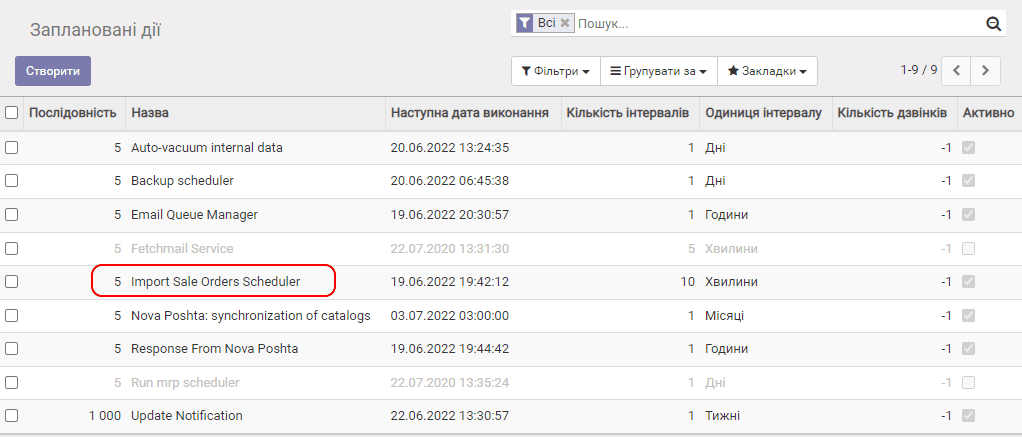
Click Import Sale Orders Scheduler and Edit:
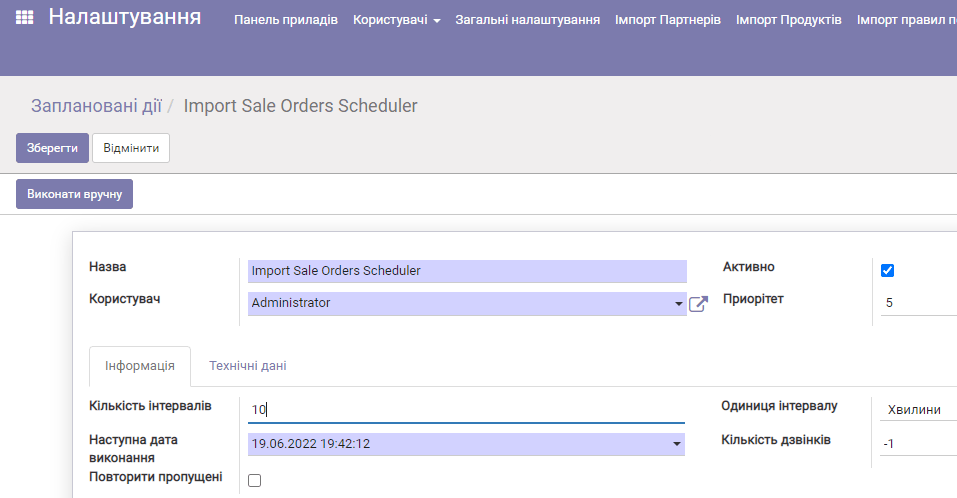
To change the interval, enter a value in the Number of intervals field, for example 5 (for 5 minutes). To start an immediate poll, click Run manually.
Exporting products from ERP FOSS to Prom
We recommend doing this in two cases:
- there are no products in your Prom account and you need to move them from ERP FOSS to Prom;
- you have created new products in ERP and want them to be on Prom.
You need to determine which products will be uploaded to Prom and configure them.
Product description
Open the product card. On the Notes tab, in the Description for the Prom system field, you can enter the product description that will be exported to Prom:
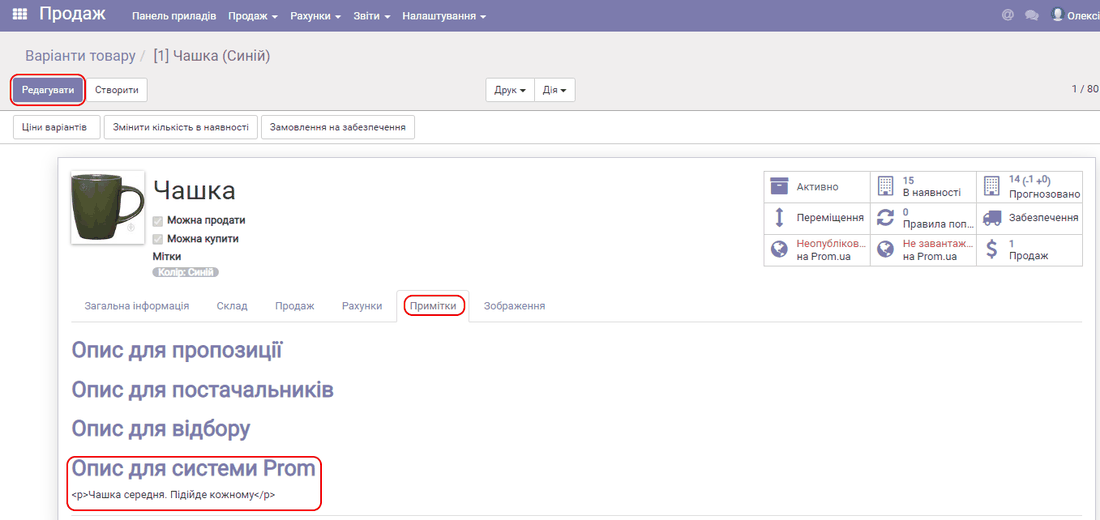
Attention! Enter the description as HTML markup using the paragraph tag.
Adding several product photos
The product card shows an "Images" tab where you can add images for Prom.ua:
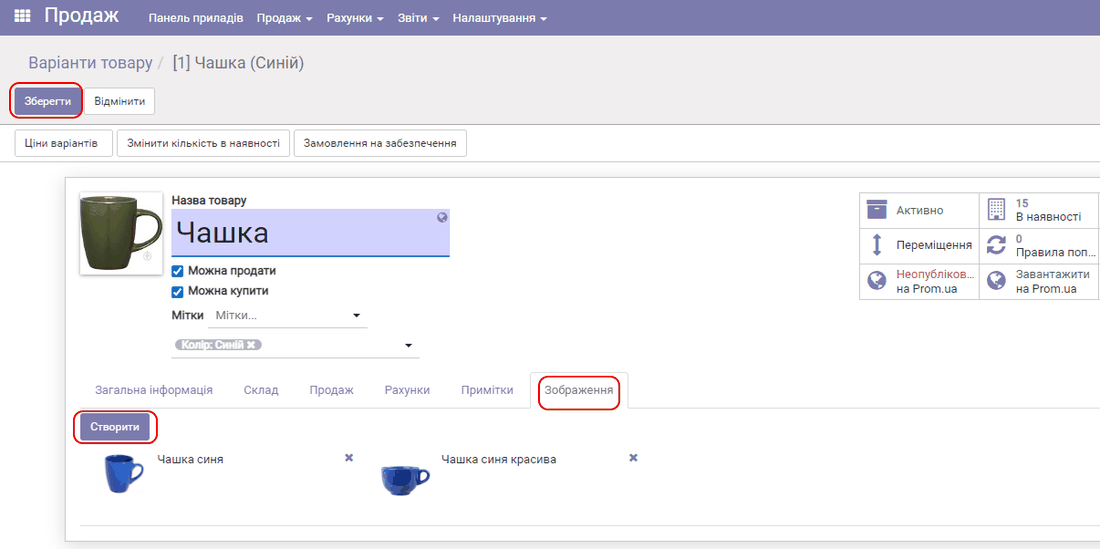
Click Create and add the images you need.
Setting the status for uploading to Prom
If the option Products can have several attributes... is turned on in the settings of the Sales module, go to the variants table (Sales/Product variants).
Then select the products you need to export to Prom and click Action/New Prom status for product:
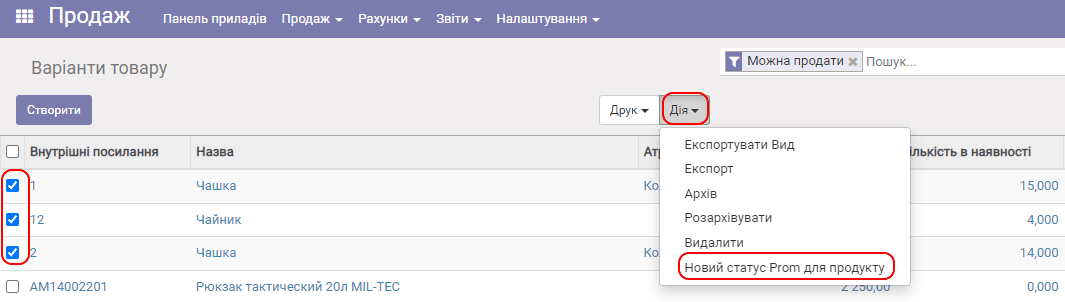
Select Upload to Prom.ua and click Set status:
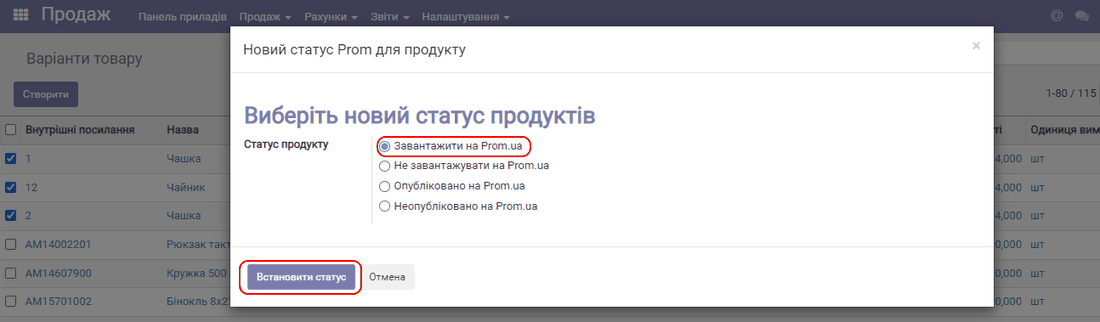
This marks the selected products as intended for upload to Prom.ua.
If the option No product variants is turned on in the settings of the Sales module, go to the product database, open the product card and set the corresponding status:
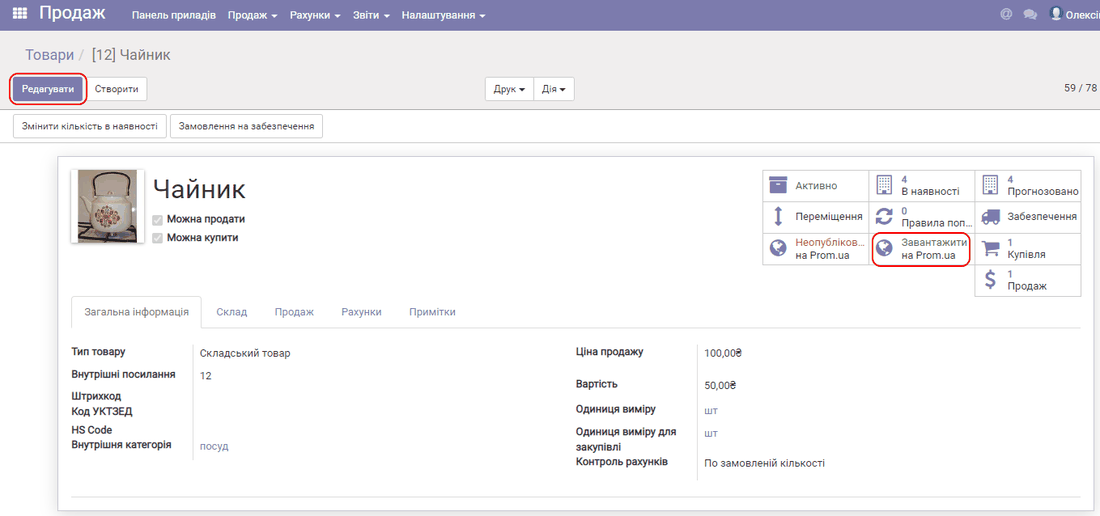
Upload settings
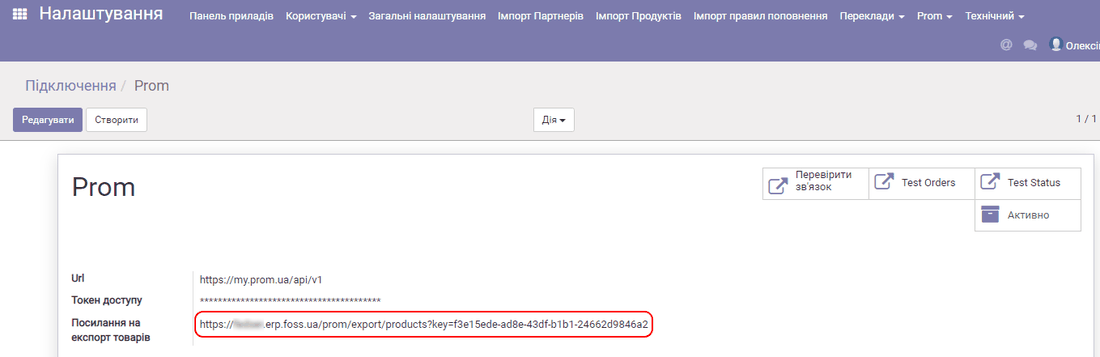
In ERP FOSS, in the Settings module, select the menu Prom -> Connection and copy the value of the Product export link field:
In your Prom.ua account select Products and services -> Import. In the Load file from server field paste the link you copied earlier:
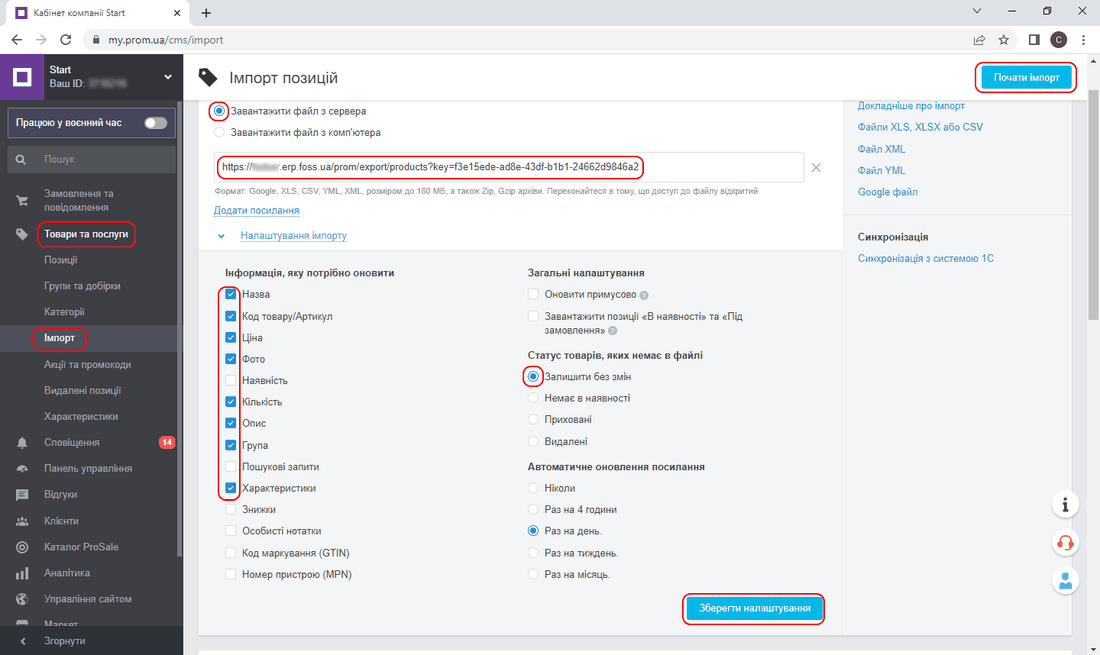
In the import settings select the attributes, the import frequency and so on, and save the settings.
Attention! Be sure to select the option Leave unchanged for the status of products that are not in the import file.
Importing products to Prom
If Prom already has the same products as ERP FOSS, we recommend first deleting all of these products from Prom to prevent duplicates during the import. Attention! Make a backup copy of the Prom product database using the Prom product export tools.
Click Start import, as shown in the picture above.
Wait for the product import to finish: Prom shows the completion time in the report:
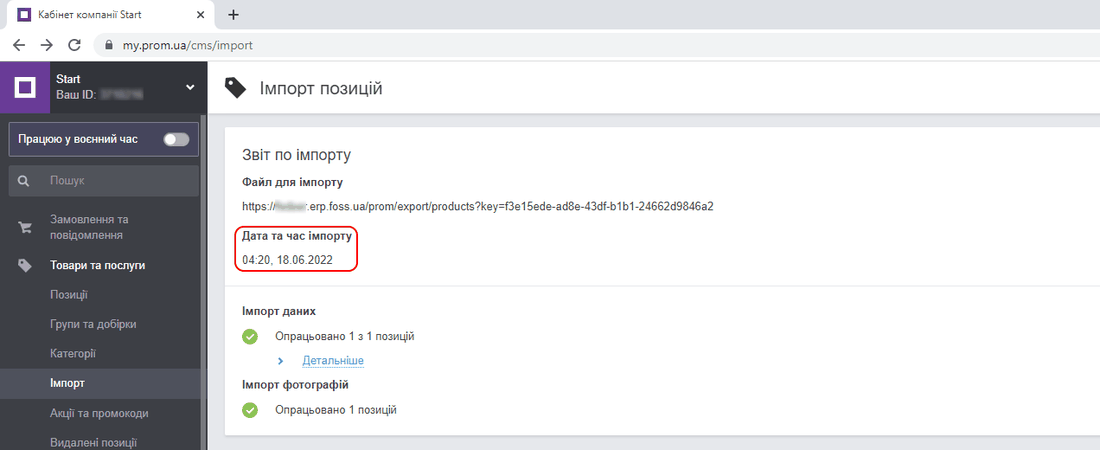
If you need to add a new product from the ERP FOSS database to Prom without losing the product settings on Prom, we recommend that you:
first change in ERP FOSS the status of all existing products from "Upload to Prom.ua" to "Do not upload to Prom.ua";
set the status "Upload to Prom.ua" for the new products in ERP FOSS;
in the import settings on Prom, select with checkboxes all the attributes you need (as in the picture above);
run the import.
Synchronizing stock balances and prices from ERP FOSS to Prom
Stock balances and prices are synchronized automatically; the ERP system is the source of truth for Prom. That is, stock balances and prices are sent from ERP FOSS to Prom at a set interval.
To change the synchronization interval, in the Settings module select the menu item Technical/Scheduled actions and choose Prom Update Products Qty:
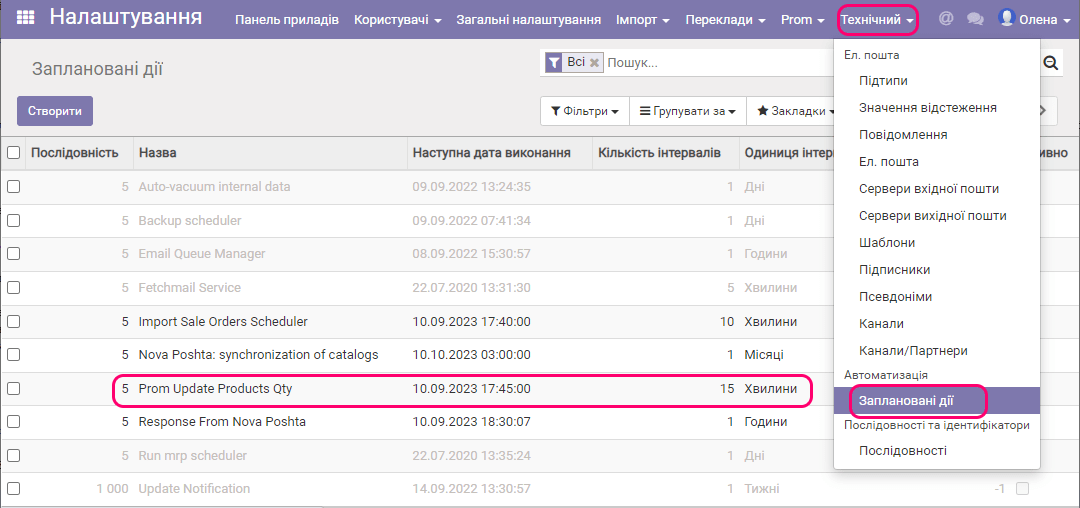
The settings of the stock balance and price synchronization task appear:
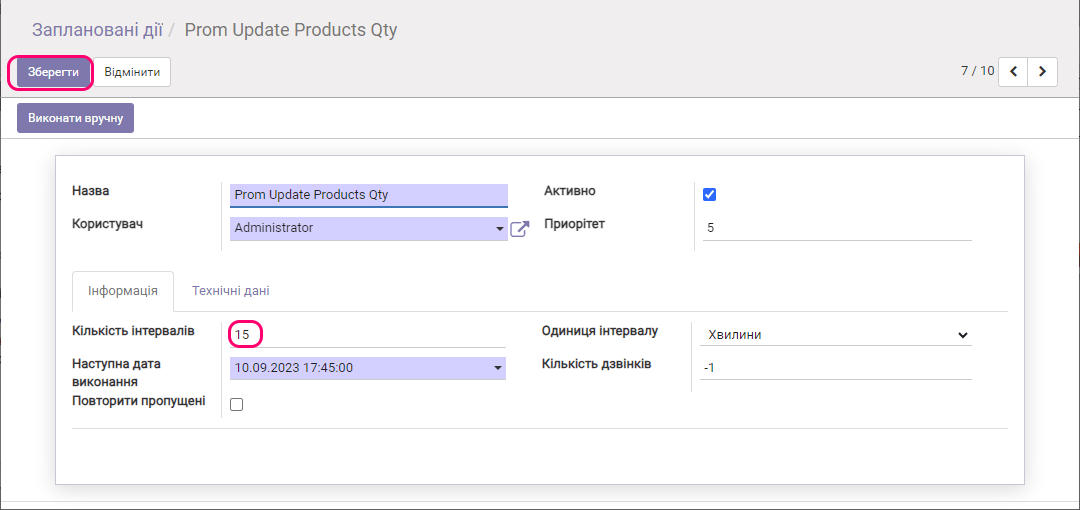
Click Edit. The update interval is usually 15 minutes. You can change it (but keep in mind that you should not make it too short, so as not to overload the server and avoid slowing down its work), then click Save.
You can start an immediate synchronization of stock balances and prices by clicking the Run manually button.
Loading wholesale prices from Prom to an ERP FOSS price list
To load and then work with the wholesale prices of the products that exist on Prom, you first need to create an empty ERP FOSS price list:
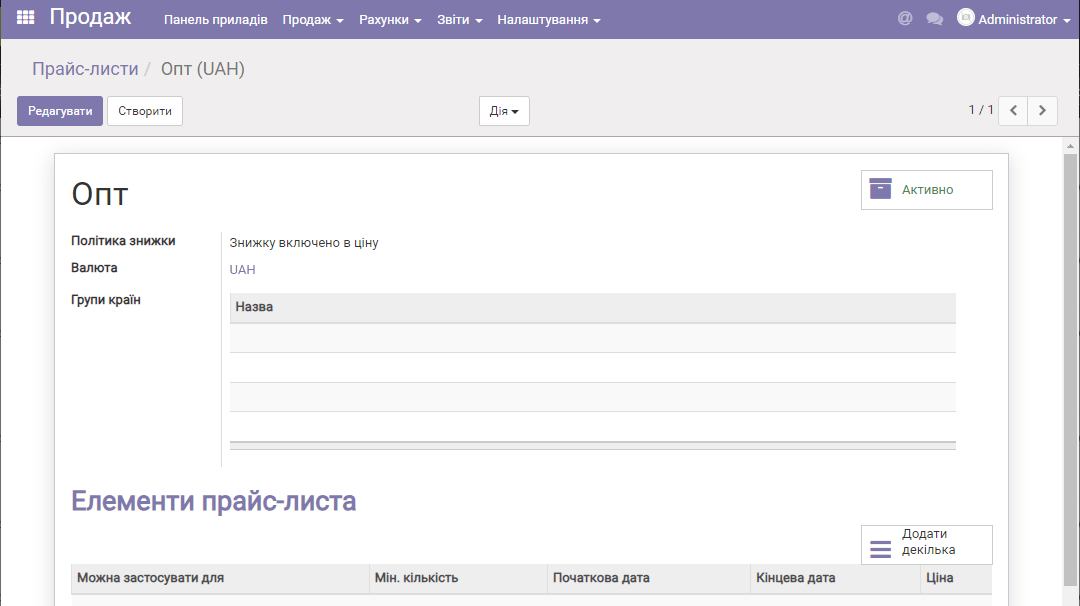
The next step: in the Prom connection settings, select this price list and select the corresponding checkbox:
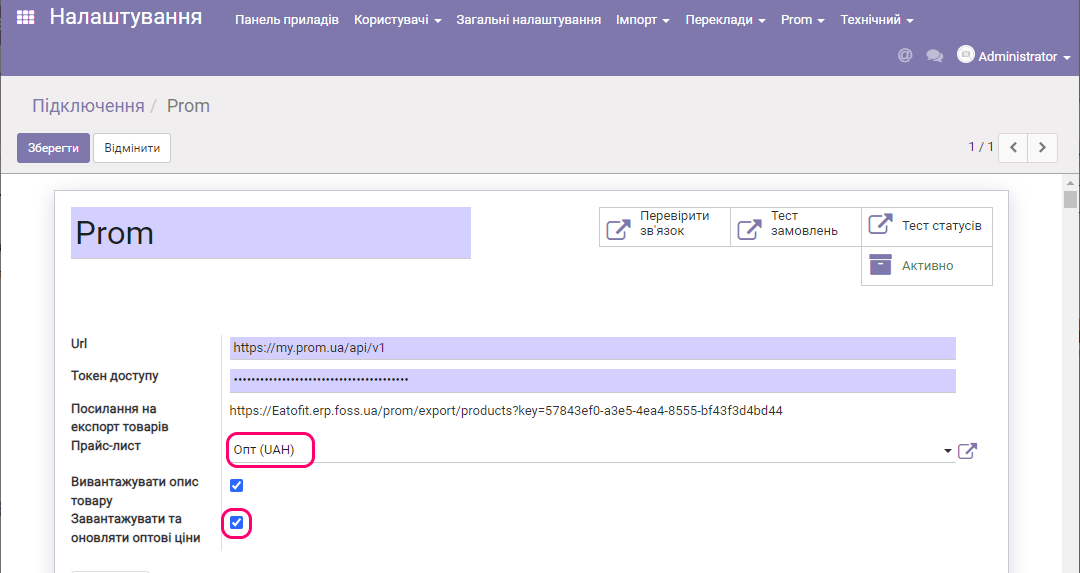
Then, in the "Settings" module, select Prom/Update product list. The wholesale price list is filled with prices from Prom. You can edit this price list in ERP FOSS afterwards. During the synchronization of stock balances and prices, the data from the wholesale price list is sent to Prom.