Products
Introduction
Note: This description covers only the properties that need explanation. Depending on the application settings, some properties may not be described in this document.
Every module that works with products, services, or other tangible and intangible assets has a list of products. For example, a product list is available in the "Sales", "Purchases", "Warehouse", and "Accounting" modules. To work with products, open the "Products" menu item of the relevant module.
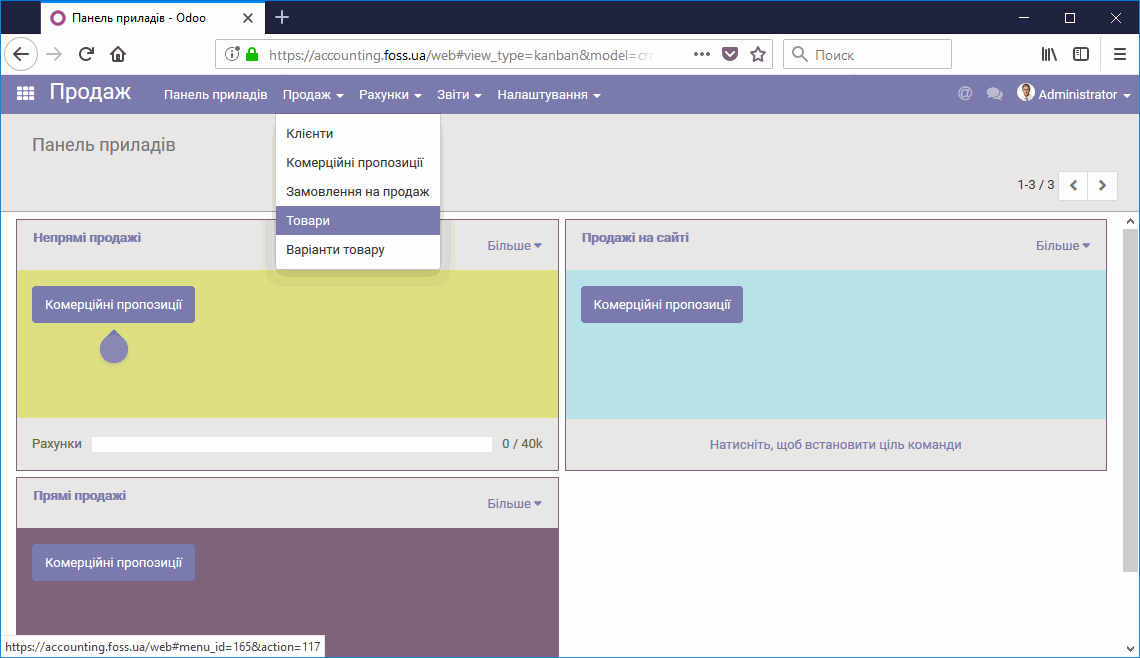
Product access menu
When you select the "Products" menu item, you see a list of products. Depending on the module in which you opened the list, the application offers the corresponding set of products. For example, in the "Sales" module these are all the products you can sell, and in the "Purchases" module these are the products you can buy.
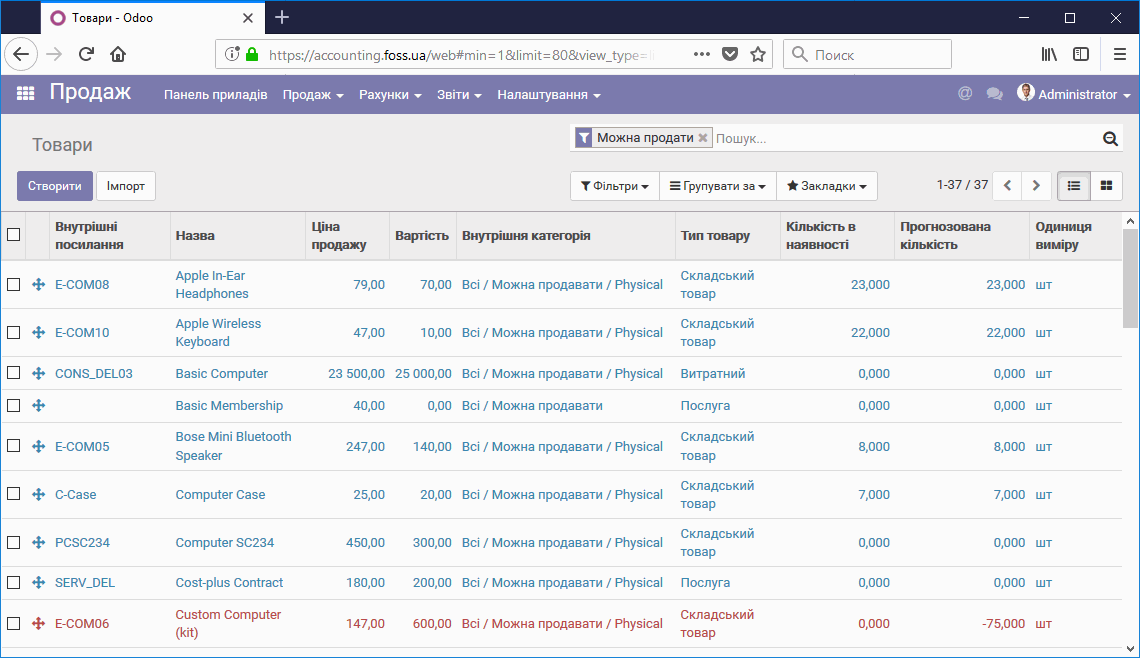
Product list
Click any product to view its properties. You can configure product properties in the Sales module or in another module.
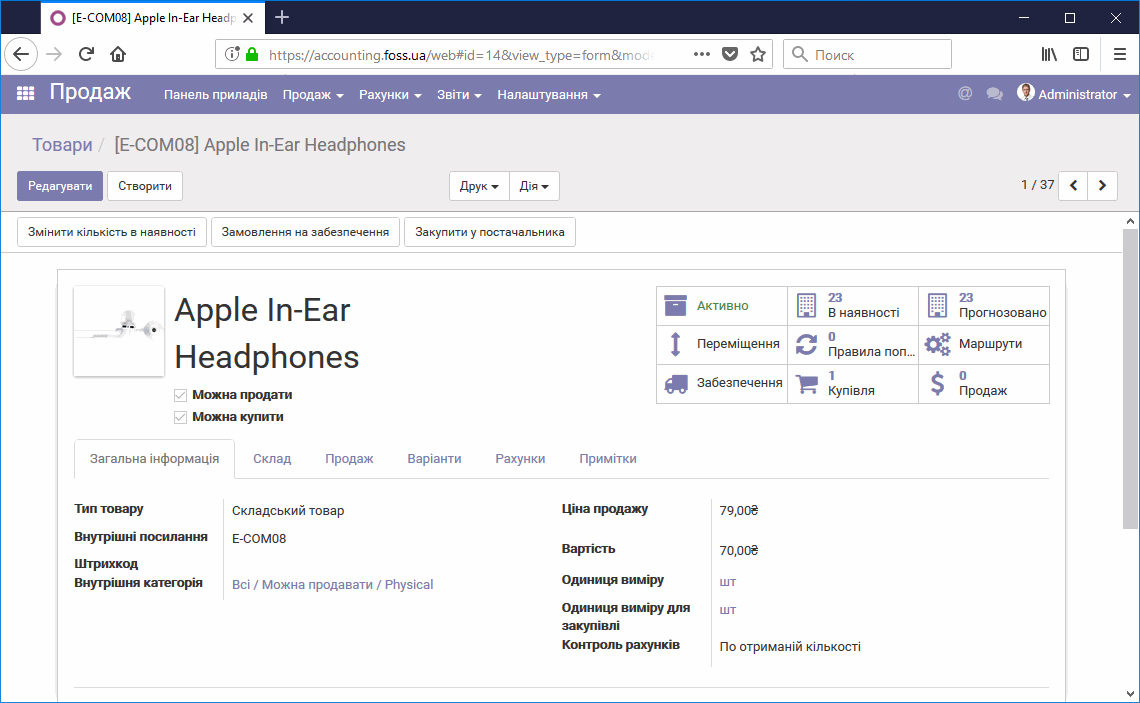
Product properties
Product template
The product template describes the properties of a product and defines the actions you can perform with it. All significant product properties have hints that appear when you point at them with the cursor. Let us look at the product properties in more detail.
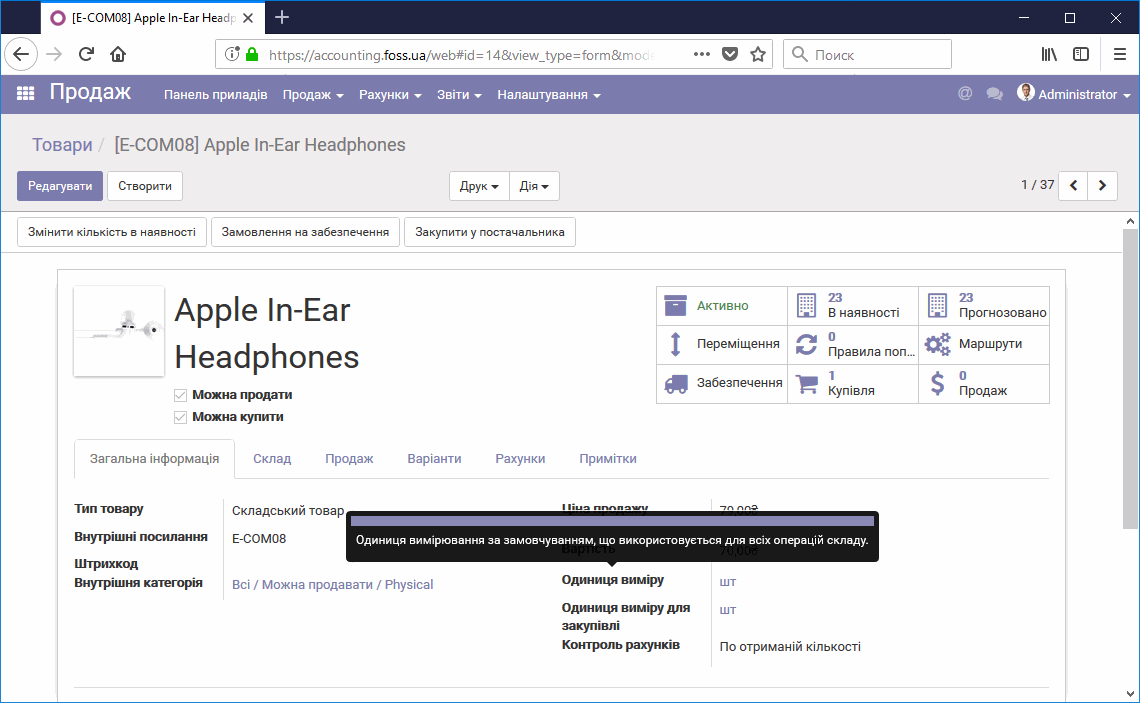
Product template
Product types
One of the main properties is "Product type". This property determines what actions are available for the product. The application provides three product types: "Service", "Consumable", and "Stockable". Let us look at each type.
Service
This product type does not involve warehousing, stock keeping, or other actions that apply to physical goods. However, a product of this type can be both bought and sold, as shown by the "Purchase" and "Sales" icons in the upper right corner of the product template.
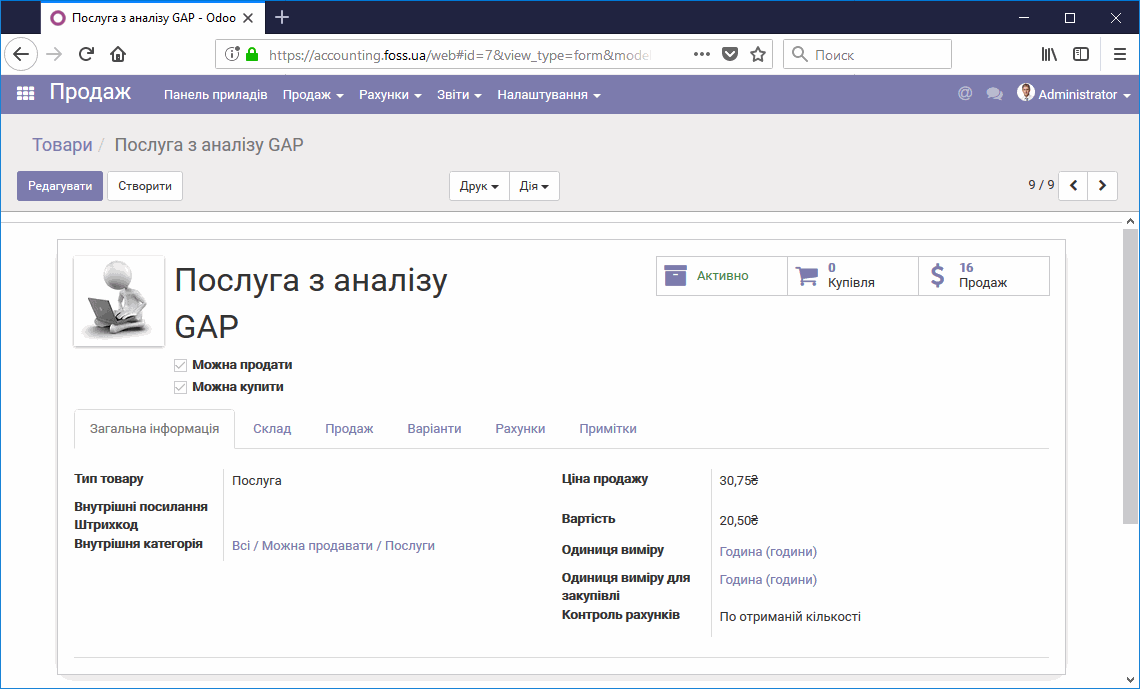
Product of the "Service" type
Consumable
This product type is used for products that are consumed inside the organization and, in general, are not intended for resale. Nevertheless, a product of this type can also be sold if necessary. This type can also be used for components of items manufactured in the organization. The product template has a "Moves" icon, which shows the movement and physical location of the product.
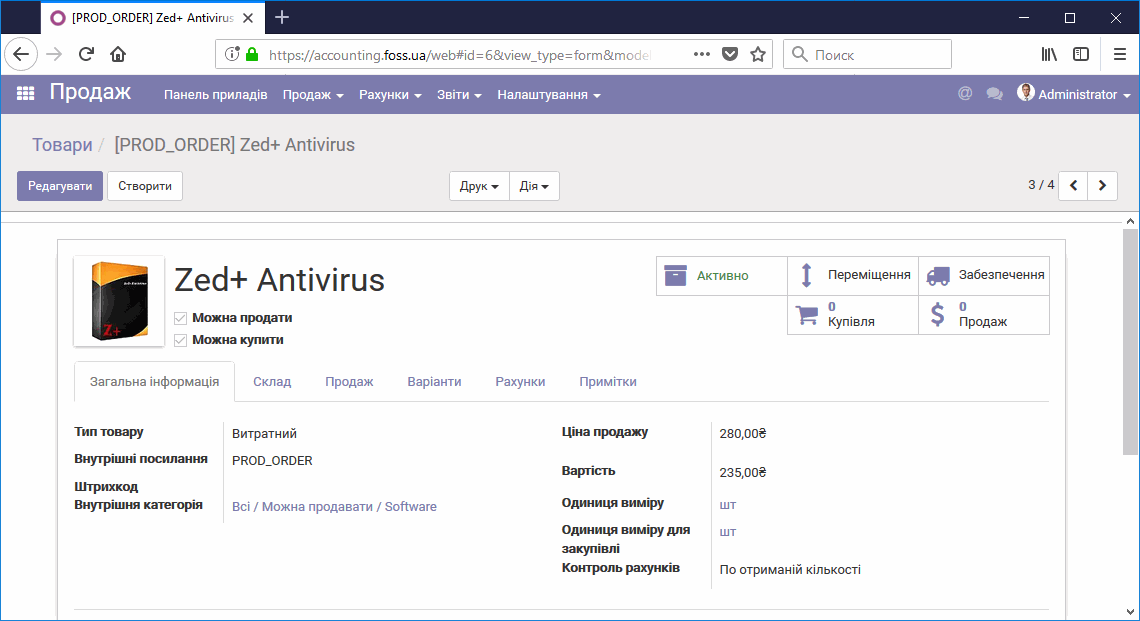
Product of the "Consumable" type
Stockable
A product of this type has the widest set of properties. Compared with the previous types, you can track its availability, get a demand forecast based on sales and purchase orders, and define reordering rules for it.
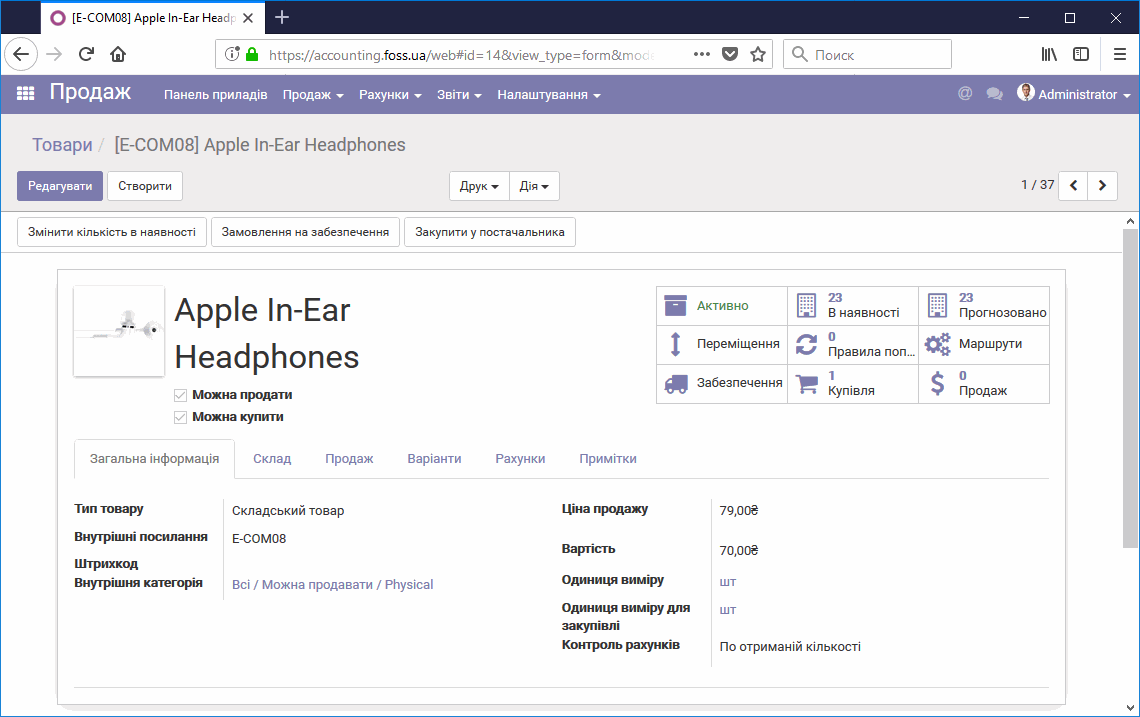
Product of the "Stockable" type
Product menu
You can edit the product template (Edit), create a new product (Create), print a product label (Print), duplicate the product template, and delete the product from the list (Action).
Note. You can delete a product only if no actions have been performed with it. For example, you cannot delete a product that has been sold or purchased.
Update quantity – with the appropriate permissions, you can manually change the available quantity of the product. For example, this is how you can enter the initial stock of a product.
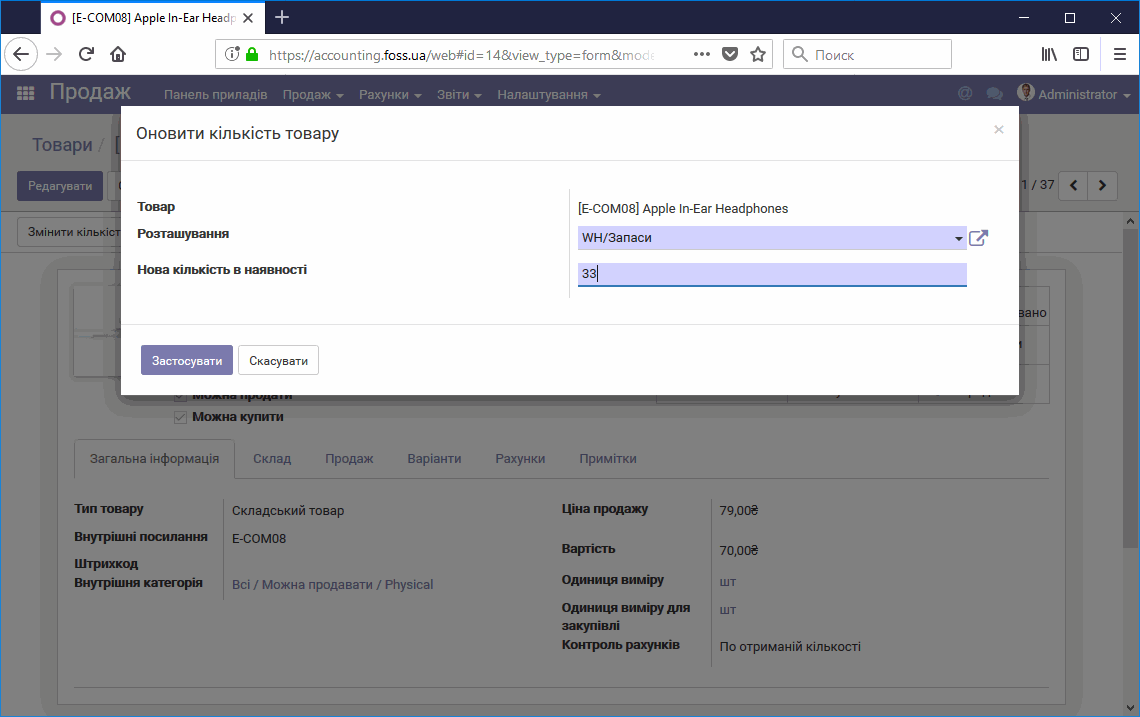
Updating the product quantity
Procurement order – directly from the product template, you can create a procurement request (purchase) for this product if a reordering rule exists for it. This function takes into account the stock of the product in the warehouse together with the existing sales orders for it. The application monitors the product quantity itself and creates supply requests according to the configured rules.
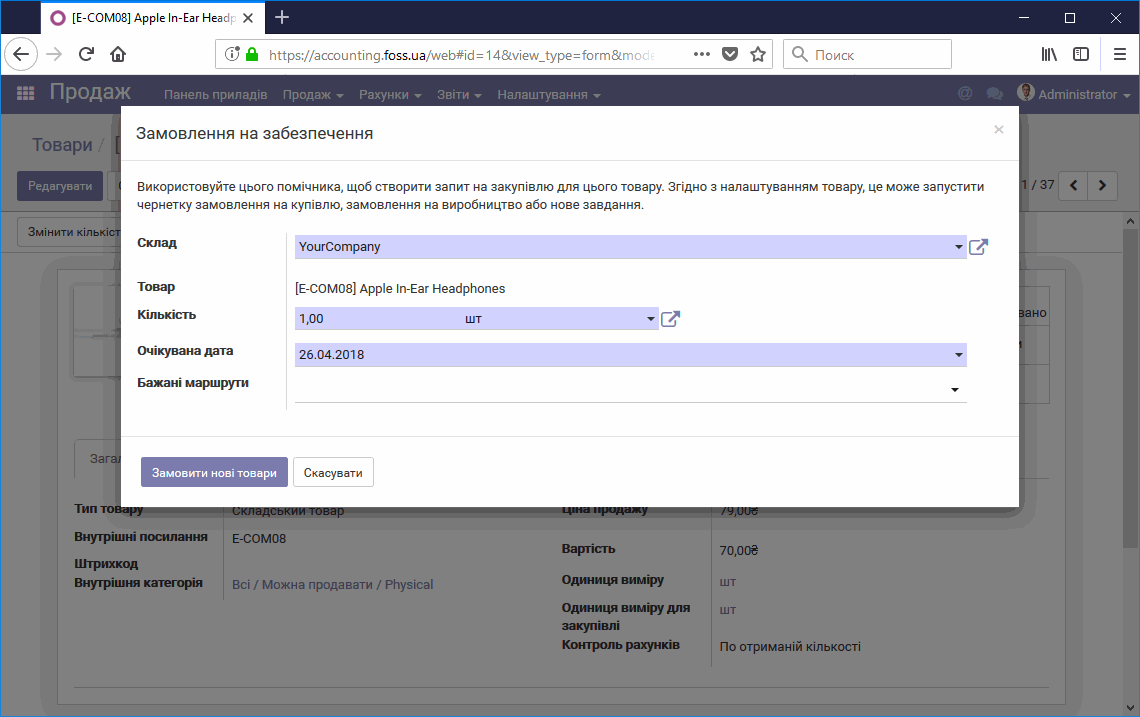
Creating a product purchase request
Buy from supplier – you can create a purchase request for the product by specifying the expected supplier, the warehouse to which the product must be delivered, the required quantity, and the expected price. This request appears in the Purchases module in the Request for quotation table. If a request for quotation has already been created for this supplier, the item is added to that request.
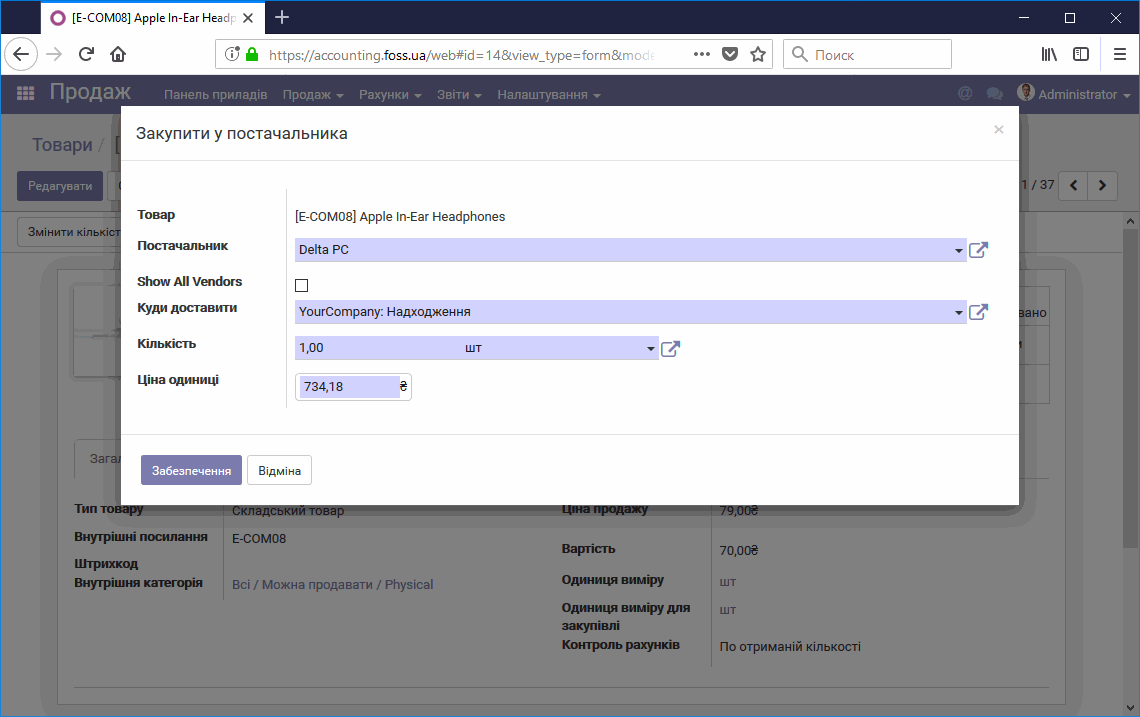
Buying a product
Product properties
The product image is in the upper left corner and can later be used, for example, for a web store. The upper right corner shows clickable icons that describe the state of the product. - Active – indicates that the product is available for work. You can change it to the Archived state. In this case, for example, the product can no longer be included in a sales order, but the data in previously created documents is preserved. - On hand – information about the availability of your product in the warehouse. Click this icon to get extended information about the storage location, the receipt date, and the value of the stock in money terms. - Forecasted – shows the forecast stock of the product based on the ordered quantity for sale and the ordered quantity for purchase. - Moves – information about all moves of this product and their status. - Reordering rules – takes into account the reordering rules for purchasing the product when processing supply requests. - Routes – defines the main routes that pass through your warehouses and the flows of your products. These routes can be assigned to products or product categories, or tied to a purchase or a customer order. - Procurement – information about all supplies of the product and the warehouse/storage location to which the supply was made. - Purchases – information about all documents for purchasing the product. - Sales – information about all documents for selling the product. - Can be sold/Can be purchased – if the corresponding checkboxes are selected, the product can be sold or purchased. For example, for a product that you will manufacture yourself, select only the Can be sold checkbox.
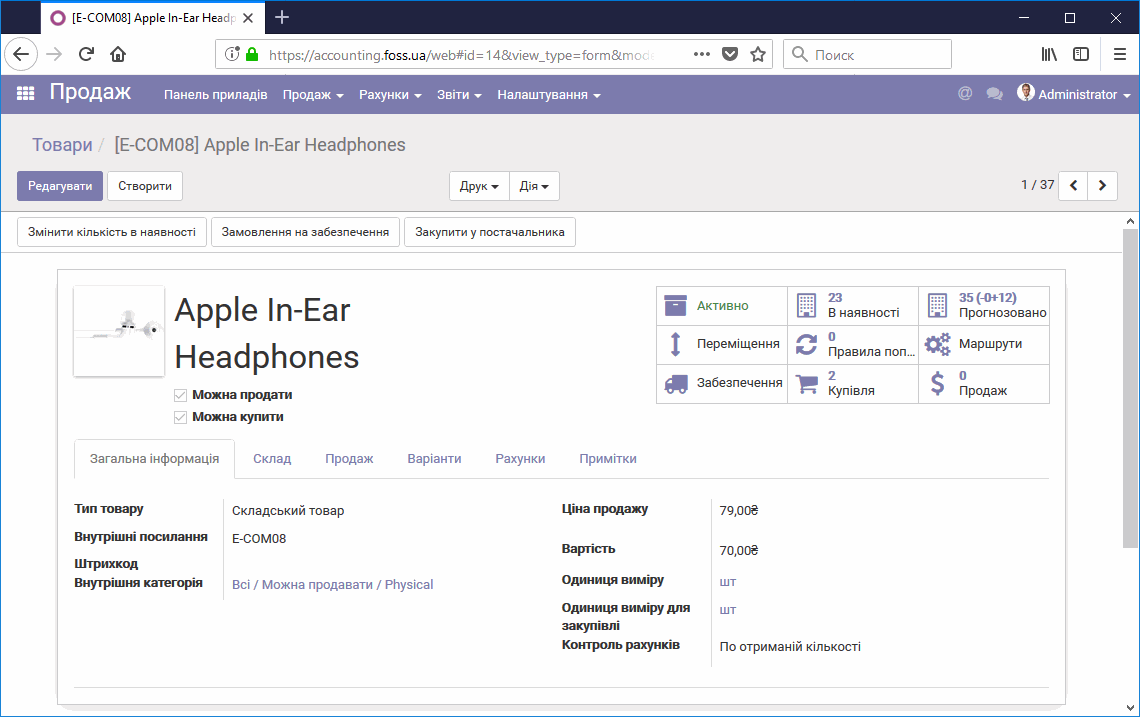
Product properties
"General information" tab
This tab shows the general properties of the product. - Product type – see above. - Internal reference – your internal code, which makes it easy to track the product later. It is useful when product names may coincide. This parameter must be unique. - Barcode – you can use this parameter when working with a barcode reader. - Internal category – for convenience, you can split products by categories. The nesting of categories is unlimited. - Sales price – the base price that you can assign to this product; it is set in your sales orders. The application can adjust this price automatically based on price lists, which you can set up additionally. - Cost – the cost price of the product when it is purchased. Depending on the settings of the cost price calculation method for purchased products, the cost can be set automatically or manually. This parameter is needed to determine the stock value in money terms and to determine profitability when selling a particular product. - Invoicing policy – when you purchase a product, you create an invoice from the Purchase order. If On ordered quantities is set, the invoice shows the product quantity specified in the Order; if On received quantities is set, the invoice shows the quantity actually delivered.
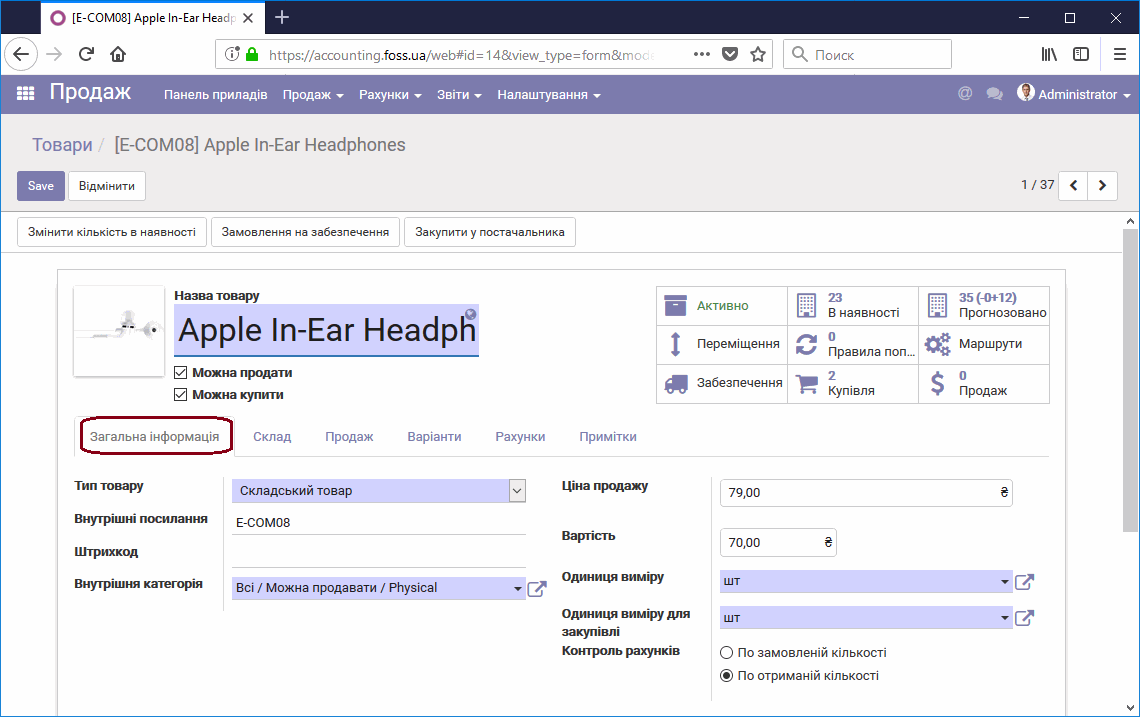
General product information
"Warehouse" tab
This tab shows information about where this product is stored and processed, as well as about its suppliers. - Routes – you can select one or more routes that apply when purchasing/selling/producing this product. For simple purchasing or selling of a product, routes are usually not used. Routes are used for complex product handling logistics. - Procurement/production/inventory location – here you can specify the locations where the product is stored when certain actions are performed on it. - Weight/Volume – these parameters are later taken into account when placing stored products and when packing them for shipment to customers. - Suppliers – on this tab you can select the suppliers of this product. Supplier data is taken into account when creating reordering purchase orders for this product. You can also select any other supplier that is not on this list.
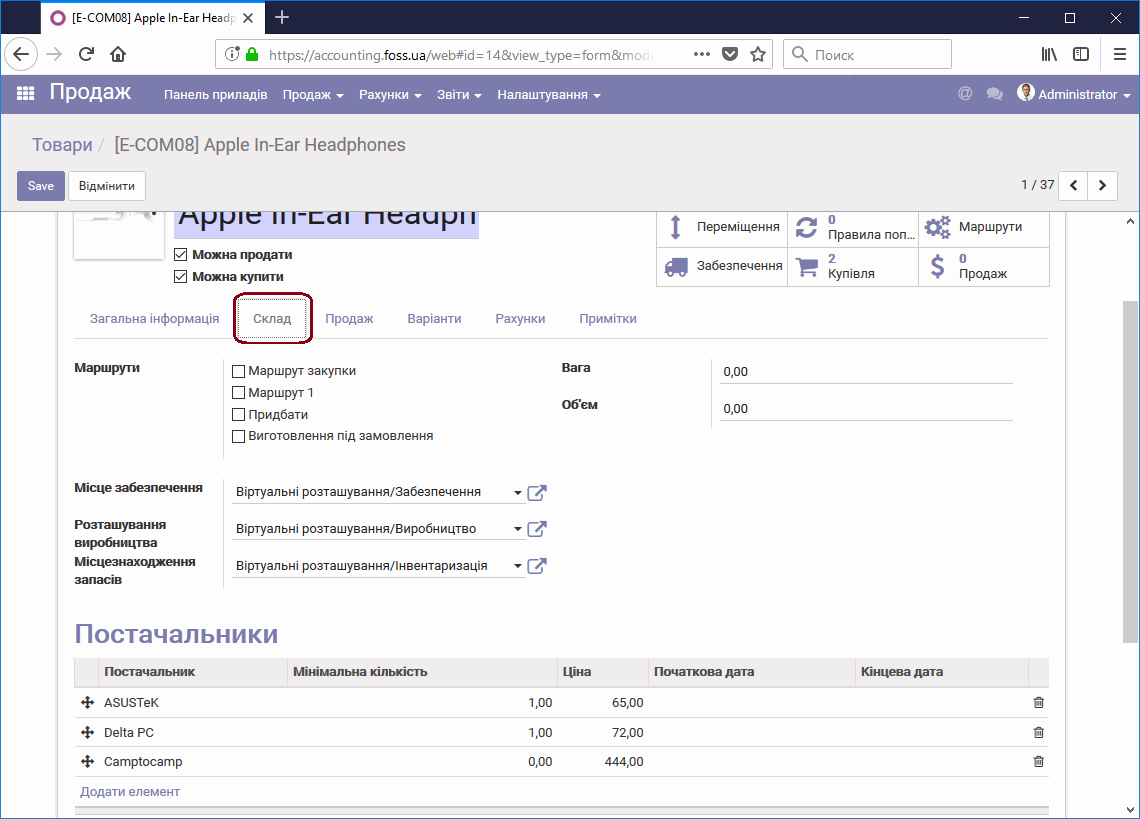
Warehousing information
"Sales" tab
This tab shows information about the expected delivery time of the product to the customer. - Delivery lead time – you can specify the delivery time of the product. If it is specified, the application takes it into account when delivering to the customer.
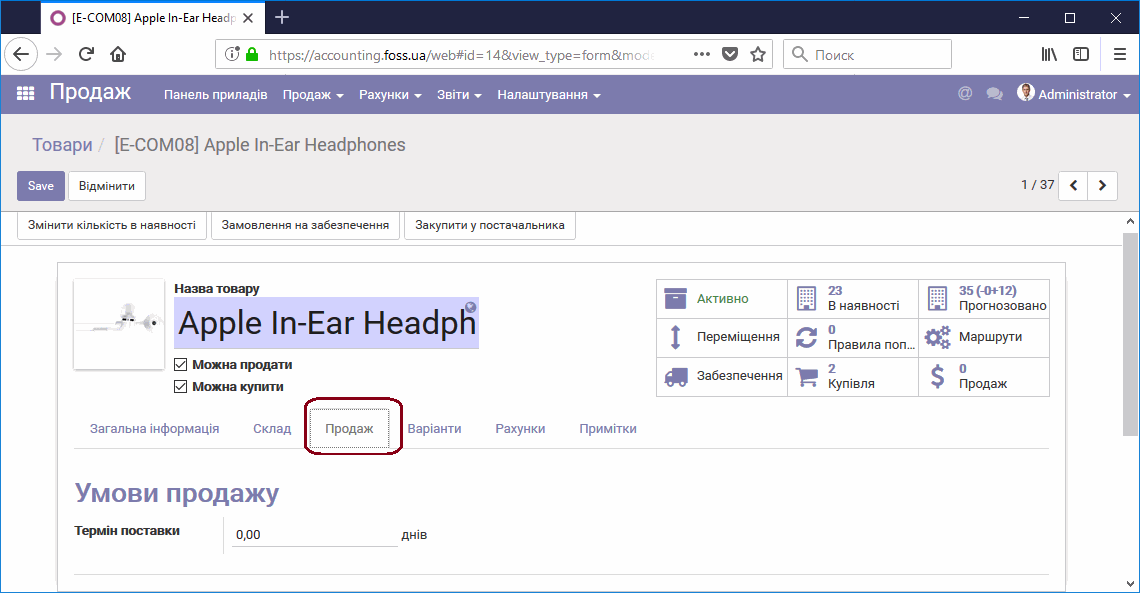
Product delivery time for sales
"Variants" tab
Each product can have several variants. For example, these can be color, size, or other features of the product. You could create several separate products, for example one product for each color, but it is more convenient to use the Variants tab. If product variants are used, two more elements are added to the product template: "Variant prices" and the "Variants" button. Variant attributes are created in the settings of the Sales module.
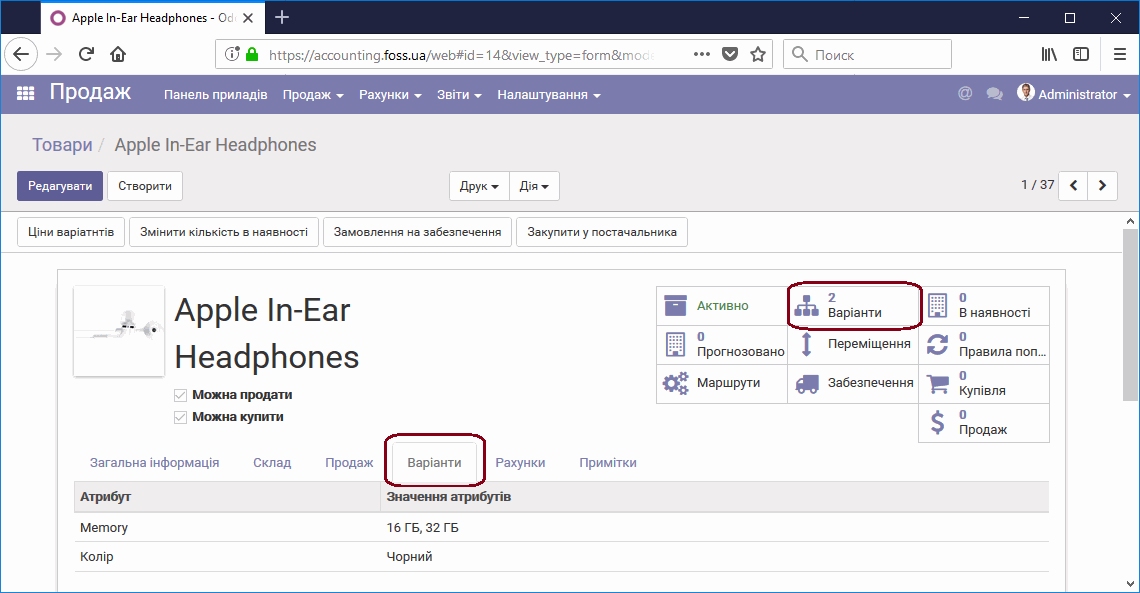
Product variants
"Variants" button – click it to view the variants of your product. The application automatically generated the product variants based on the specified parameters. As a result, two product variants were obtained, taking into account its color and memory size.
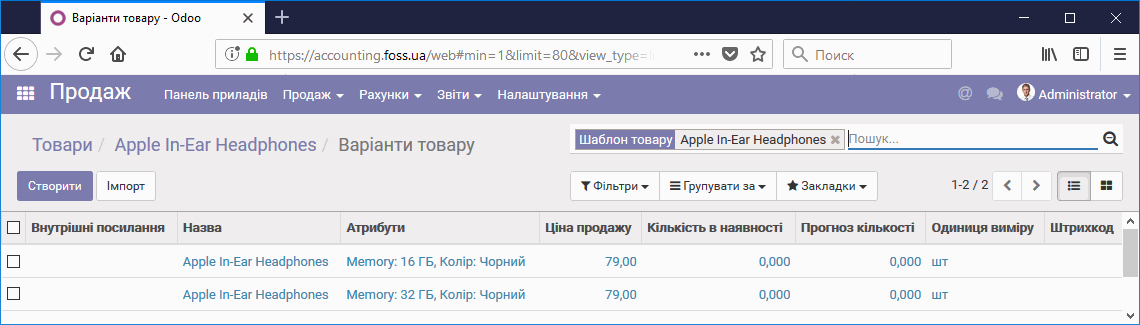
List of product variants
Variant prices – you can assign a separate extra charge to each variant attribute. It can be positive or negative. The extra charge is added to the base sales price. For example, with an extra charge of 6 UAH for the black color and 11 UAH for 32 GB of memory, the price of the black variant with 32 GB of memory is 96 UAH. That is, 6 and 11 UAH, the extra charges of each of the variants, were added to the base price of 79 UAH. To open the variant prices, click the Variant prices button in the product template.
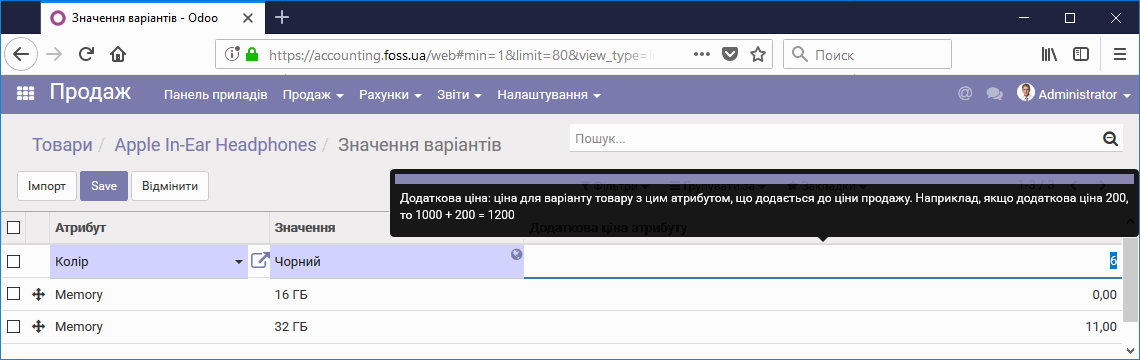
Assigning the price of a product variant
"Accounts" tab
The "Accounts" tab defines which accounts the accounting entries are posted to when this product is sold and purchased, which taxes must be charged, and the invoicing policy. If the account parameters are not filled in, they are taken from the category that includes this product.
You can leave the tax parameters empty if work with this product does not differ from the general accounting settings of the application. For example, tax settings may be needed if the company is a VAT payer and this product is not subject to VAT or is taxed at a different rate.
For a sole proprietor (FOP), these settings are optional, but they can be useful for later analysis of income and expenses and for accounting of the cost of purchased products.
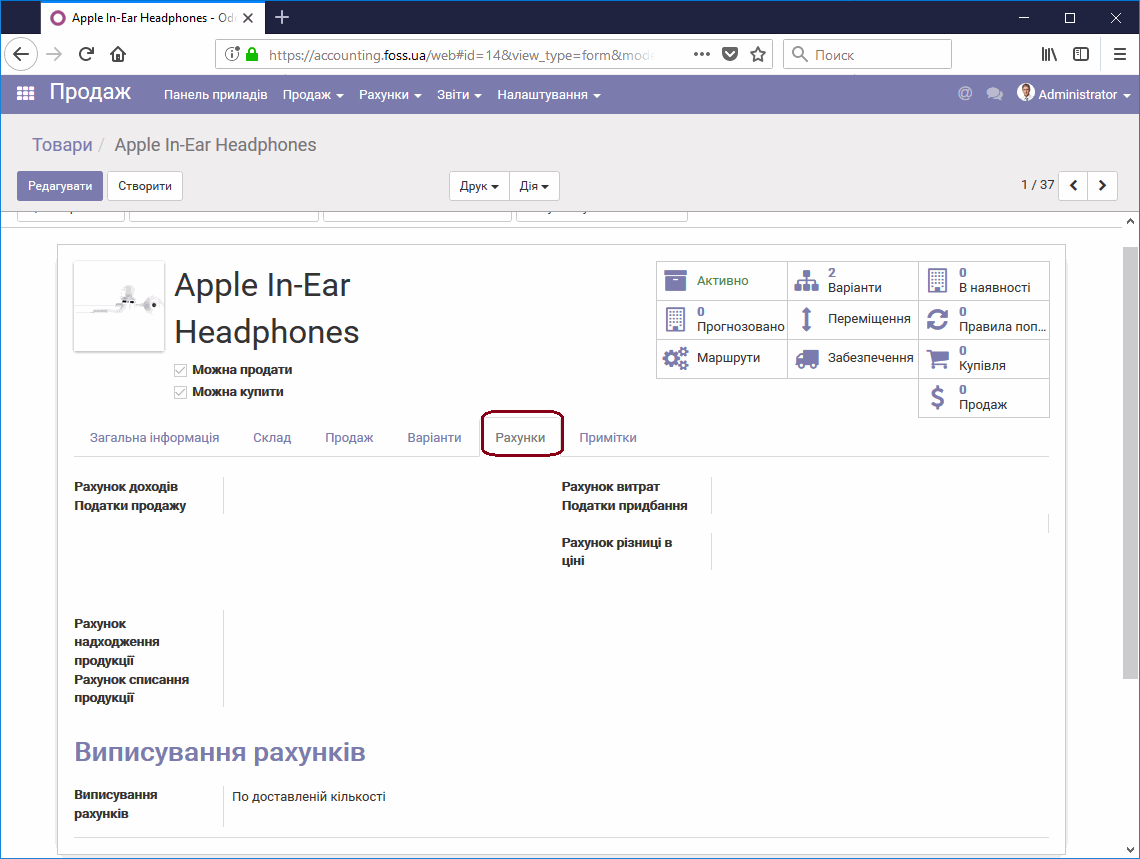
Product accounts tab
Accounts (all) – filled in from the chart of accounts, taking into account the specifics of your company's work.
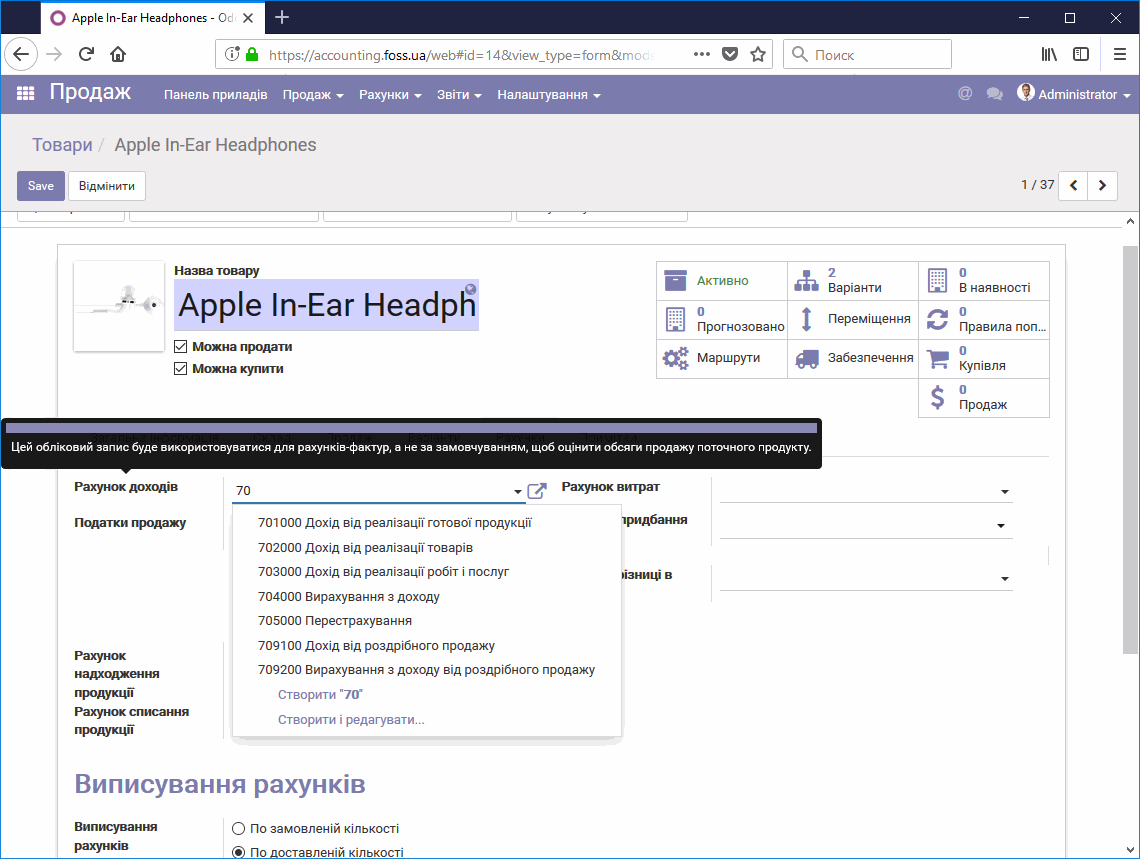
Filling in accounting accounts for a product
Sales taxes/Purchase taxes – you can set separate tax accounting for each product. If it is not set, the tax values are taken from the category that includes the product.
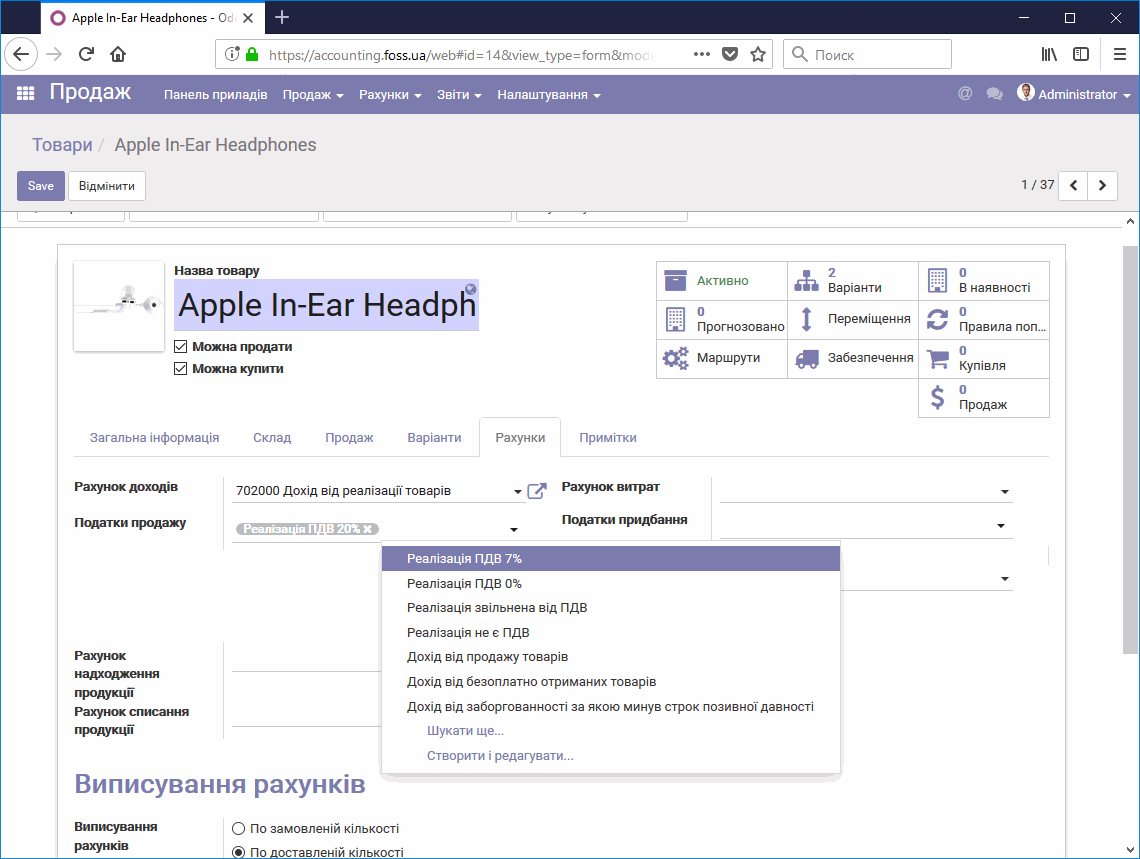
Taxes
Invoicing – when a product is sold, the invoice can be issued for the ordered quantity or for the delivered quantity, for example if delivery is made in batches and invoices are issued as the product is shipped to the customer.
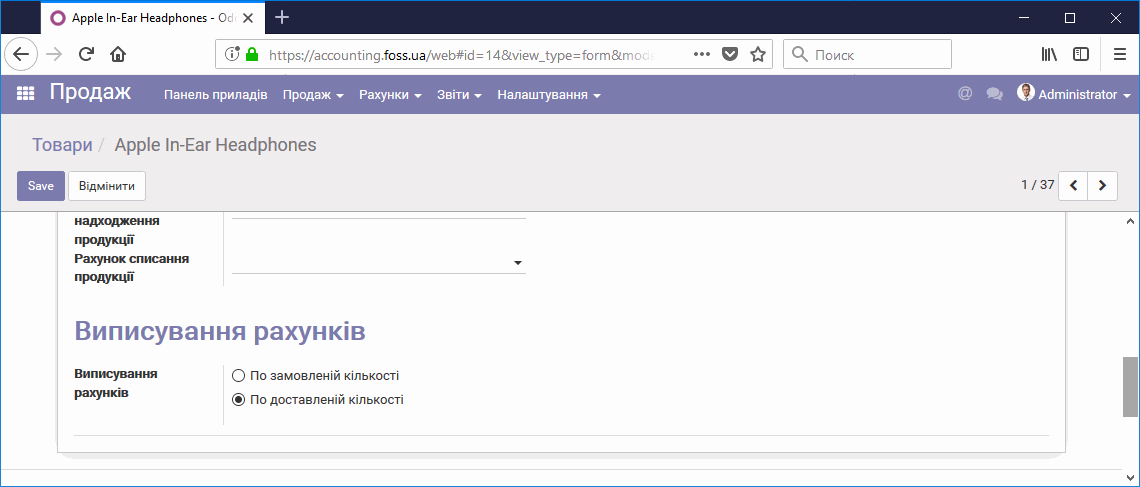
Invoicing policy for a product
"Notes" tab
The "Notes" tab is used to enter additional information about the product.
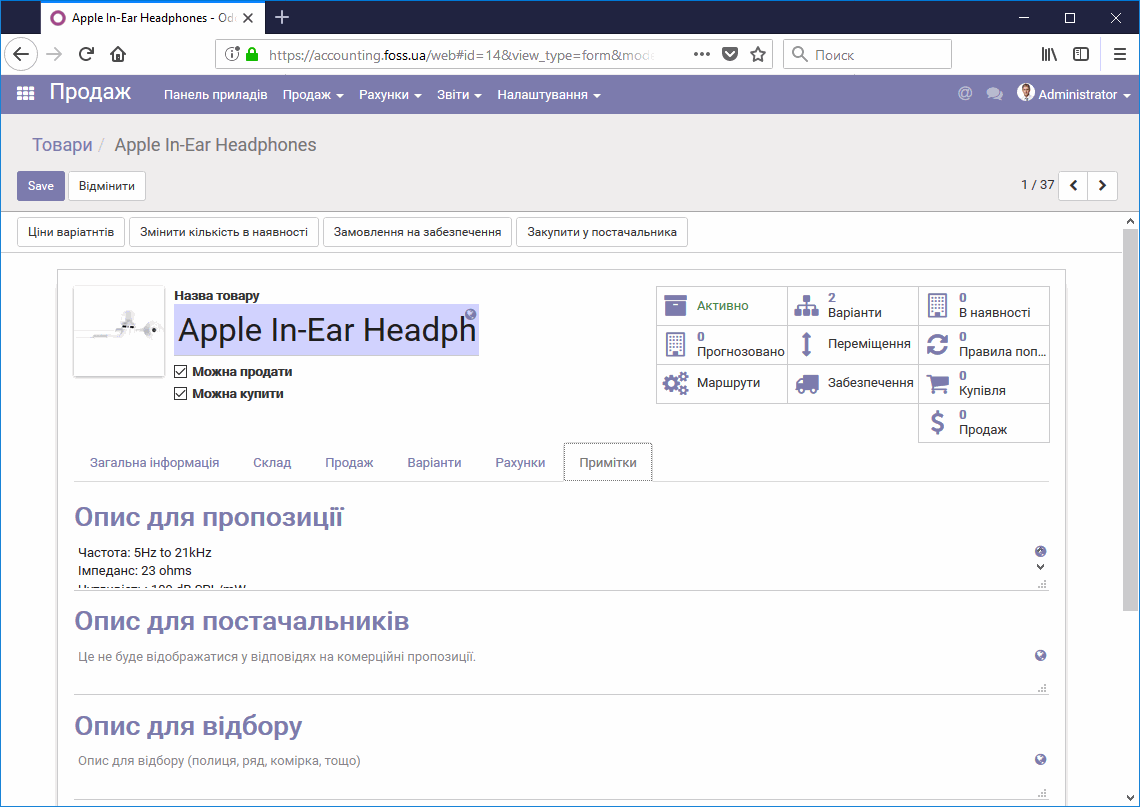
Product "Notes" tab