Foreign currency settlements
Introduction
You can make settlements in hryvnia as well as in other currencies. The general rules for purchasing and selling products are described in the article "Standard purchase and sales actions". This article covers the specifics of working with foreign currency. First, make sure that the multi-currency option is enabled in the Accounting module. Only then can you work with different currencies. In the Accounting module, set the exchange rate for the current date. Menu: Settings/Currencies/USD/View rates/Create.
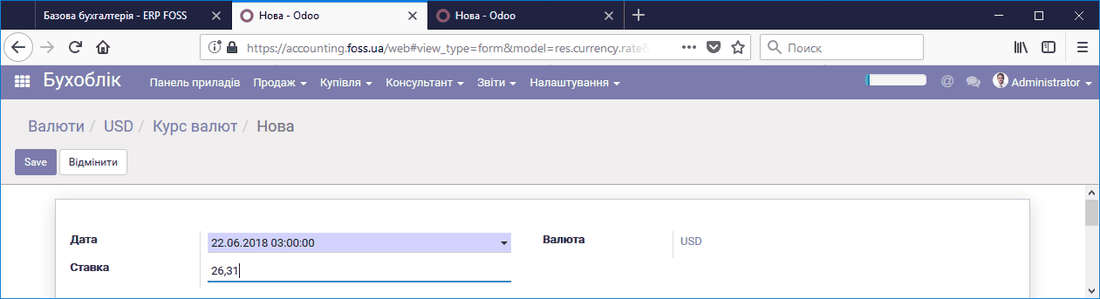 Setting the exchange rate
Currency accounting
To keep currency accounts, you need to create the corresponding journals. Let us look at an example of how to account for cash in a foreign currency.
Note: Our example covers cash in US dollars. For bank accounts, repeat everything but use the Bank journal type and the accounting account number 312xxx "Current accounts in foreign currency". Create separate journals for each currency.
First, you need to configure some application settings. Begin by creating a journal for cash in foreign currency. To do this, go to the menu Accounting/Settings/Journals and create a journal as shown in the figure below.
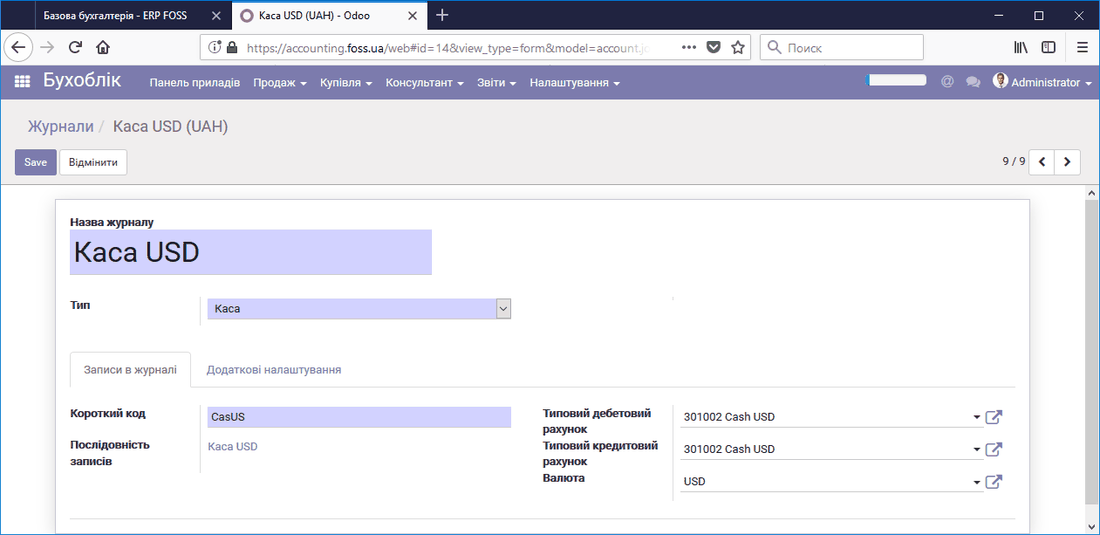 Cash journal for currency
Also configure the Advanced settings tab as shown in the figure below.
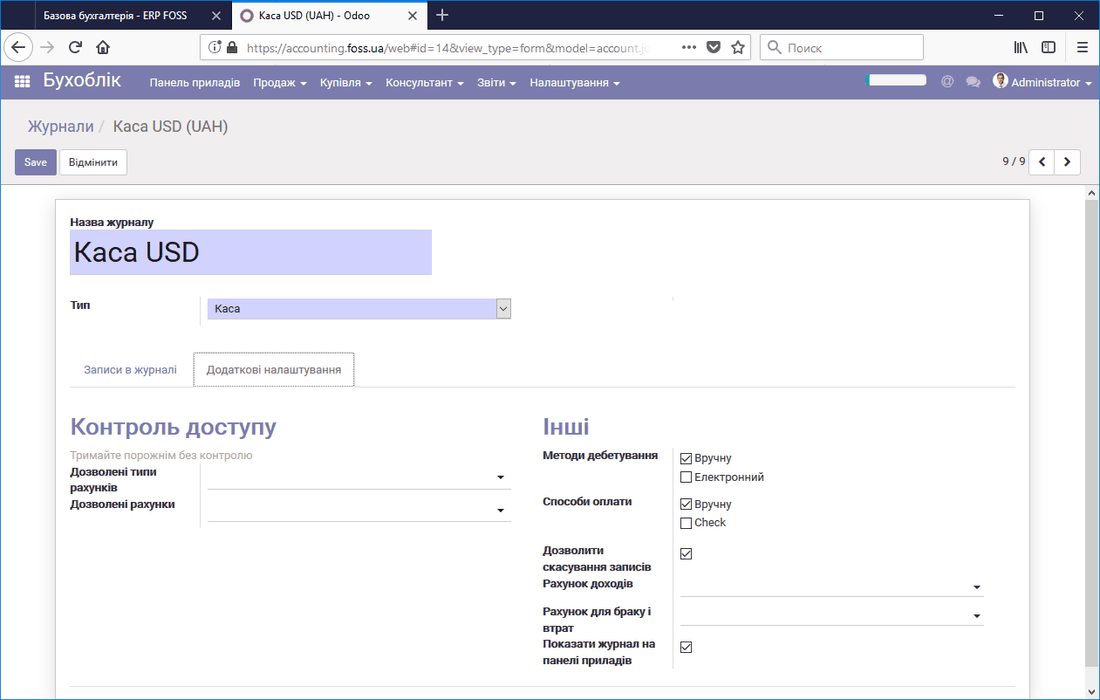 Additional settings of the cash journal
Now, when you register a payment for invoices and select the Cash USD journal, the entry is recorded in it. Entries are built as double-entry postings, whose lines show the amount in hryvnia and the amount in the journal currency. For the line with the account 301002 Cash USD, a positive number means that the currency was received and a negative number means that the currency was paid. The Debit and Credit are correspondingly in hryvnia.
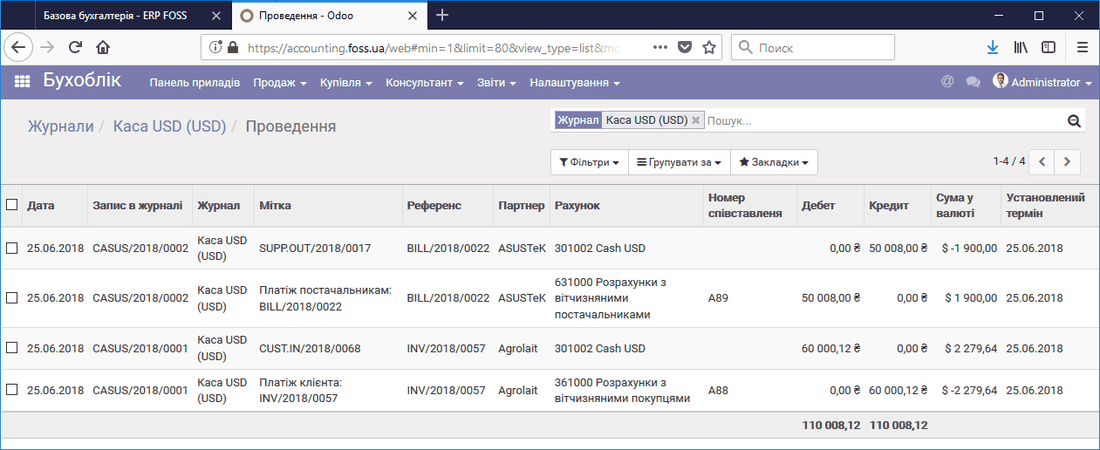 Entries in the currency journal
In addition, you can see the cash balance in foreign currency on the Dashboard, in the Cash USD journal window.
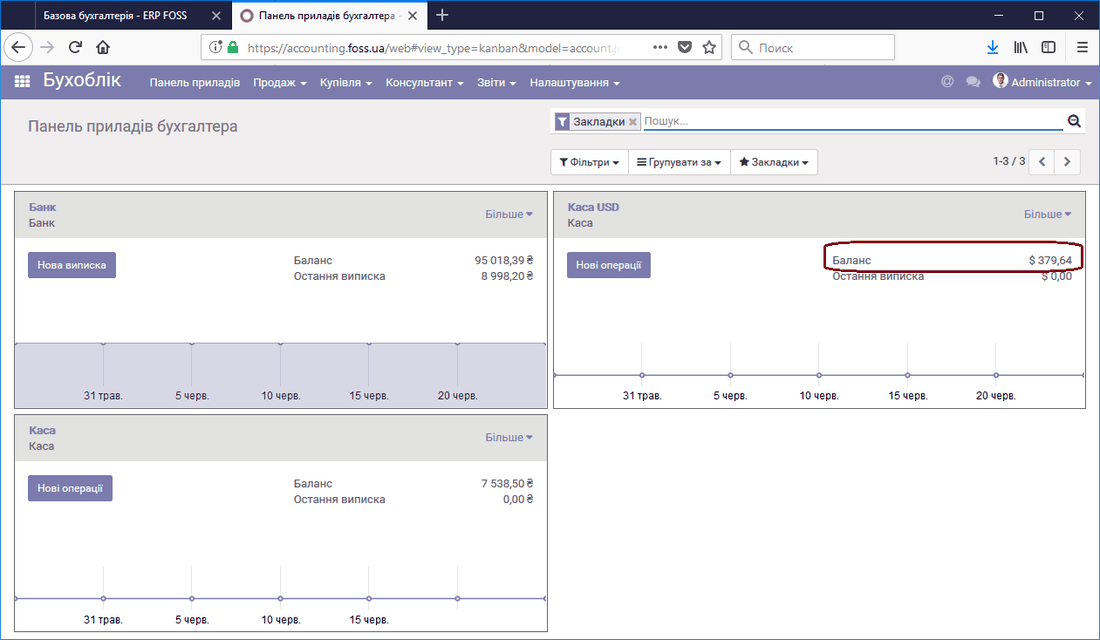 Currency balance
Purchasing products in foreign currency
If you purchase a product in a currency other than hryvnia, specify this in the Purchase order, and the order is created in the required currency. Note: Everything described below also applies to invoices.
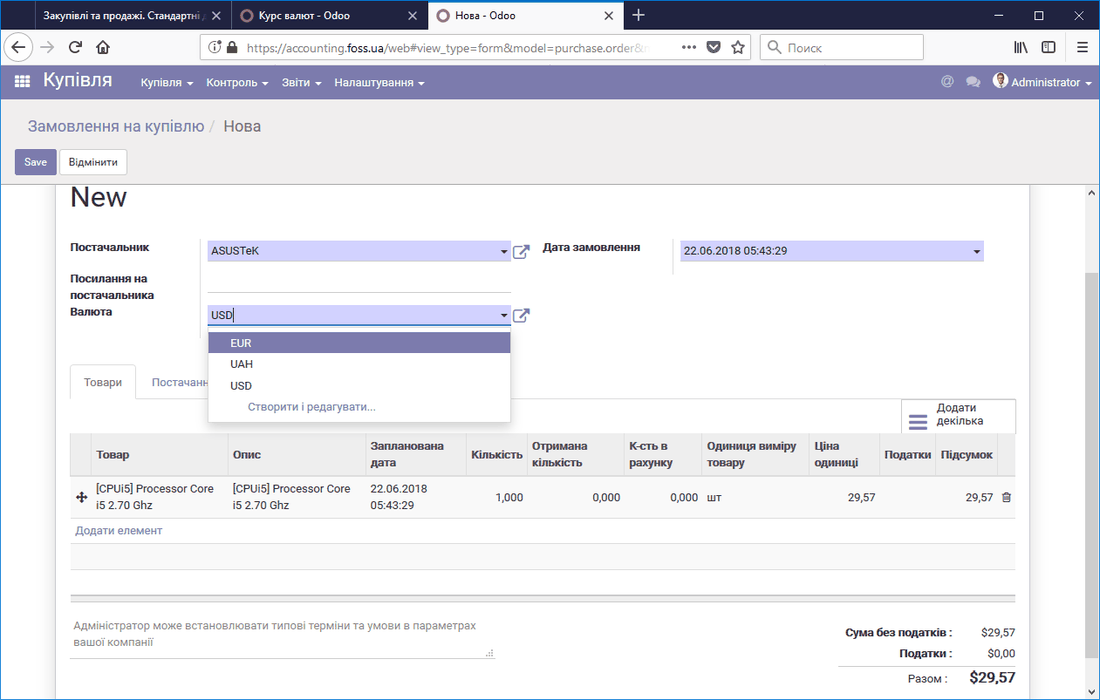 Purchase order in foreign currency
If a supplier sells you products in a currency other than hryvnia, you can enter this information in the supplier card.
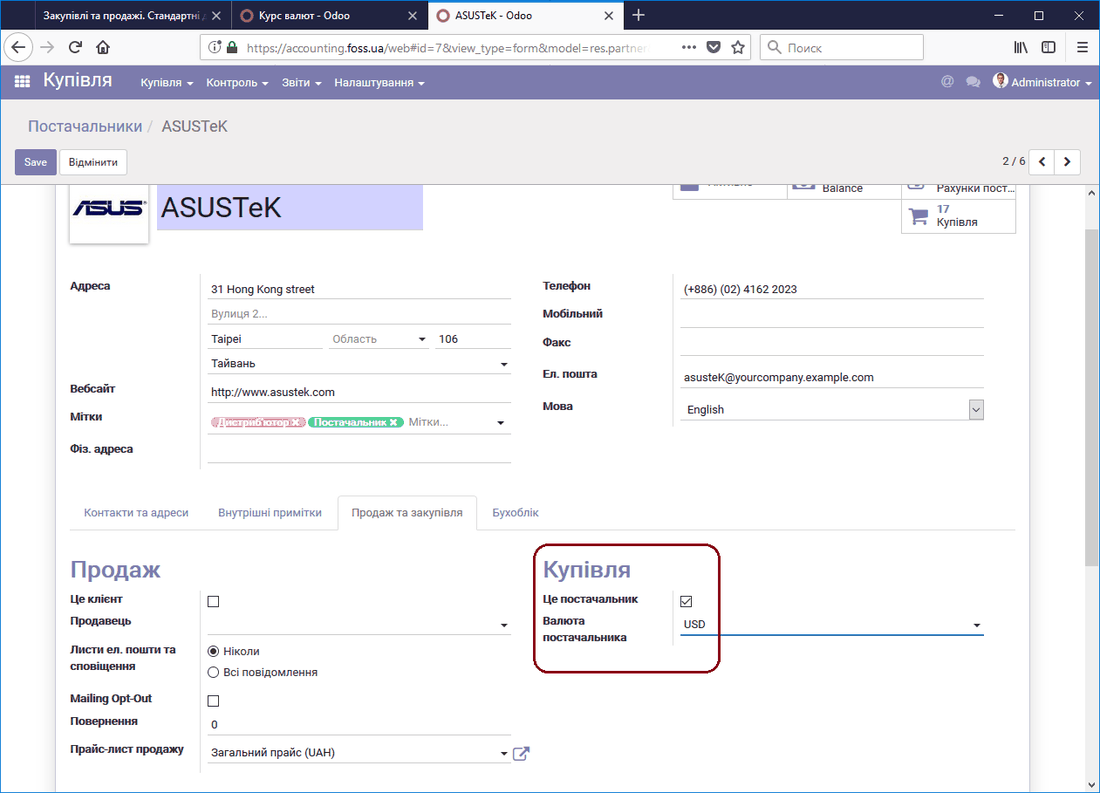 Settlement currency settings
In this case, when you create a Purchase order for this supplier, the currency is selected automatically.
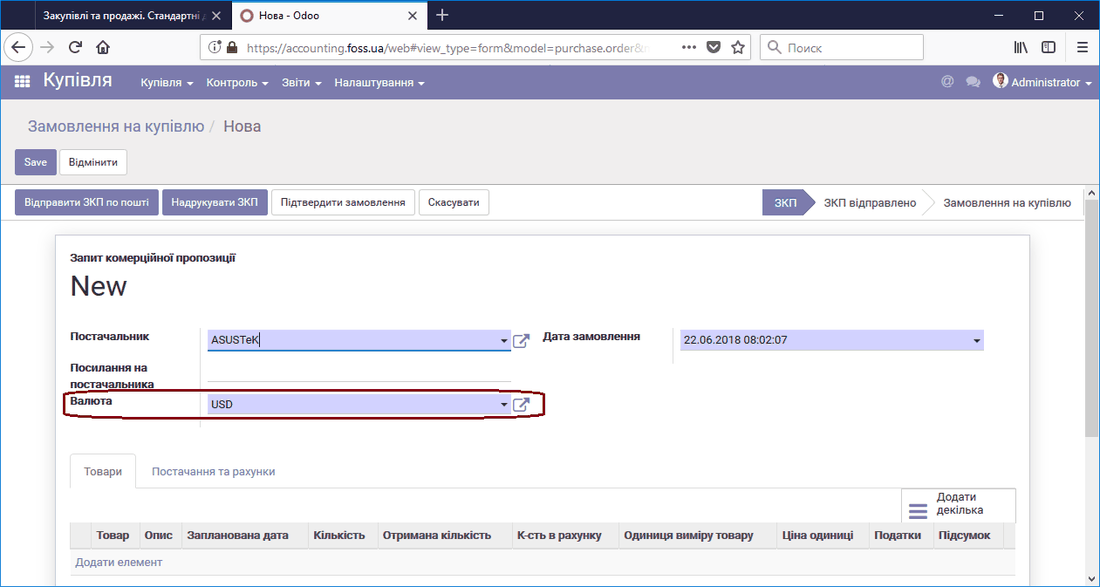 Supplier currency
You can also define the currency for an individual product when it is supplied by a particular supplier. To do this, set the currency for that supplier in the Warehouse tab of the product card.
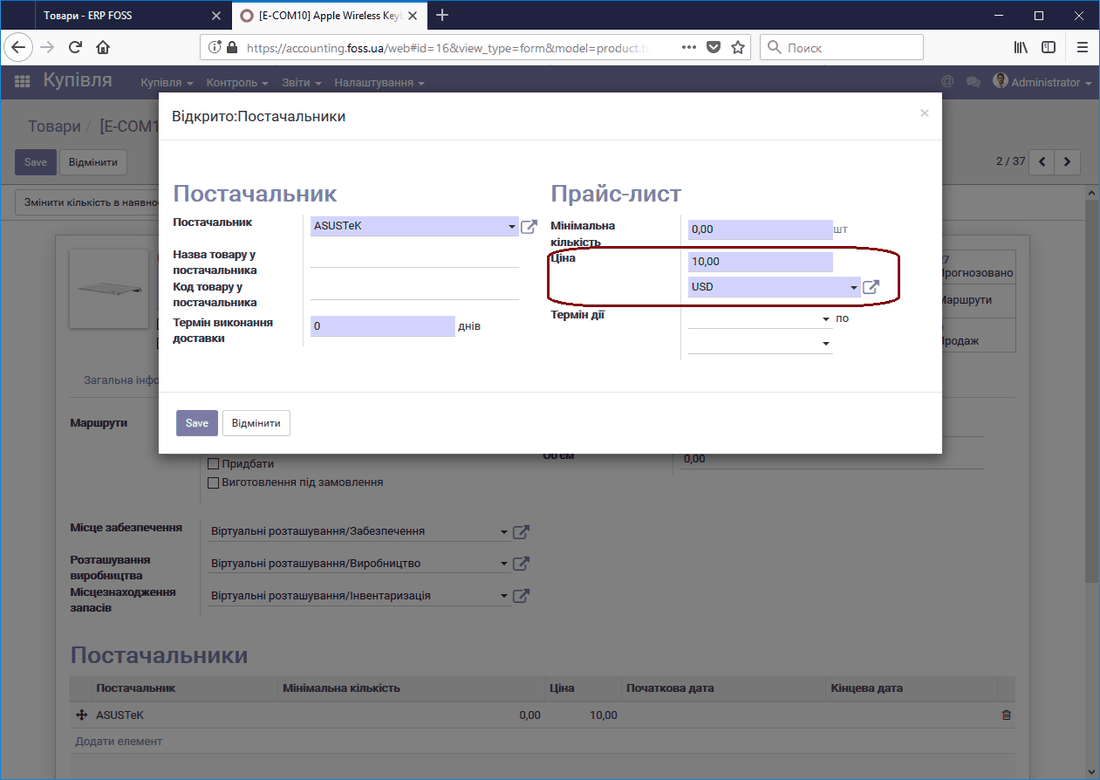 Product cost in foreign currency
For example, if you select the euro as the payment currency, the application recalculates the payment according to the current exchange rates of the dollar to the hryvnia and the euro to the hryvnia.
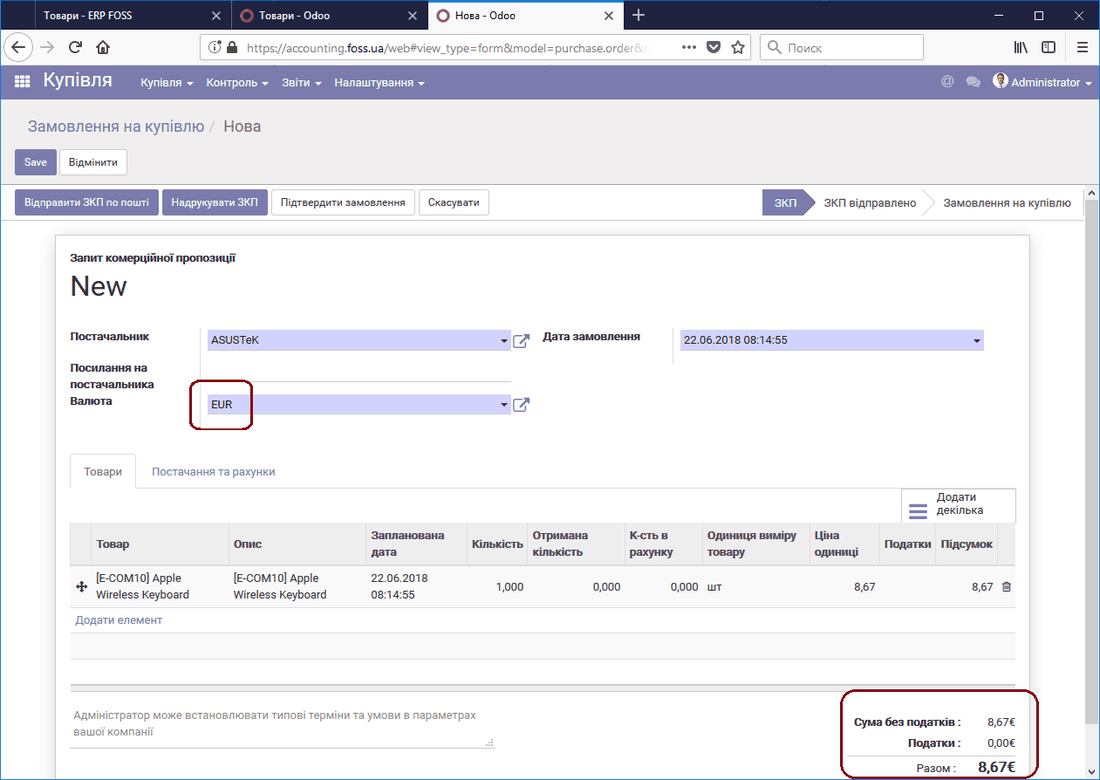 Cost in euros
Selling products in foreign currency
The application has three pre-created price lists that let you sell in different currencies.
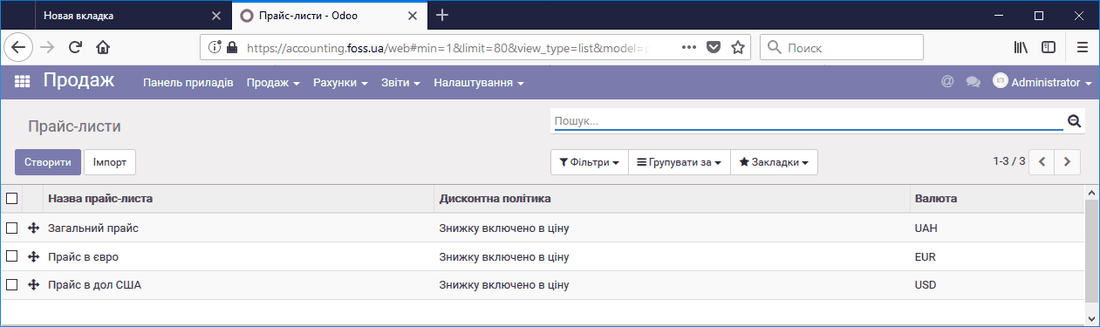 Price lists in different currencies
If a customer constantly pays for your products in a currency other than hryvnia, specify the price list in the corresponding currency in the customer's settings.
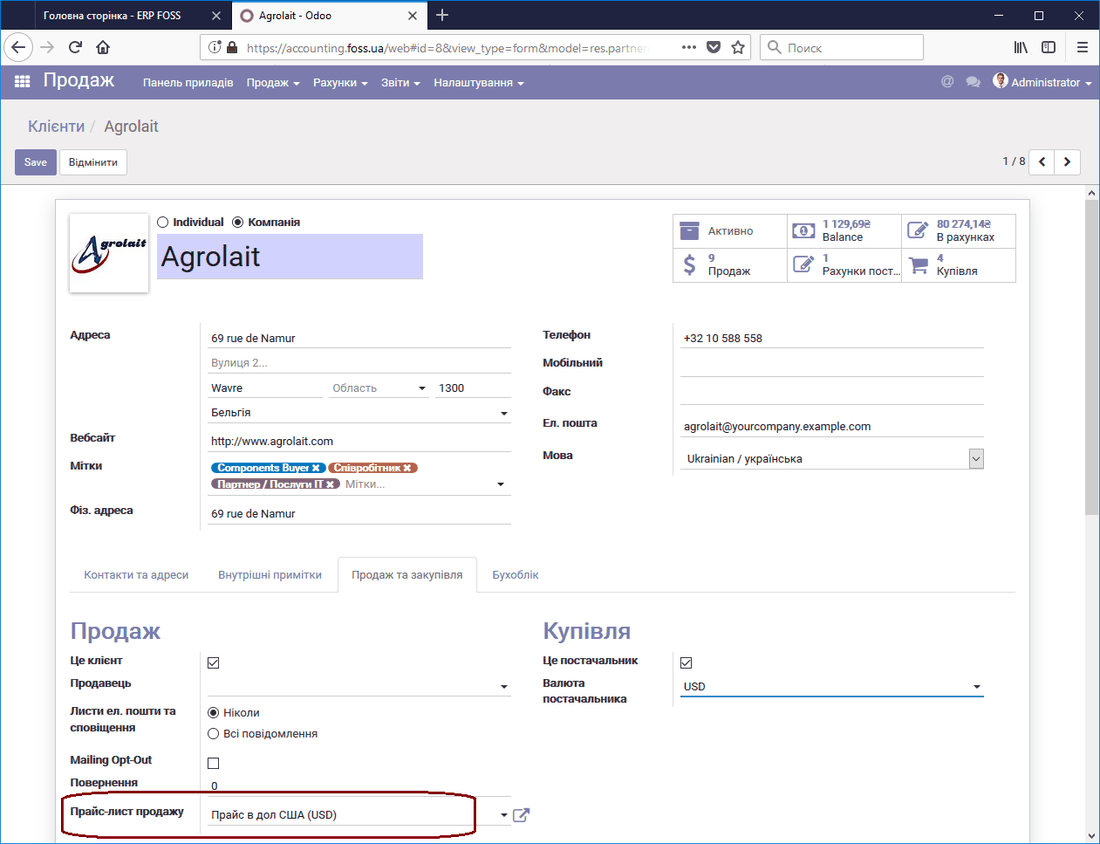 Price list settings for a customer
Now, when we create a sales order for this customer, the application automatically converts the product sales price into the settlement currency.
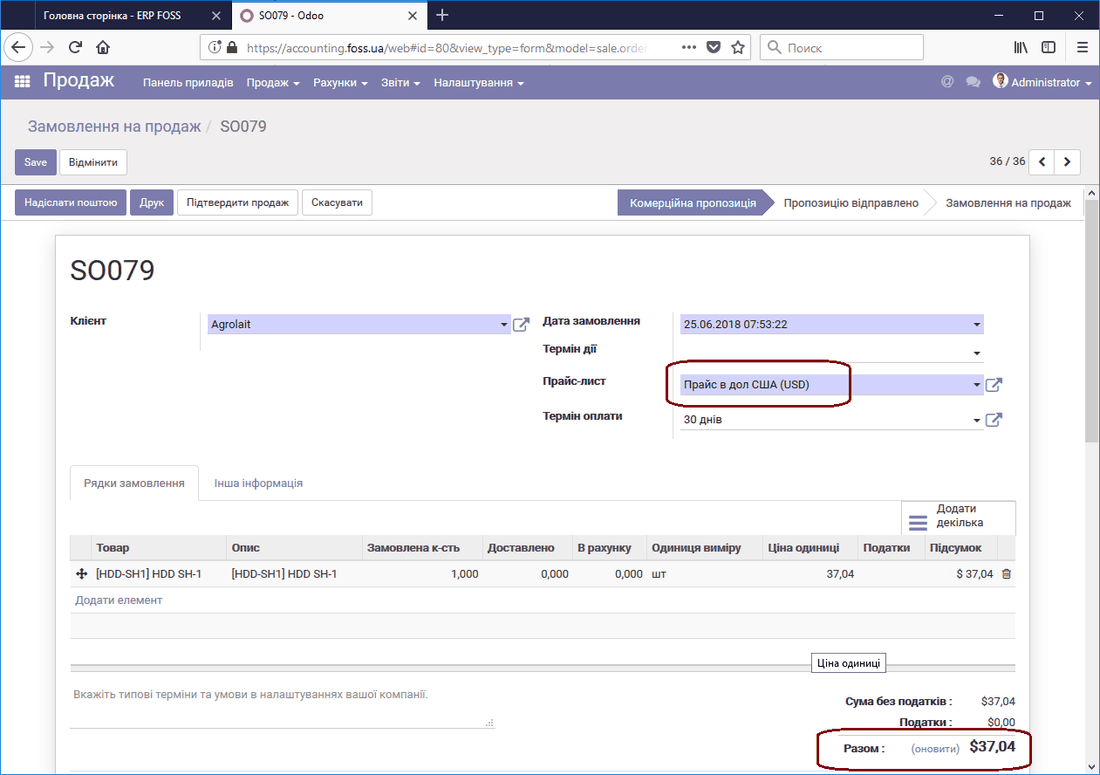 Sales order in foreign currency
You can change the price list, and then the sales order is created in another currency. Thus, a sales order is created in the currency of the price list.
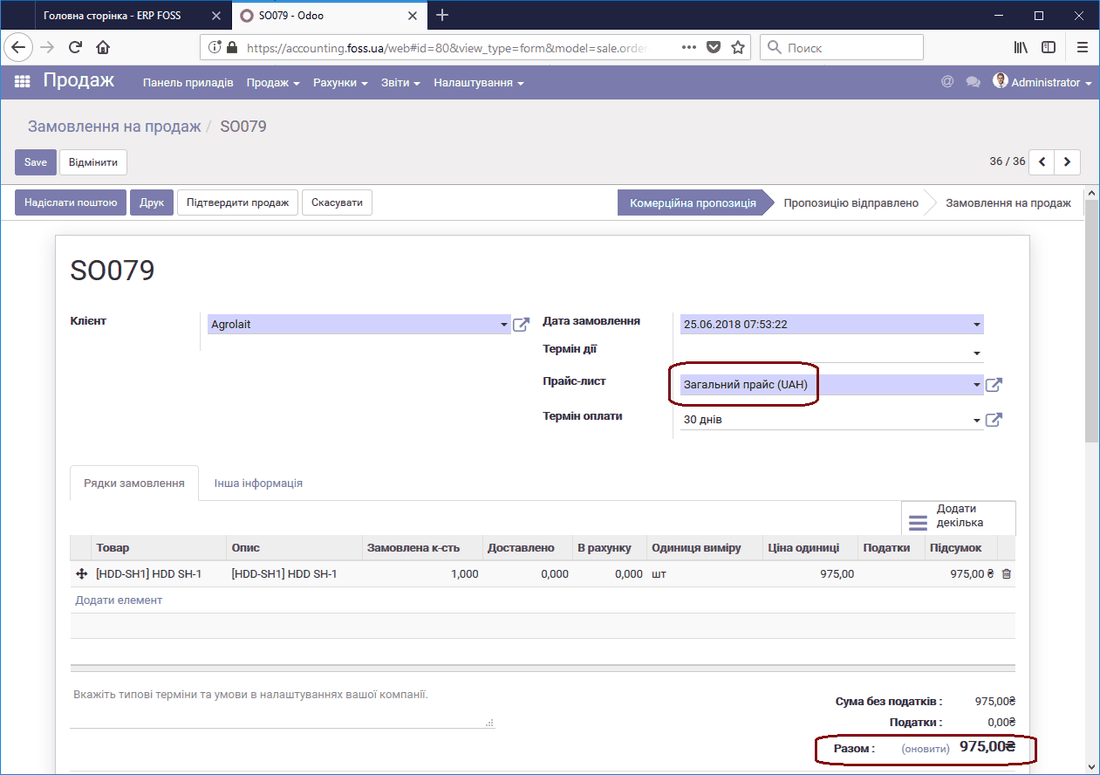 Sales order in hryvnia
An invoice created from the order is also in the same currency as the order. When you register a payment for the invoice, the application offers to make the payment in the invoice currency, but you can change the currency. In this case, you must monitor the correctness of the calculation in different currencies.
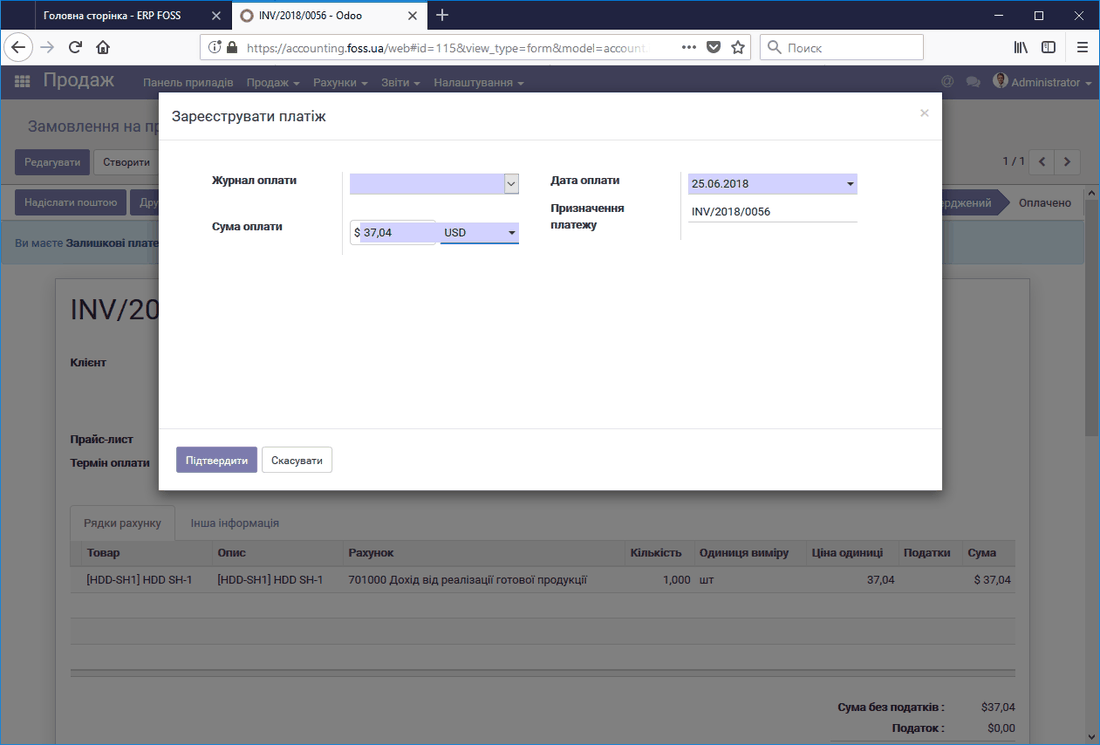 Registering a payment in foreign currency
Buying and selling currency
In business operations, the question arises not only of settlements for products in foreign currency, but also of buying and selling the currency itself. Let us look at how to do this. To buy currency, select the Cash (hryvnia) window on the Dashboard and click More.
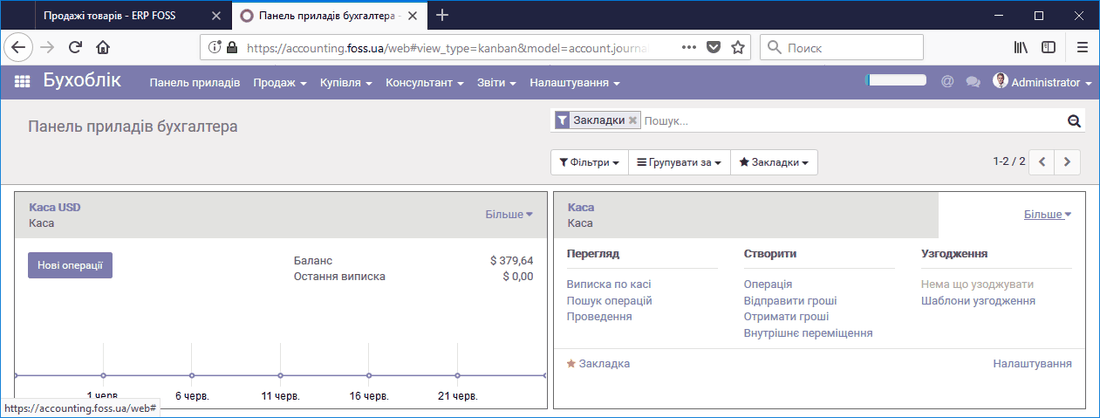 Opening balance
Then select Internal transfer and create a new payment. After filling in the Journals fields as shown below, enter the remaining fields and click Confirm.
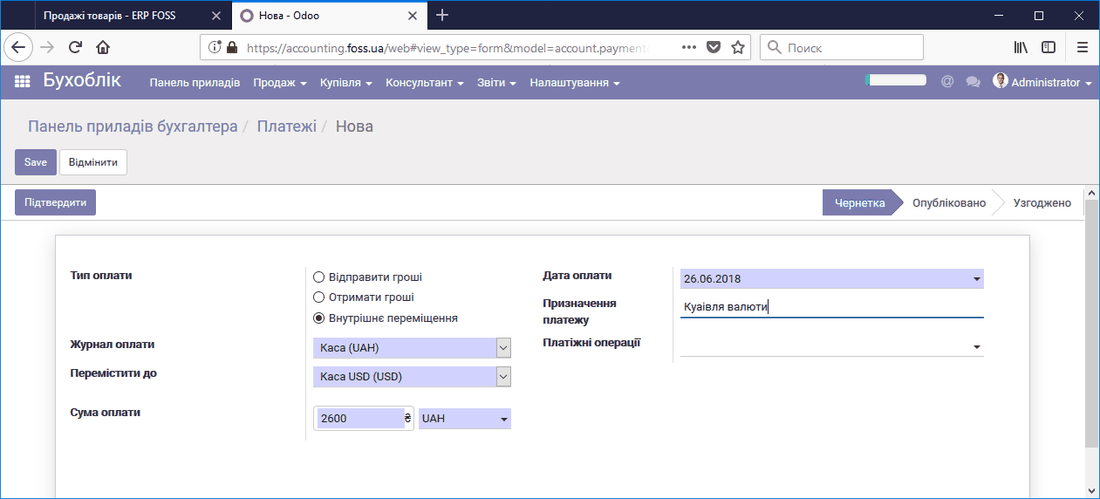 Payment for currency
The payment is posted, and if you go to the Dashboard, you see that the balance in our cash registers has changed.
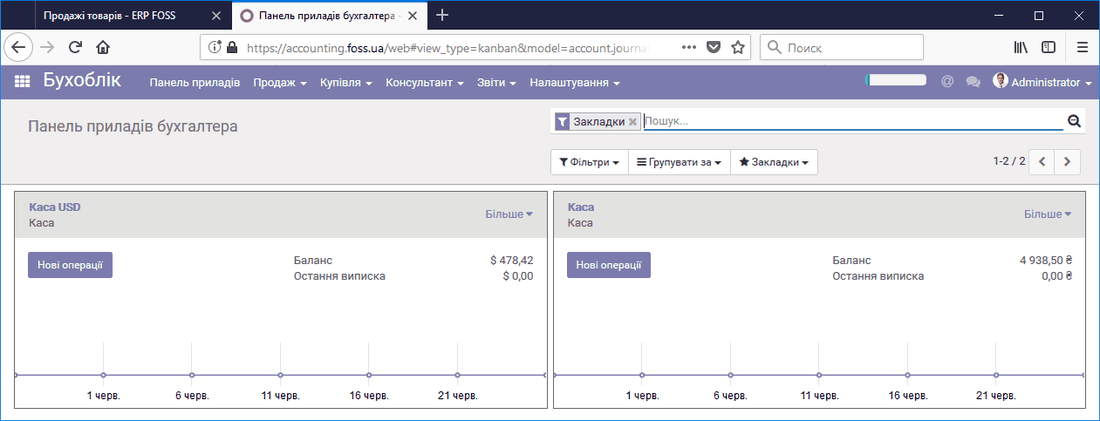 Change of balance in cash registers
If we open the Cash (hryvnia) journal (Dashboard/More/Posting), we see an entry showing that 2600 UAH was taken from the cash register to buy currency and transferred to the transit account specified in the accounting settings (Interbank transfer account).
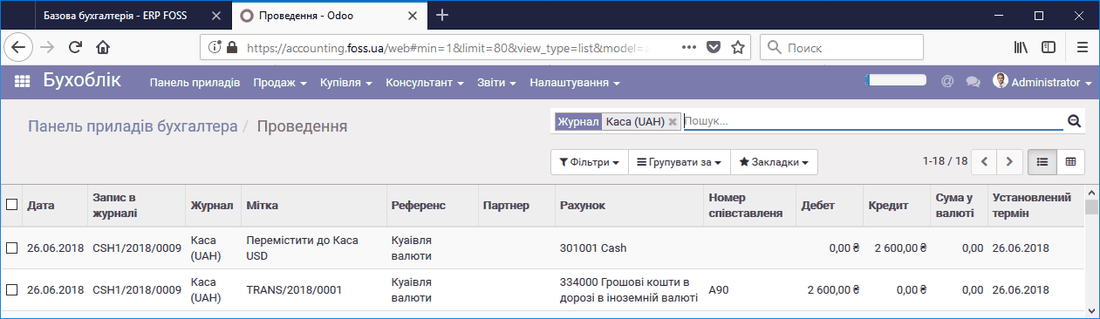 Currency purchase entries in the Cash (hryvnia) journal
And in the Cash USD journal we see an entry showing that 98.78 USD was bought for 2600 UAH (the rate was taken from the exchange rates). The funds were received from the transit account.
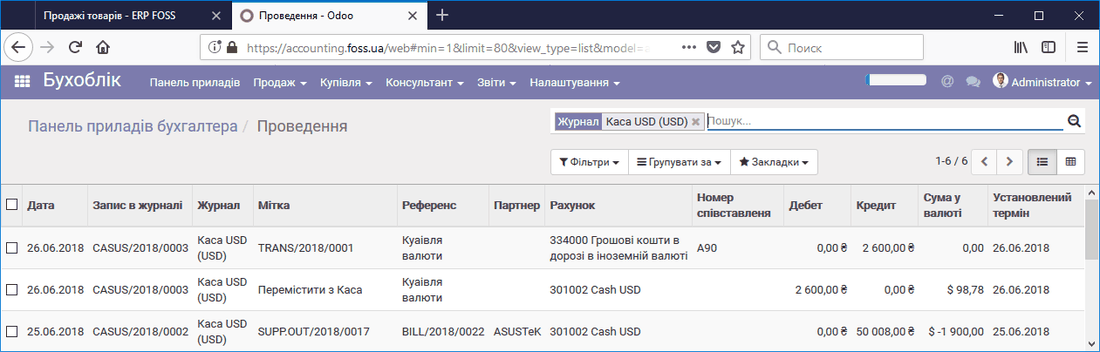 Currency purchase entry in the Cash USD journal
Selling currency works in a similar way, but the process is started from the window of the Cash USD currency journal.
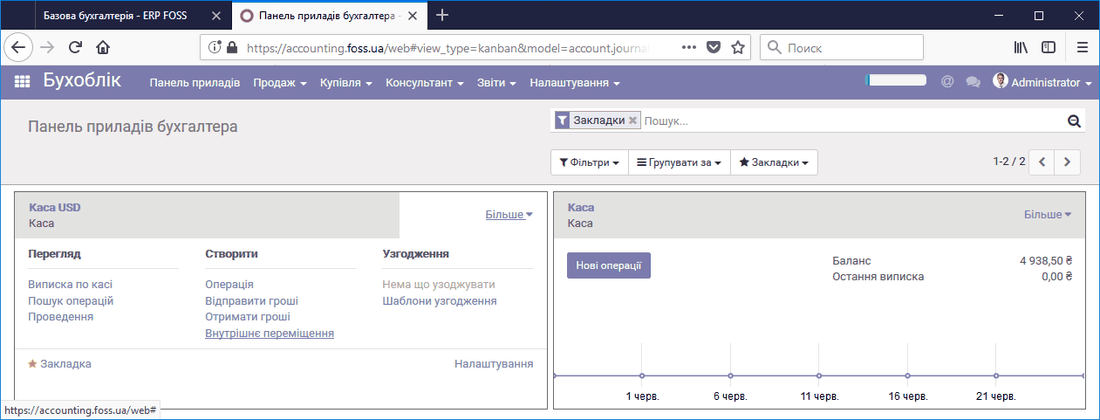 Starting a currency sale
The currency sale payment specifies the amount in foreign currency. After the operation, the amount in foreign currency is written off from the currency cash register and credited to the hryvnia cash register.
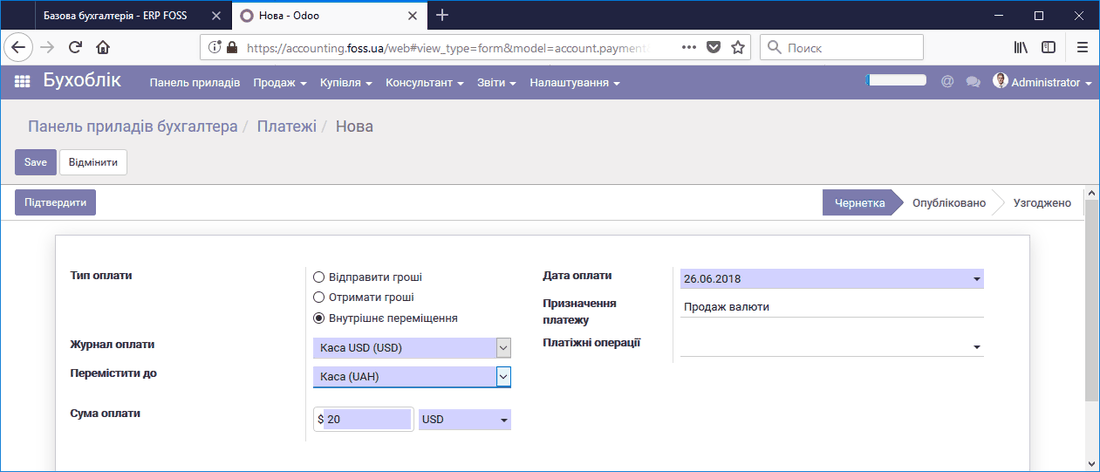 Currency sale payment
Note that by default the application uses the same rate for both selling and buying currency. If your rates differ, enter a new rate at the time of the operation. You can set several exchange rates for one day. To do this, go to Accounting/Settings/Currencies and set the required exchange rate for the corresponding date and time.
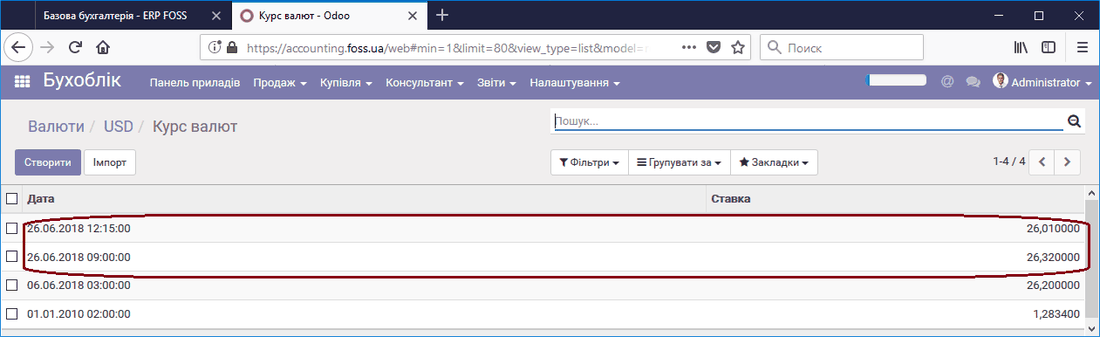 Changing exchange rates for buying and selling currency