Managing production with orders
Introduction
Using the Production module in ERP FOSS, you can create bills of materials and production orders for each manufactured product and track the progress of production processes. The application also lets you use routings, create work centers for manufacturing, keep records of working time, track equipment load and use work orders.
Based on the results, you can get information on completed production orders and evaluate the overall equipment effectiveness (OEE — Overall Equipment Effectiveness).
Note. This article covers the module features used to organize single-stage production, without routings. To use them, in the Settings menu, under Routings and planning, select Manage production using orders.
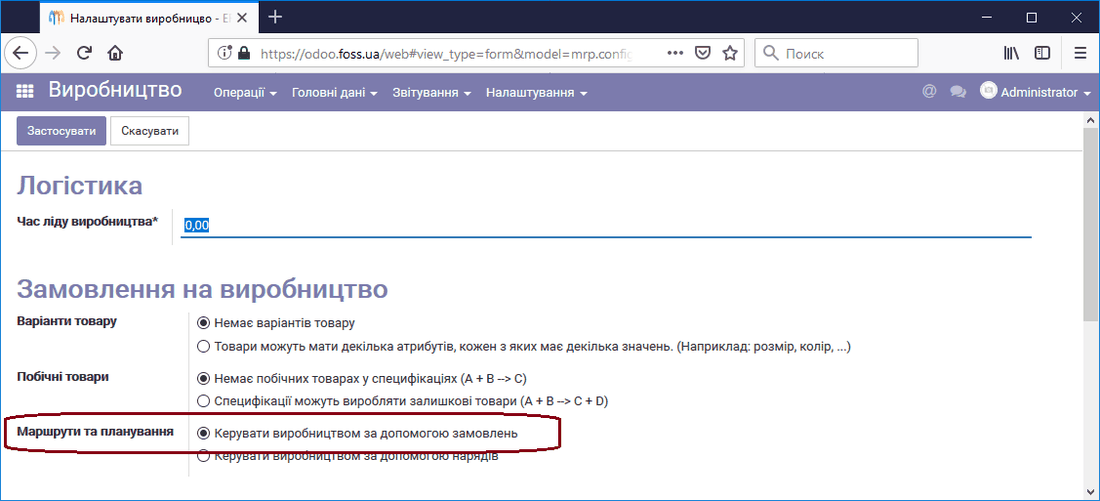
We will cover the advanced features of the module in another article.
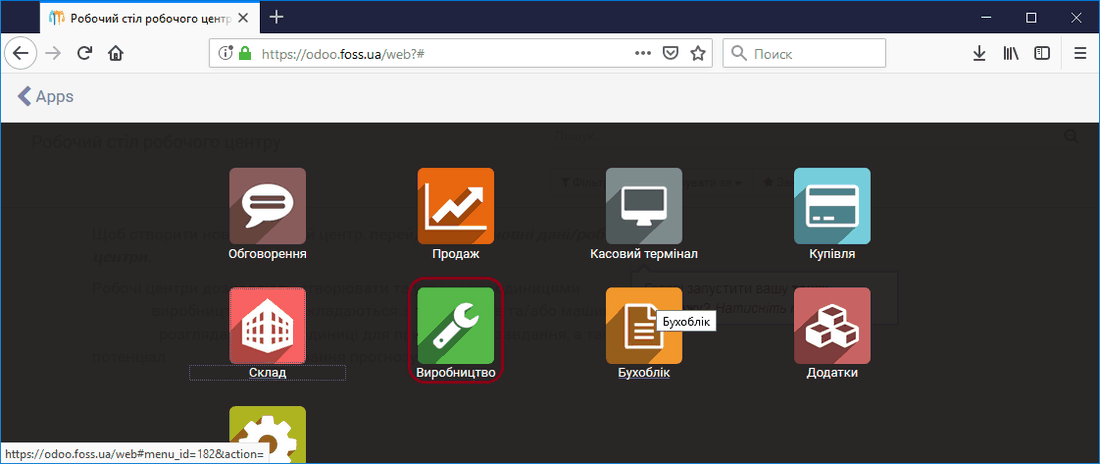
Production is managed in the module of the same name.
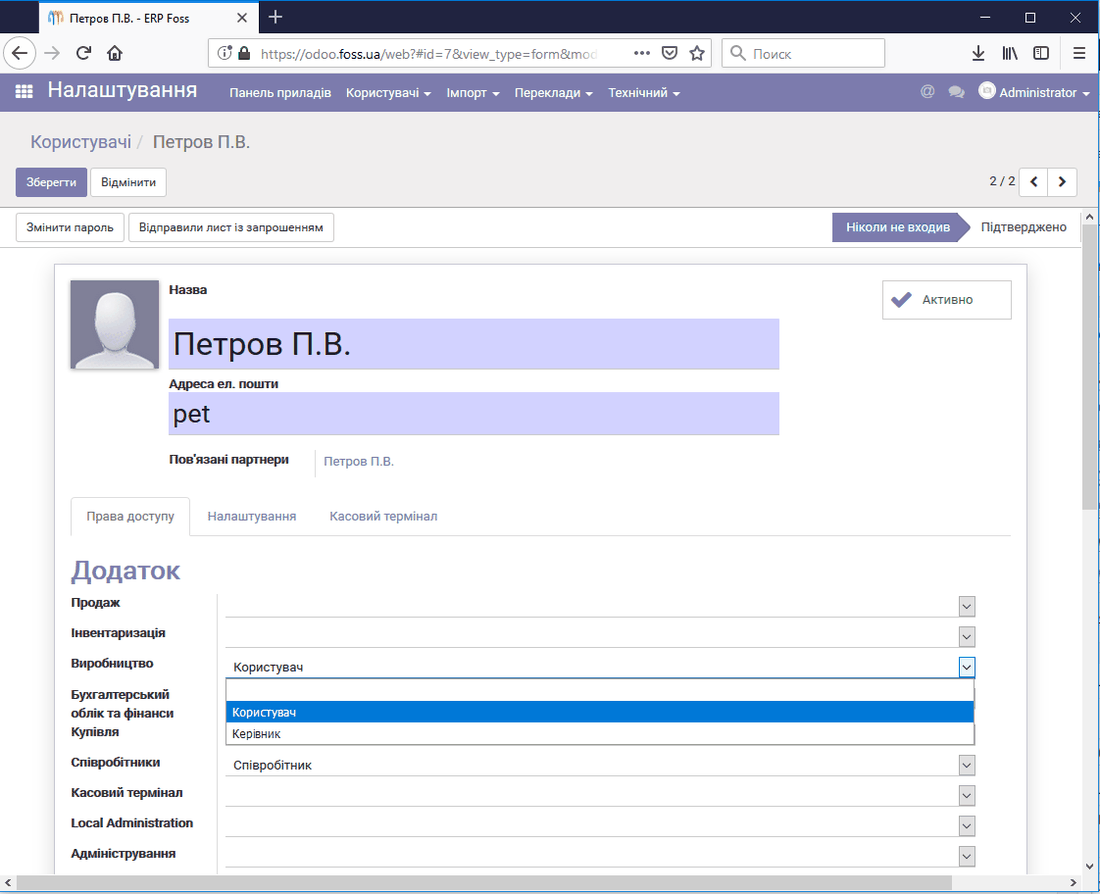
Only users who have been granted the corresponding permissions can access this module. These permissions are assigned in the Applications section when you set up user permissions. User properties are created and edited in the Settings module, menu item Users.
Master data
In this menu item you have access to the list of products and can set up the bills of materials for the products to be manufactured.
Products
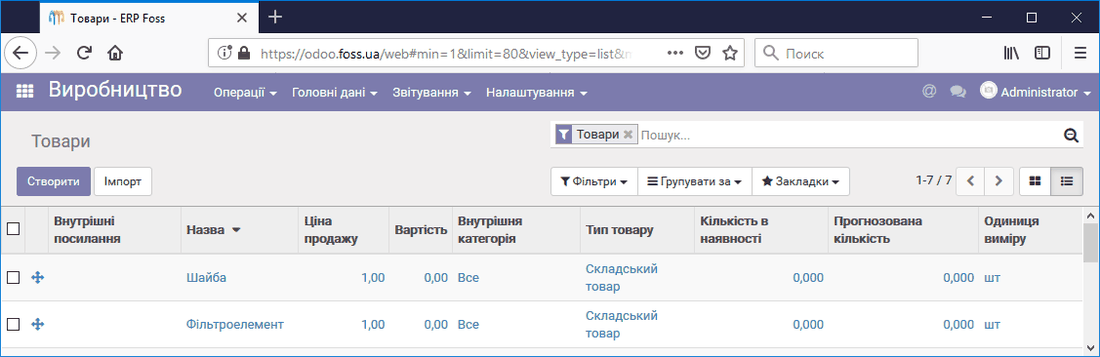
The product list is available in the same way as in other modules of the application. Note that the components that go into a bill of materials can be either stock products or consumables. You can choose this when creating these components, depending on your priorities.
Bills of materials
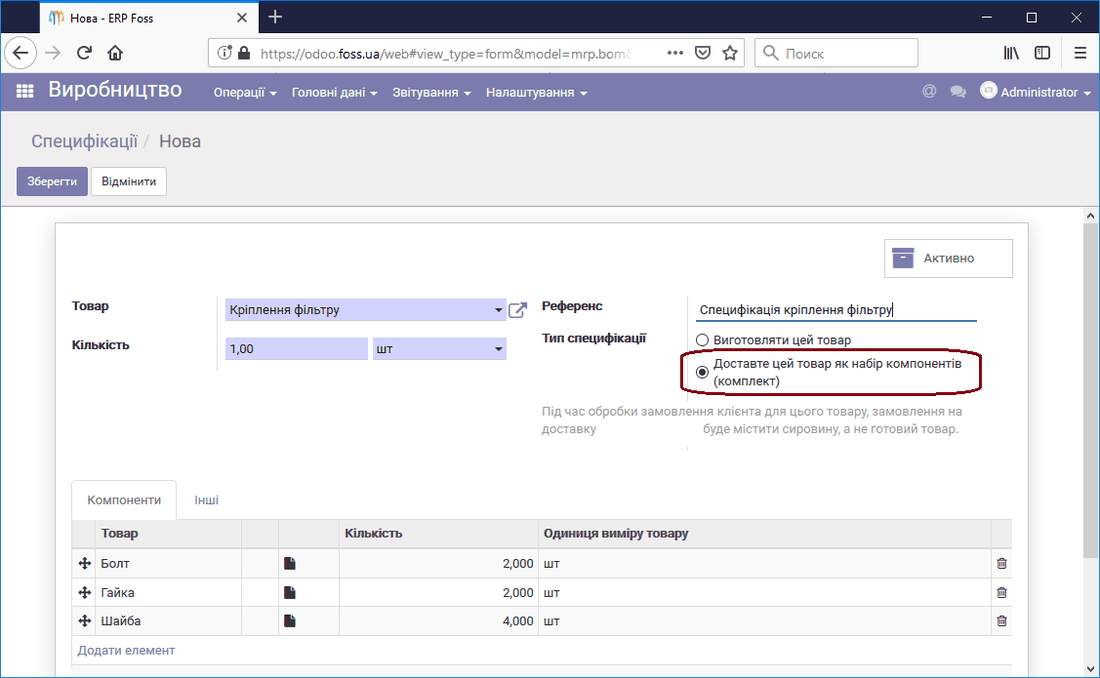
To manufacture a product, you need components (other products) that make up the manufactured product. Their quantity is defined in the bill of materials. Let us look at working with the Production module through an example. Suppose we will manufacture a filter element that consists of metal mesh, corrugated paper and a filter mounting assembly. In turn, the filter mounting assembly consists of bolts, nuts and washers. Let us create the corresponding bills of materials. First, we create the bill of materials for the filter mounting assembly that goes into the filter element. Note that its Bill of materials type is set to a set of components, which lets you include in a higher-level bill of materials not the whole item but its components.
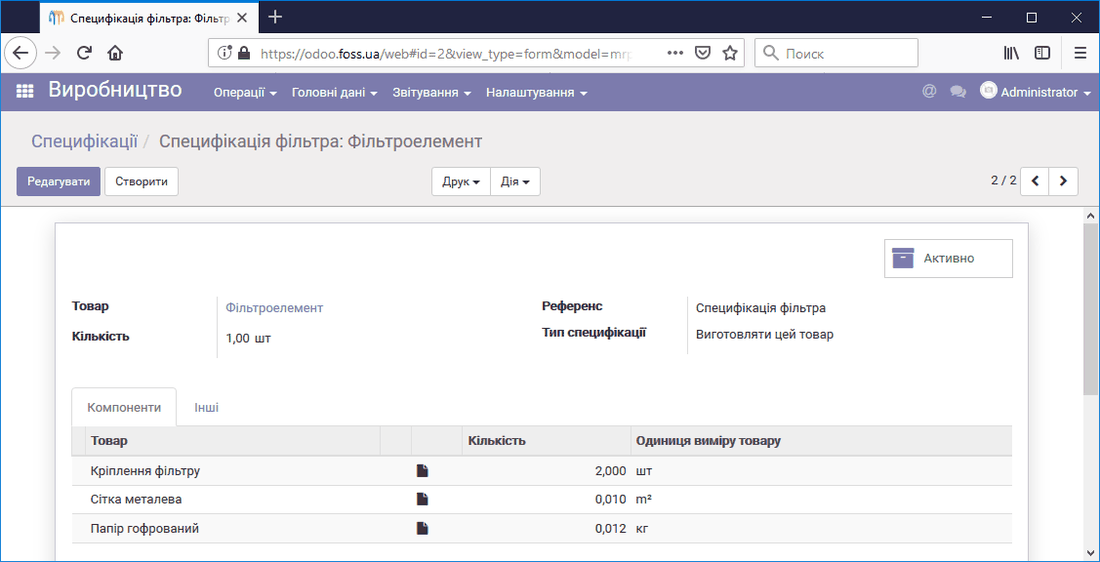
Now we can create the bill of materials of the filter element itself, including the Filter mounting in it.
Operations
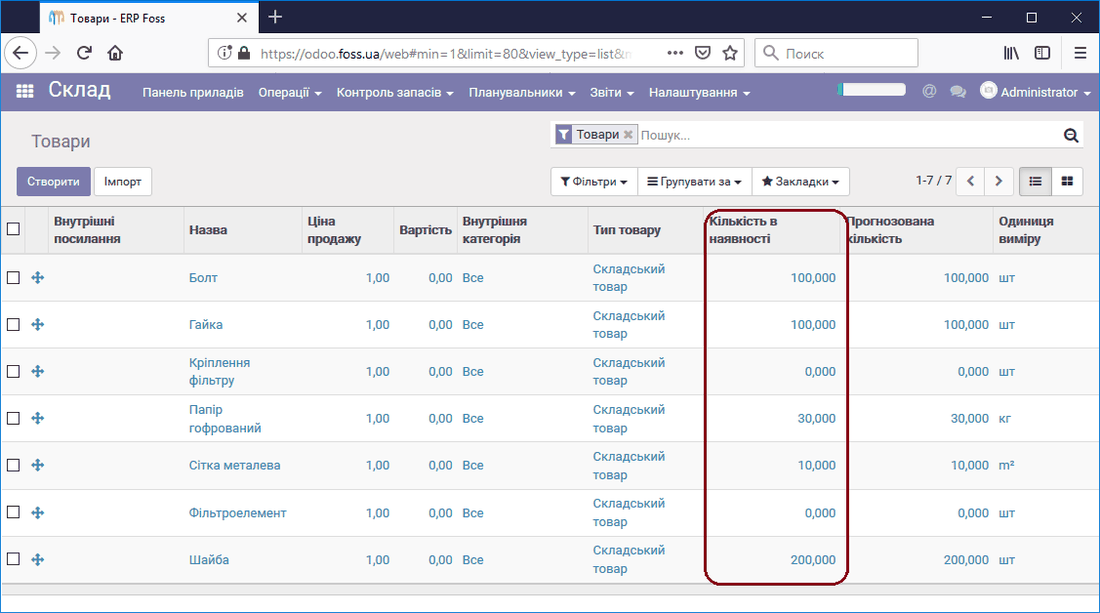
Before we start manufacturing the Filter element product, let us change the warehouse stock of the components included in our bills of materials. To do this, use the Change on hand button on the product card. The components can also be purchased, for example. As a result, we will have in the warehouse the product quantities shown in the figure below. We entered these quantities as an example.
Production orders
We have created the bills of materials and made sure that we have enough components. To start the production process, go to the menu Operations/Production orders and create a Production order for three filter elements. After the order is saved, the application calculates the quantity of components that go into the three filter elements according to the bills of materials created earlier, including the list of components of the subassemblies.
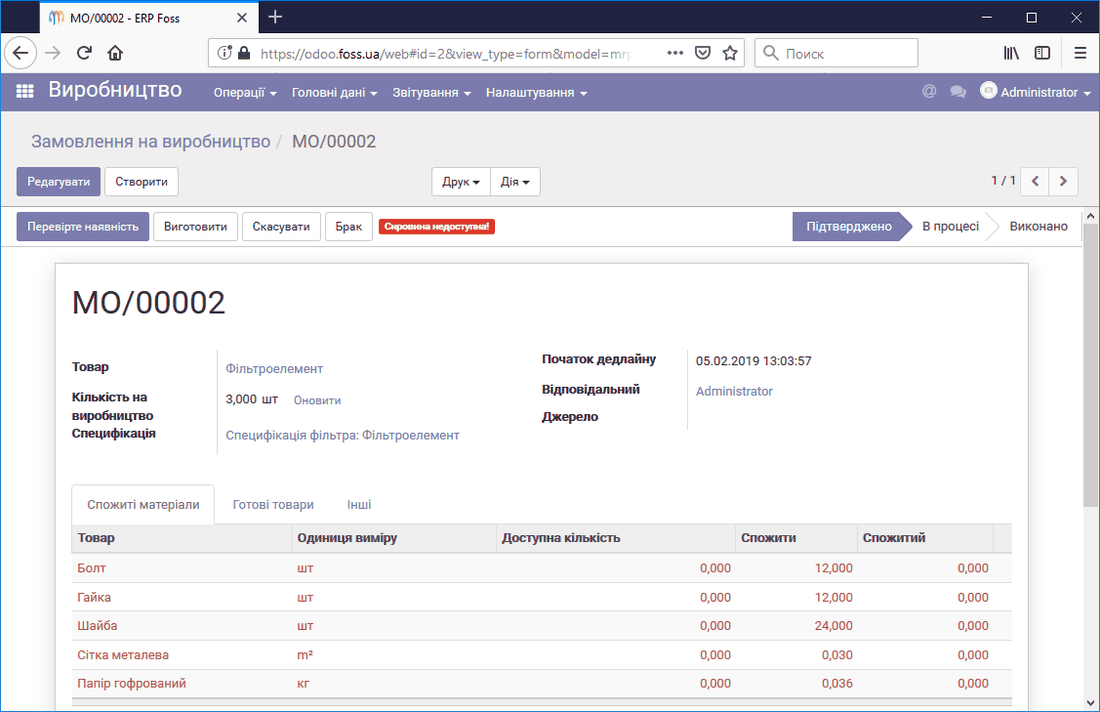
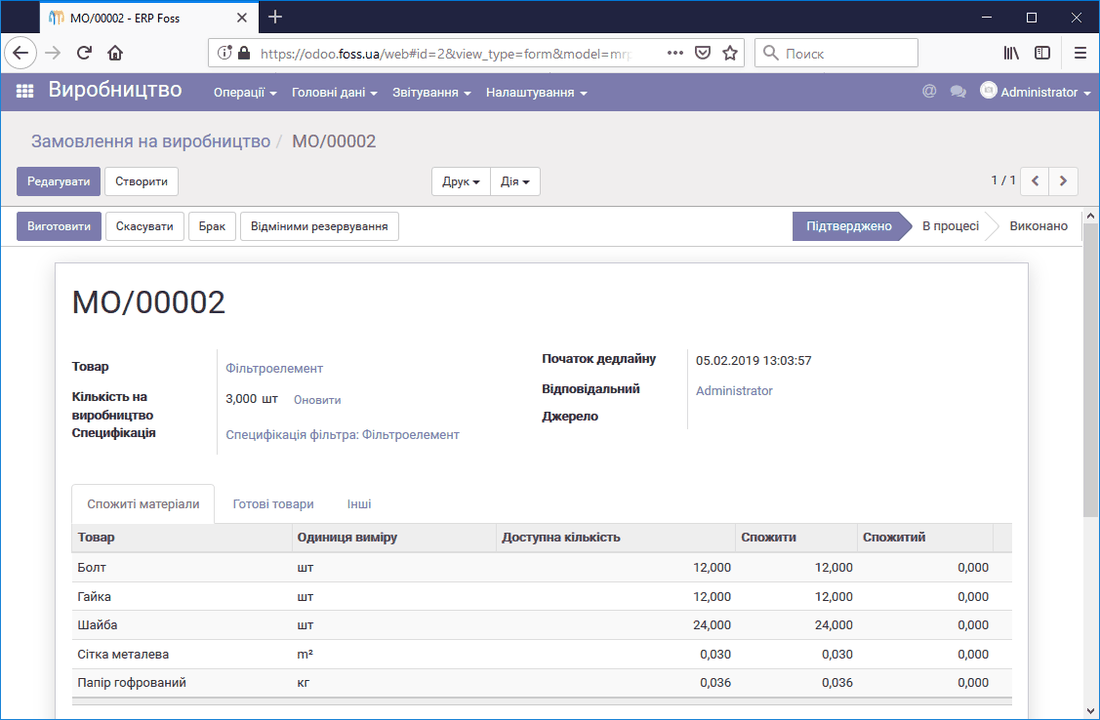
Next, we can check the availability of the components by clicking the Check availability button, and then click Produce.
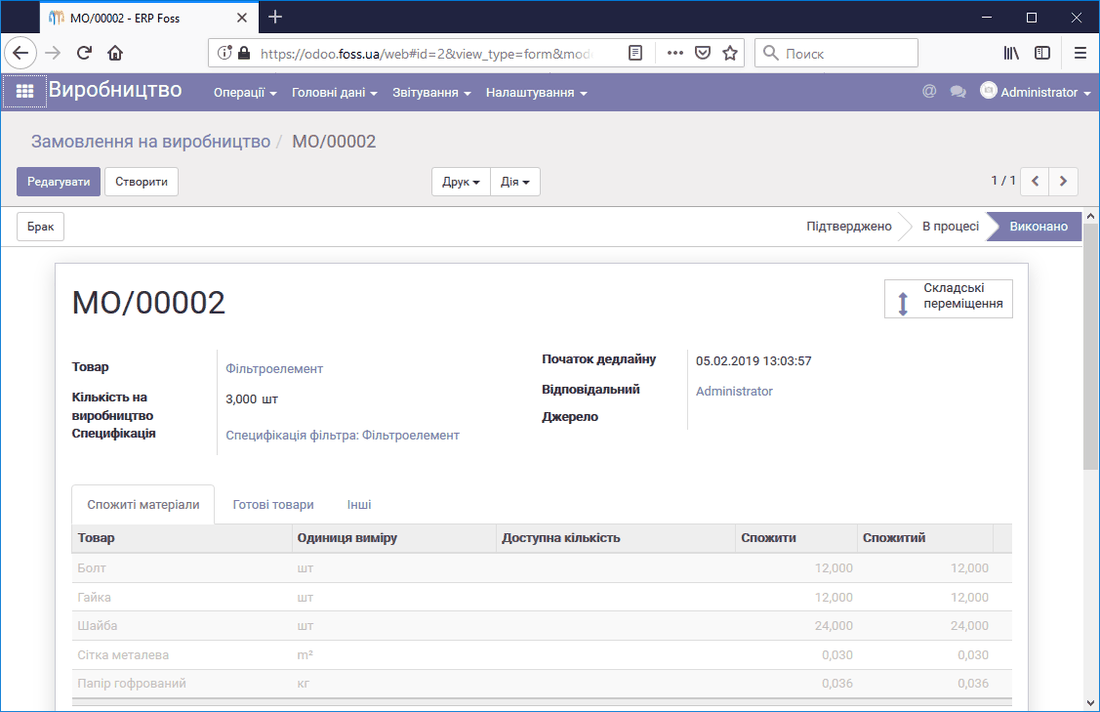
After confirming the stages of manufacturing the filter element, we get the Production order card in the Done status.
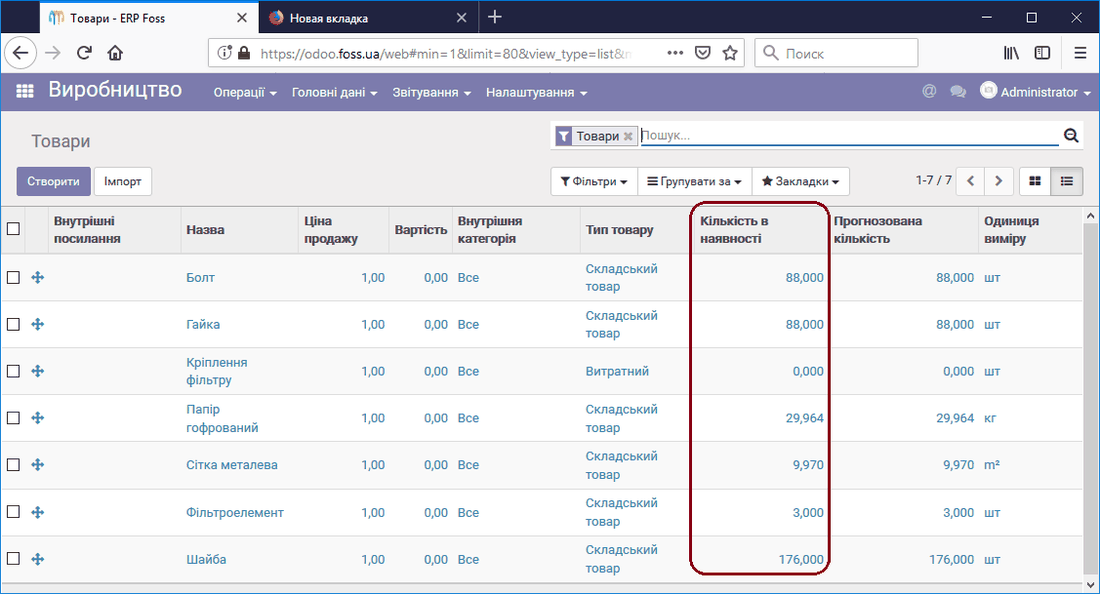
Now, if we look at the quantity of our products in the warehouse, we see that it has changed. We have three filter elements that were manufactured, and a certain quantity of components was used to make them according to the bills of materials.
Disassembly orders
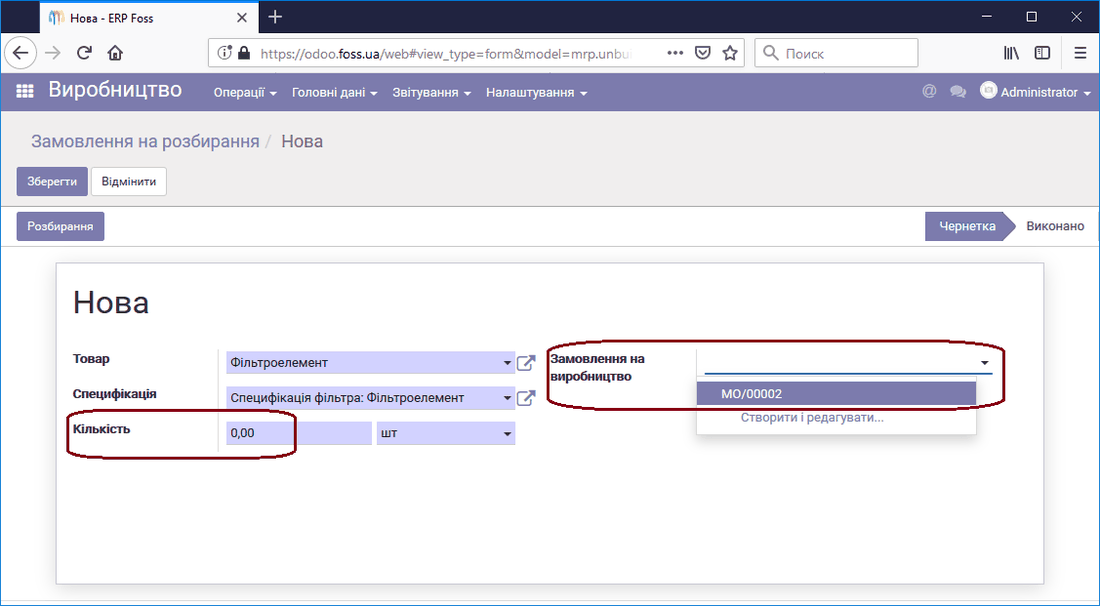
Disassembly is the process opposite to production. You can create a Disassembly order by specifying the quantity of the product to disassemble, or select the Production order by which this product was manufactured. In the latter case, the quantity of the disassembled product matches the quantity manufactured under the order. All components are returned to the warehouse. The quantity of the product in the warehouse is reduced by the quantity of the disassembled product.
Scrap
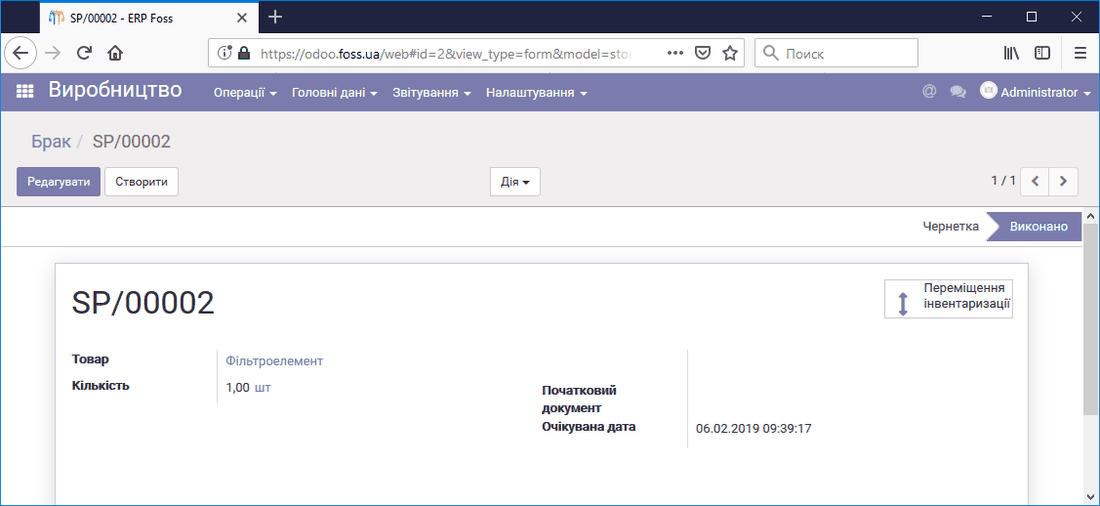
Defective products may appear during production, and you can scrap them using this menu item. The record of the scrapped product is also displayed in the "Warehouse" module.
Multiple bills of materials
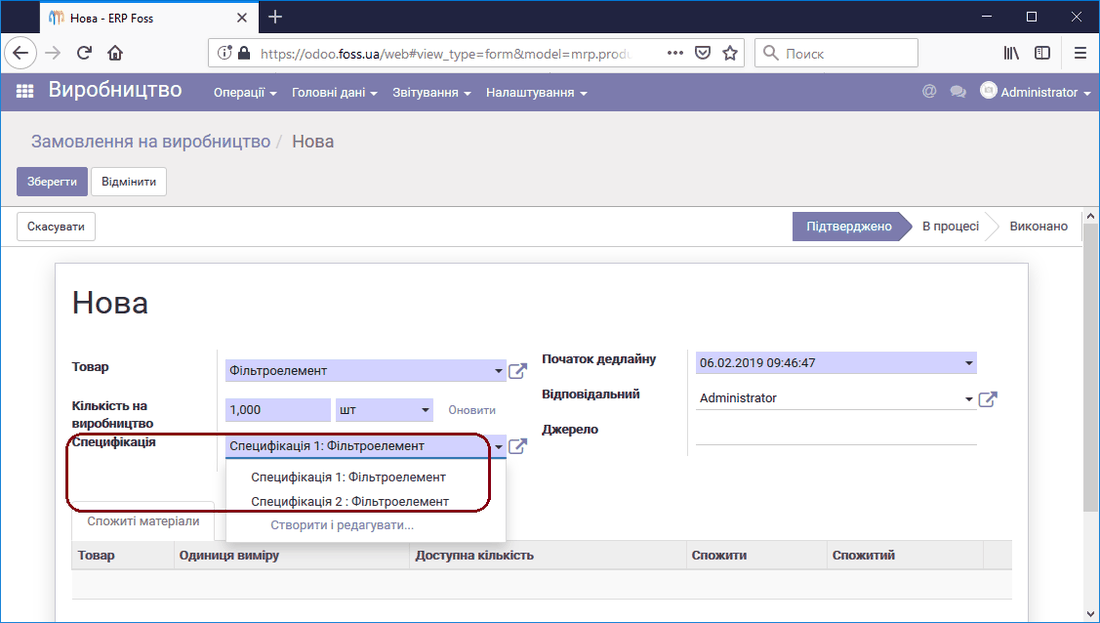
The application lets you create several bills of materials for the same product. This may be necessary, for example, when there are different configurations or in other cases. In this case, you can select the required bill of materials when creating a Production order or a disassembly order.
Reporting
The reporting section lets you get report information on the production of products. In our case (the mode with routings for manufacturing disabled), one report is available. If you use routings, you can get reports on equipment effectiveness, working time usage and others. This mode is not covered in this article, but you can activate it.
"Production orders" report
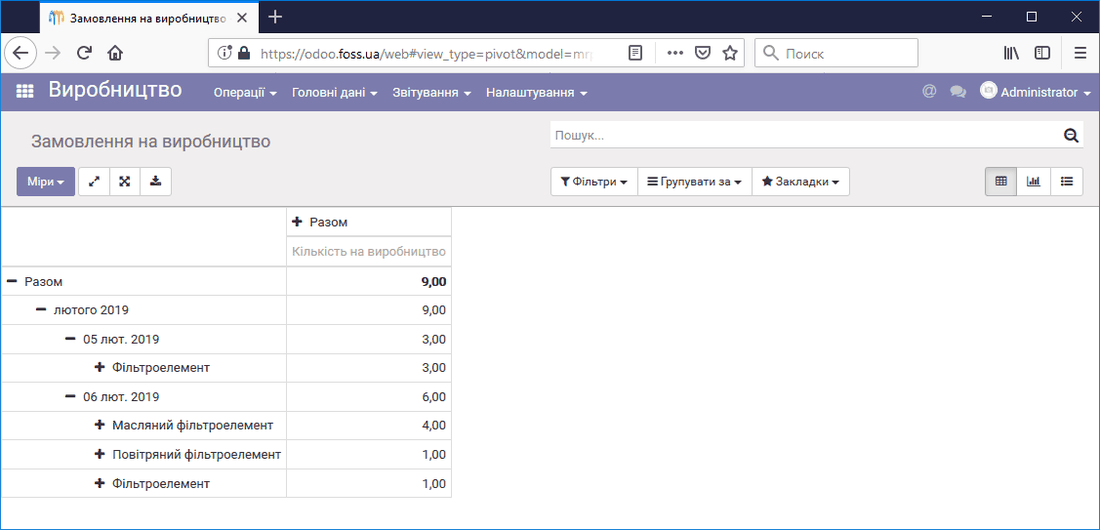
The Production orders report provides information on manufactured products. This report can be set up in the same way as the Sales report.
Settings
This section contains information about the general settings of the production management application. Hover the cursor over a menu item to get an explanation of it.
Settings
Product variants
By going to the menu Settings/Settings, you can enable working with Product variants.
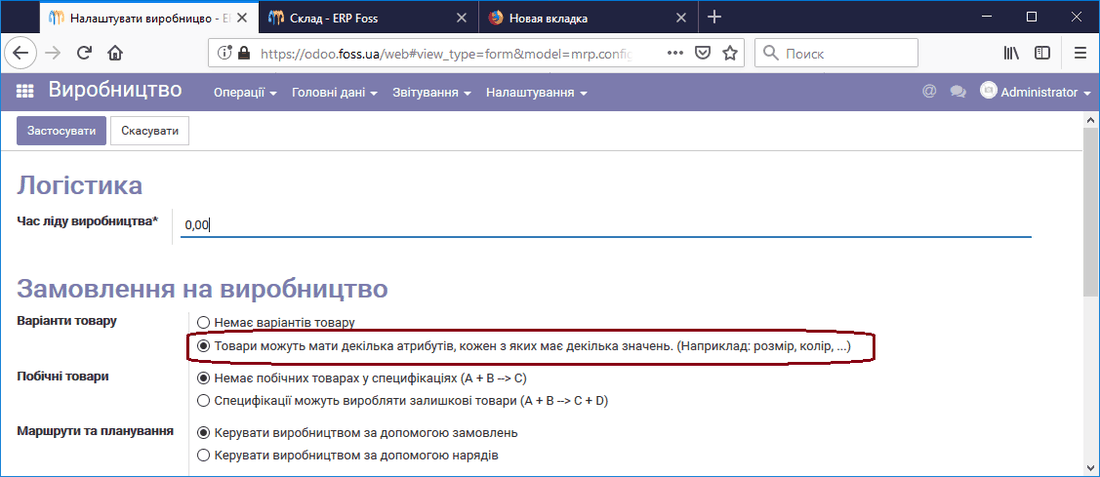
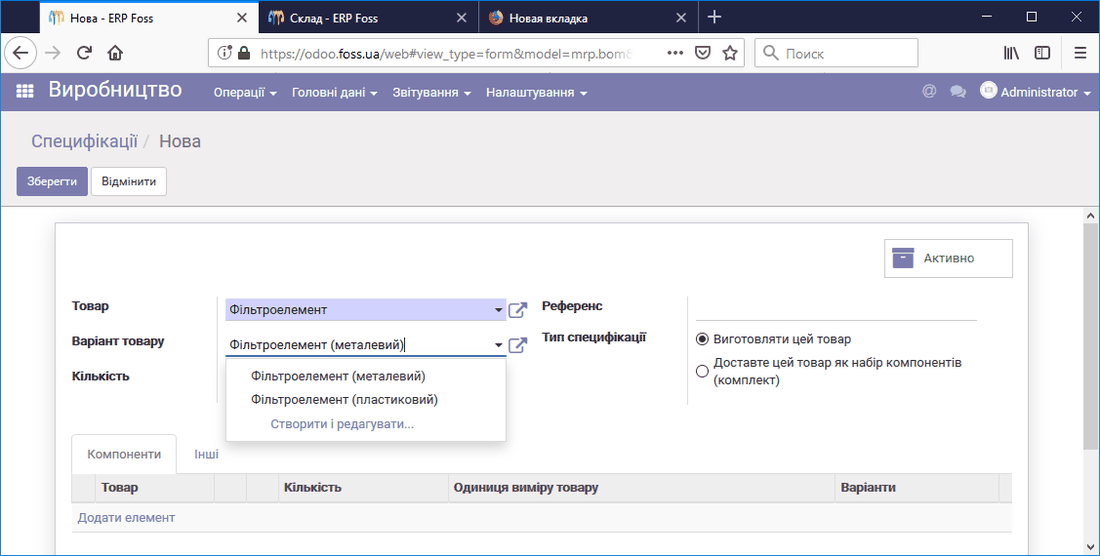
For example, we have two variants of filter elements, with a metal and a plastic housing. Now, when creating a bill of materials, we can select the product variant for which it is created.
By-products
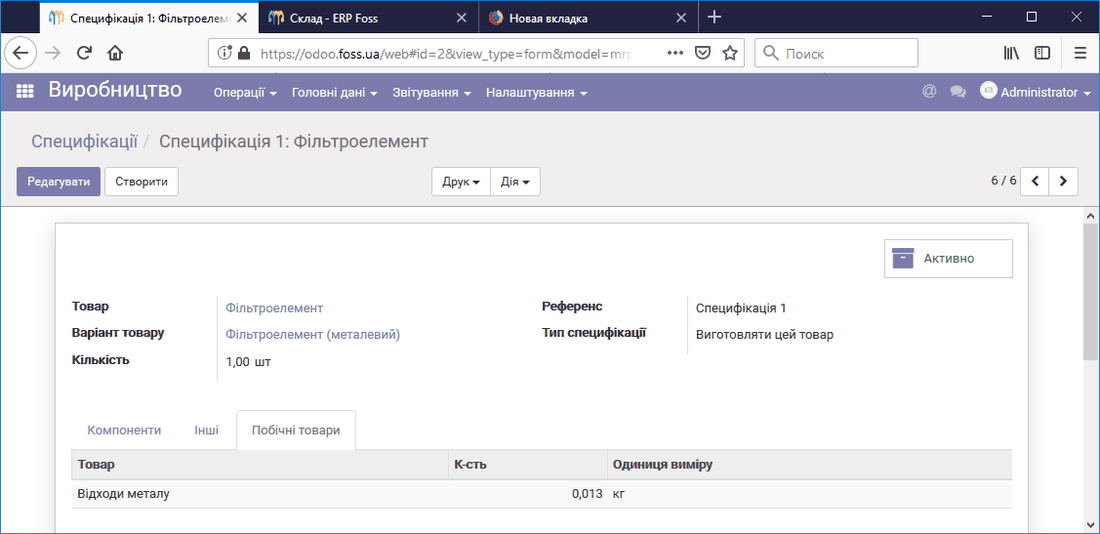
Manufacturing certain products may produce by-products. For example, manufacturing a filter element with a metal housing yields some metal waste that can be sold later. And we want to account for it. To do this, select the checkbox in the settings that enables this feature.
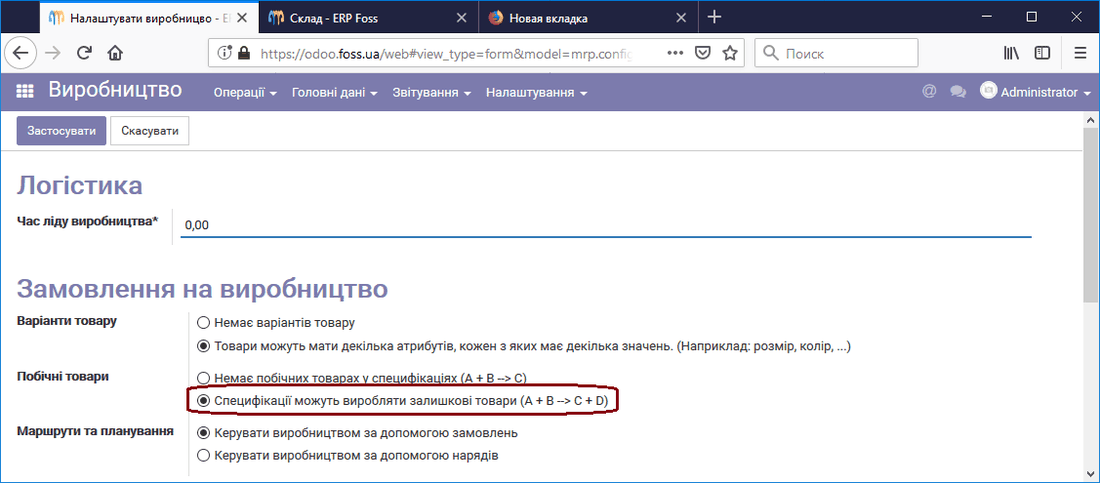
In the bill of materials, on the By-products tab, specify which products are obtained. Now, when production starts, this product appears in our warehouse in the specified quantity.