Mail system setup
Introduction
ERP FOSS can work as a mail client and send invoices, delivery notes, receipts and other documents directly from the program. It can also be used to send tax reports.
Preliminary steps
You must have an email mailbox on any server that supports the SMTP protocol, for example, gmail.com. Below we describe working with the gmail.com mail server.
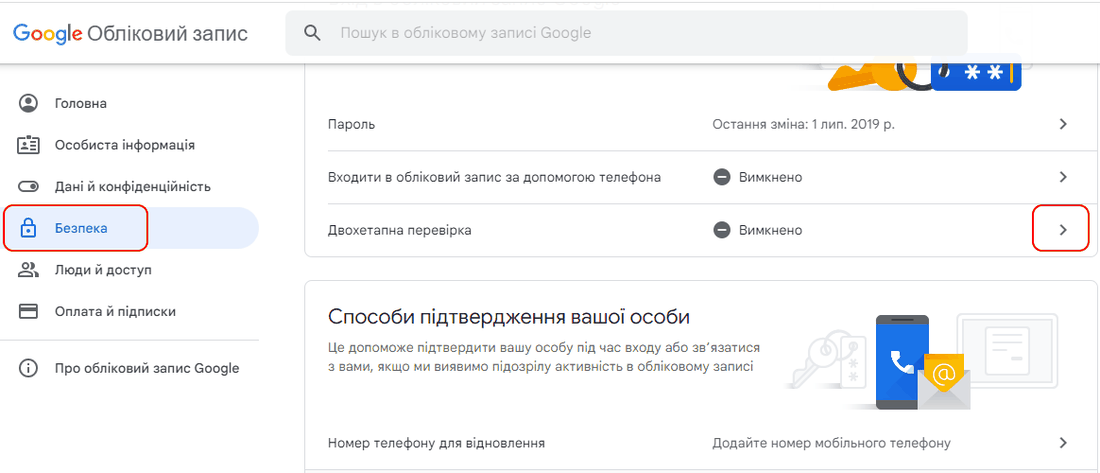
Go to Manage your Google Account, to the Security section. Turn on 2-Step Verification:
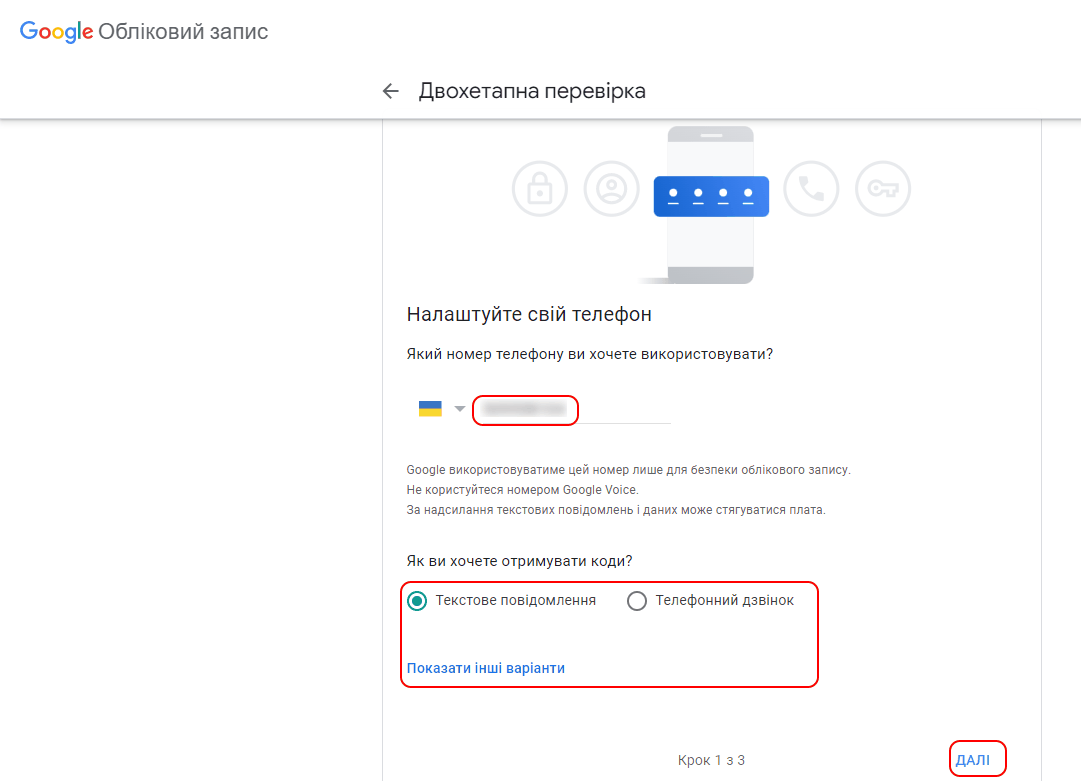
Specify a phone number and the ways to receive the code:
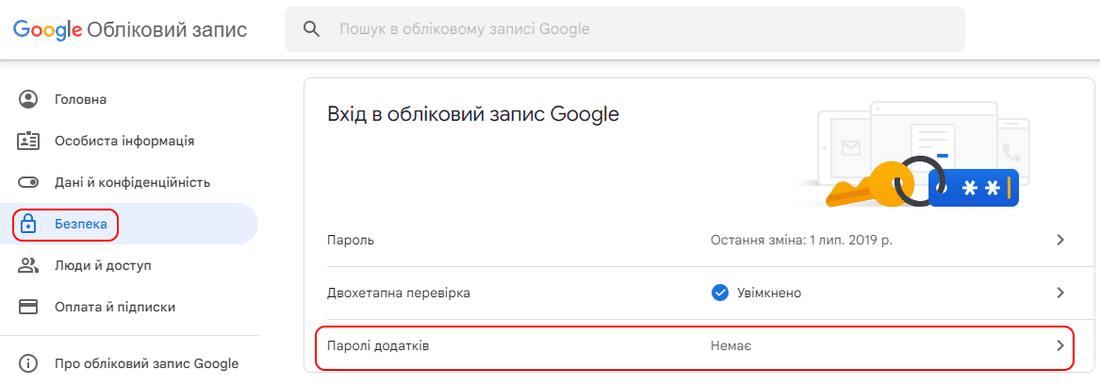
After turning on 2-Step Verification, you need to set up app passwords:
Specify the Mail app and the device you use to work with the program, for example, Windows Computer:
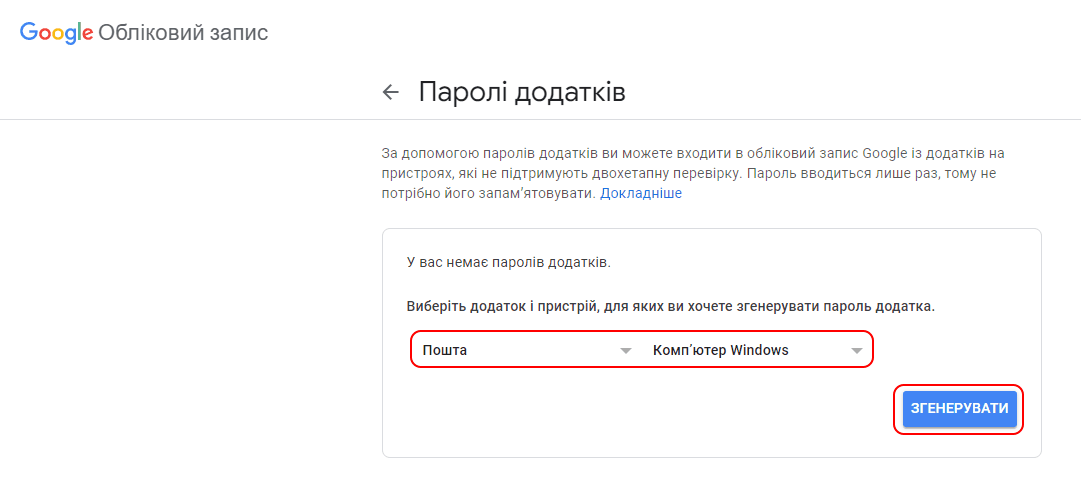
Click Generate. A form with the generated app password appears:
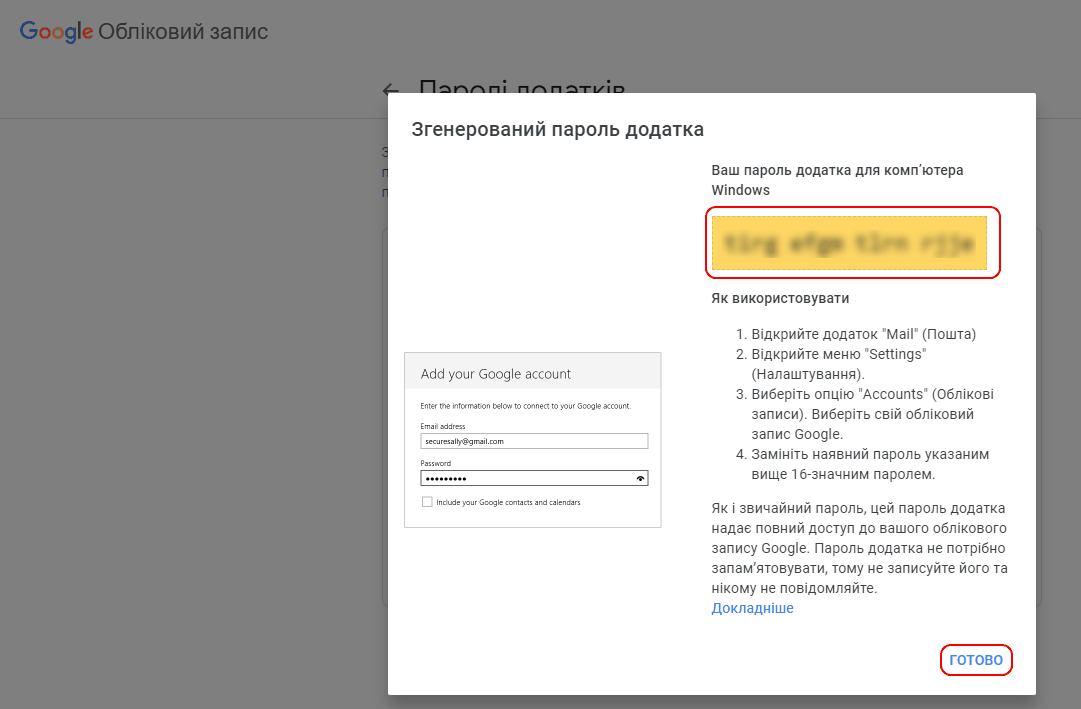
Copy and save the suggested password.
Setting up the outgoing mail server
Go to the Settings module and select the menu item Technical -> Outgoing Mail Servers.
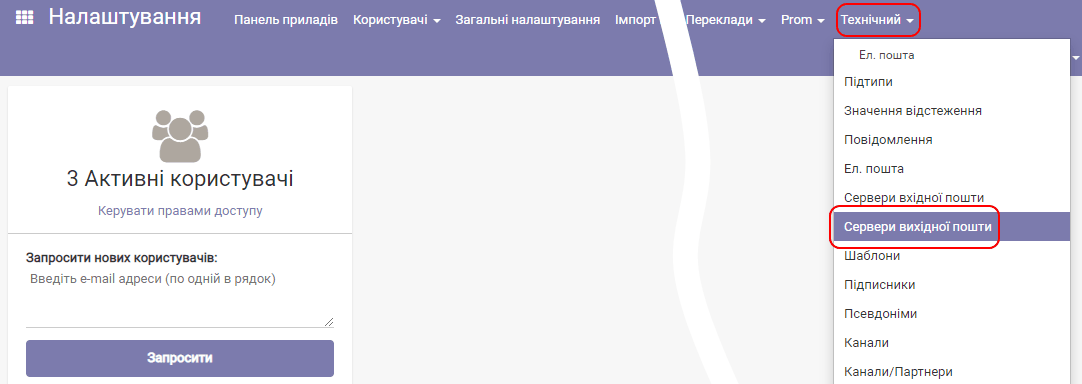
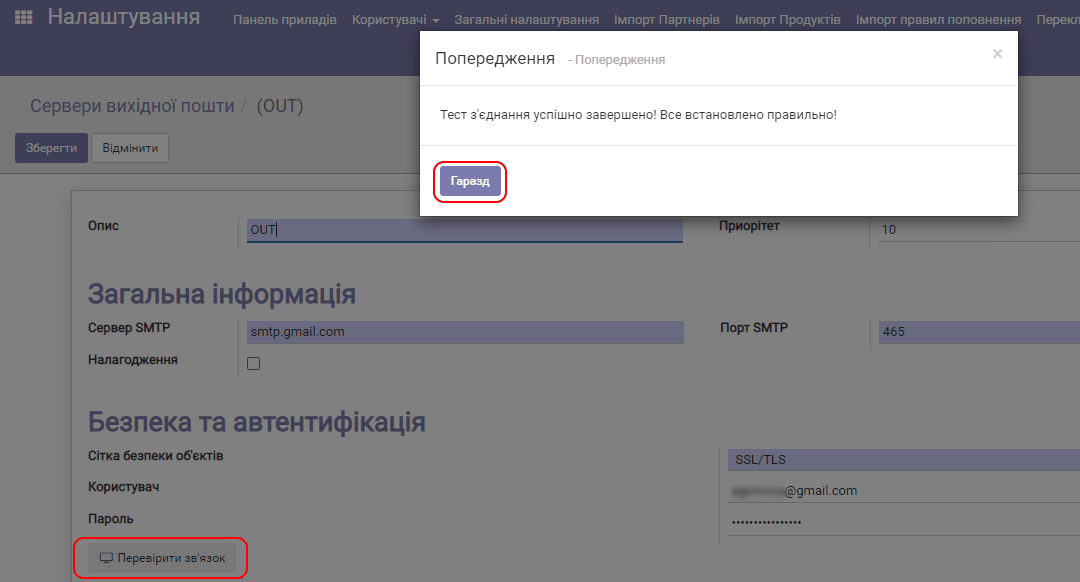
Click Create; the outgoing mail server settings form appears:
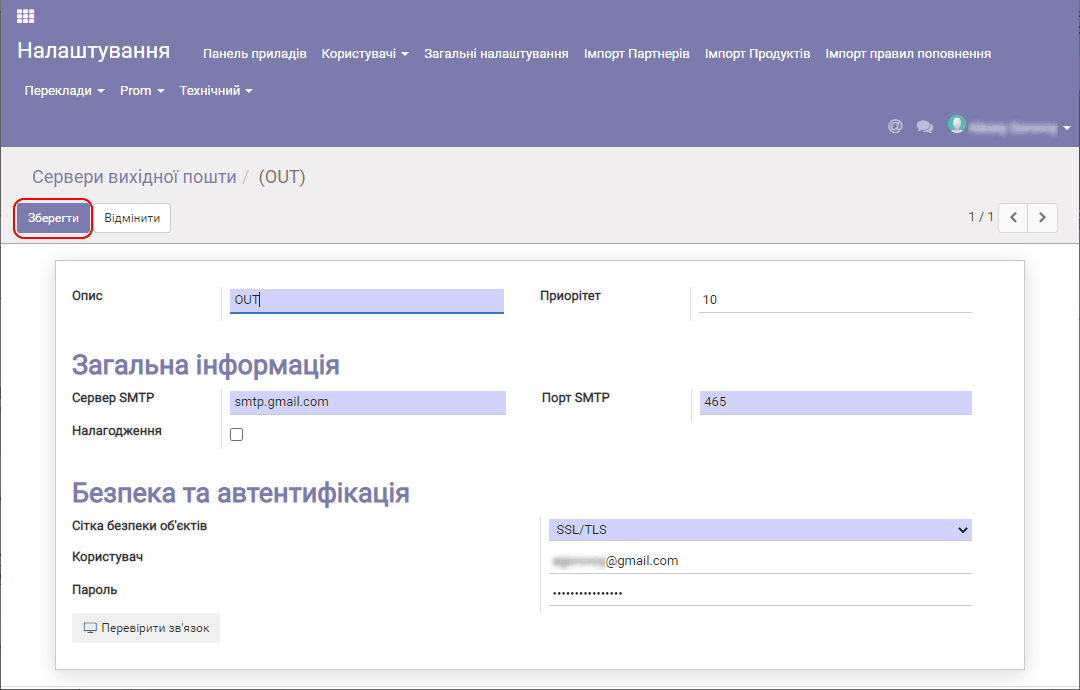
Fill in the following fields in this form:
Description – any name for the server, for example OUT (for outgoing correspondence).
SMTP Server – the address of your mail server, in our case smtp.gmail.com.
Connection Security – select SSL/TLS to protect the exchange between the mail server and the ERP FOSS program.
Username – the full email address of the user, in our case in the format mailbox_name@gmail.com.
Password – the app password that was obtained and saved earlier (see Preliminary steps).
Click Test Connection to make sure the connection to the mail server is successful:
Setting up the email address for sending tax reports
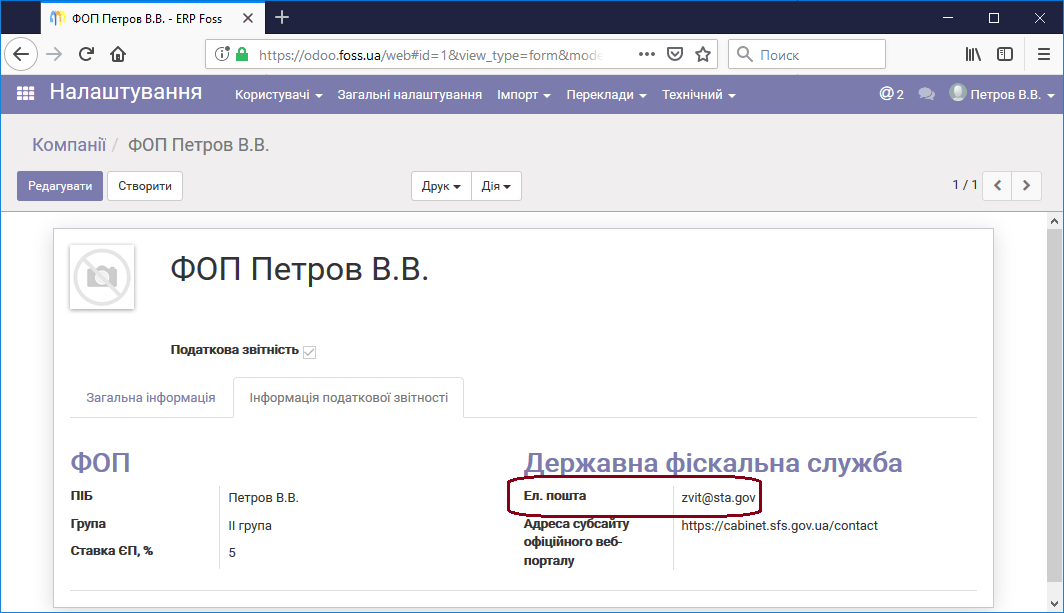
Email is used to send reports and receive confirmations of their receipt. The reports you send arrive as email messages at the address of the State Tax Service (formerly the State Fiscal Service, SFS) specified during setting up the Tax reporting tab of the company.
Receipts confirming that the report was delivered or processed by the State Tax Service are received at the company address specified in the Email field of the General information tab when setting up the company properties.
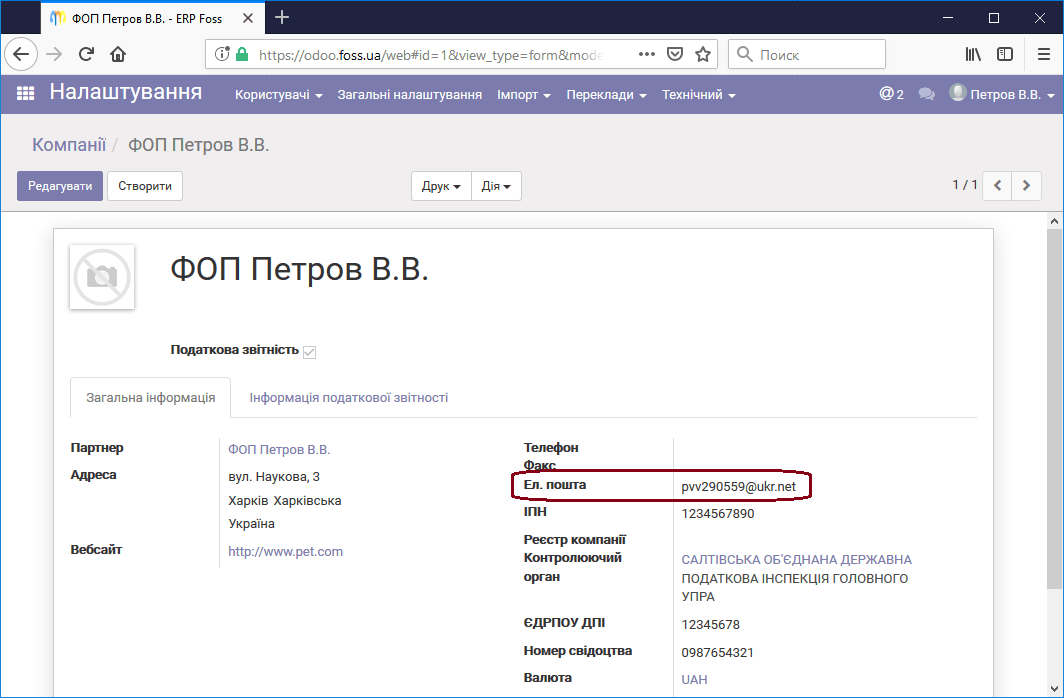
Note that the email address of the employee who will send the tax reports must match the company address; otherwise the reports will not be sent to the SFS.