Deleting documents from the system
Archiving documents
First, let us define what a document is in ERP FOSS. A document is a set of data that describes some object. For example, a customer card, a product card, an invoice, a sales order and other objects are documents. That is, this object can be opened and viewed on the screen.
You should understand that not all documents can be deleted from the application. Documents for which operations were performed usually cannot be deleted. Consider the following case. We created a product, purchased it, and then sold it. After that we realize that we will no longer work with this product, there are no stock balances of it in the warehouse, and we want to delete it from the application. But the application does not let us do this because the product is used as a component of other documents, such as purchase orders, sales orders, invoices, accounting and warehouse postings, and possibly other documents. If you deleted all these documents, the cash balances, product stock balances and other information would be displayed incorrectly. But there is a way out, and it is quite simple. A document can be archived. To do this, click the Active button, and the document moves to the Archived state.
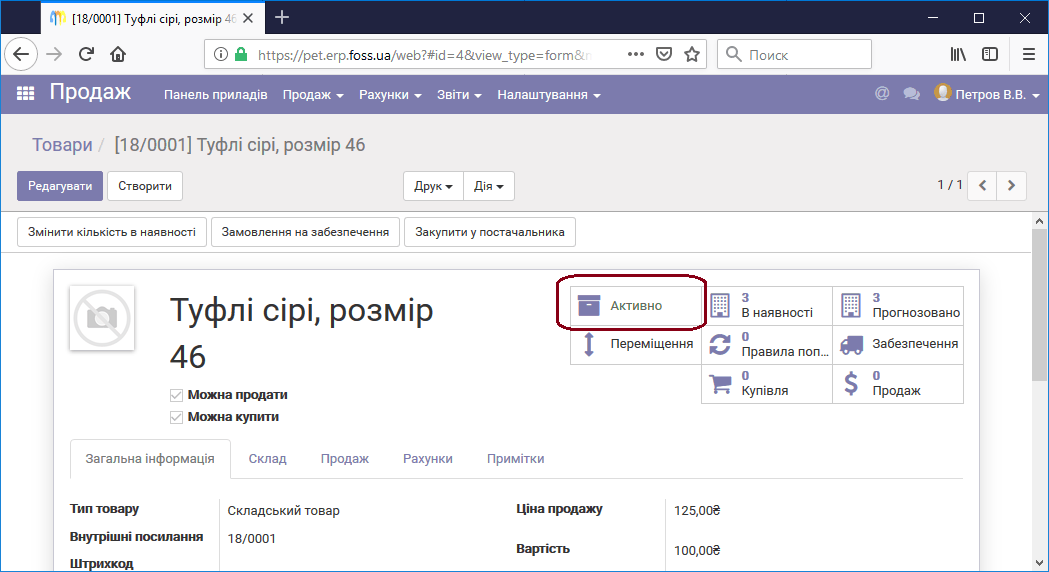 Archiving documents
Archived documents are not shown in the general lists and do not interfere with work on active (current) documents. You can get the list of archived documents by selecting the corresponding filter. If necessary, a document can be unarchived.
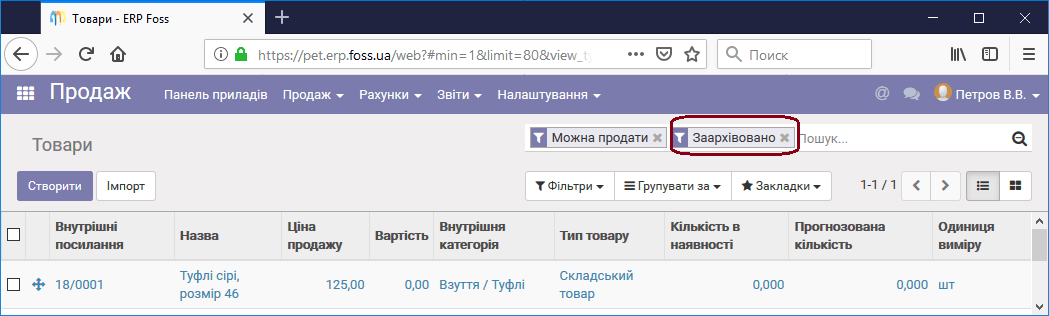 List of archived documents
Deleting documents
In general, it is better not to delete documents but to make a return of the delivered products or of the paid funds. But this is not always convenient or possible. For example, you registered a payment against an invoice and then found that you registered it with the wrong date. You simply made a mistake, and the payment date must be corrected. Or there may be another case where you even need to delete a document. As said above, this is not always possible, but we will consider under which conditions it is.
Let us look at these possibilities with an example. We create the product T-shirt, make its purchase and payment, and then try to delete the documents of this operation.
As a result of the purchase, we have the following documents:
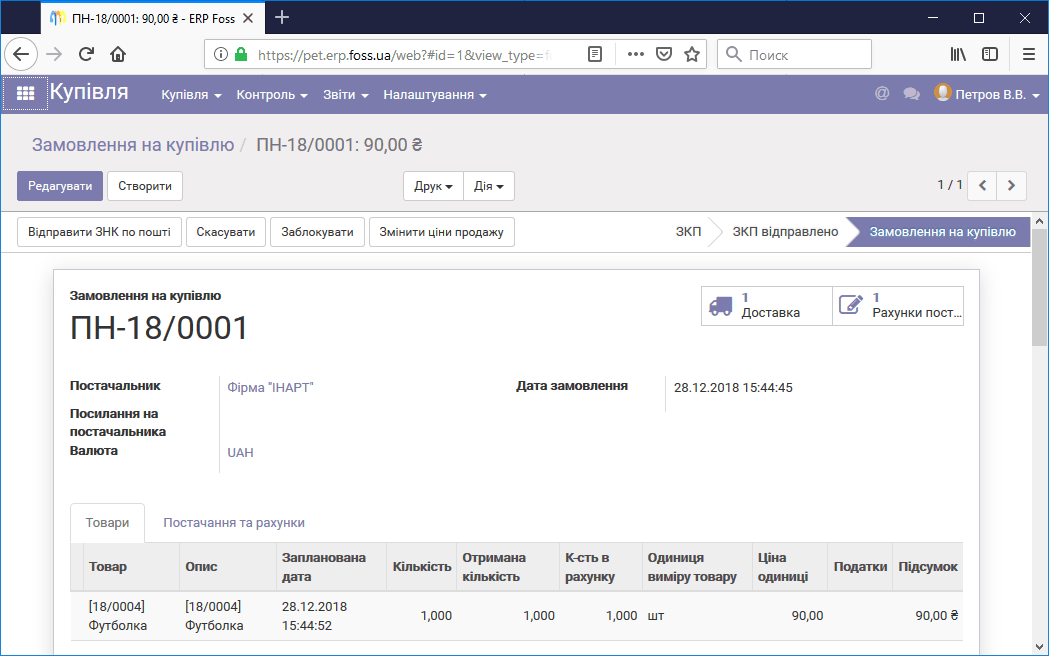 Purchase order
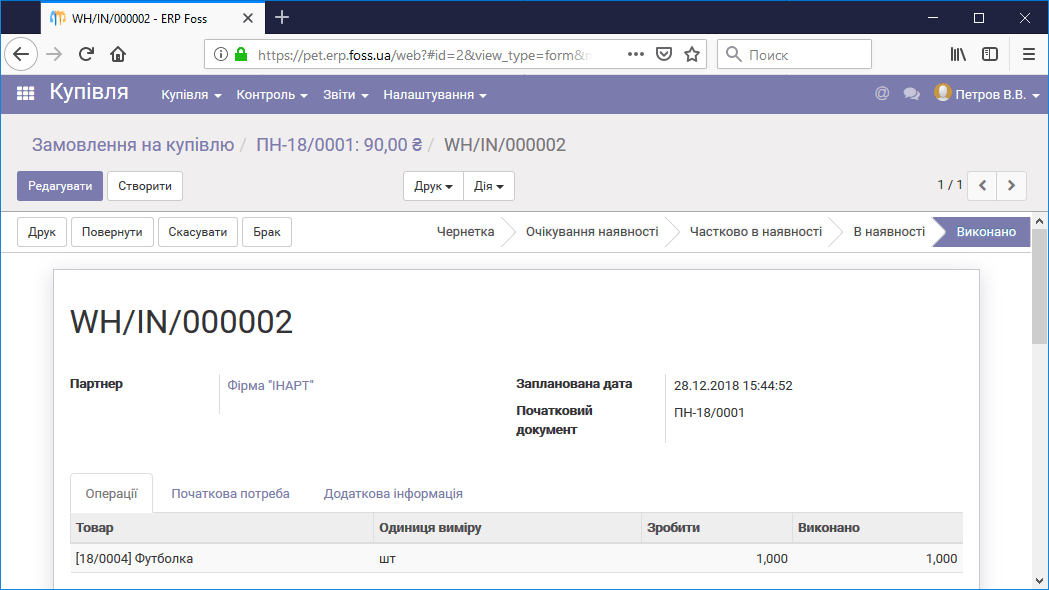 Product delivery form
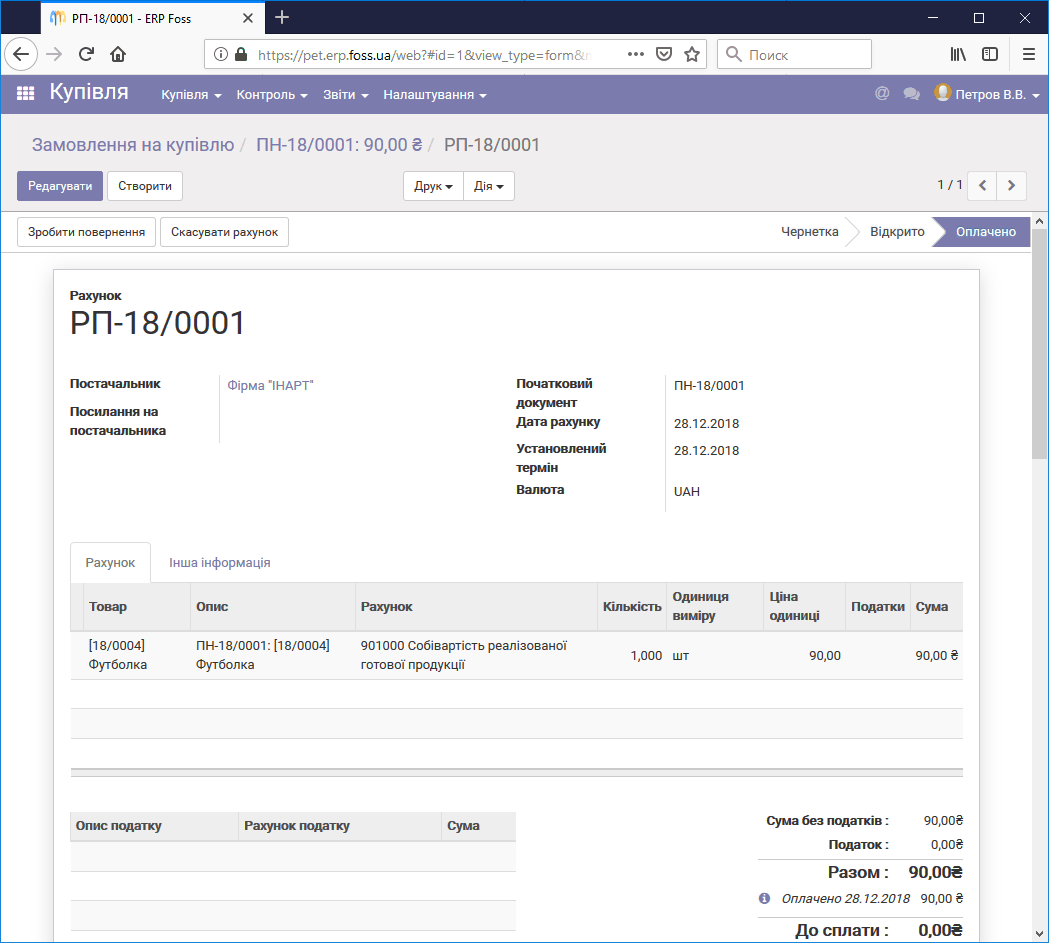 Paid supplier invoice
After the purchase, we see that one unit of the product is now in stock,
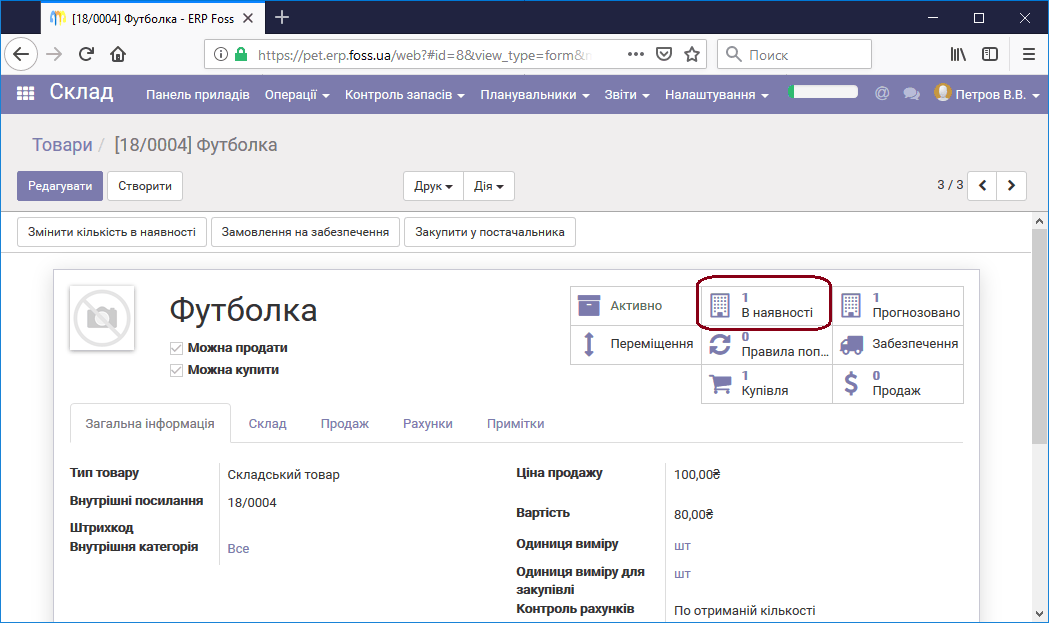 Quantity of the product in stock
a record of the product movement in the warehouse against the purchase order number PN-18/0001 has also been created,
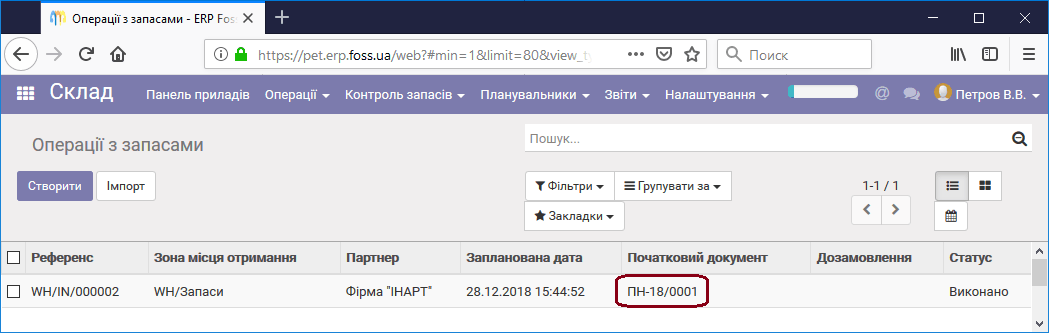 Product movement
and UAH 90 has been withdrawn from the cash desk to pay the supplier for the product.
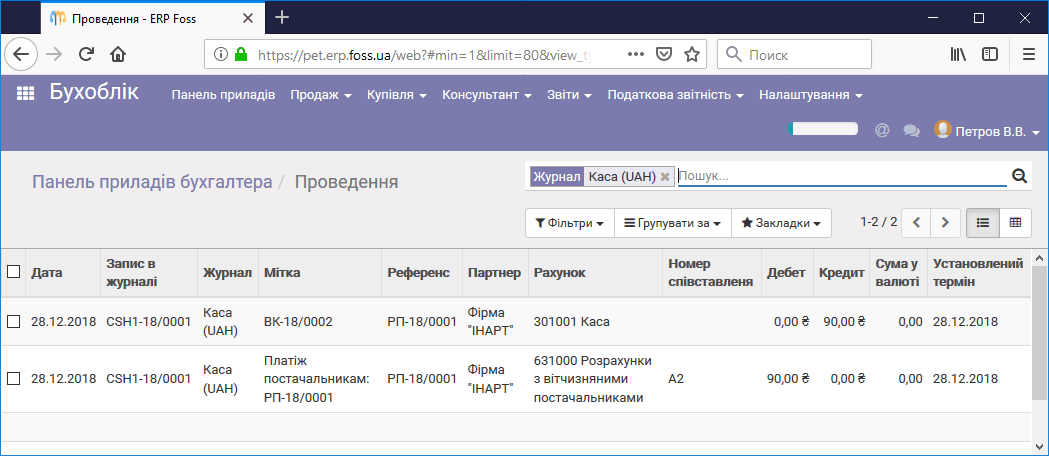 Cash desk posting
Thus, the cash desk balance is -90 UAH.
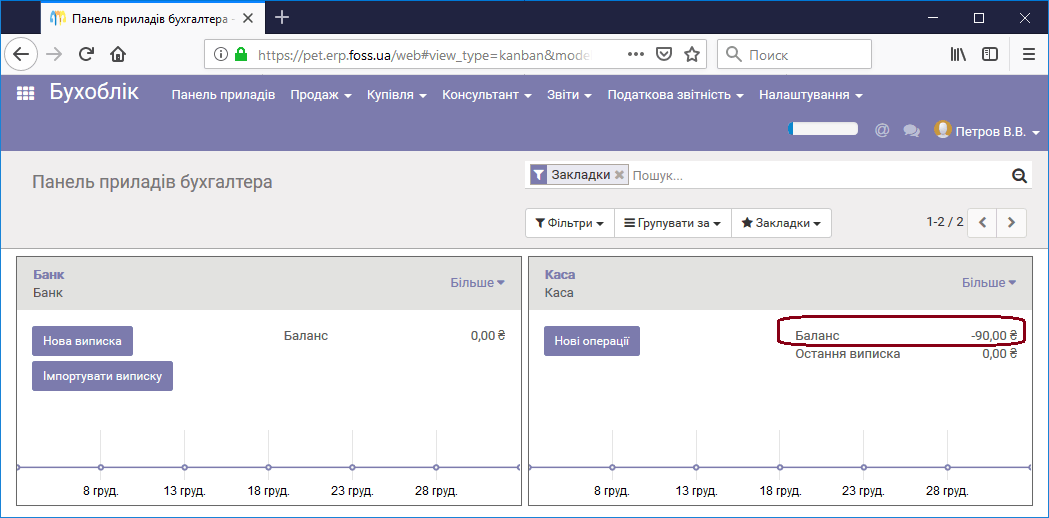 Cash desk balance
Now let us delete our documents. Note that documents must be deleted in the reverse order of their creation. In addition, it is sometimes impossible to delete product delivery documents. This happens, for example, when the product was sold after it was purchased and we want to delete the documents of this purchase, or when there is a complex route for receiving products into the warehouse. This list is not limited to the examples above; there can be other cases. If you cannot delete the documents on receiving or shipping products, simply correct the product stock balances in the warehouse through an inventory count or by updating the product quantity directly from the product card.
To delete an invoice, open it and click Cancel invoice. The invoice can be opened both from the Purchasing module and from the Accounting module.
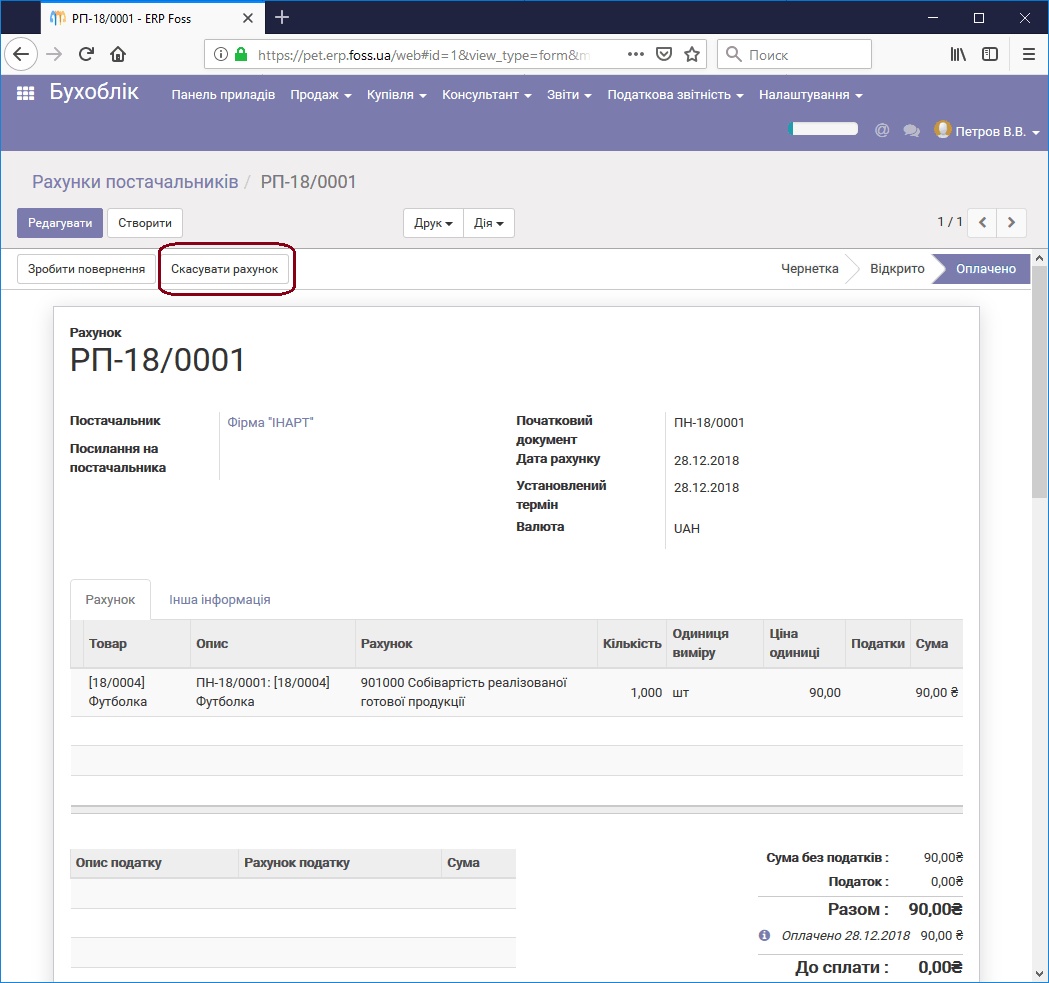 Cancelling an invoice
Then you can move the invoice to the Draft state by clicking Set to draft. Now, if you need to, you can edit the invoice and confirm it again, or delete it completely through the menu Action/Delete.
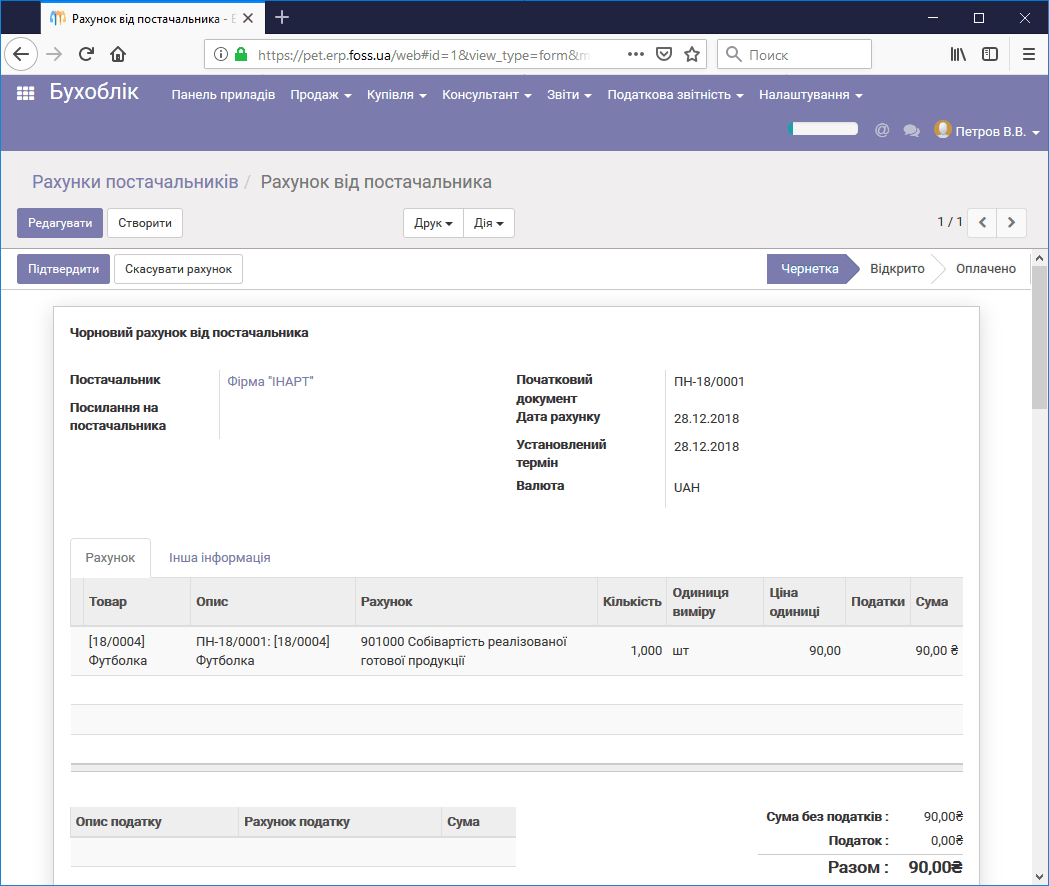 Invoice draft
Now, if we open the accountant's dashboard, we see that the cash desk balance is zero. That is, our posting was deleted.
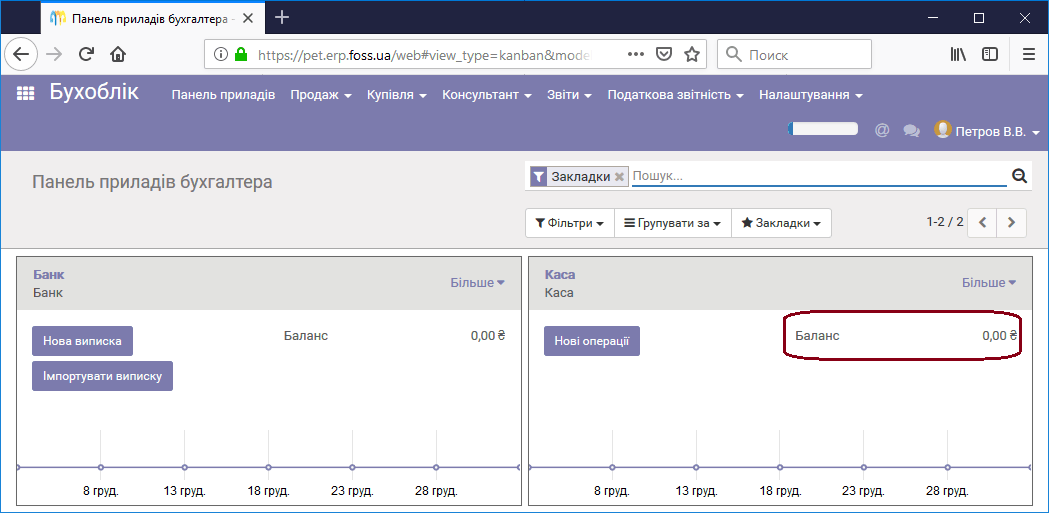 Zero cash desk balance
To delete a product delivery, go in the Purchasing module to Purchase orders/Delivery and click Cancel. Then, as with the invoice, you can set the document to draft and delete or edit it. You can also delete the Purchase order itself.
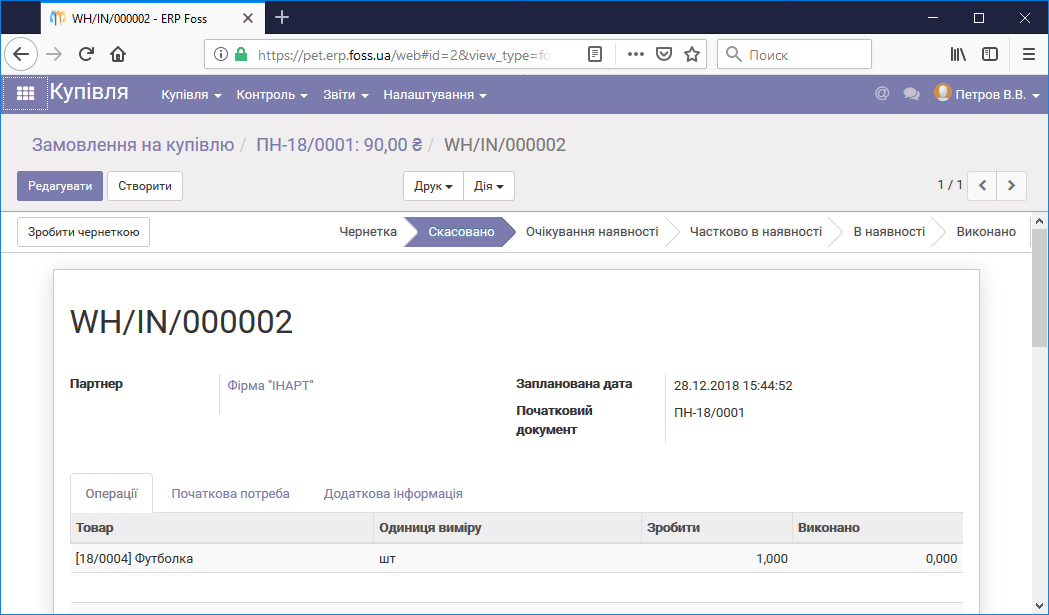 Cancelling a product delivery
If you delete the document permanently, the product movement records are deleted too.
Note: Keep in mind that when documents are deleted, the numbers under which they were created are lost.
You can delete documents in the same way for product sales.