Registration, user account area and account details
Registration on the website
You can start using ERP FOSS by registering on our website. After registration we provide a free trial period of 1 month. To register, click Try on the home page of the website:
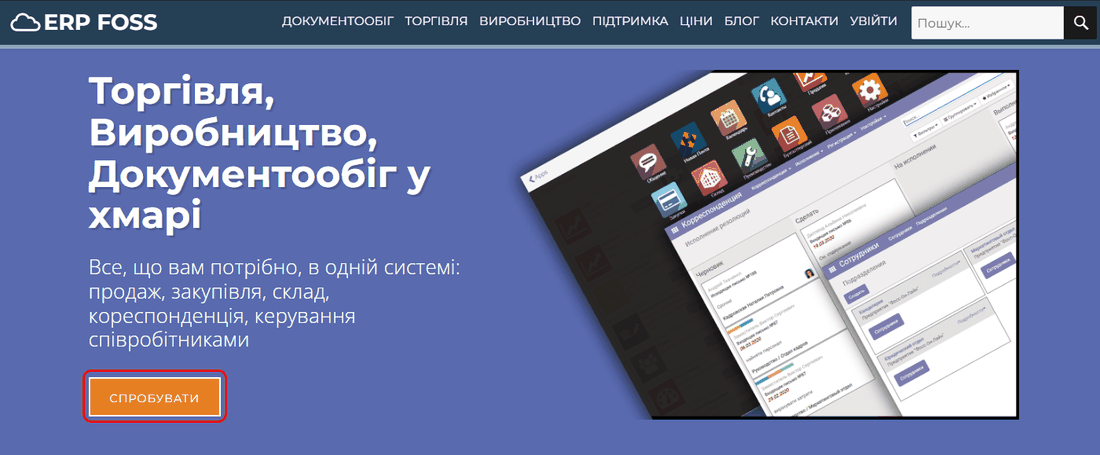
Or select the Log in -> Registration menu. The registration form appears:
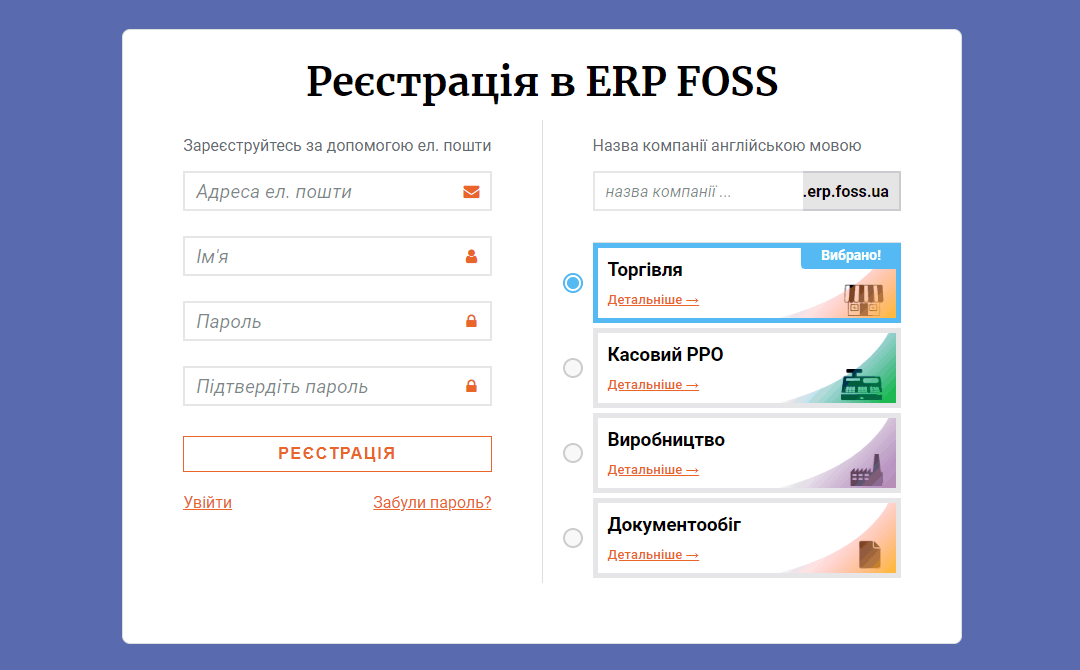
Enter the following data in the form:
Company name – the name of your company in English, or the name of your sole proprietor business (FOP), or any other name of your business, on which your account on the ERP FOSS website will be based. For example, start-plus (after registration the account is created at start-plus.erp.foss.ua), or fop-petrenko, or avtozapchastiny, etc. If the name you entered has already been used by someone else, the program warns you and does not register an account with that name.
Email address – a valid email address. It is used as the login for the program. The registration confirmation link is also sent to this address.
Password – create a password for logging in to the program.
Confirm password – repeat the password entered above.
Trade/Cash register PRRO/Production/Document management – select one of our solutions, usually Trade. During the free month you can switch to any other solution. (PRRO is a software cash register.)
Click Registration.
The program reports successful registration:
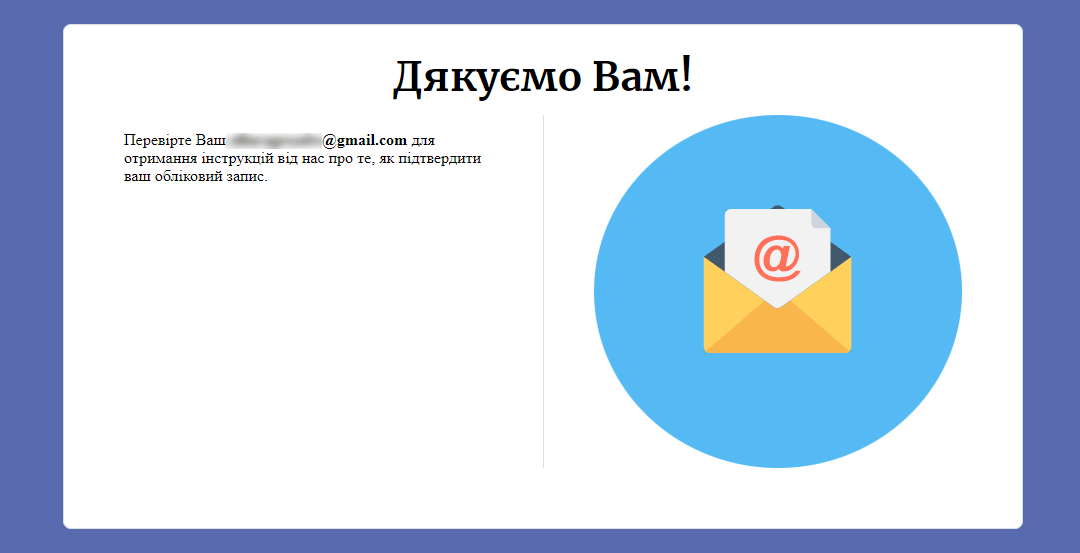
An email with a registration confirmation link is sent to the address you specified in the form:
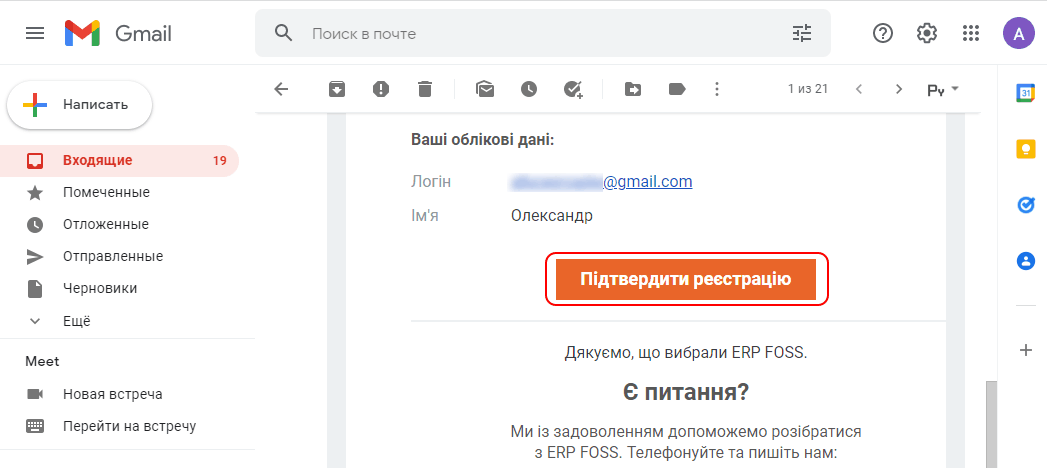
Click Confirm registration.
User account area (workplace)
As a result, an account is created for you on the erp.foss.ua domain, using the company name from the registration form as the domain name. Your user account area opens in the browser, according to the solution you selected. This area is the user's workplace in ERP FOSS:
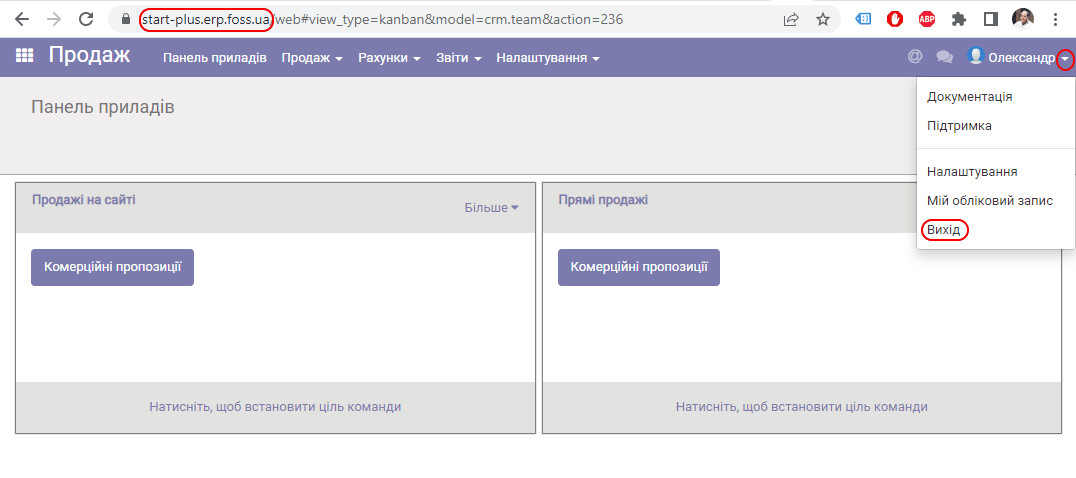
The database of your account is filled with test products, so you can start working right away. We recommend that you read the documentation of the program.
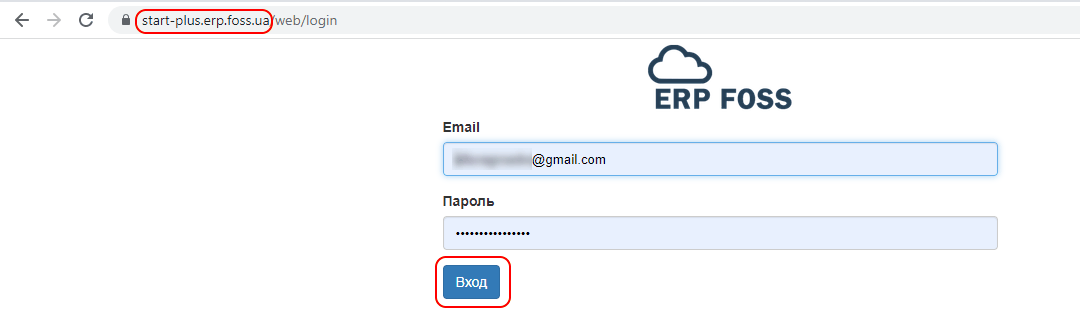
To log out of the program, click Log out in the menu to the right of your user name (see above). To log in again, enter the address of your account area in the browser (for example, start-plus.erp.foss.ua), and in the login form enter your login and password: the email address and password you entered during registration, then click Log in.
Account details (user profile)
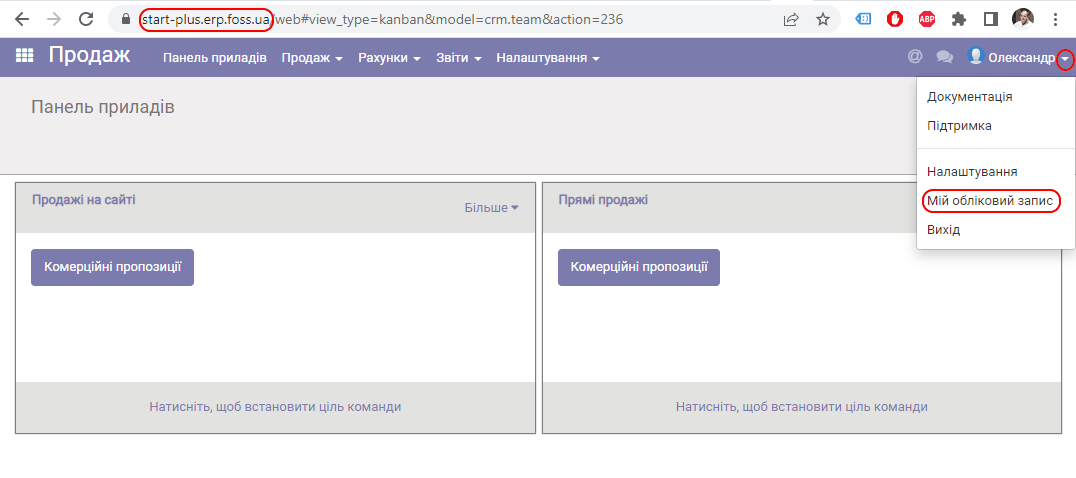
Open the menu to the right of your user name and select My account.
Your user profile opens with the account details:
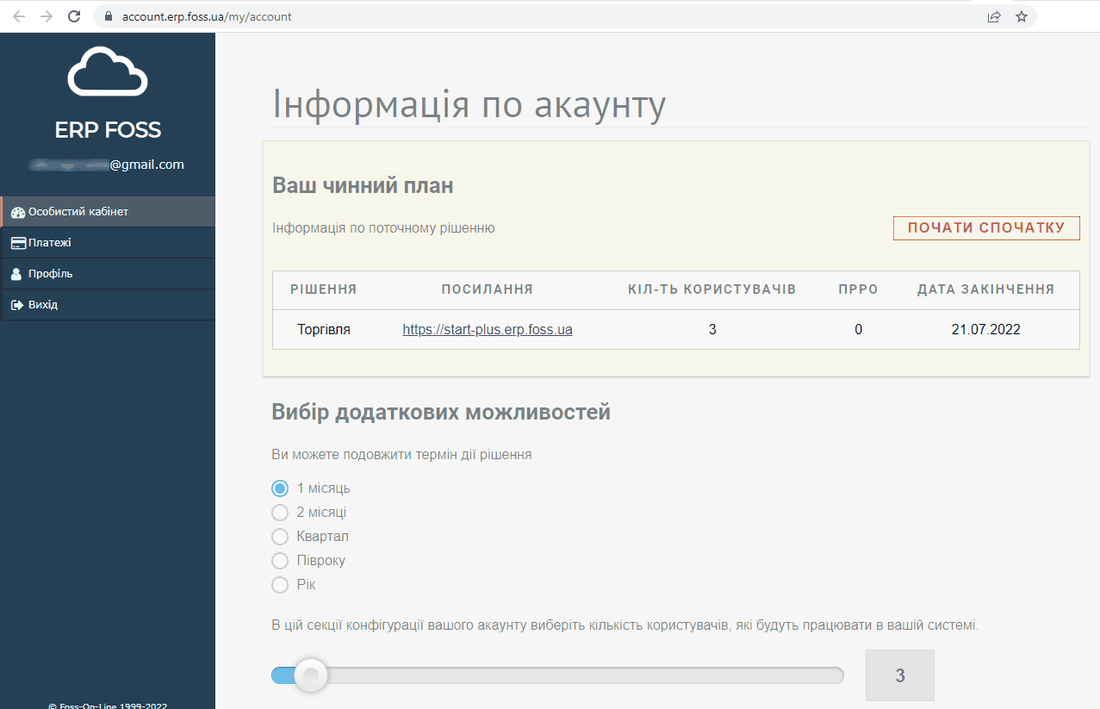
Here you can see the current solution of the program that you are working with, for example, Trade. You can also click the link to go to your account area (workplace) in the browser.
Before the free/paid period ends (shown in the "Expiration date" field), you decide whether to keep paying for the account.
To pay, select the solution validity period and the number of users who will work with the program at the same time, select the "I agree..." checkbox and click Payment.
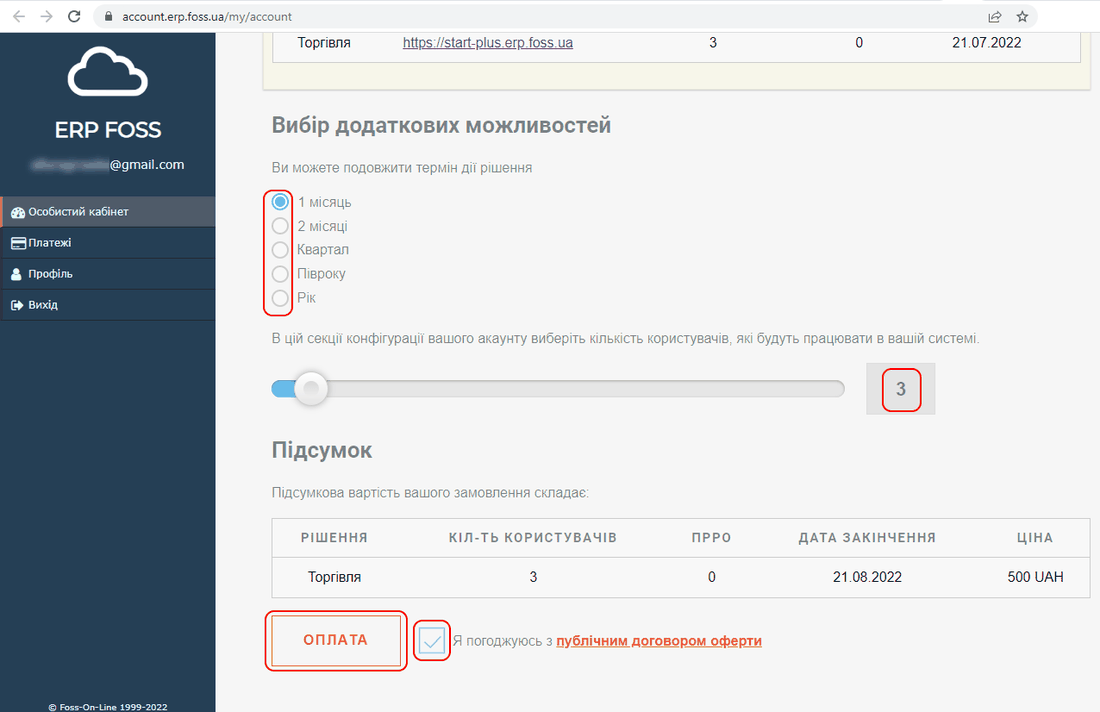
You are then taken to the payment system page to make the payment. The Payments menu lists all the payments made.
Contact us if you need an invoice with closing documents.
Deleting the current database. Selecting another solution
During the free period, the Start over button is available in the user profile. By clicking this button, you agree that your current data in the system (the product database, invoices, etc.) will be deleted. You are then offered to select a solution and a database (filled with test data or empty):
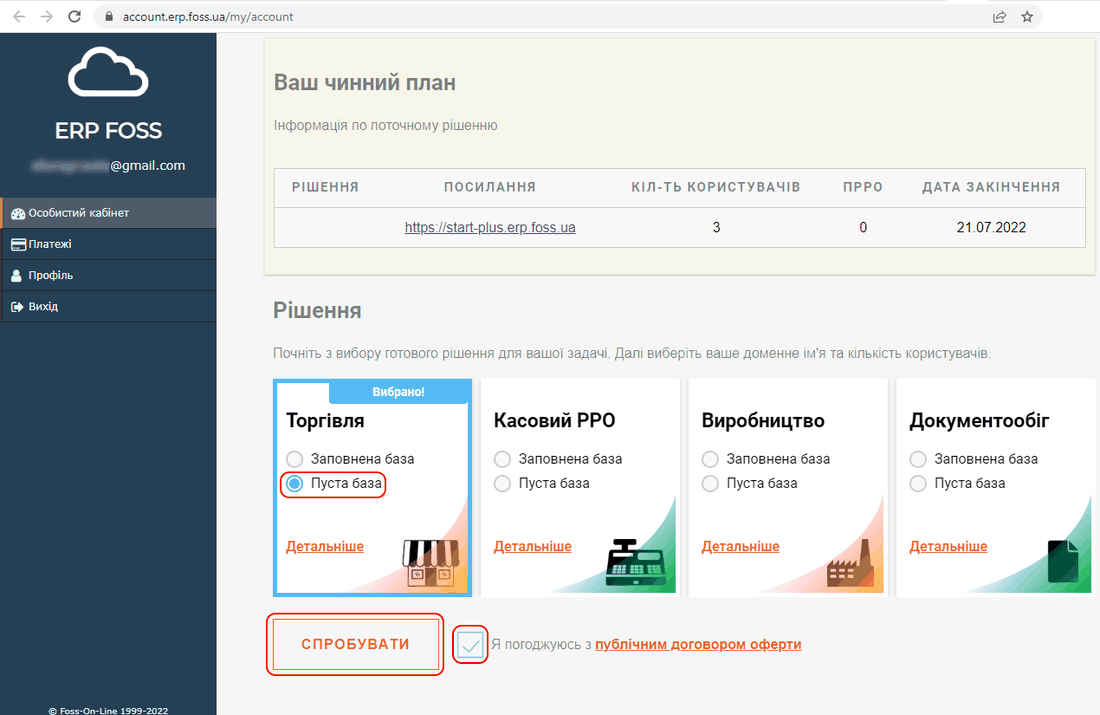
Select the "I agree..." checkbox and click Try.
As a result, the selected solution is created with a new database. The user workplace in the program opens for you again.