Working with employees (users)
Difference between employees and users
Employees are document management users who can take part in collaborative work on documents by creating or executing tasks for a document (resolutions). An employee has a workplace (department), a position, and a manager. You can delete an employee, but the corresponding user remains in the system. For example, an administrator is a user who does not have to be an employee and take part in work on documents.
Creating employees (users)
The system administrator or a user with certain rights can create employees.
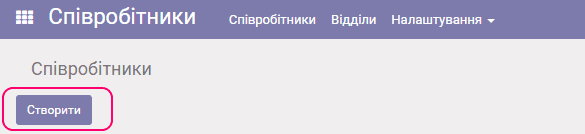
Select the Employees application and click Create.
The employee create/edit form appears:
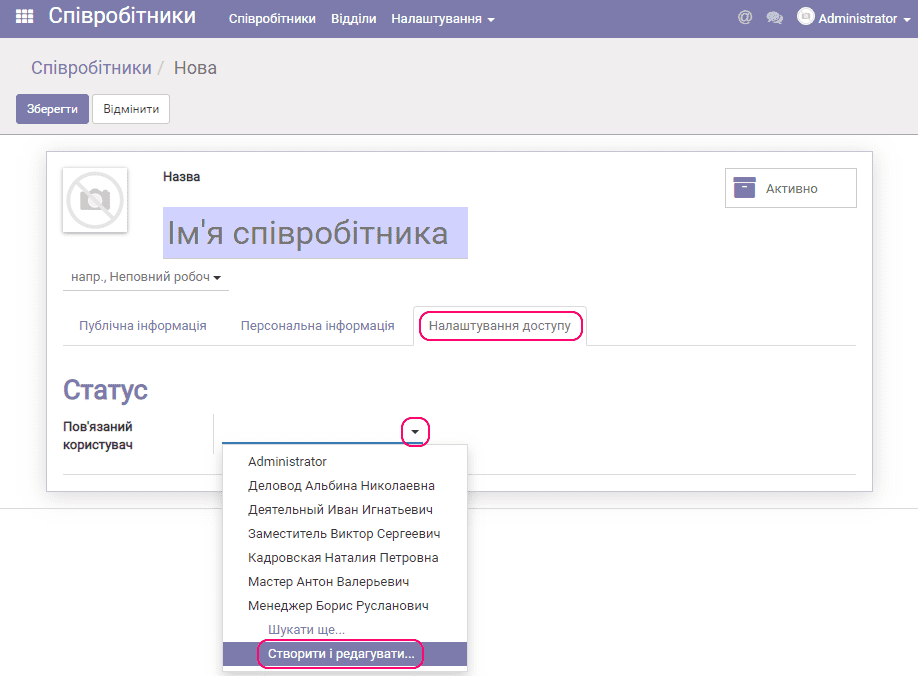
Go to the Access settings tab and click Create and edit. The properties form of the new user (contact) appears. Enter the user's name and email address:
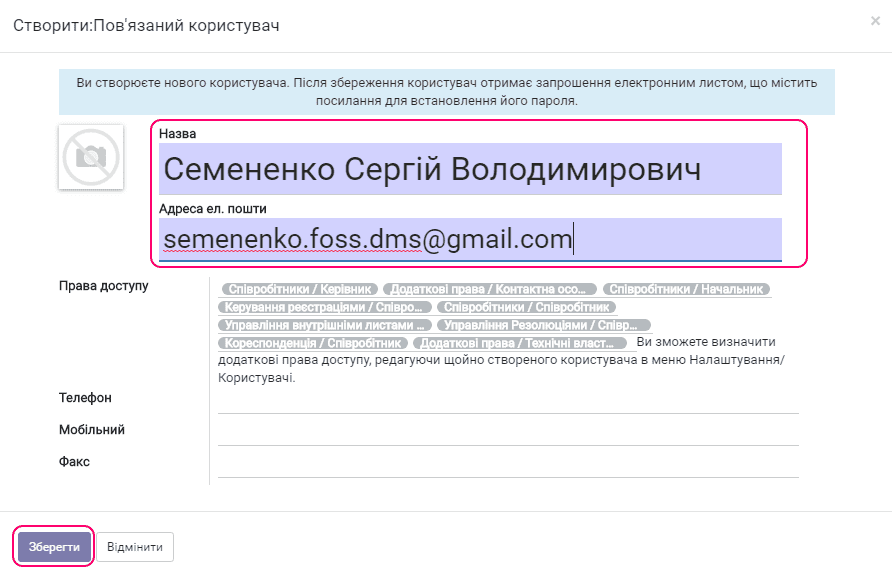
Click Save. An invitation to join the system is sent to the specified address (the login is the email address, with a password entry form).
Then return to the Public information tab and click Save to save the employee in the system.
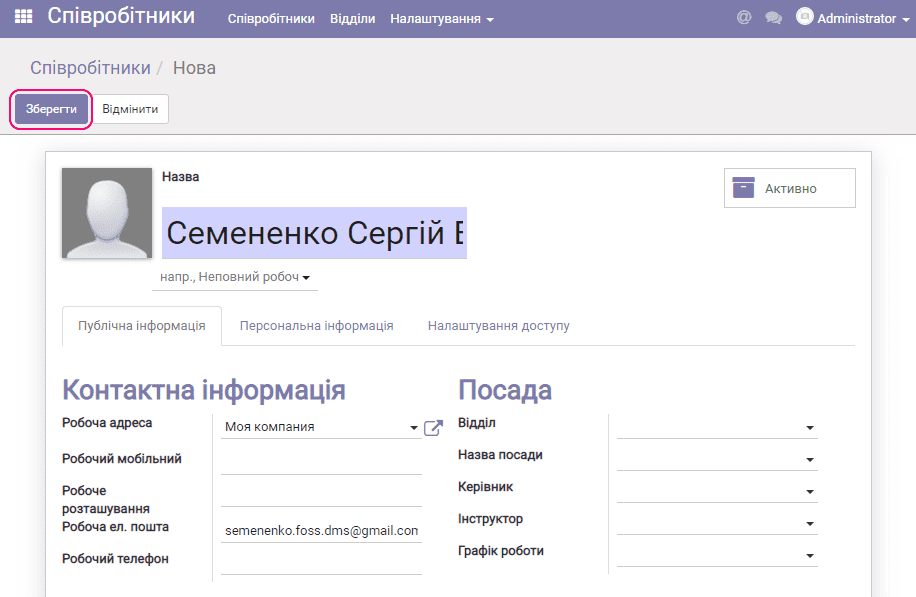
This is how to quickly create a user and the employee linked to them. After that, you can edit the employee's properties and change the access rights of the corresponding user.
Editing an employee
To edit, click the required employee in the directory:
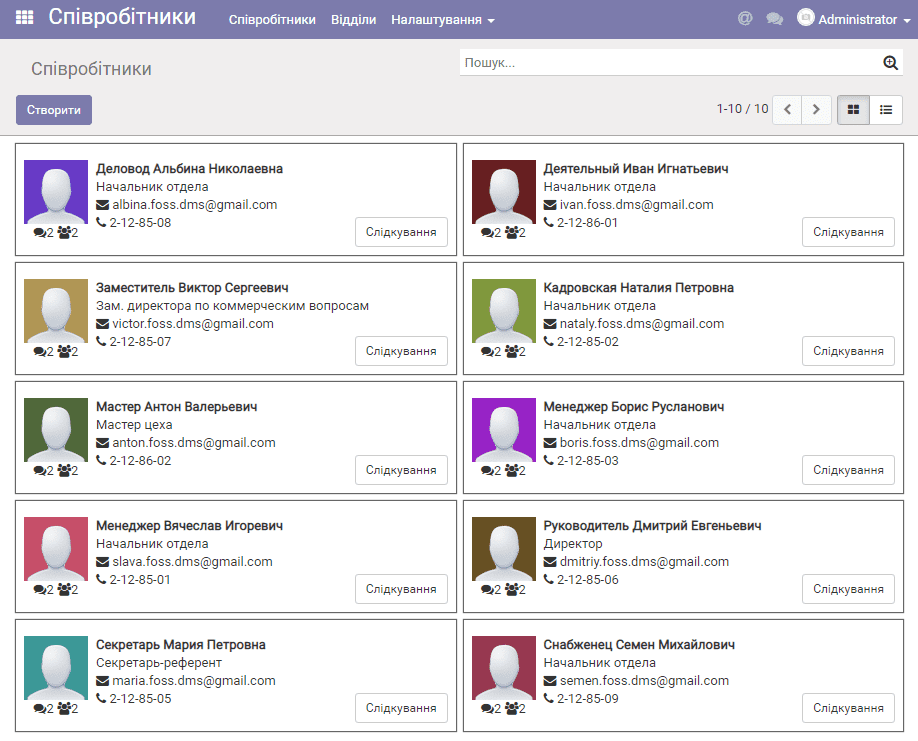
the employee properties form appears; click Edit:
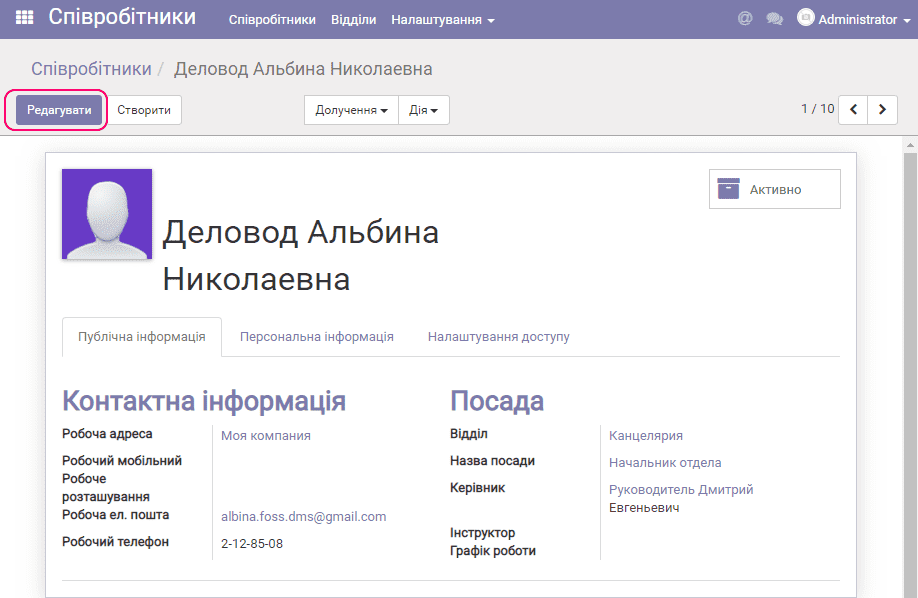
Use the arrow buttons to move between employees in the directory. You must specify the department the employee belongs to, the name of their position, and select a manager for them. You can also enter other data on the employee form, for example, contact information.
We recommend filling in the department directory with the relevant data in advance. You can also create a new record, for example in the department directory, while editing an employee: open the field list and click Create and edit:
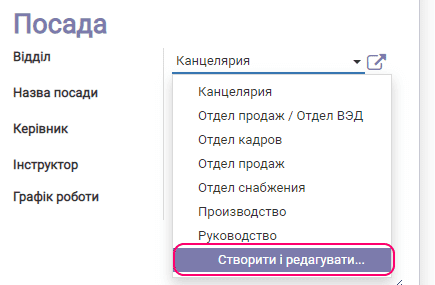
Working with the department directory is covered in a separate section.
You can save or cancel your changes by clicking the corresponding buttons.
Deleting an employee
To delete, select the required employee in the directory and click Action/Delete.
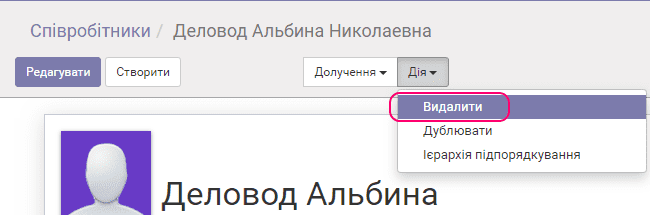
After confirmation, the employee record is deleted.