Standard purchase and sales actions
Introduction
This article covers the standard actions for selling and purchasing products. The full functionality is described in the articles "Product purchases" and "Product sales".
The modules of the same names are used for selling and purchasing products.
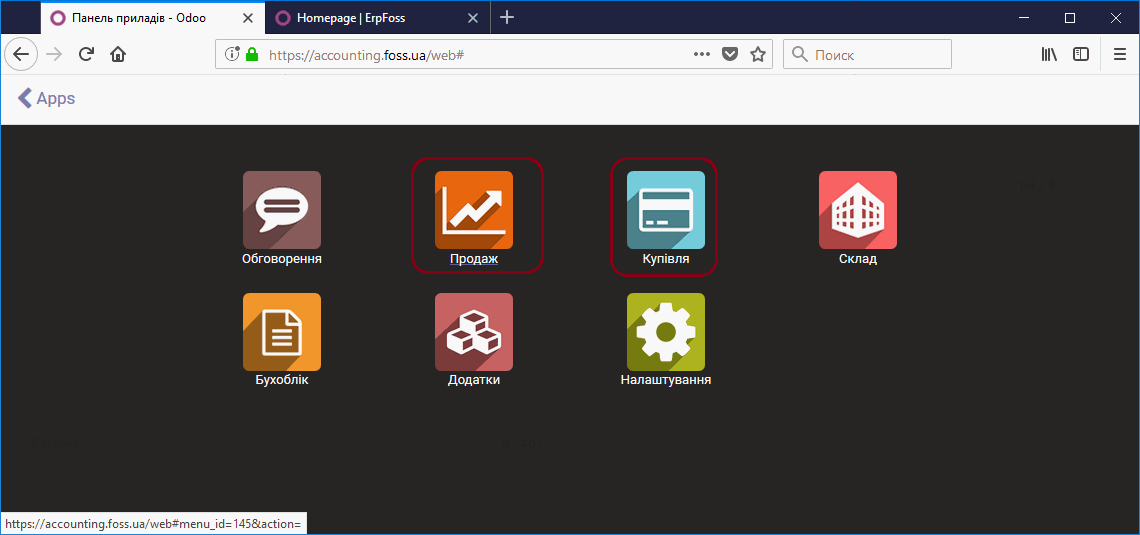 Product purchase and sales modules
Product purchases
Only the program users who have been given the corresponding rights have access to the purchase module. These rights are assigned in the Application section when setting up user rights.
Access levels: Manager has access to all purchase documents, User has access only to their own documents. Users and their properties are created and edited in the Settings module, menu item Users.
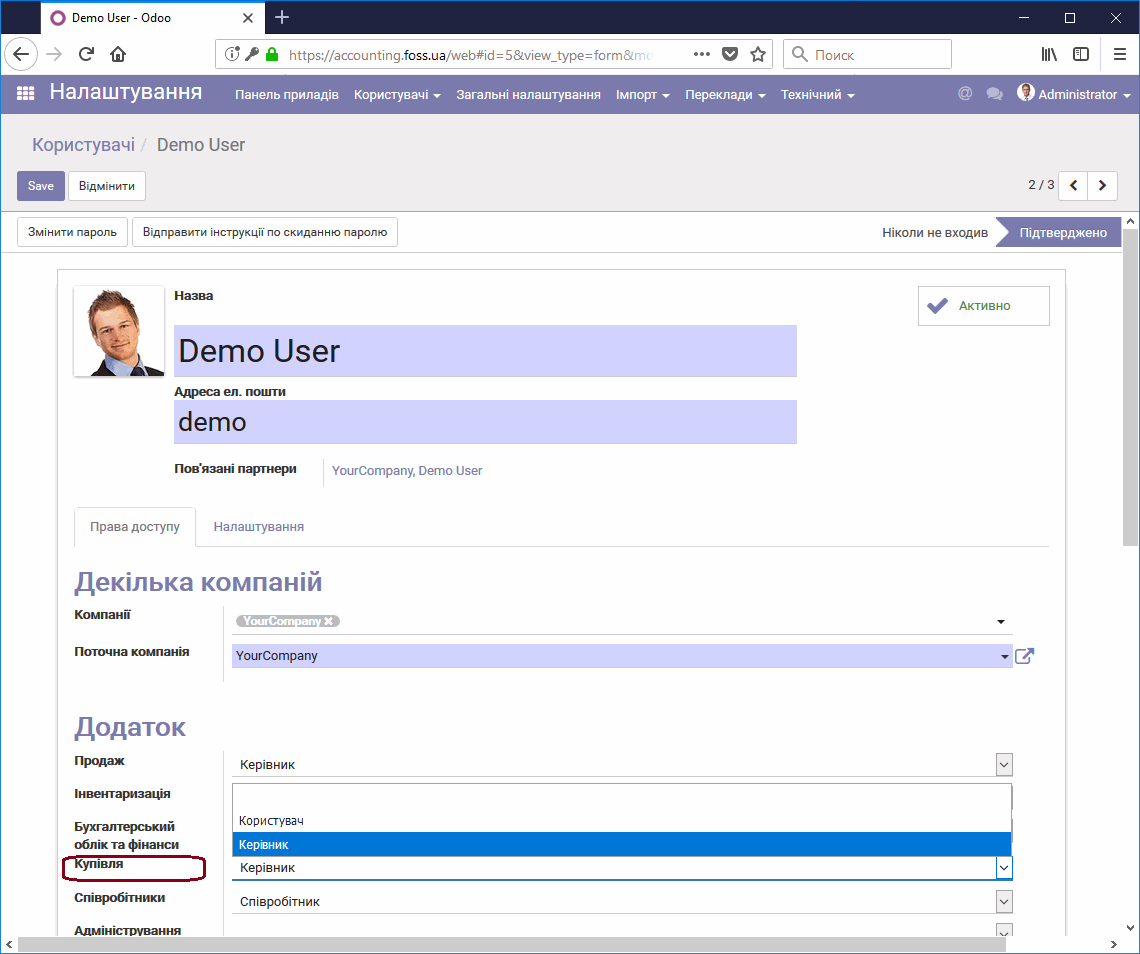 Setting up user access rights to the Purchases module
Purchase order
Go to the menu item Purchases/Purchase orders and click Create.
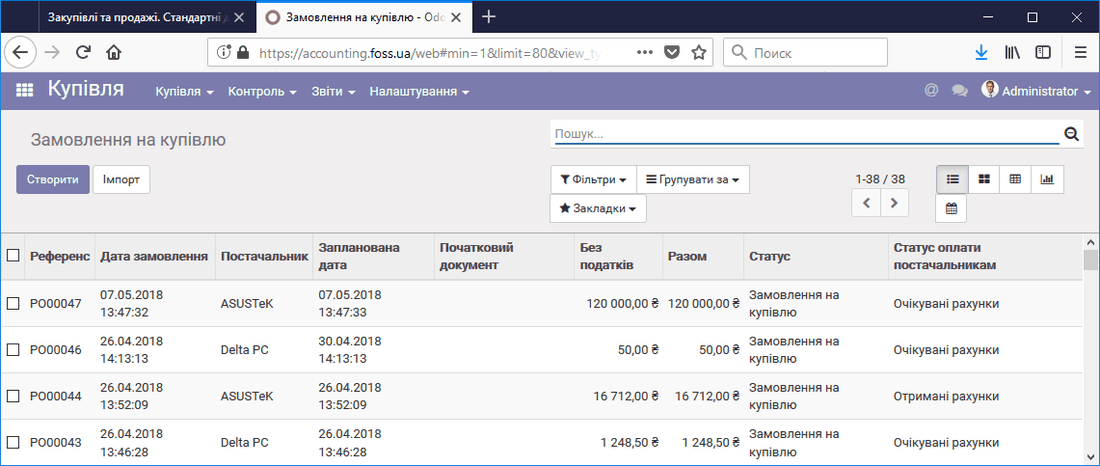 List of purchase orders
Select a supplier and add the list of products you are going to buy from them. The program creates a request for quotation.
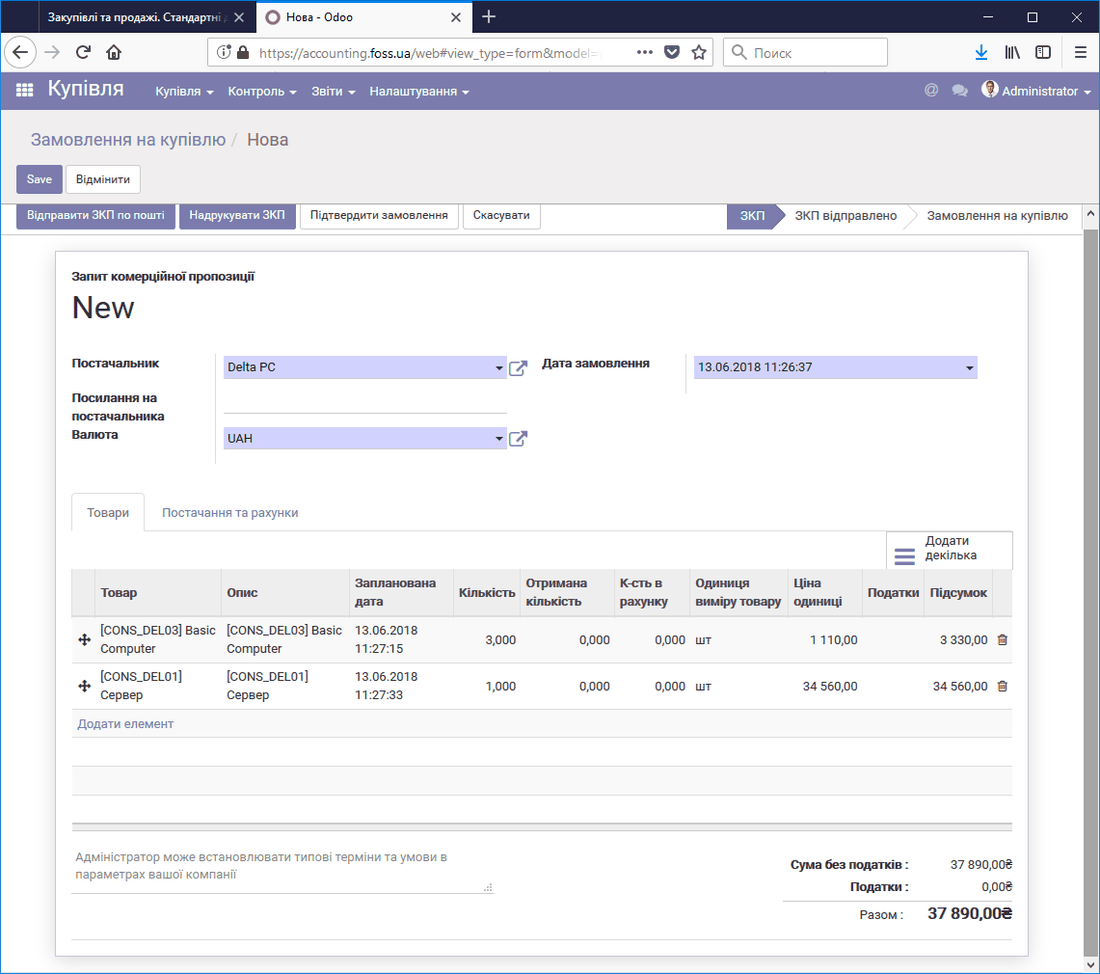 Request for quotation
After you confirm it (Confirm order), the request gets the status Purchase order and the Delivery/Receive products button and the Supplier invoices button become available.
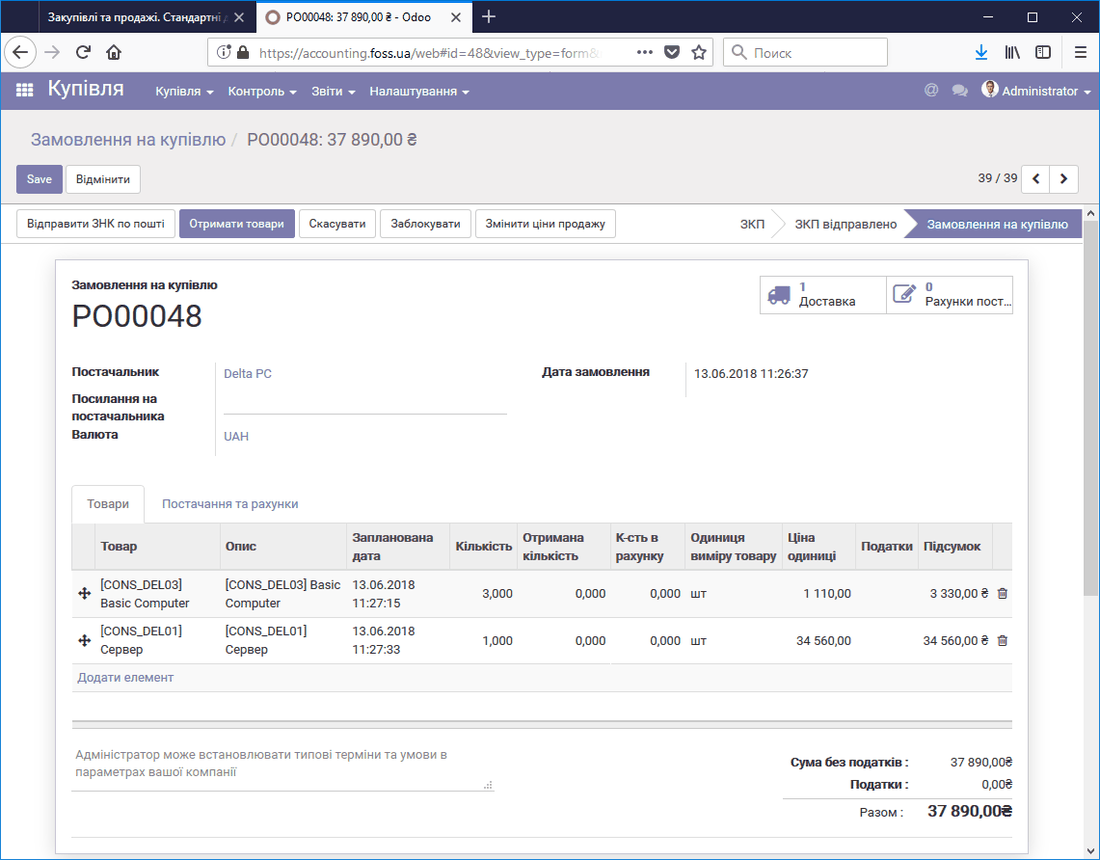 Purchase order
Processing the delivery of purchased products (Product delivery) and preparing the documents for their payment (Supplier invoices) can be done in any order.
Product delivery
Click the Delivery button and the program creates a delivery form for the purchased products. Then click the Confirm and Apply buttons.
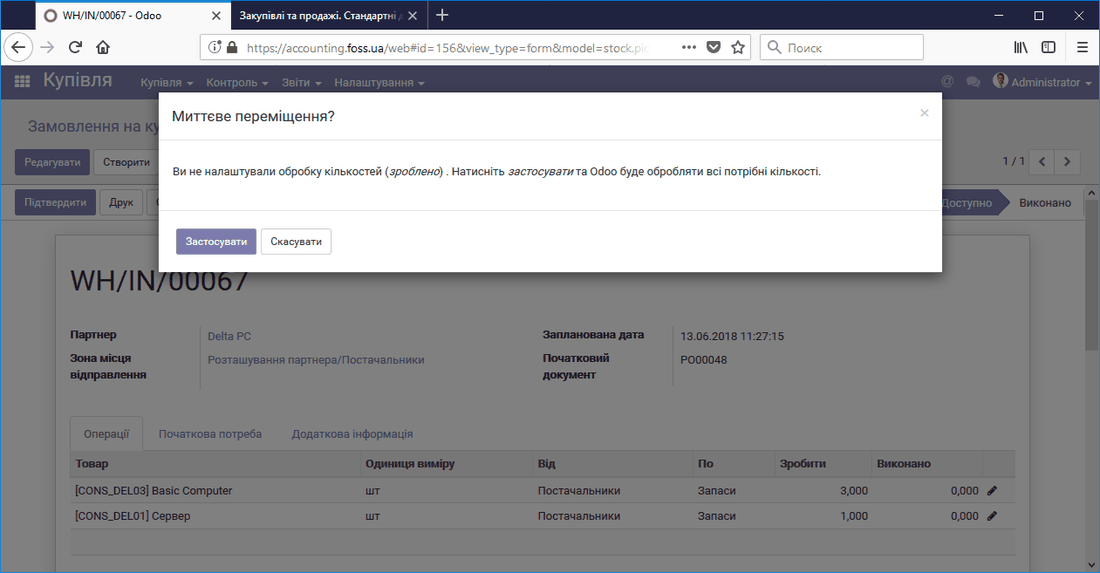 Delivery form for purchased products
After the delivery is confirmed, the delivery form gets the status Done.
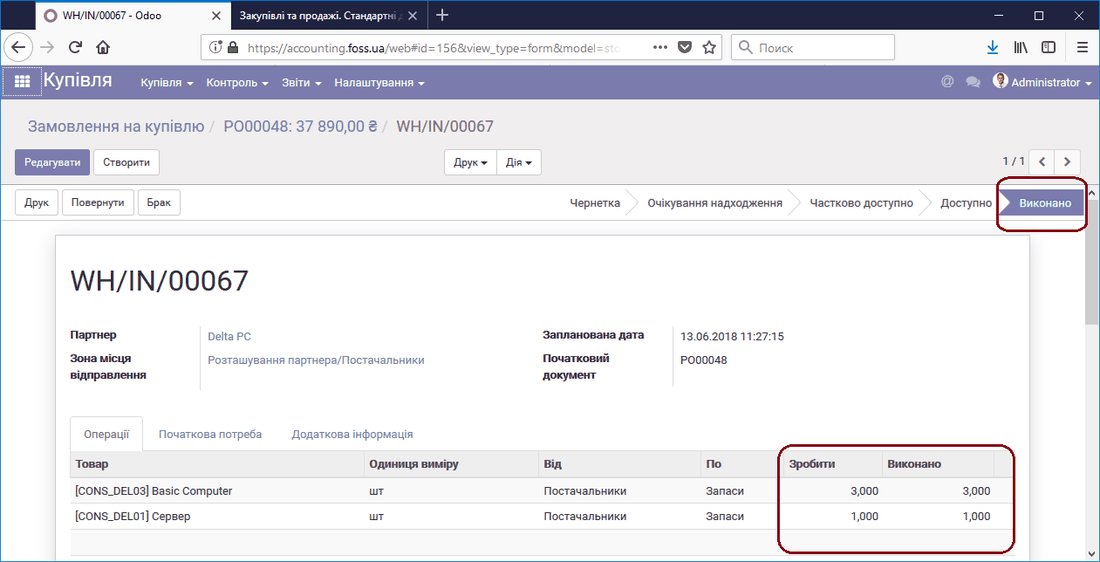 Completed delivery form for purchased products
Supplier invoices
When you receive an invoice from a supplier, enter it in the program based on the Purchase order by clicking the Supplier invoices button. The program offers to create a new invoice.
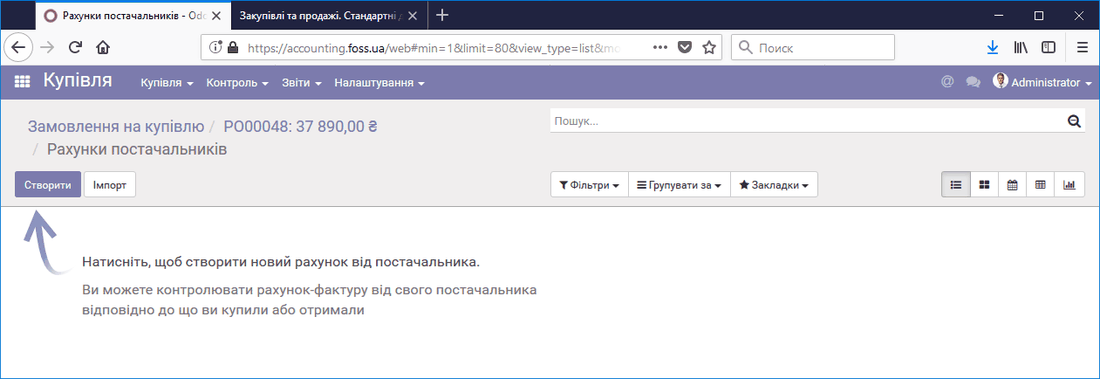 Creating a supplier invoice
After you select Create, a Draft invoice is created and all data from the Purchase order is entered into it.
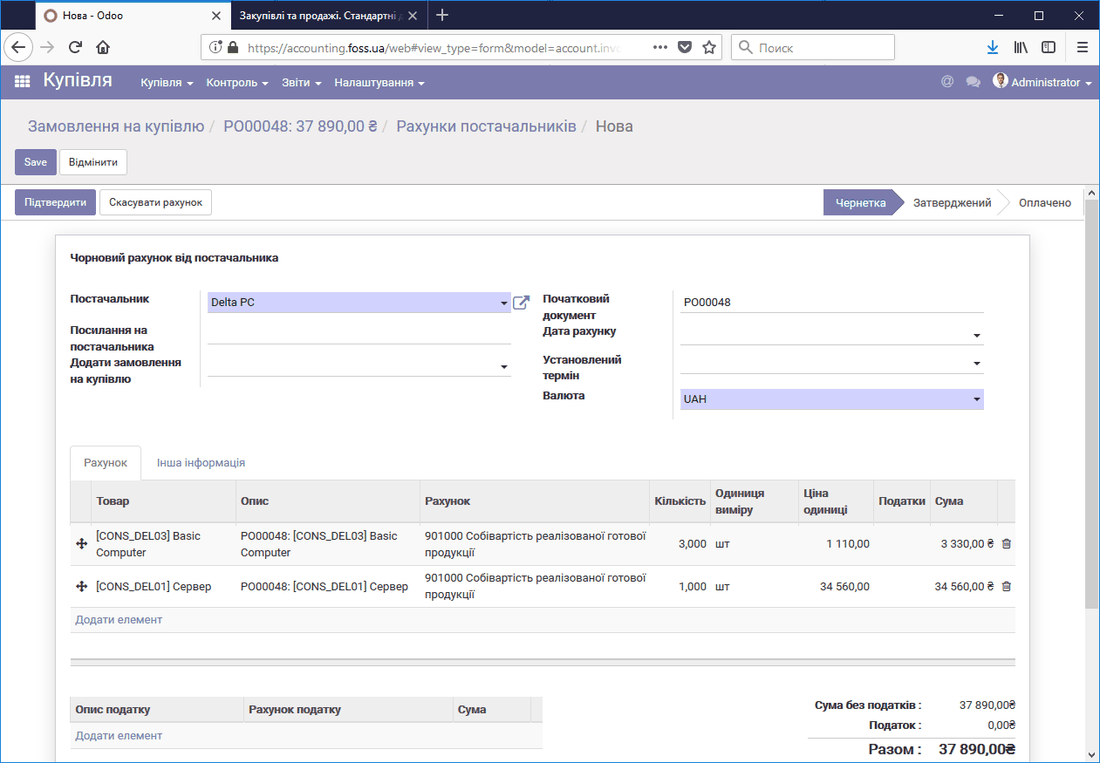 Draft supplier invoice
Then you can confirm the invoice and, once it is paid, register the payment by selecting the payment journal.
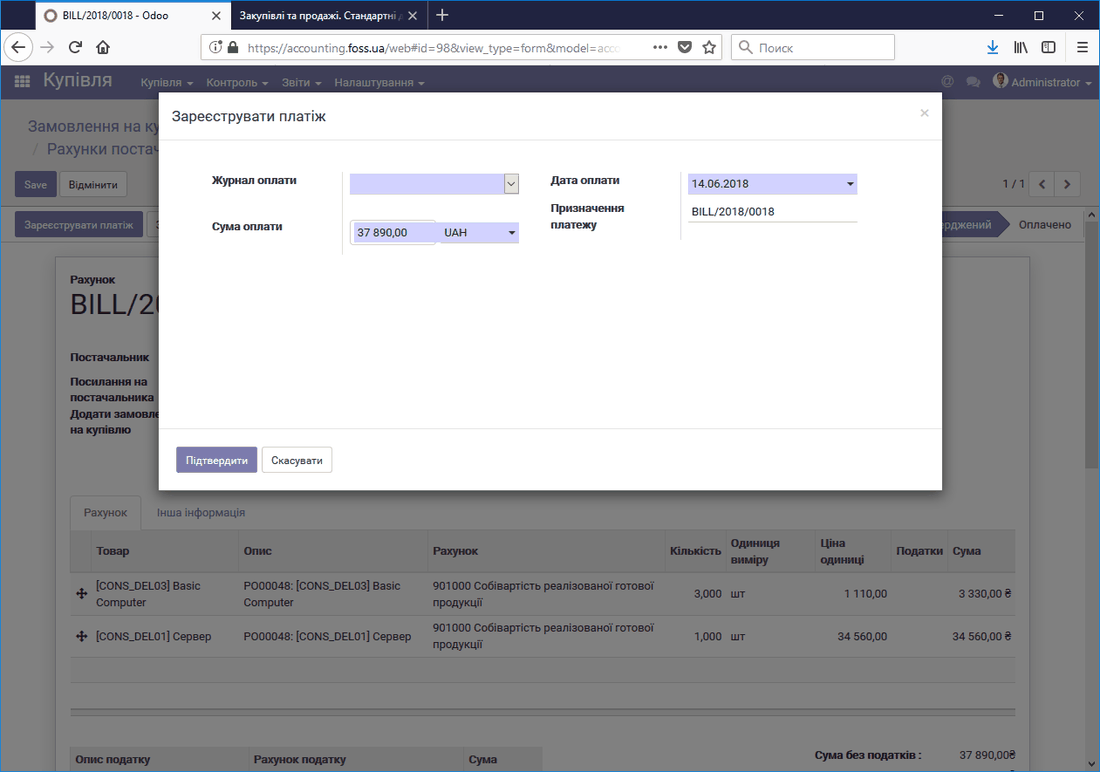 Registering a payment to a supplier
The invoice for registering the fact of payment is available in the following places:
in the Purchase order;
in the folder Control/Supplier invoices of the Purchases module;
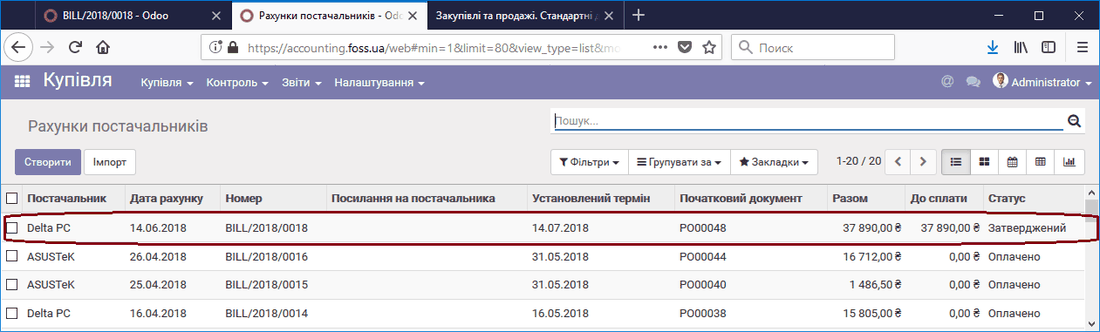 List of supplier invoices
- in the folder Purchases/Supplier invoices of the Accounting module
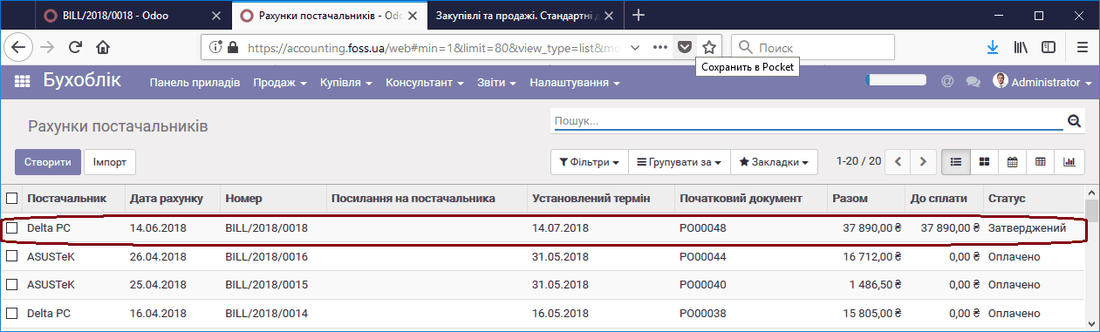 Supplier invoices in the accounting module
Product sales
Only the program users who have been given the corresponding rights have access to the sales module.
Access levels: Manager has access to all sales documents, User has access only to their own documents or to all documents, respectively. Users and their properties are created and edited in the Settings module, menu item Users.
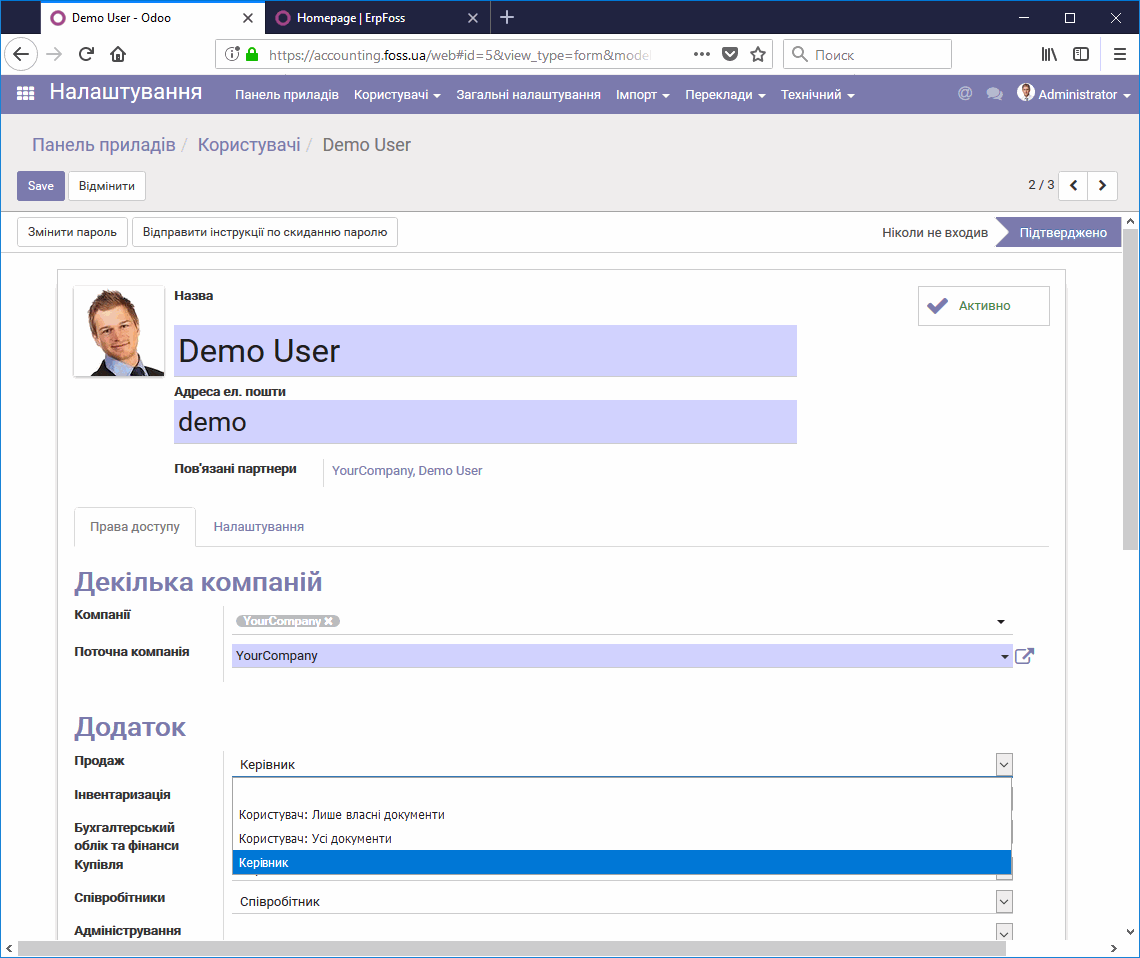 Setting up user access rights to the Sales module
Sales order
Go to the menu item Sales/Sales orders and click Create.
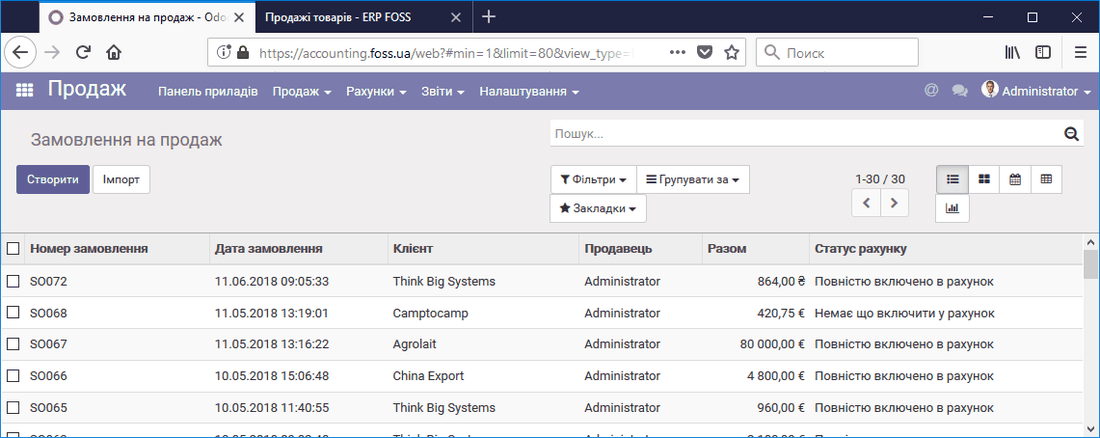 List of sales orders
Select a customer and add the list of products you are going to sell to them. The program creates a quotation.
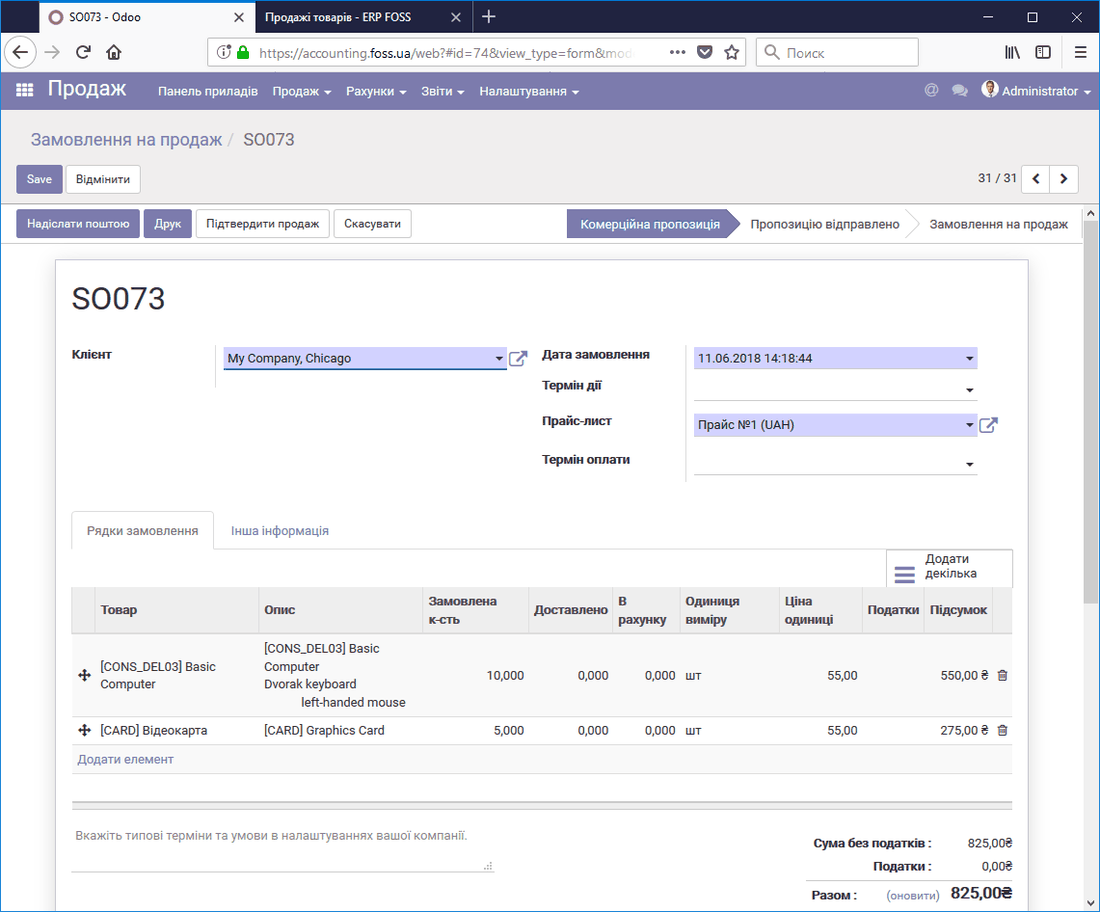 Sales order form
After you confirm it (Confirm sale), the quotation gets the status Sales order and the Delivery button becomes available.
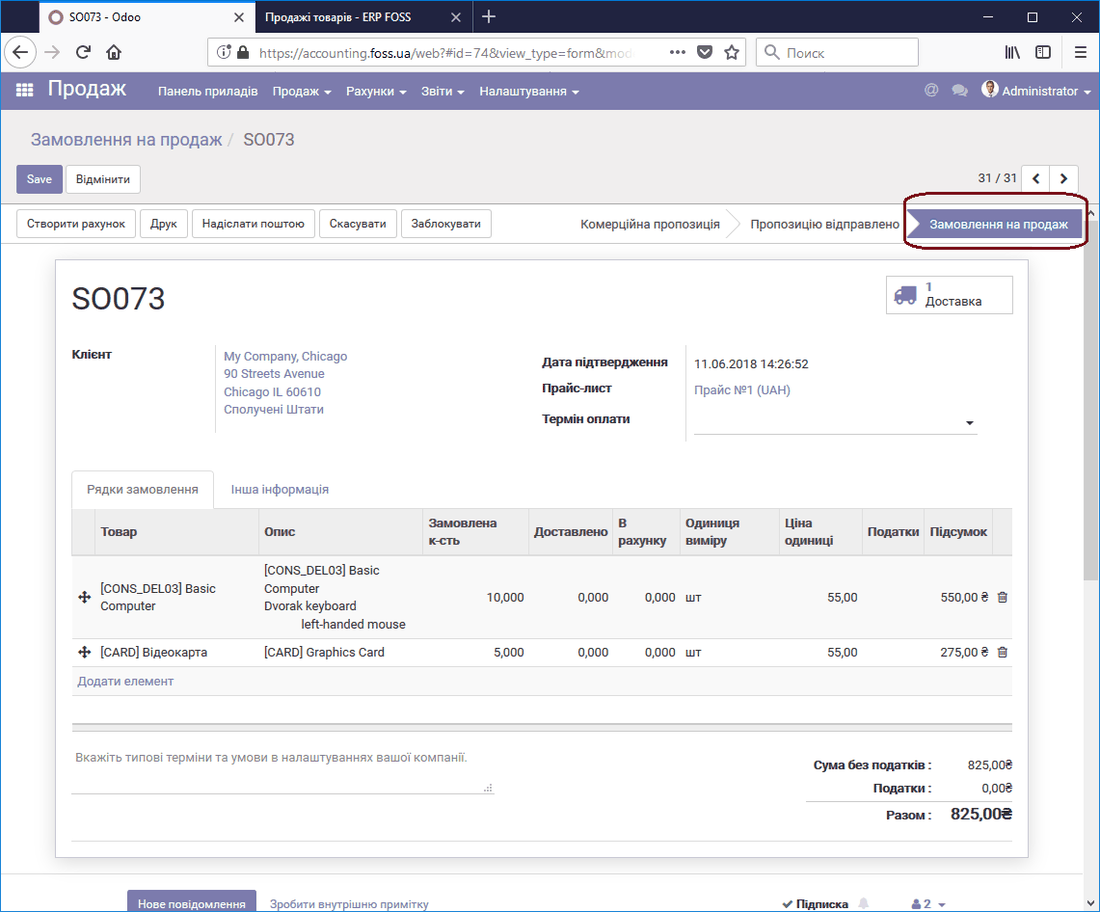 Quotation status changes to Sales order
Then you can deliver the products and create an invoice for the customer. If the sales settings have "Invoice the ordered quantities" selected, you can create the invoice before the products are delivered; the order of delivering the products and creating the invoice does not matter. But if "Invoice the delivered quantities" is selected, the invoice can be created only after the products are delivered.
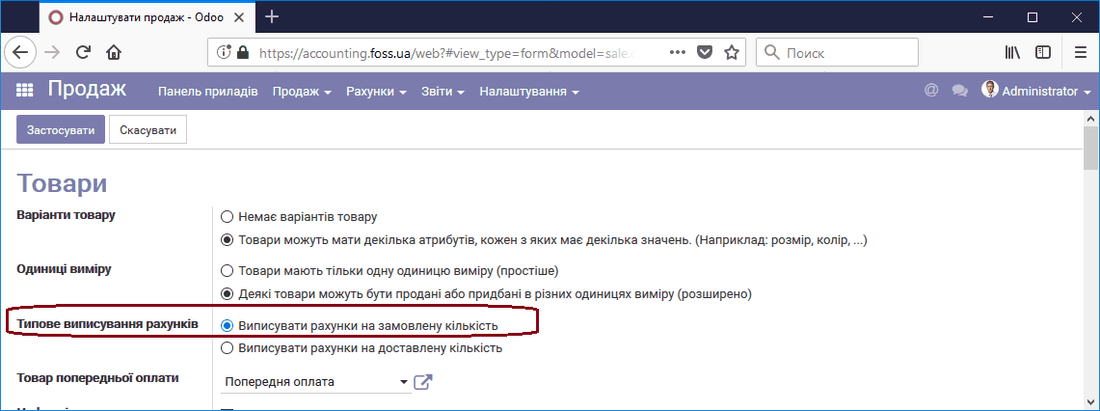 Invoicing settings
Product delivery
Click the Delivery button and the program creates a delivery form. Then click the Confirm and Apply buttons.
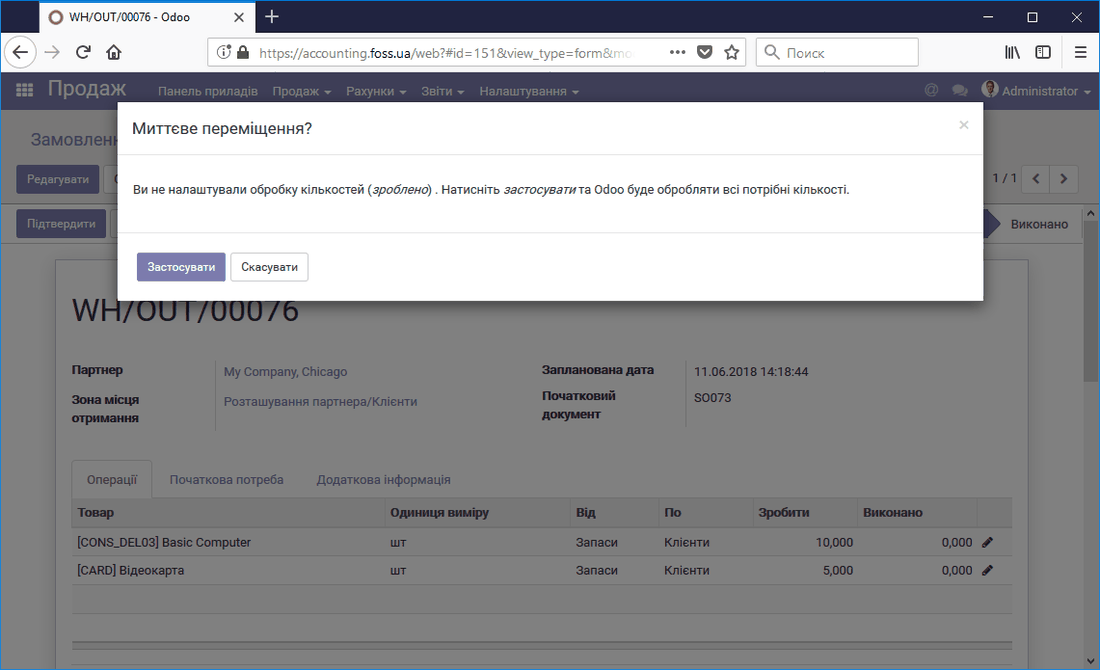 Product delivery form
After that we get the completed product delivery.
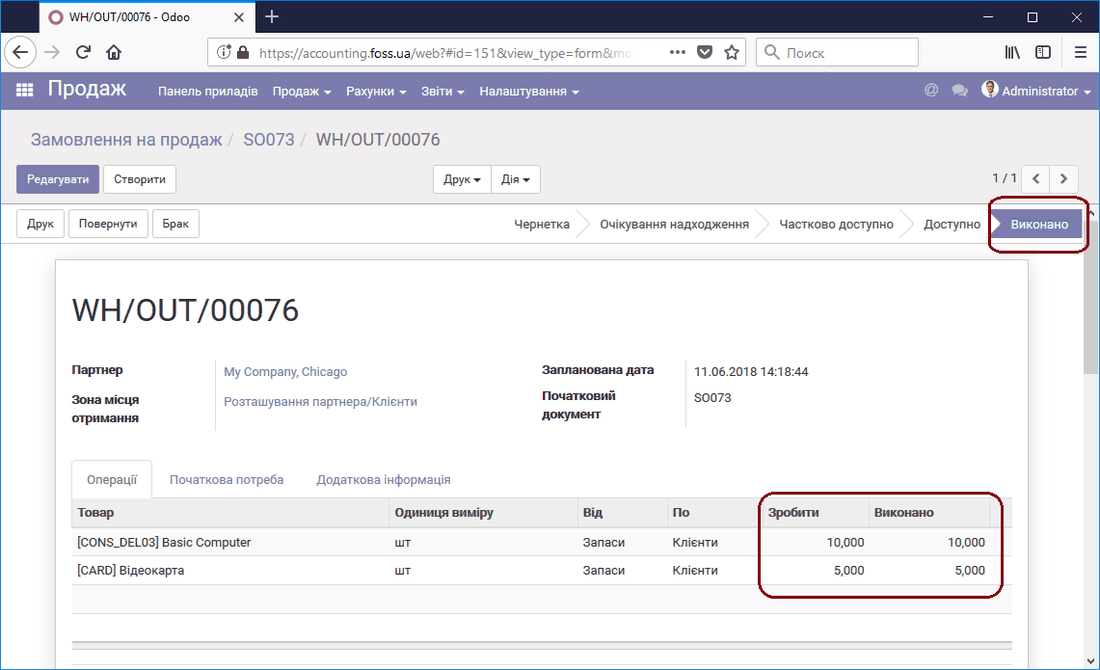 Completed product delivery
If necessary, you can print a waybill from the Sales order.
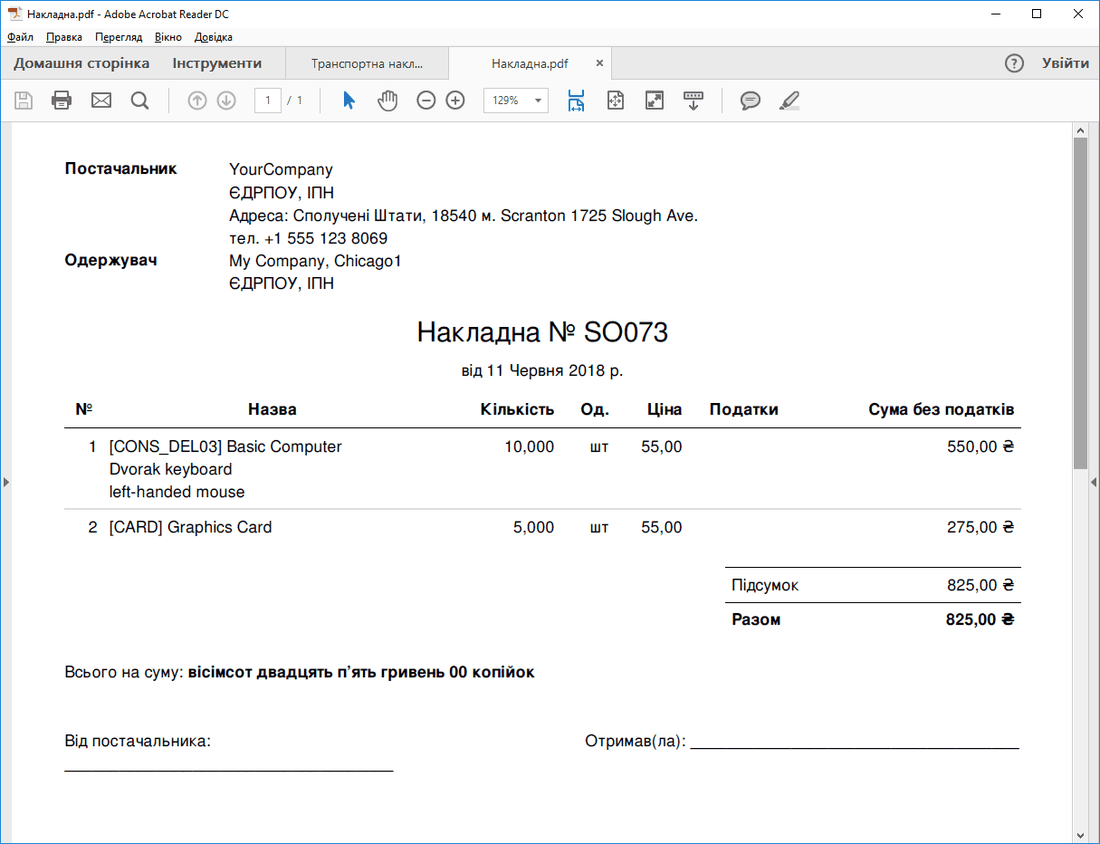 Printed waybill form
Customer invoices
To issue an invoice, select Create invoice in the Sales order form.
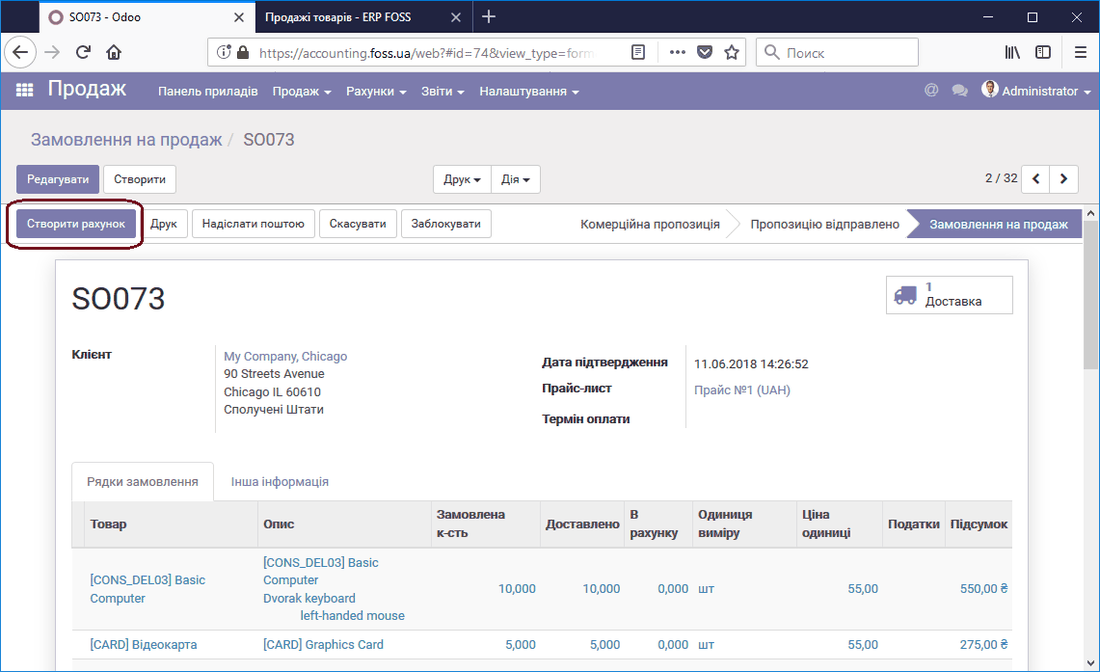 Creating an invoice from a Sales order
Select what to include in the invoice. In this case, select "Lines to include in the invoice" and click Create and view invoice.
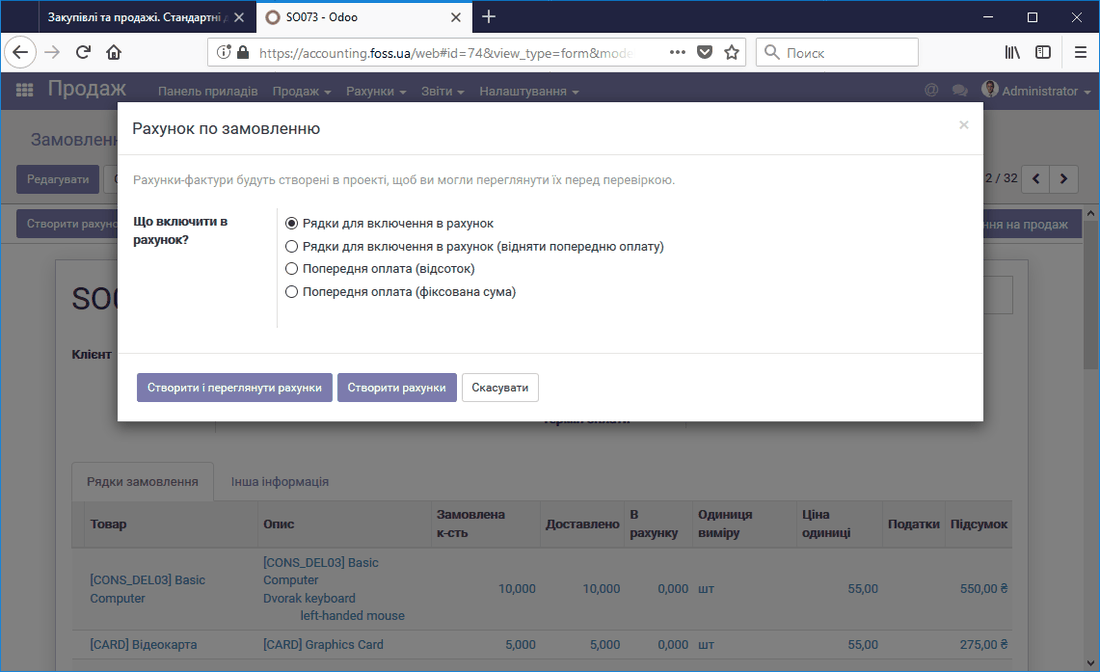 Selecting invoice lines
The result is a draft invoice that includes all the order lines.
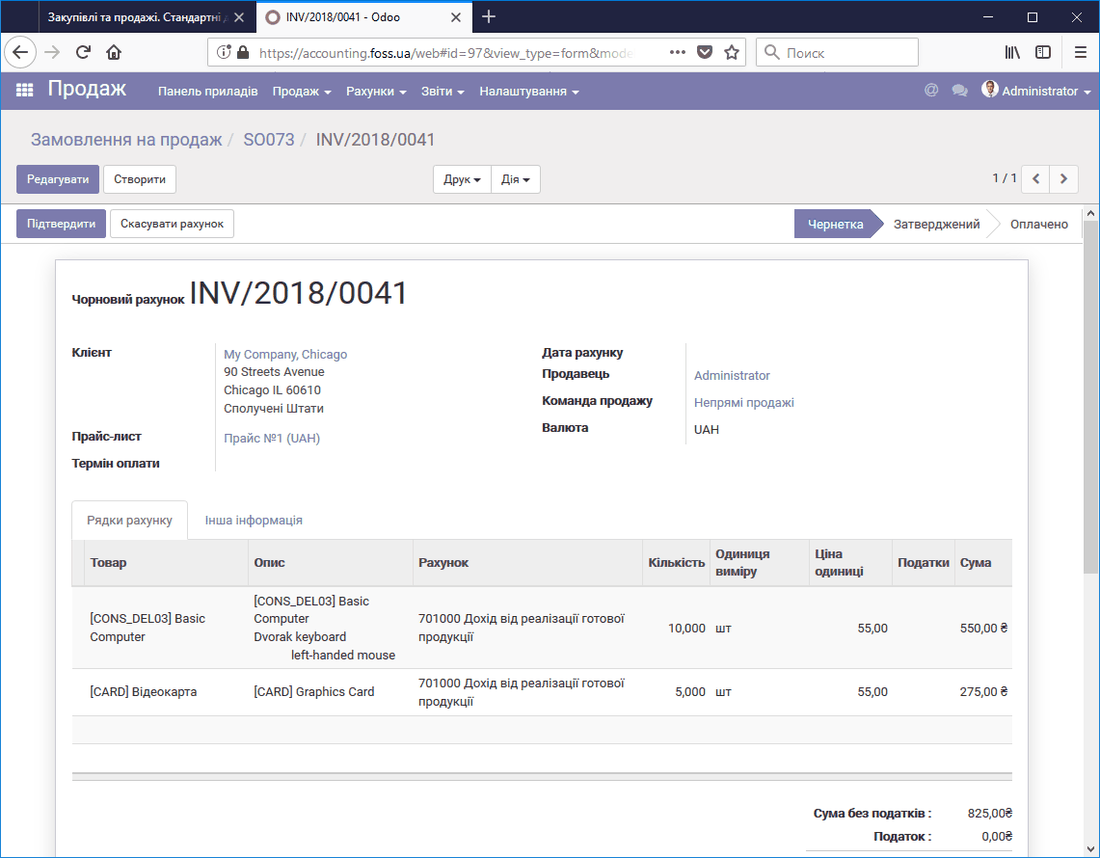 Draft invoice
After you save the draft invoice, you can print it or send it by email. Then you need to confirm the invoice (the Confirm button).
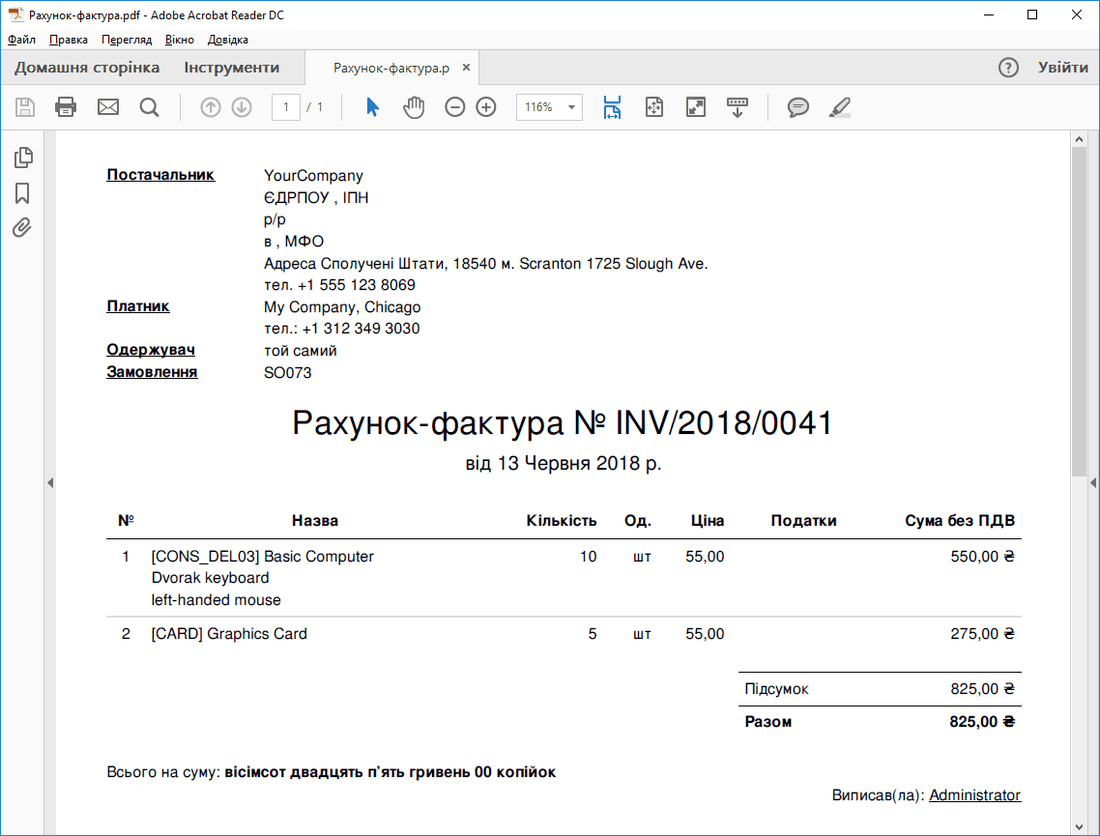 Printed invoice form
In addition, after the invoice is confirmed, the Register payment button becomes available. It is used to register a payment received for this invoice.
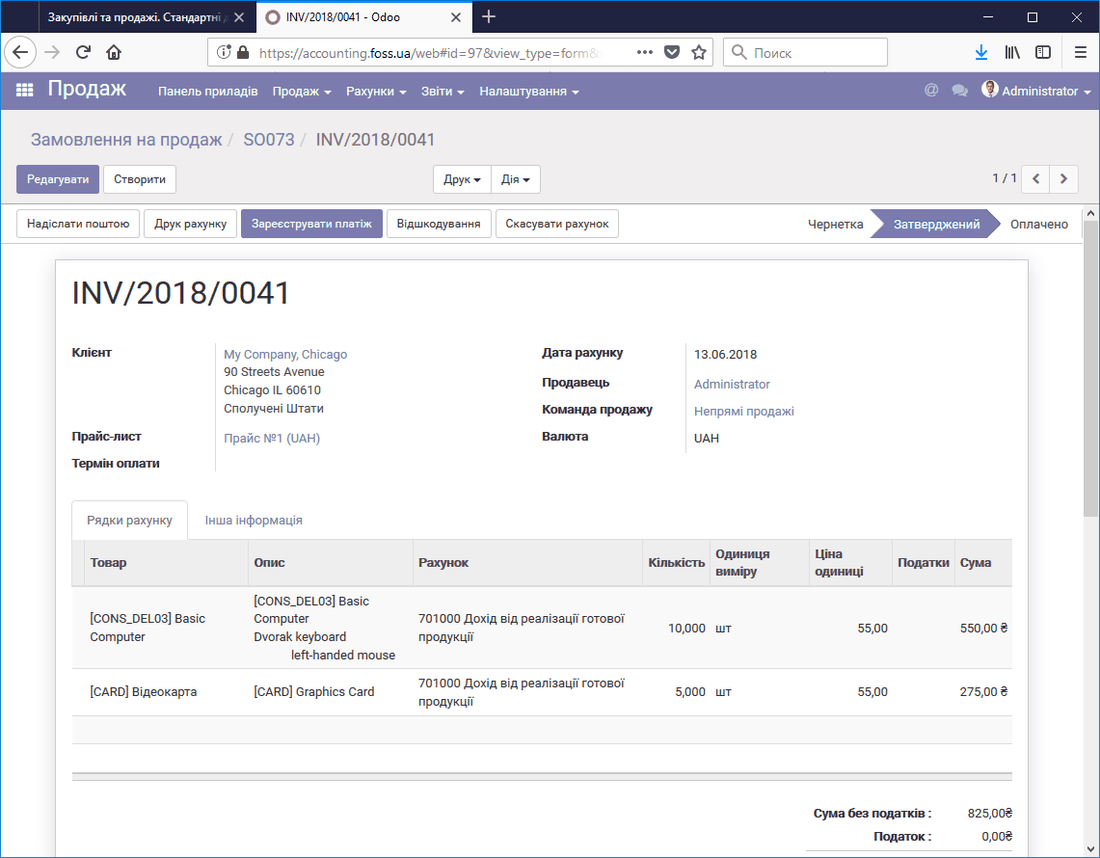 Approved invoice
To register a payment, select the payment journal and register the payment.
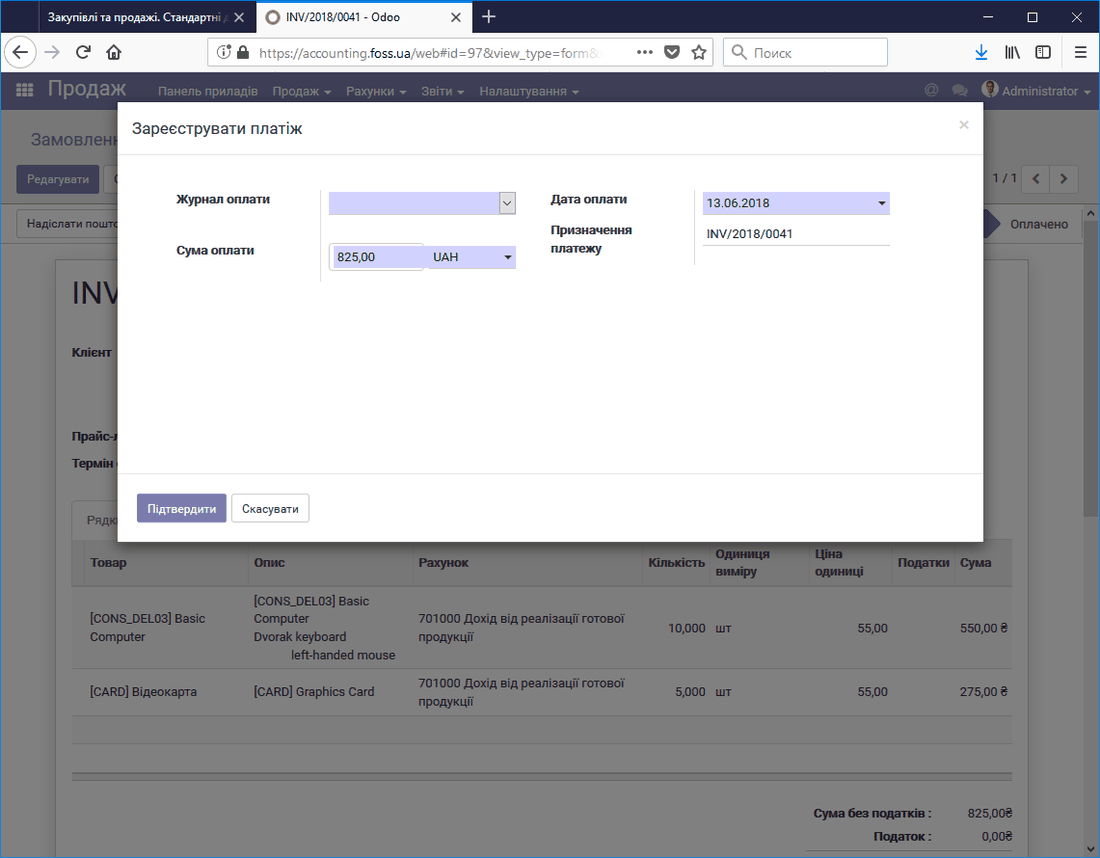 Registering payment for an invoice
To register a payment, the issued invoices can be found:
- in the Sales order itself (the Invoices button);
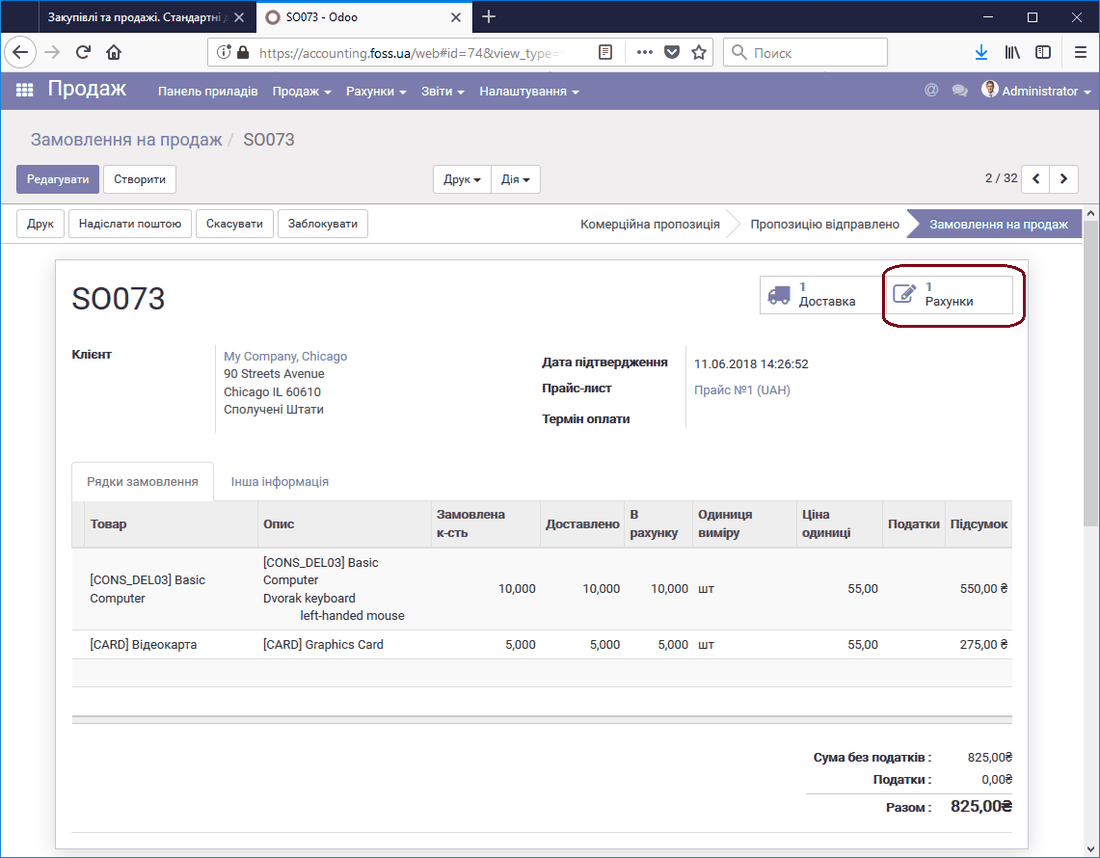 Invoice in a sales order
- in the Accounting module, menu section Sales/Customer invoices.
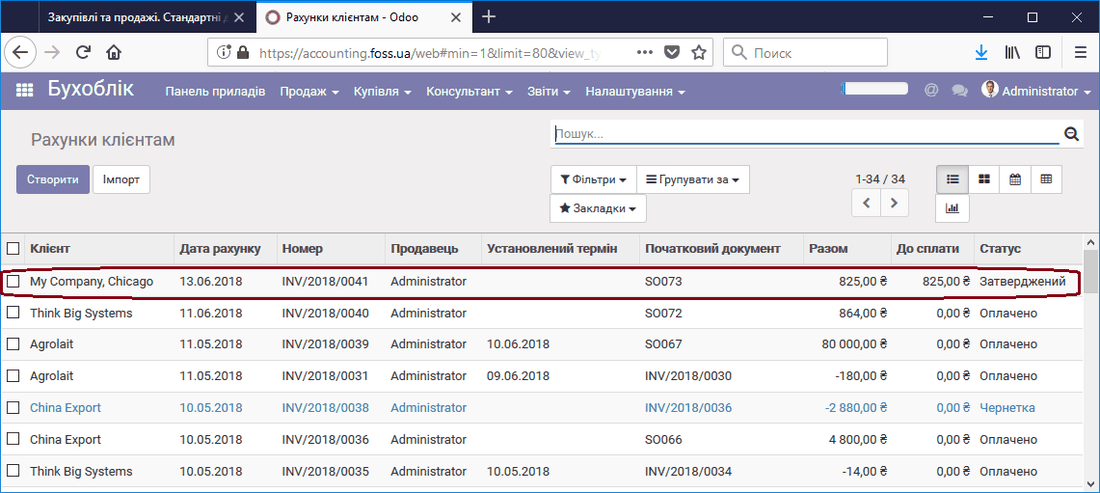 List of invoices