Warehouse management
Introduction
The module of the same name is intended for managing warehouse operations and keeping warehouse records. This article describes the main capabilities of the Warehouse module. Note: The Warehouse module is intended for employees who work in the warehouse. In the general case, when you use the Sales and Purchases modules, all warehouse operations are performed by default.
Terminology
To understand how the Warehouse module works, you need to be familiar with the terms used later in this article.
- Warehouse – a place where you store products. It is either a physical or a virtual warehouse. It can also be a shop. The program supports an unlimited number of warehouses.
- Location/Product storage place – a place inside a warehouse that is used to store products in the warehouse. In addition, your warehouse has locations for suppliers, customers, scrap and so on.
- Unit of measure – the units in which products are measured, for example, pieces, boxes, kilograms.
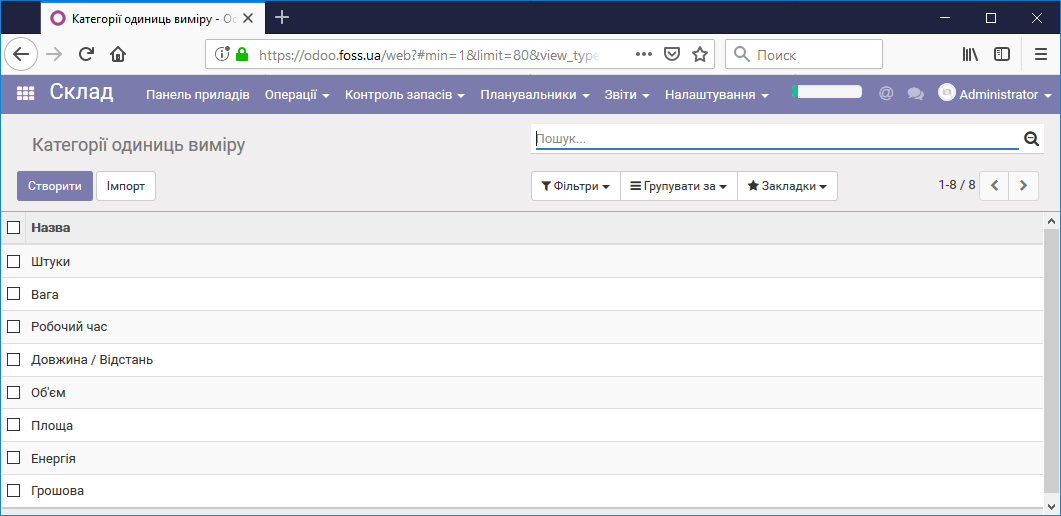
- Unit of measure categories - a unit of measure must belong to a certain category. Products can be bought in some units of measure and sold in others. The program recalculates their quantity and cost itself. For this, the units must be in the same category.
- Procurements – a request for a certain quantity of products at a certain location. Procurements can be initiated manually or automatically by certain rules. For example, you can create reordering rules.
- Routes - define the paths along which products move when they are purchased, sold or moved within a warehouse or between warehouses.
- Push rules – these rules are triggered when products arrive in the warehouse. They move the product to a new location. For example, you can set these rules so that products of different categories go to different locations on arrival.
- Pull rules – describe how products must be reserved for their subsequent sale. Push and pull rules are used in routes.
- Product moves – moving products between locations.
- Quantity on hand – the quantity of a specific product that is currently in the warehouse locations.
- Forecasted quantity – the quantity of a product that you can sell for a specific warehouse or location. It is calculated as the quantity on hand minus sales orders plus incoming products plus products in production.
- Reordering rules – rules for replenishing products in the warehouse. They define the rules by which products are replenished.
- Run reordering rules – when reordering rules run, requests for quotation are generated automatically. The reordering rule itself defines the conditions under which the program automatically raises a purchase request. It is triggered when the forecasted quantity of a product reaches the minimum stock.
- Scrap – a defective product. When a product is moved to the Scrap location, it is removed from product stock and written off as a loss. To launch the Warehouse module, go to the Dashboard and launch it.
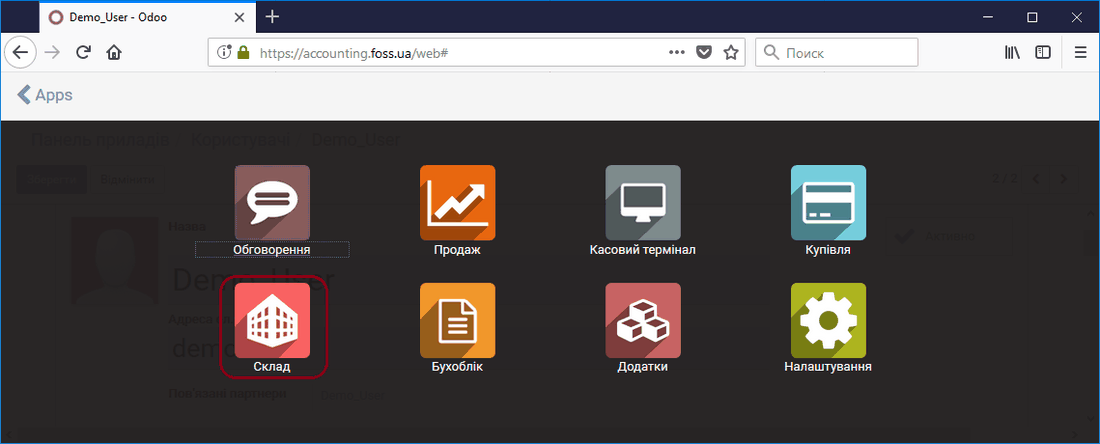 Dashboard
Only the program users who have been granted the appropriate rights have access to the Warehouse module. Access levels: Manager – has access to all warehouse documents, User – has access to their own documents only. Users and their properties are created and edited in the Settings module, the Users menu item.
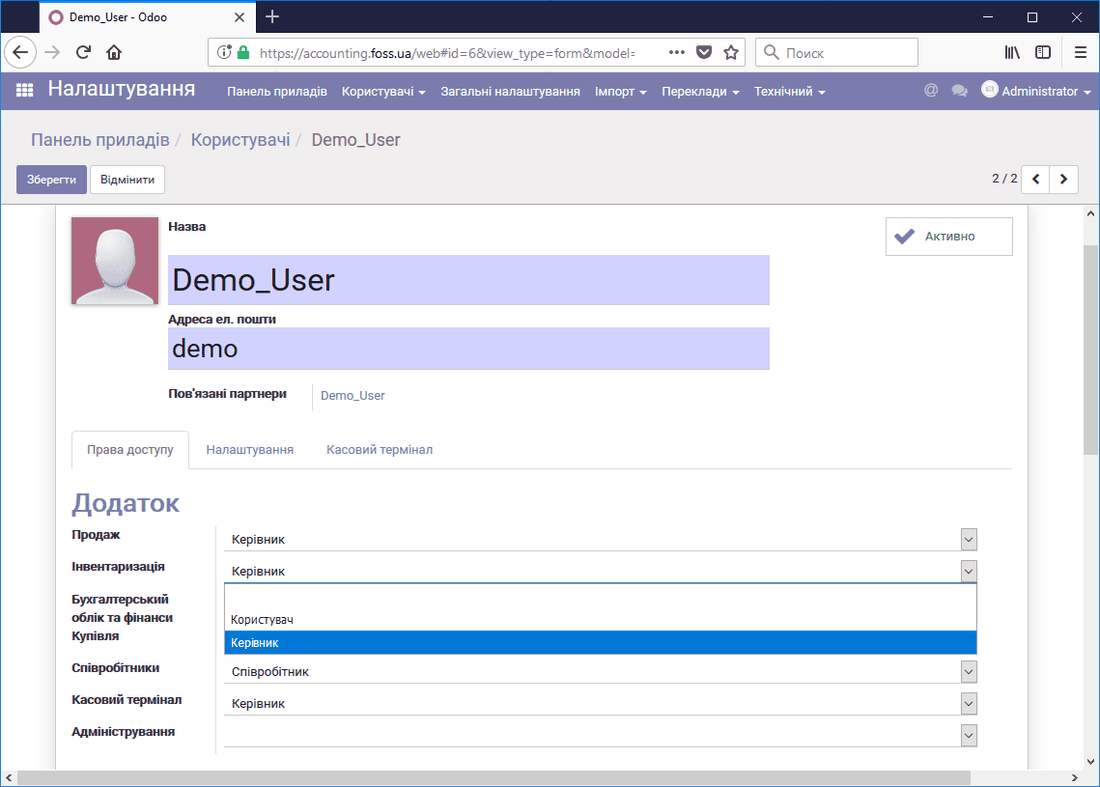 User access rights settings
Menu items of the Warehouse module
After you open the Warehouse module, you see the menu items of this module.
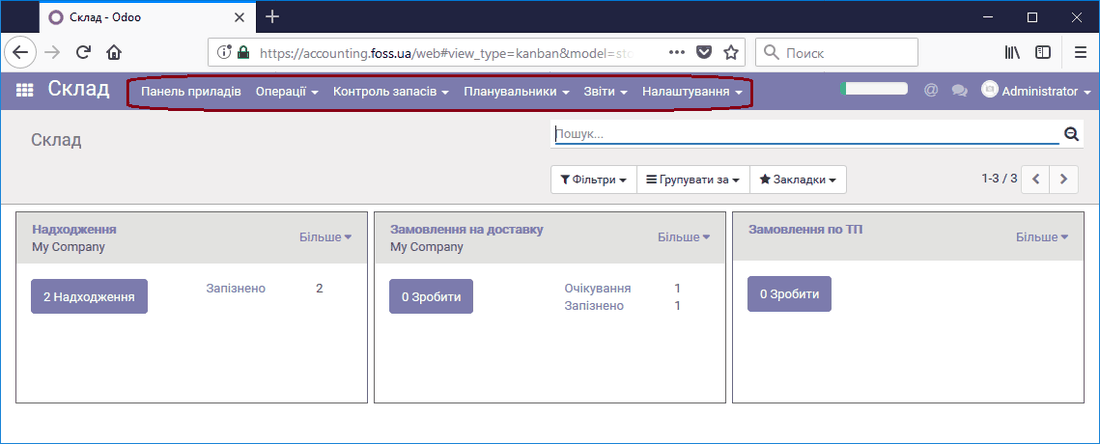 Menu items of the Warehouse module
Dashboard
Depending on the program settings, the windows you see may differ slightly. For example, the program can serve several warehouses, and then the information is shown for each warehouse. In this case the information is for the warehouse named My Company. We can see that two receipt operations must be processed, and there is a pending operation for the order to deliver products to our customer. The purchase and sale of the products themselves were performed from the Sales and Purchases modules, but the delivery operations have not been performed.
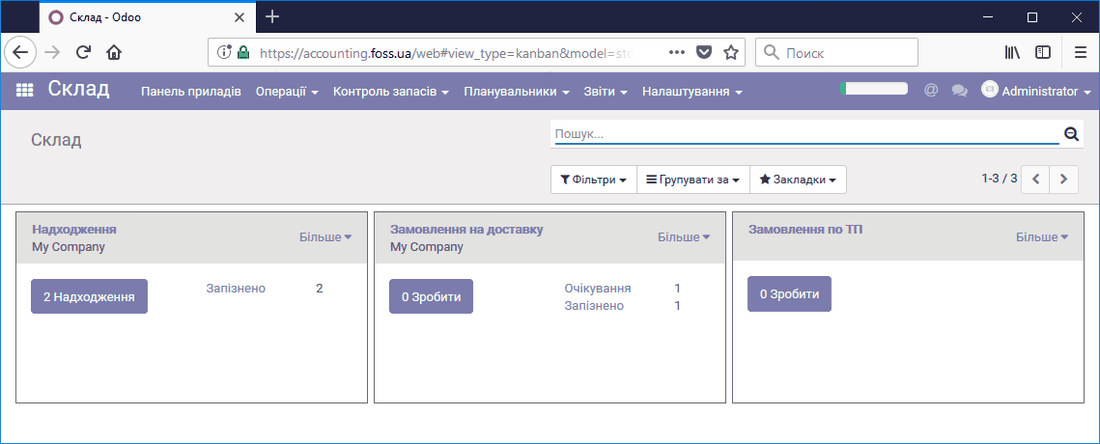 Operations on the dashboard
We can perform the product delivery operations from the Warehouse module. When the products are actually received, click the Receipts button to get the list of operations that must be performed.
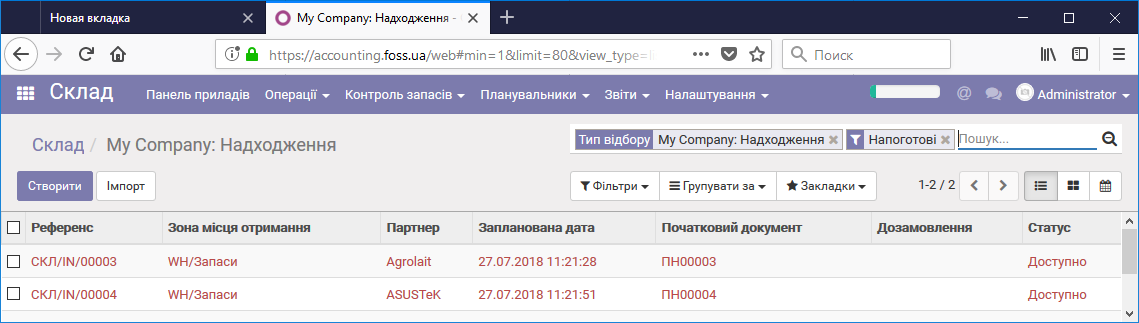 List of warehouse operations
By opening an operation, you can process the delivery of the product. All actions are performed in the same way as the product delivery actions described in the Purchases module.
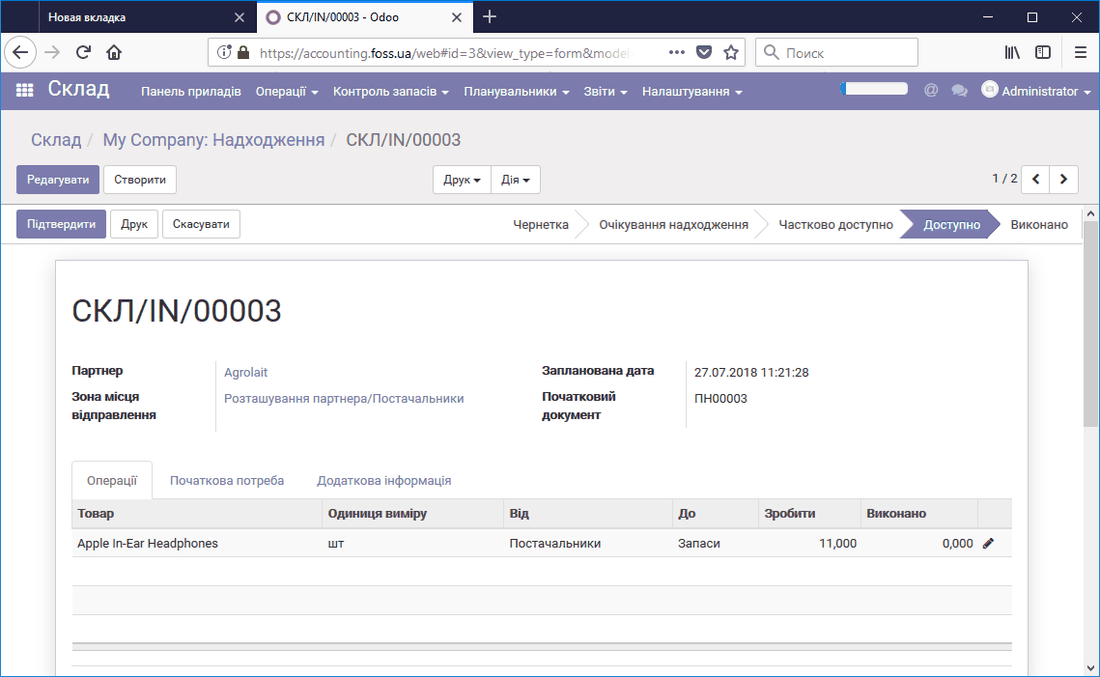 Processing a product delivery
After the product delivery is confirmed, the state of the dashboard changed: now we only need to process one product receipt. If we process all operations, no unfinished operations remain on the dashboard.
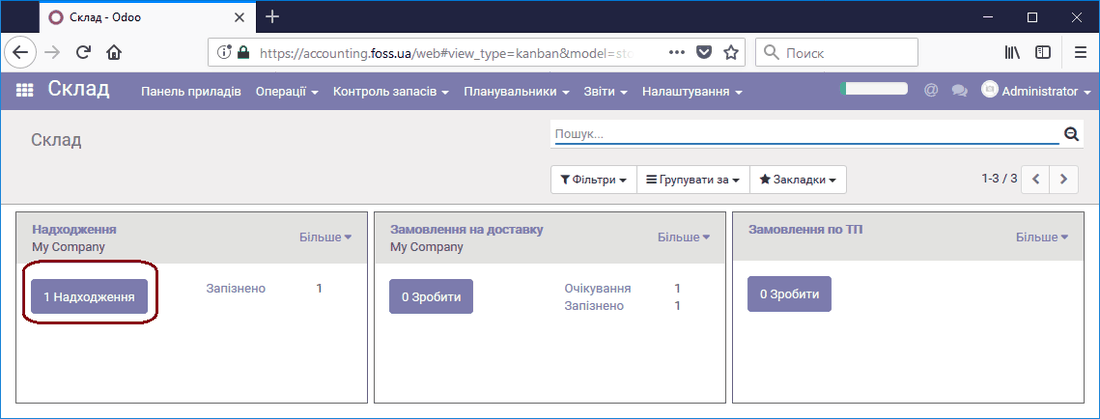 Change of the dashboard state
Note that our product moves can have different statuses:
To do/Receipts/Delivery and others – operations that are available at the moment and whose due date has not yet passed;
Late – the operation is available for execution, but its due date has passed. In the figure below, the red mark shows a product delivery operation that should have been performed earlier. The black mark shows a delivery operation whose due date has not yet passed.
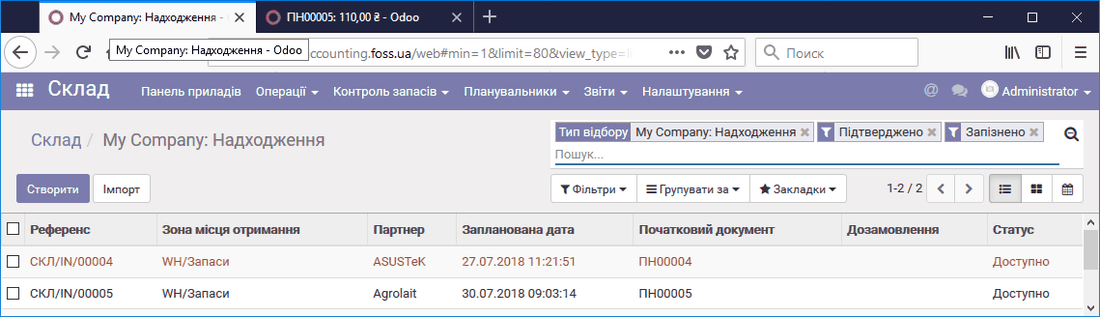 Delay of the product delivery deadline
- Waiting – an operation that waits for another operation to finish. For example, in our case we must ship a product to a customer, but this product is not yet in the warehouse. Its receipt is expected: it was purchased but not yet received. When we receive this product, the waiting status changes to another one, depending on the status of the [sales order].(https://erp.foss.ua/programa-dlya-prodazhu-tovariv/)
By clicking More, you can view the available operations or create your own move operation. For example, when you use several storage locations, you can create a transfer of products from one location to another. In addition, you can edit the type of product picking for this move from the Settings menu item.
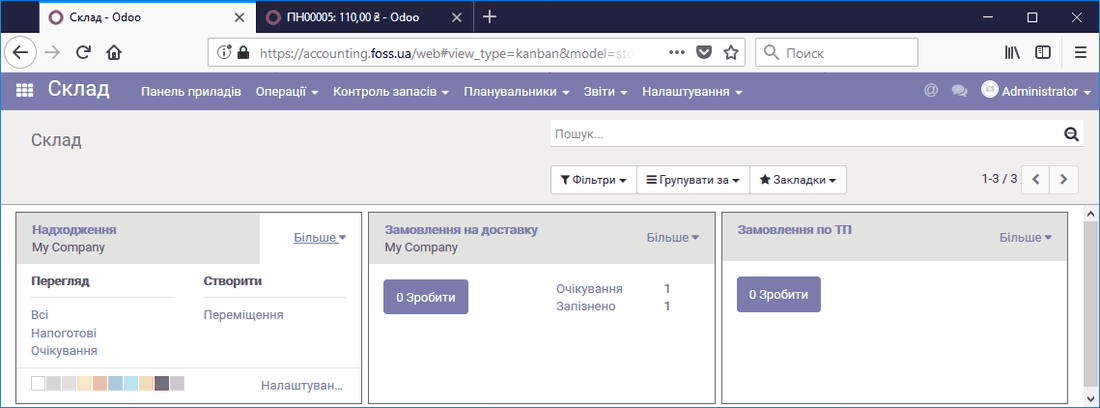 Dashboard window menu
Operations
In the Operations menu item you can view all product moves in the warehouse that have taken place or are planned.
All moves
The list of product moves is shown below. Each move can contain several products and can be generated from a purchase or sales order (the Source document column). There can also be an internal move if you have several storage locations or warehouses. The Reference column shows the number of the document on which the move took place. In the reference, incoming moves are marked /IN/, outgoing moves /OUT/, and internal moves /INT/.
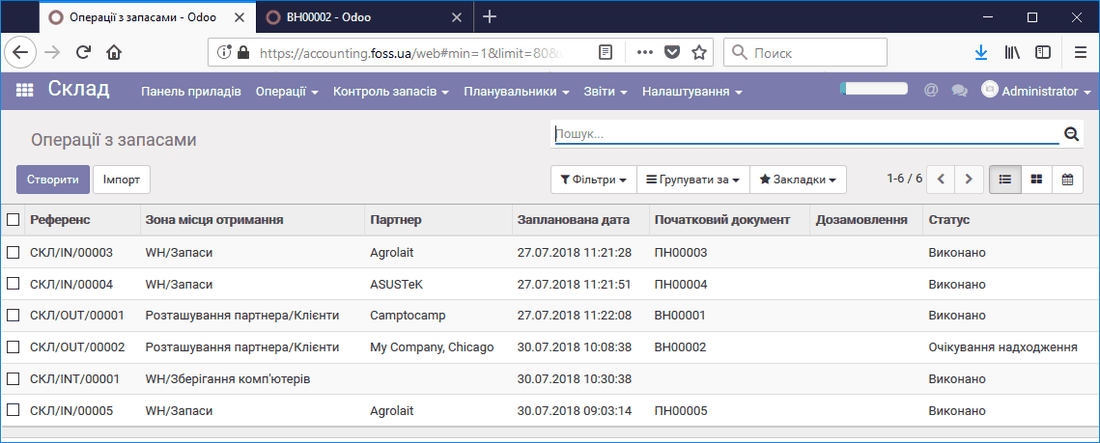 List of product moves
By opening a move operation, we get full information about this move.
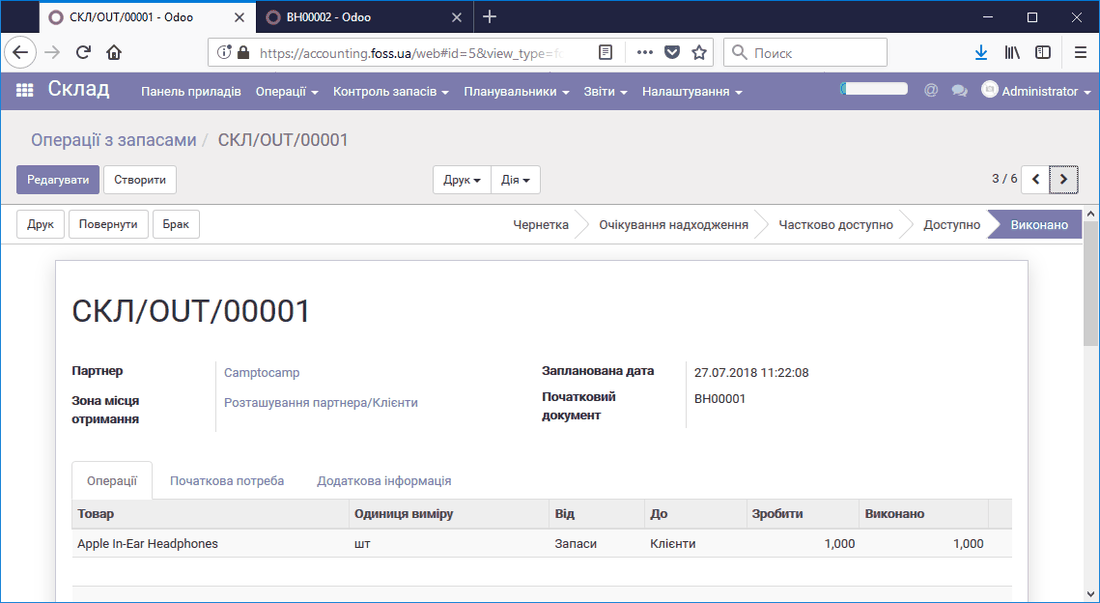 Move operation
For move operations from product sales, you can print a delivery note (waybill).
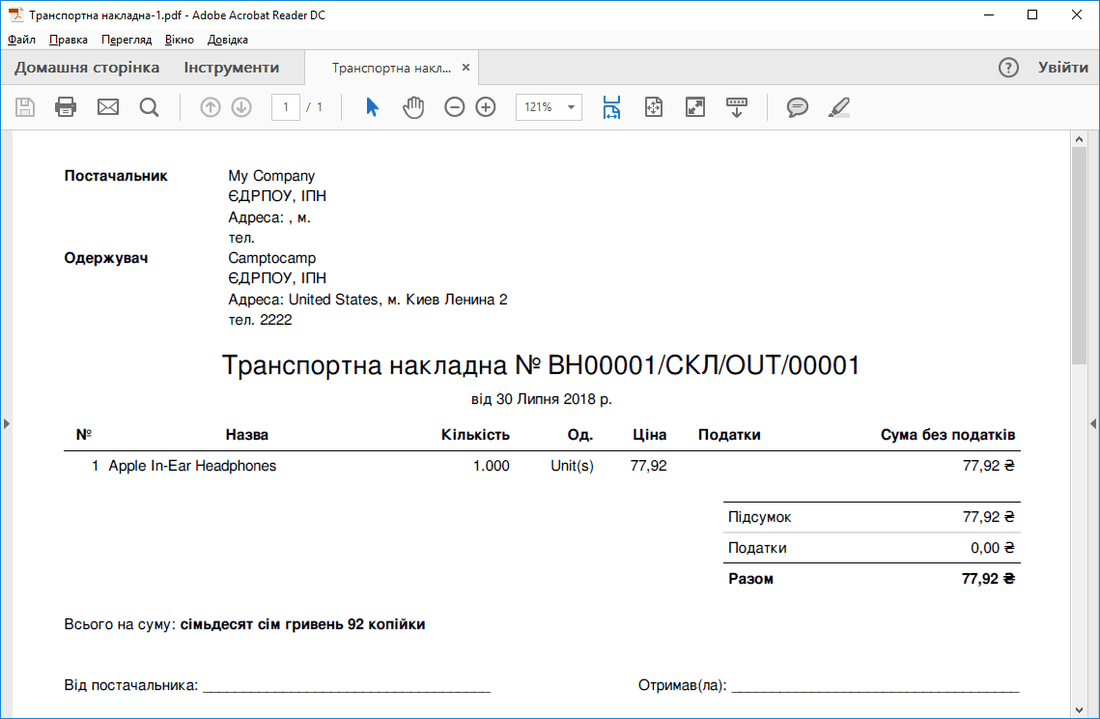 Delivery note (waybill)
Inventory control
Through the Inventory control menu item you can view the list of products and their stock regardless of storage location, set product reordering rules, run an inventory count and write off defective products.
Products
You can open the list of products and view their stock balances.
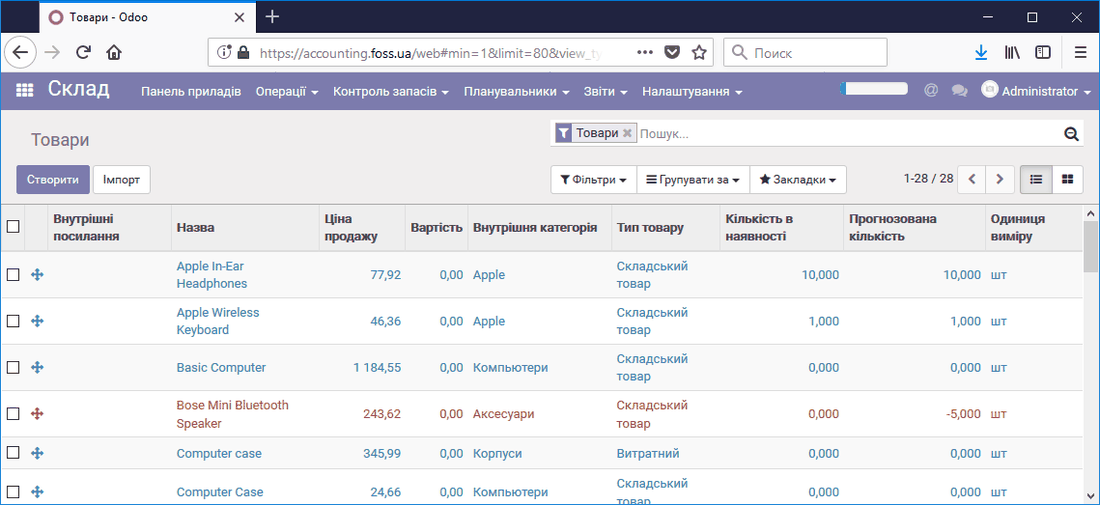 Product list
By opening the card of a specific product, you can find out where this product is stored. To do this, click the On hand button on the product card.
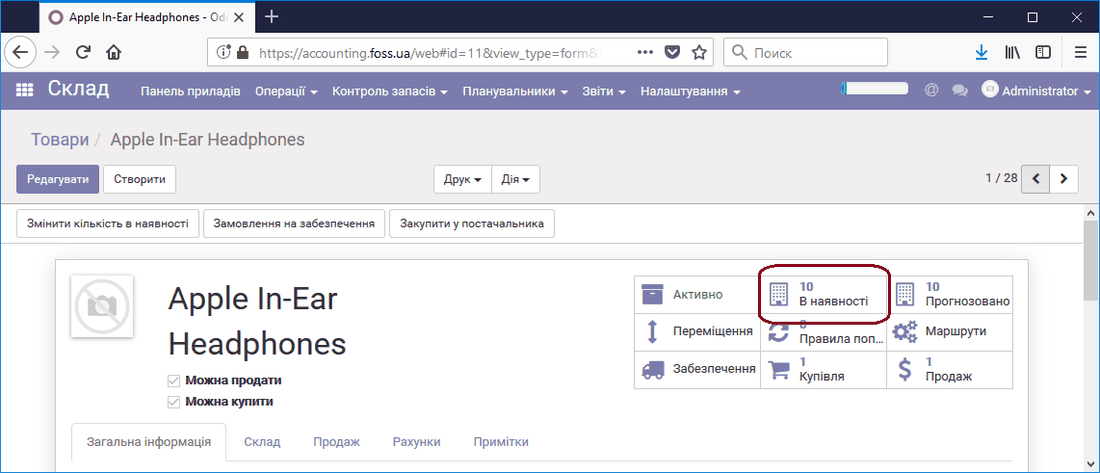 Product card
The figure below shows where and in what quantity the product is stored.
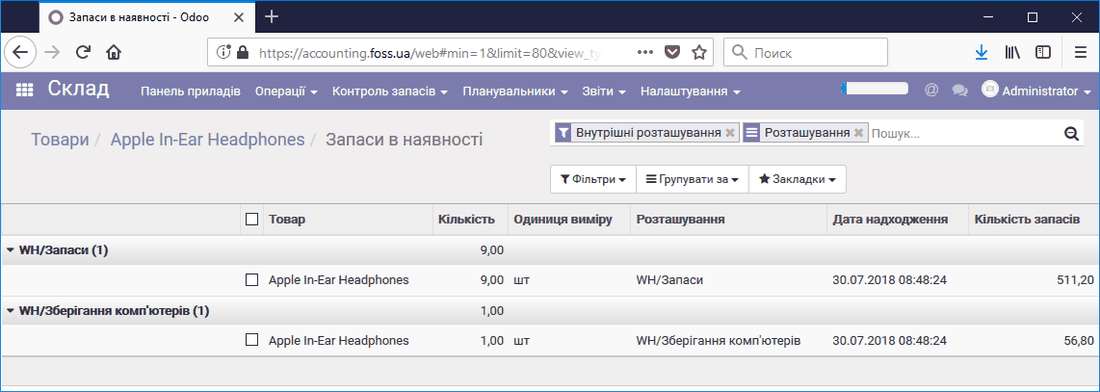 Product storage locations
Product variants
This tab shows all stock balances for each of the product variants.
Reordering rules
ERP FOSS can automatically generate requests for quotation when product stock runs out. You can create a reordering rule for the selected product. When you save the rule shown below, the program automatically generates requests for quotation. Now, if we activate this rule manually with Schedulers/Run reordering rules or automatically with Schedulers/Run schedulers, the program generates a request for quotation.
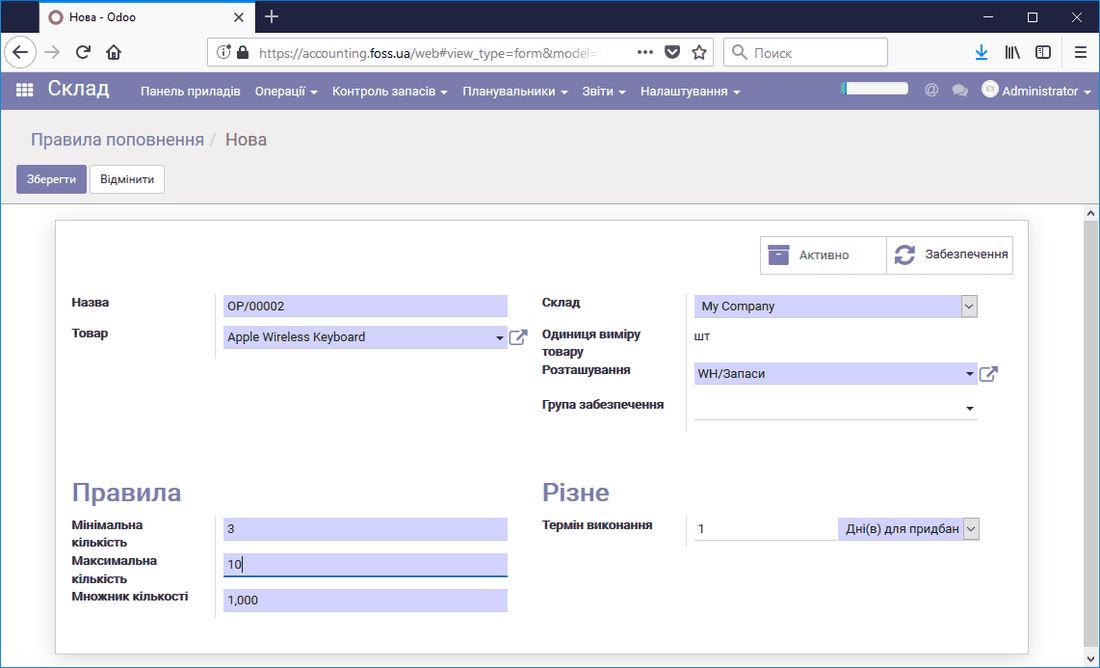 Product reordering rule
For this rule to work, you must specify the supplier of the product on the Warehouse tab of the Product card. If you do not, the information that the Request could not be generated is placed in the Reports/Procurement issues folder. If a Reordering rule is saved, you can view it by clicking the Min/Max button on the product card.
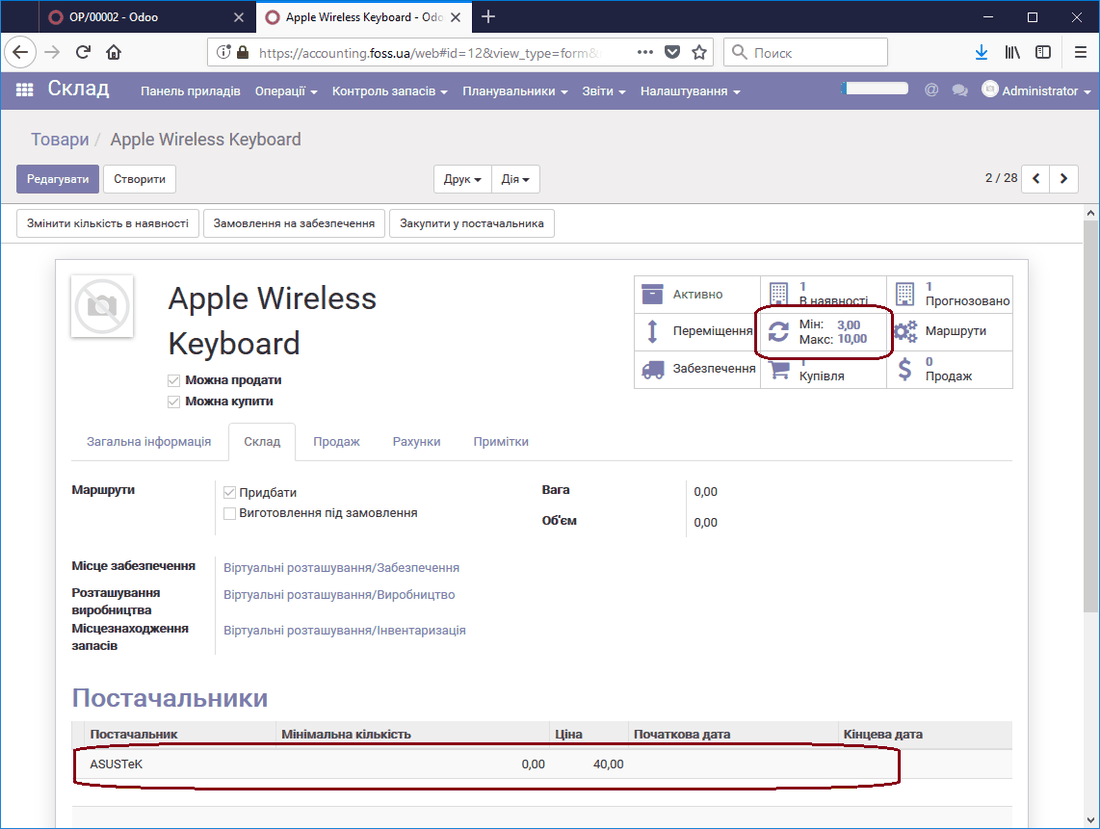 Product card
The figure above shows that we have one unit of the product on hand. Let us run the reordering rule from the Warehouse/Schedulers menu item. As a result, a Request for 9 units of the product is created in the Purchases/Requests for quotation module. We had one unit, so the request was triggered because the Minimum quantity in the Reordering rule was set to 3; we order 9 because we already had one unit and the Maximum quantity is set to 10. Thus, after the purchase is completed, we will have 10 units of the product in the warehouse.
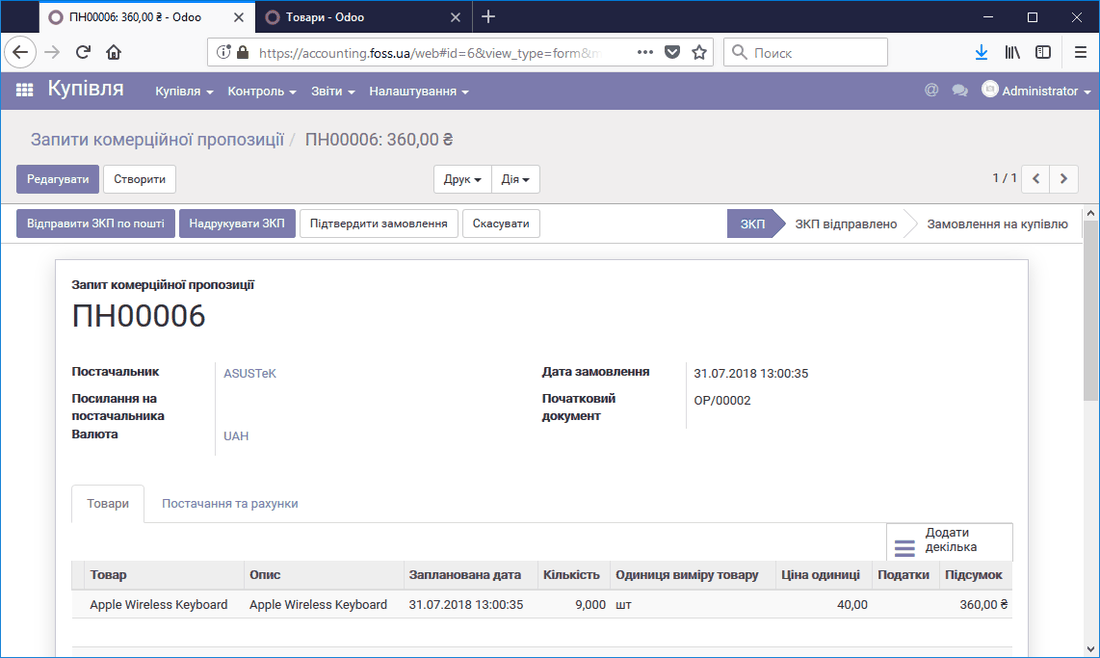 Request for quotation
Stock adjustments
In this menu item you can run an inventory count of the products at the selected location. You can also set initial product balances in the same way. Start the inventory count by configuring its parameters.
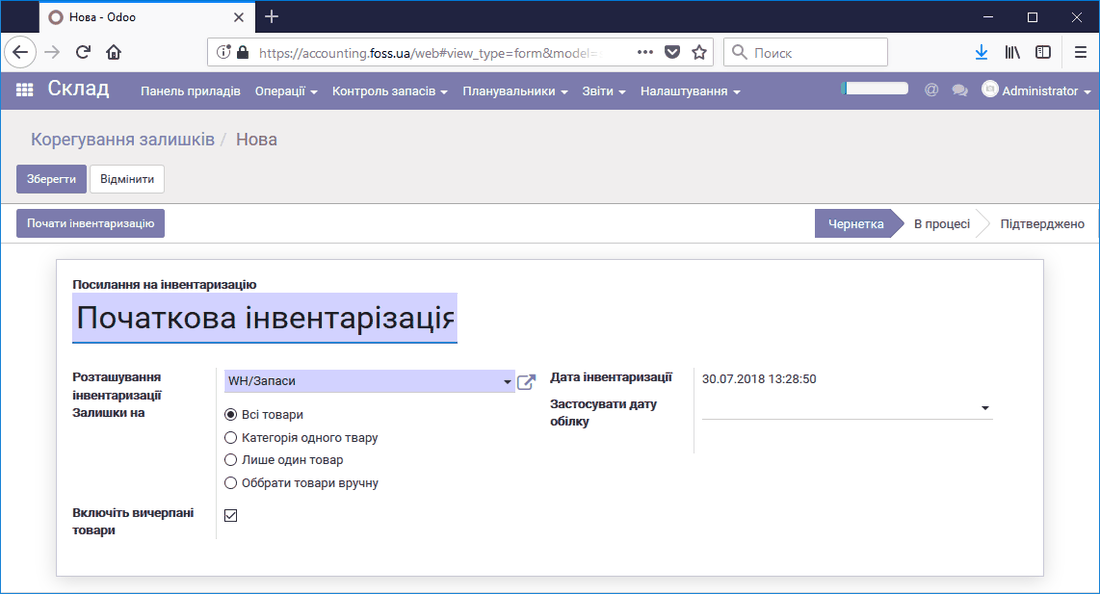 Product inventory count
During the inventory count, enter the actual quantity of products.
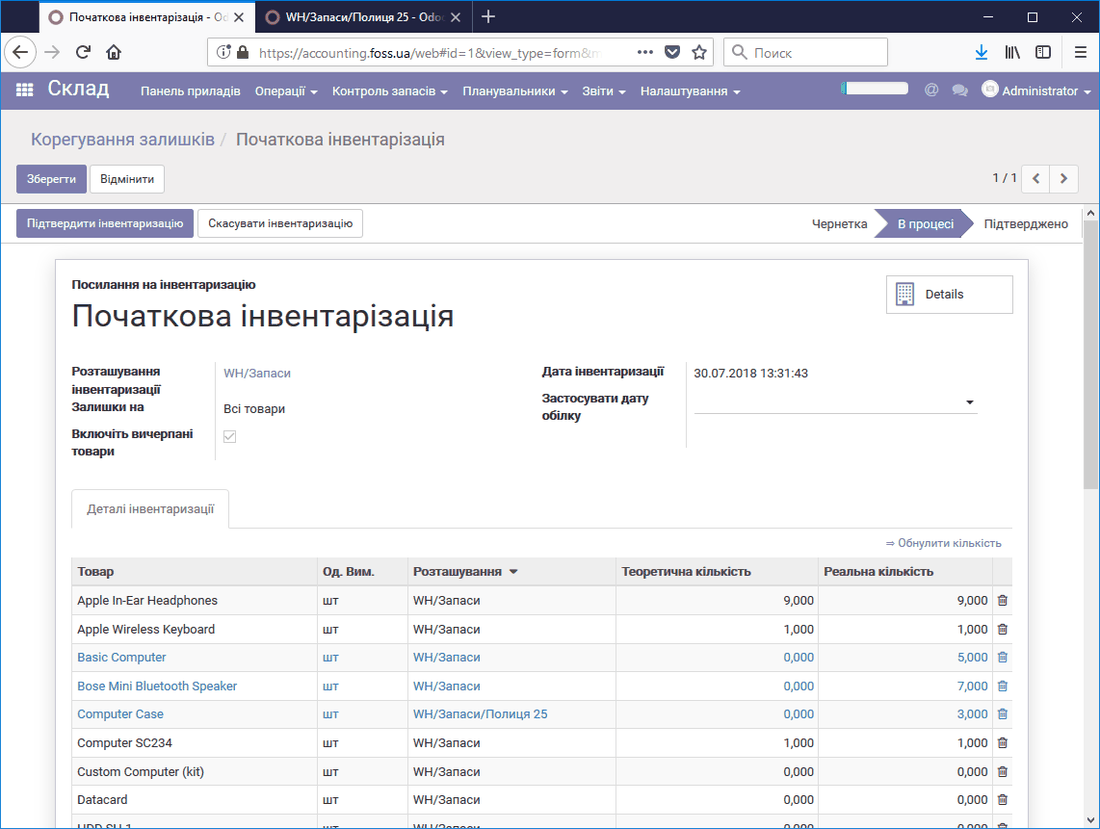 Running an inventory count
The list of completed inventory counts is shown in this menu item.
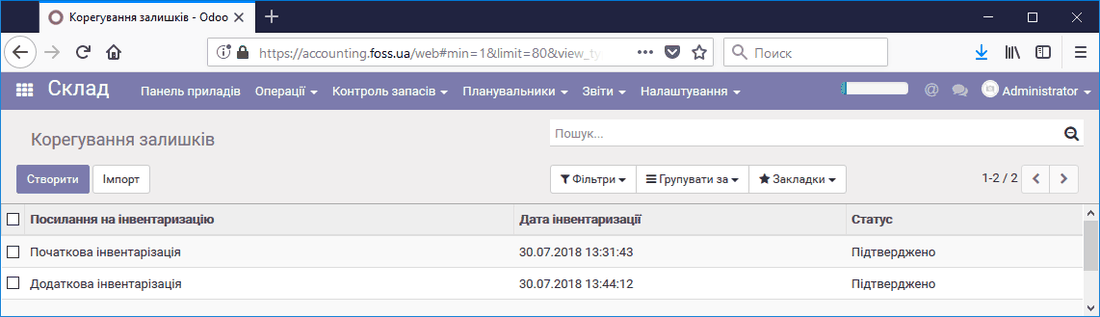 List of inventory counts
Scrap
During operation, some products may lose their properties, so that they can no longer be sold. In this case such products can be scrapped. To do this, go to the Scrap menu item and create a record of this operation.
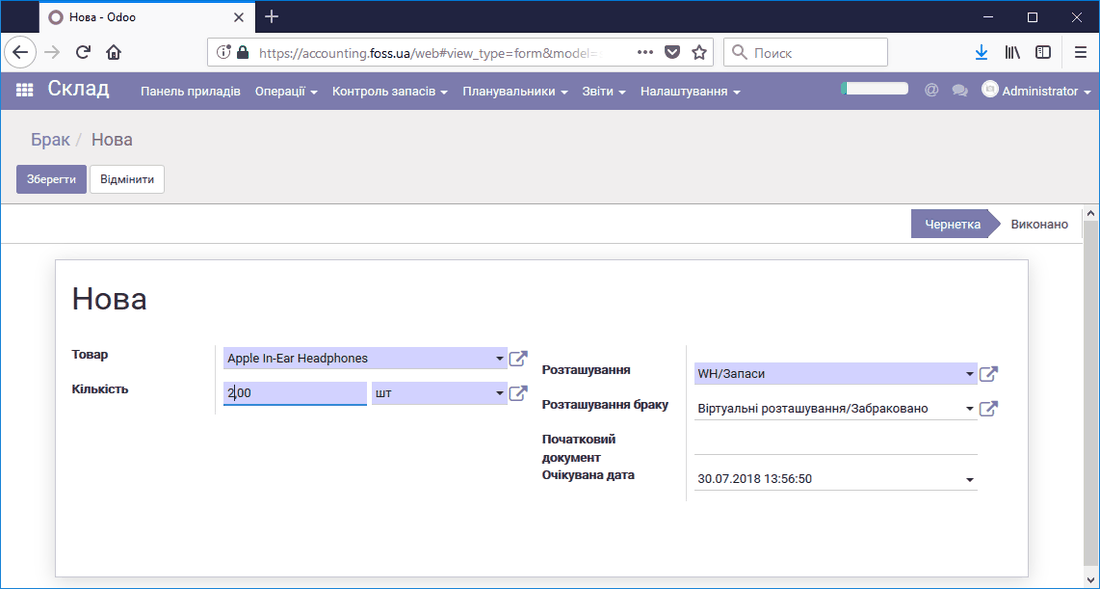 Scrapping a product
ERP FOSS reduces the quantity of the product in the warehouse by the specified quantity and creates a record of this operation.
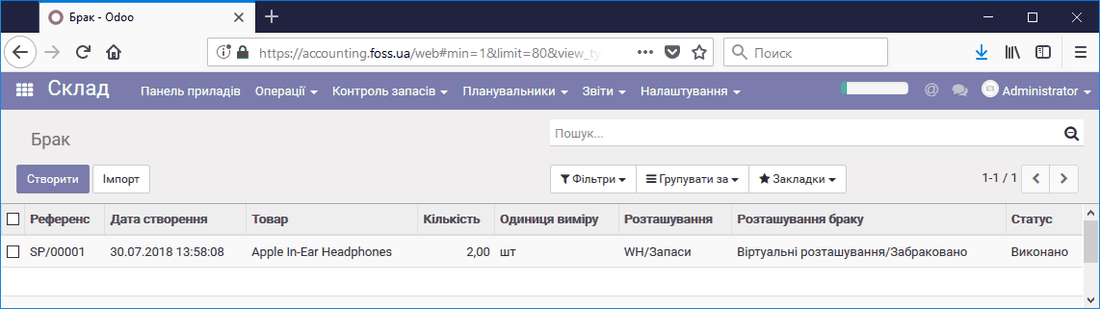 List of product scrapping operations
By opening the Moves item in the product card, we get information that includes the move of the product to scrap.
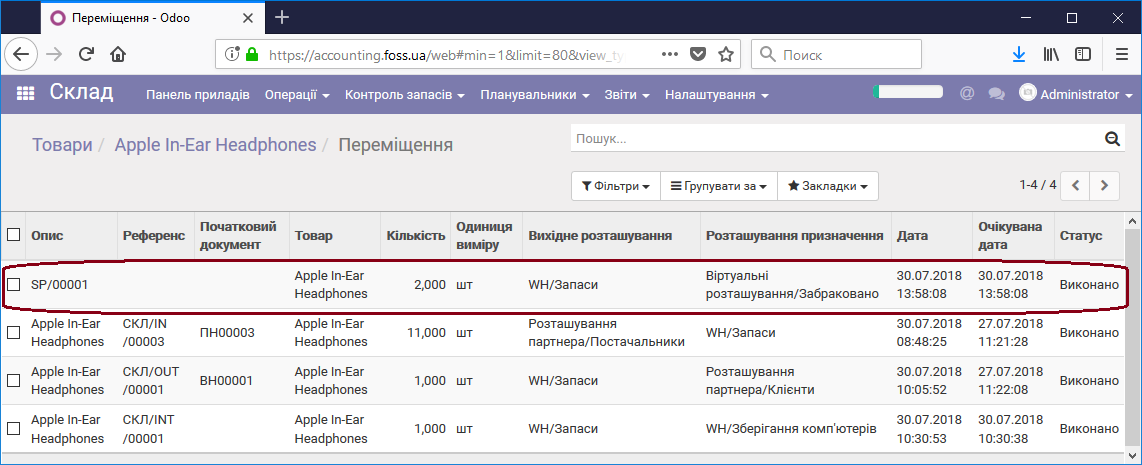 List of product moves
Schedulers
ERP FOSS lets you plan the optimal quantity of products in the warehouse. On the one hand, there must always be enough products to meet customer needs; on the other hand, an unjustifiably large stock increases the costs of purchasing and storing it. Above we described how to create reordering rules. In this section we look at how they are run.
Run schedulers
Schedulers can run in the background. In this mode the program periodically reviews product balances. The schedule for this can be set by experienced users in the menu item Settings/Technical/Scheduled actions, the Run mrp scheduler action.
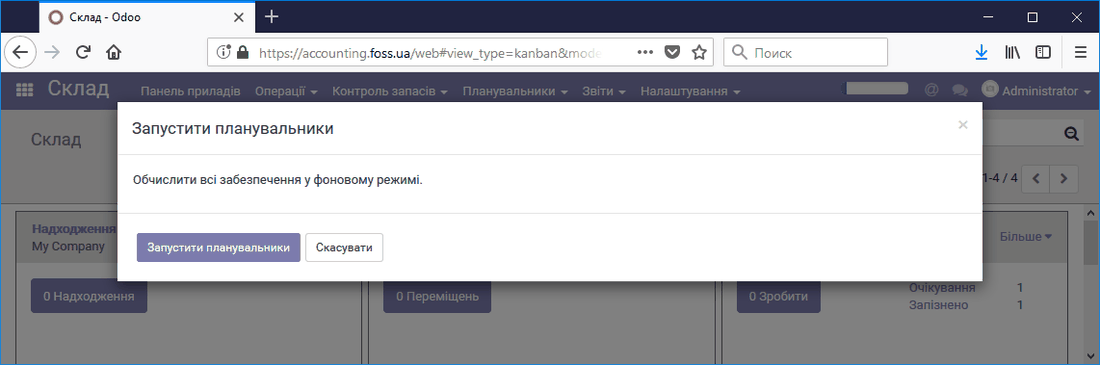 Running the scheduler in the background
Run reordering rules
For users who do not want or are unable to configure the scheduler run action, a manual run option is available. Click Compute stock and the program creates in the Purchases module all the Requests for quotation for the products that meet the scheduler conditions. Note that each request is created for one supplier and includes all products from this supplier.
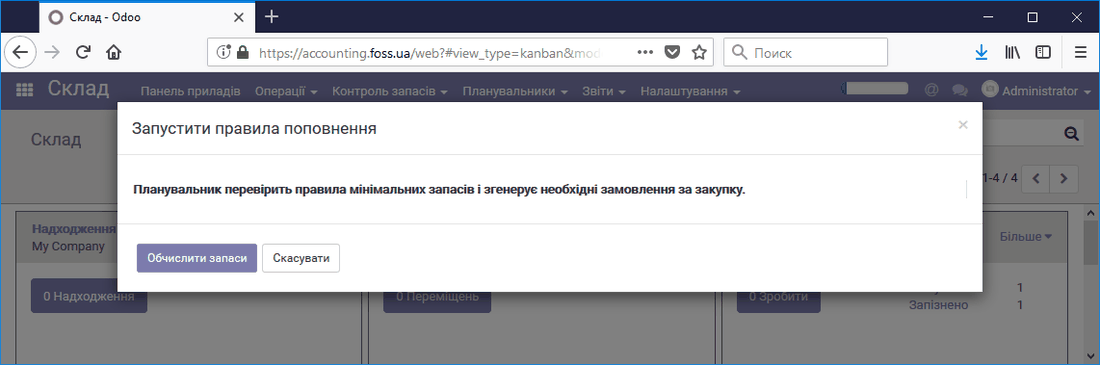 Running the scheduler manually
Reports
In the Reports section you can get consolidated information about the products in your warehouse.
Stock balances on a date
Select the date for which you want to know the product balances,
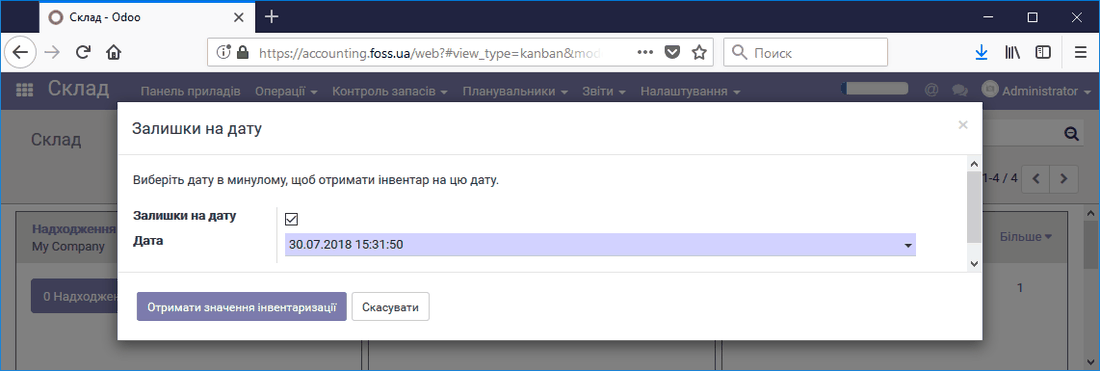 Selecting the date to get product balances
and you get detailed information for each of your products. For example, the figure below shows that the product Apple In-Ear Headphones has two storage locations, WH/Stock and WH/Computer storage. The total quantity of the product is 8 units: 7 in "Stock" and 1 in "Computer storage". We can expand the information for each storage location. The product was received in a quantity of 11 pcs. on document PN00003 from the Supplier to the Stock storage location on 30.07.18 for the amount of 624,80 UAH. The next record means that one unit of the product was shipped to a customer. The record Stock>Computer storage means that there was an internal move of the product from one storage location to another, which is confirmed by the record in the WH/Computer storage section. It also shows that two units of the product were scrapped, which reduced the stock by 113,60 kop. The ">" sign shows from which storage location to which the product was moved.
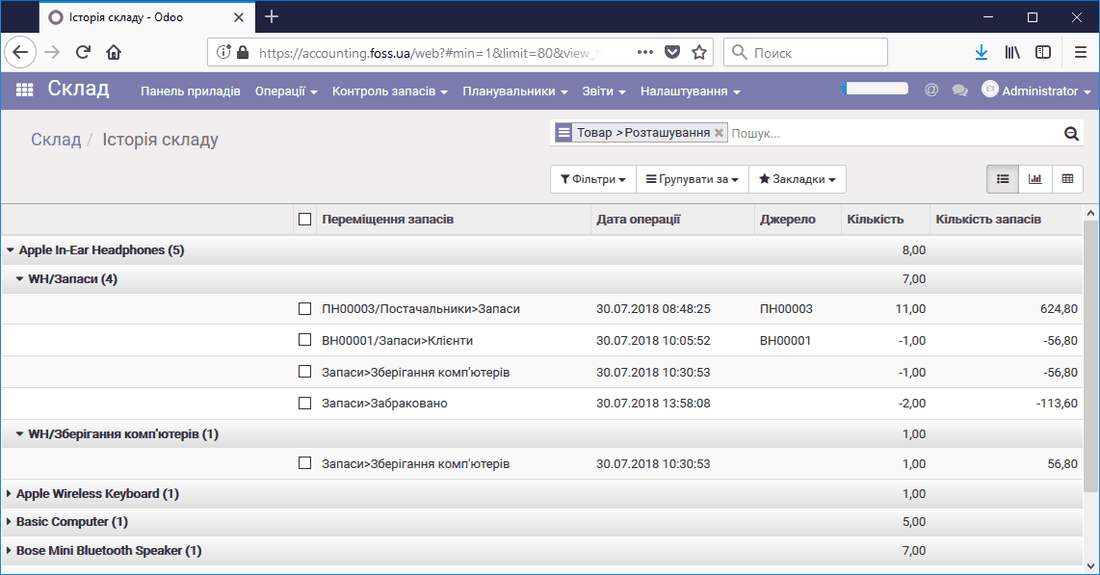 List of stock balances
Latest moves and inventories
In this report we can view the list of the latest product moves.
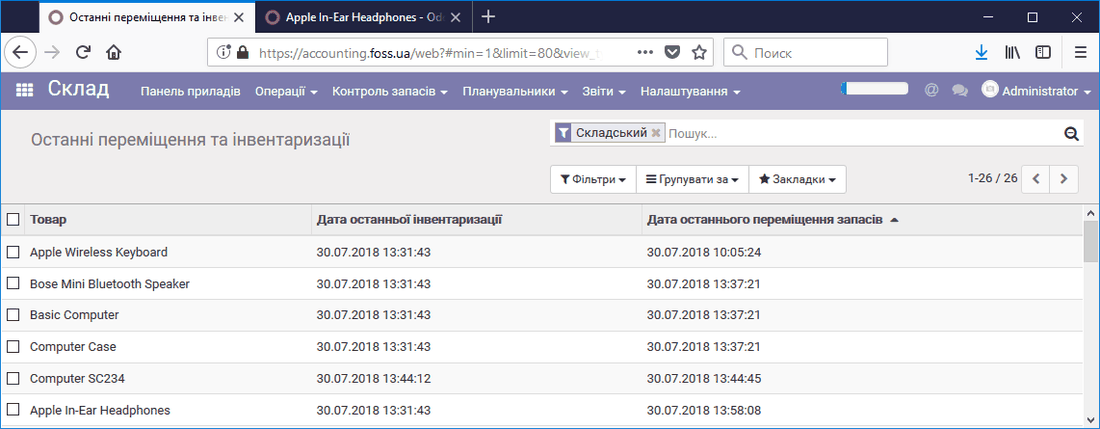 Latest product moves
Inventory valuation
This report provides summary information as of the current date about the quantity of products and their value in money (the Stock quantity column) stored in different storage locations.
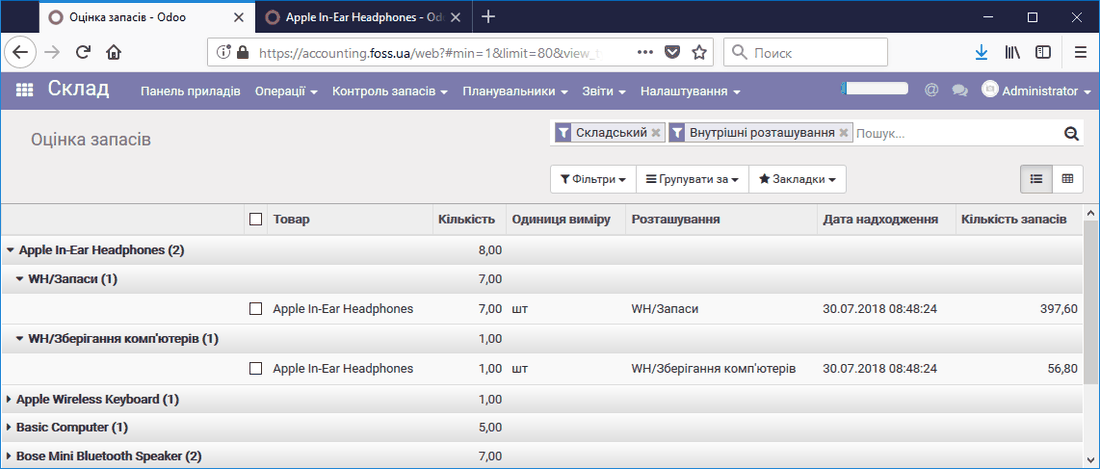 Valuation of stock quantity
By opening a record from this table, we can get full information about the product moves.
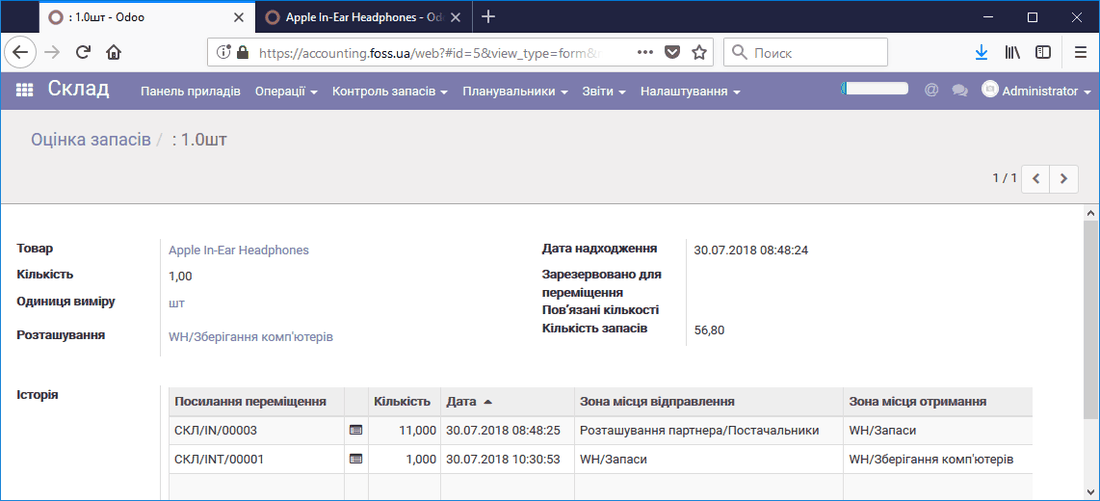 Product moves
Click a table row to get information about the history of all moves.
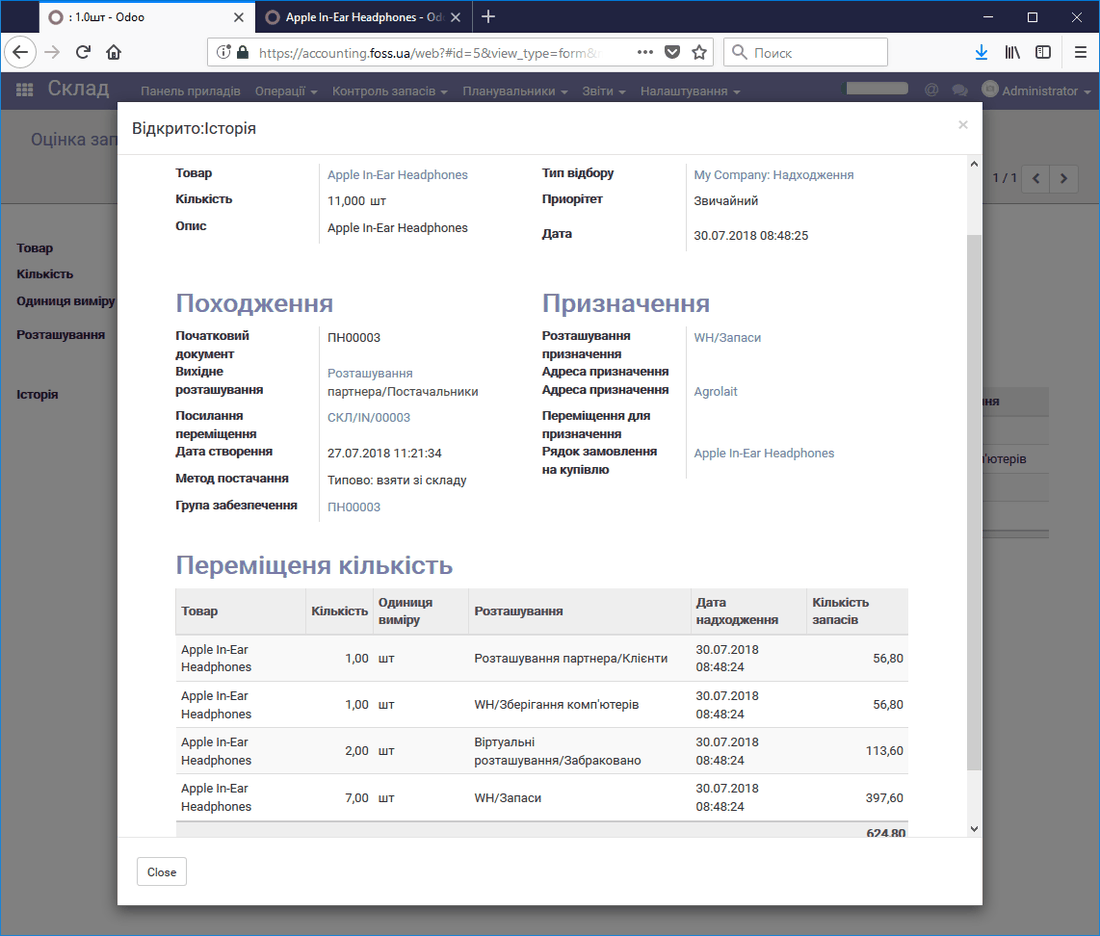 Product move history
By clicking the icon
 we can get information about the product's source document
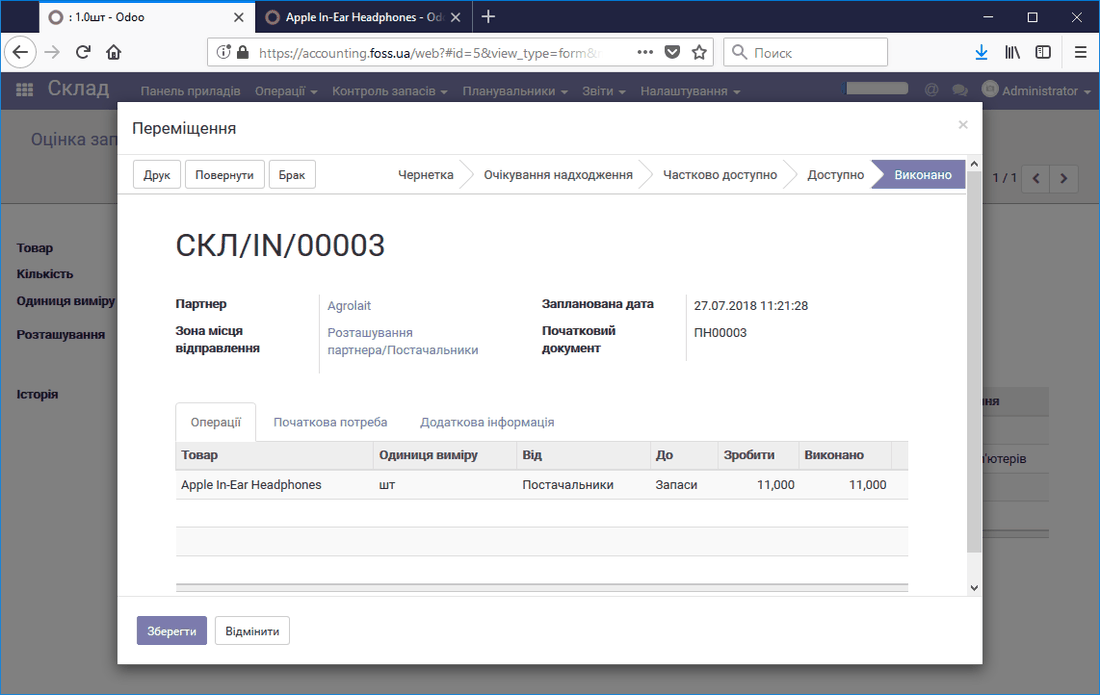 Source document of a product move
Stock moves
The Stock moves report provides information about all product moves that took place in the warehouse.
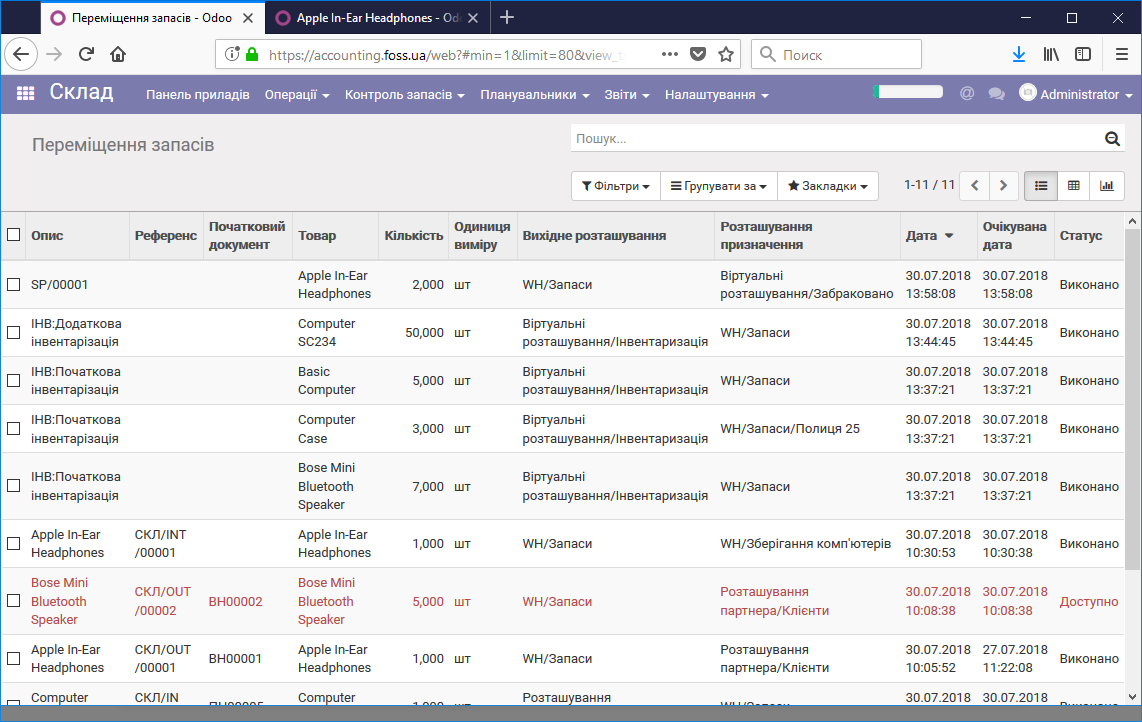 Stock moves report
Procurement issues
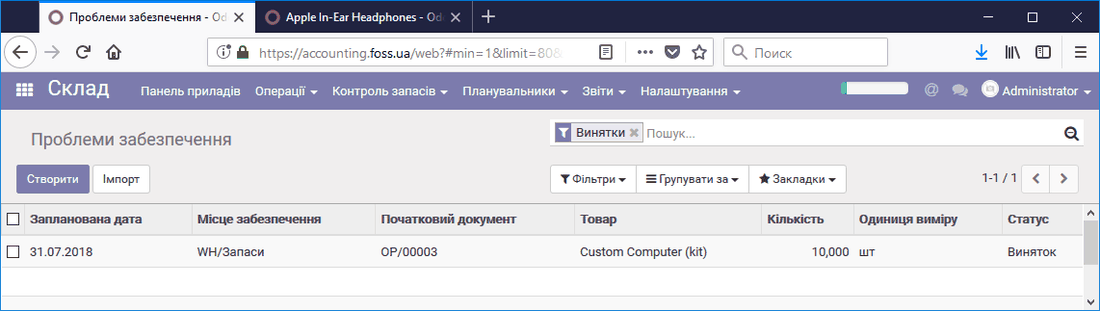 List of procurement issues
If problems arise with providing products, this data is recorded in the Procurement issues folder.
By opening a record, we can view our problem and fix it.
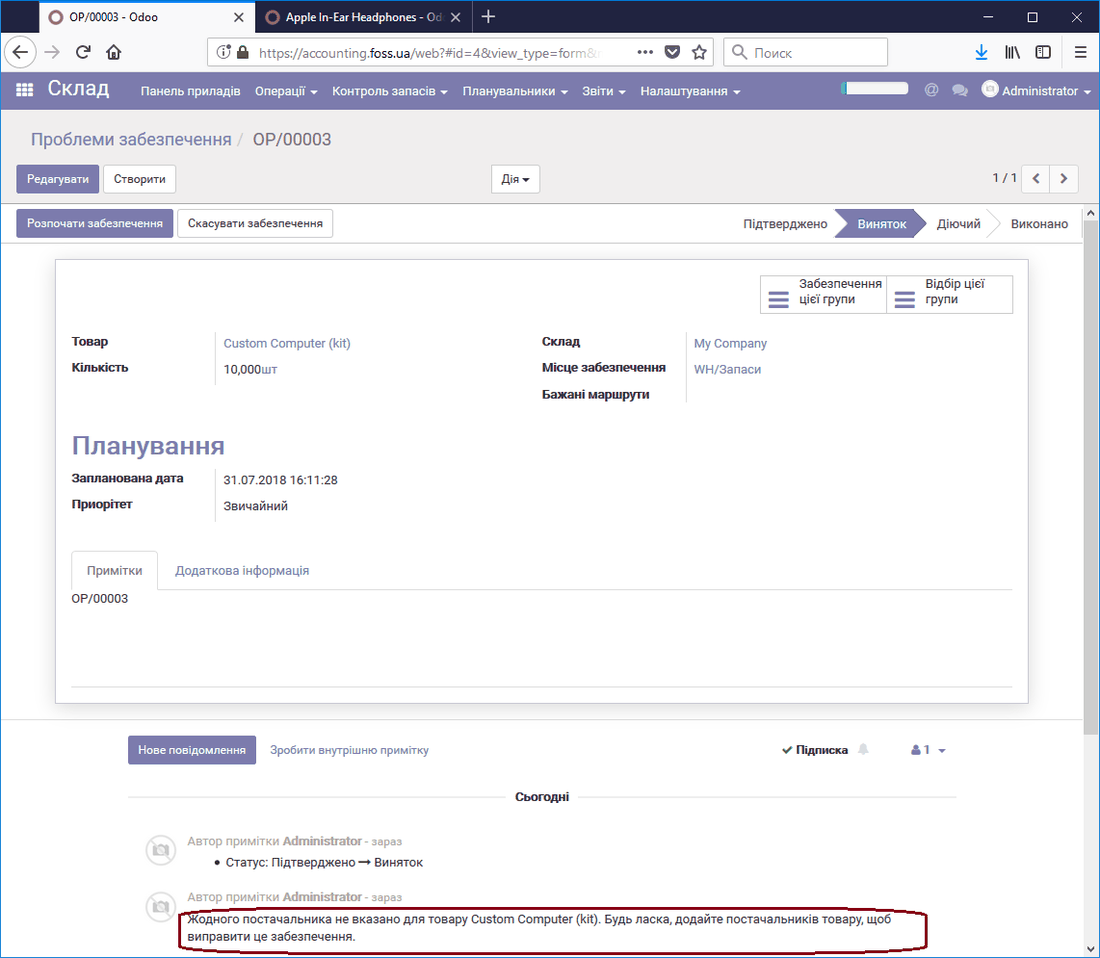 Procurement issue description
Settings
The settings section is intended both for configuring the Warehouse module as a whole and for some settings in individual areas. Settings that go beyond users' competence are not described. For such settings you can contact us for help.
Settings
This section contains information about the general settings of the purchasing program. When you hover the cursor over a menu item in the program window, you get an explanation of it. You can get a detailed description of each item by following the link in our article.
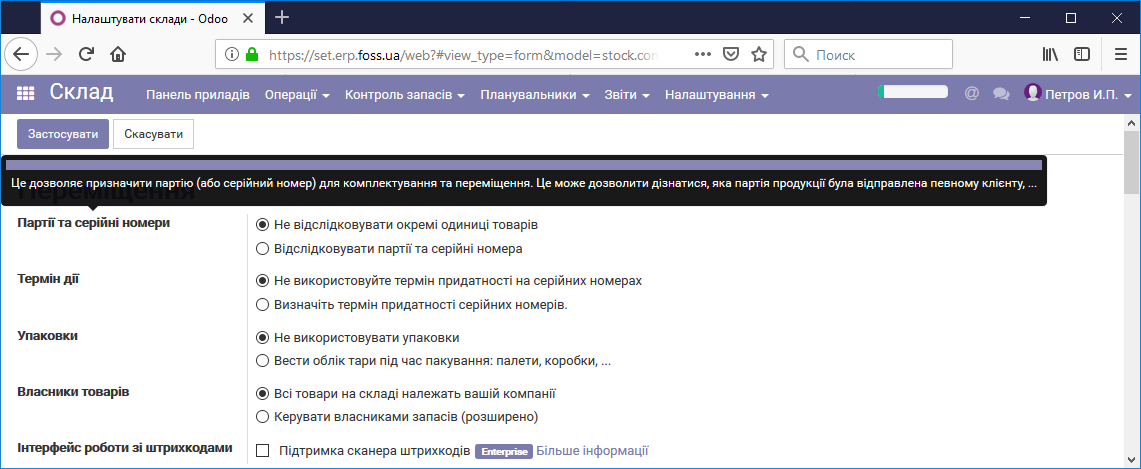 Explanation
Moves
- Lots and serial numbers – ERP FOSS uses serial numbers for products and lots of products to track them as they move.
- Expiration dates – the shelf life of products.
- Packages – lets you pack products before shipping them to a customer.
Warehouse accounting
- Additional costs – the program lets you include additional costs, such as transportation, in the cost price of products when you purchase them.
- Inventory valuation – you can dynamically estimate the cost price of purchased products and have full information about the value of these products.
- Product owners – in the warehouse you can store both your own products and the products of your partners.
-
Locations and warehouse
- Level of use of warehouses and locations – the program lets you manage one or several warehouses with one or more product storage locations (locations).
- Routes – routes are intended for presetting product moves in the warehouse. For example, depending on the product category, it must arrive at a predefined storage location.
- Direct delivery – by default the program provides for direct delivery of products from a supplier to a customer without placing the product in your warehouse.
Warehouses
By default the program serves one warehouse, My Company,
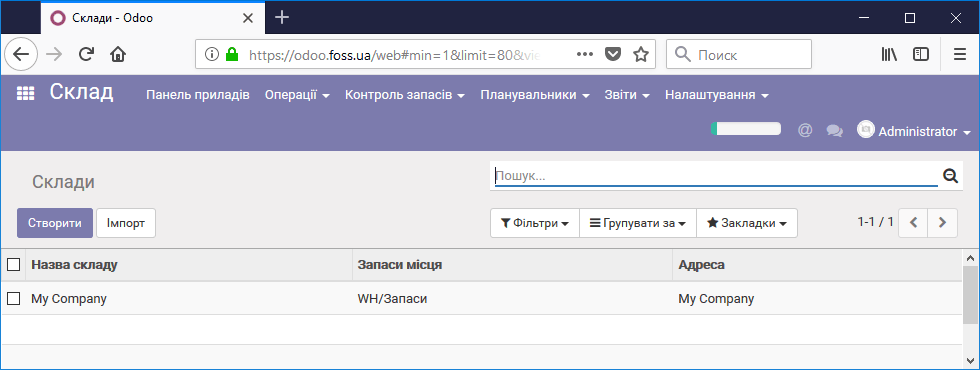 Default warehouse
but if you use several warehouses, you can create several warehouses and configure their properties. Additional warehouse properties for routing product moves are available when you enable the item Advanced product routing using rules in the Settings/Routes menu.
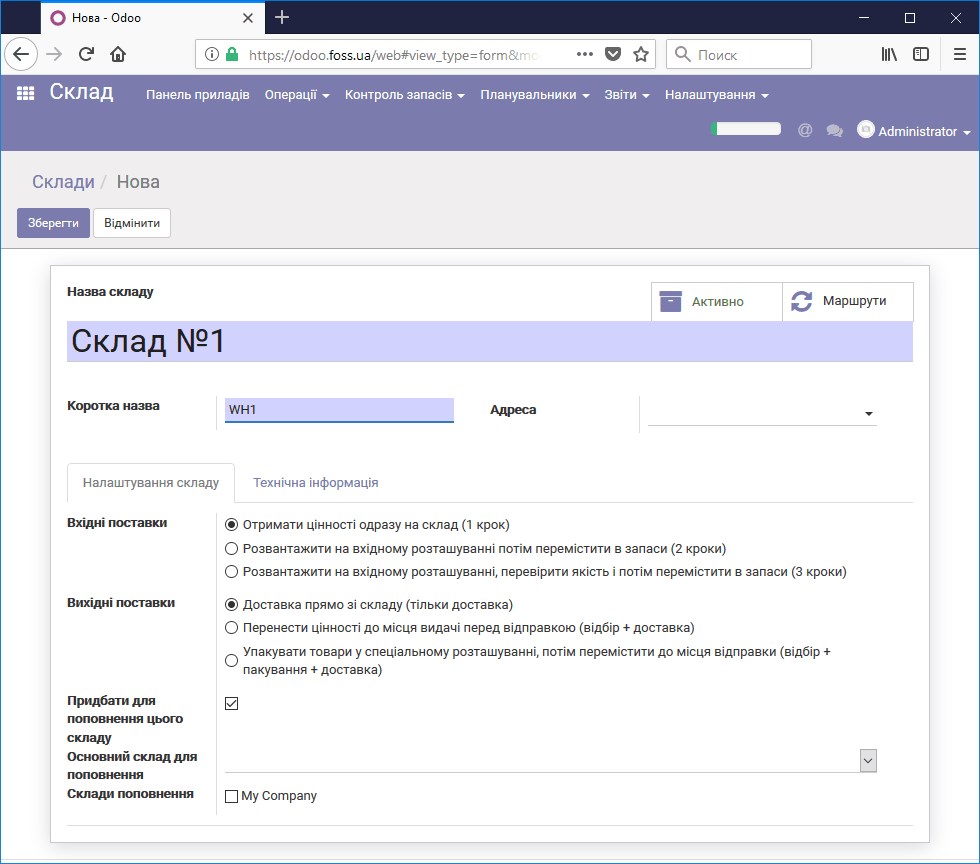 Creating an additional warehouse
After a warehouse is created, it appears on the Dashboard of the Warehouse module.
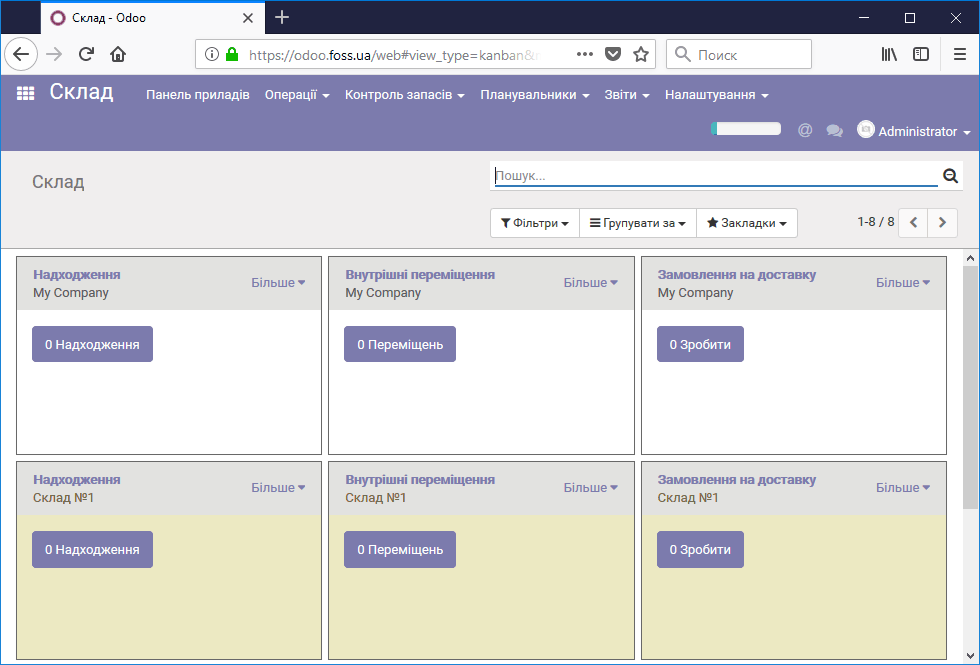 Dashboard with several warehouses
Locations
A location is a product storage place within one warehouse. You can create an unlimited number of storage locations. To create a new location, click Create in the Warehouse/Locations menu. When creating a location, select WH as the Parent location. This is the short name of your warehouse inside which this location will be. In this case we select Internal location as the Location type; other options are also possible.
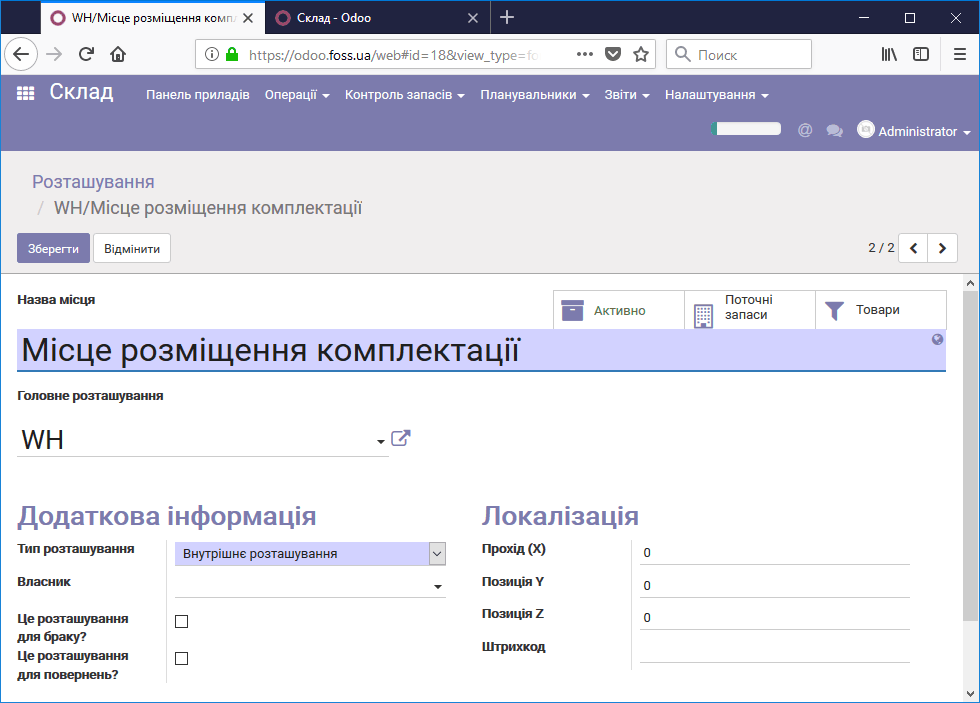 Creating a location
Now we can move products between our locations using internal moves. To do this, go to the warehouse dashboard and in the Internal moves window click More Create/Move
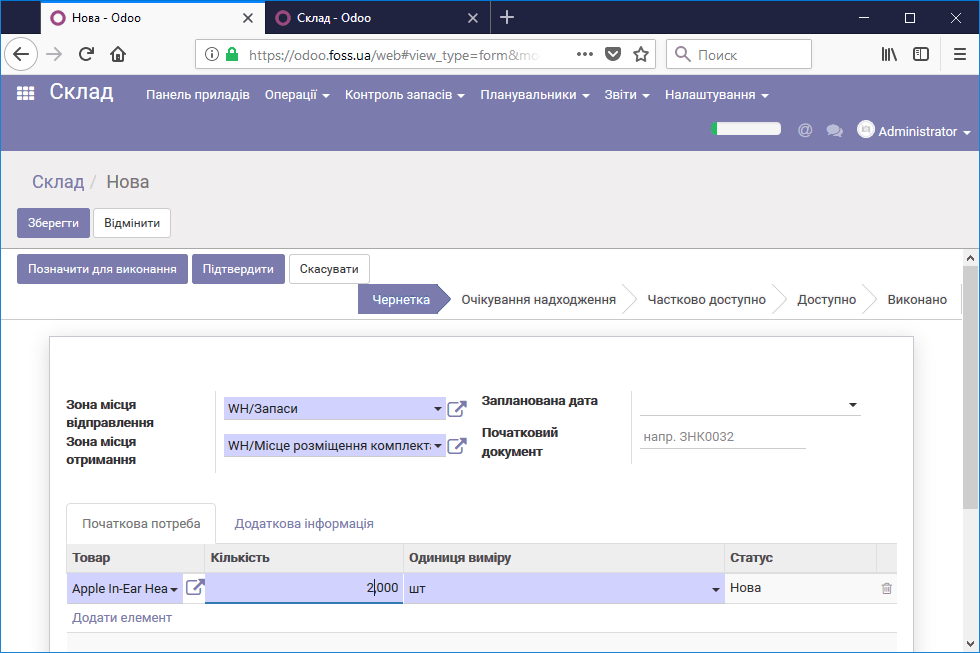 Internal product move
After the move is confirmed, we see that the moved product is in our location.
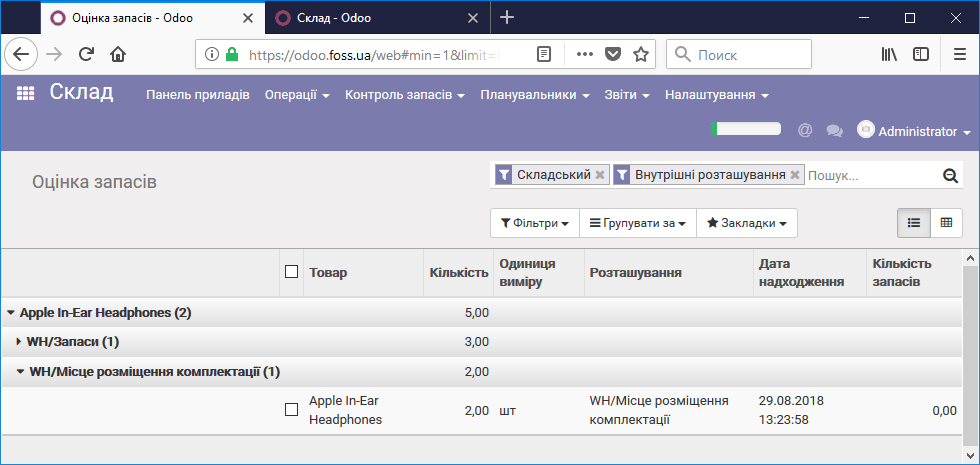 Product in a location
Operation types
Operation types describe typical operations that warehouse employees use regularly. The existing operation types for each warehouse are shown on the dashboard of the Warehouse module. By default, the program has the operations shown below for each warehouse.
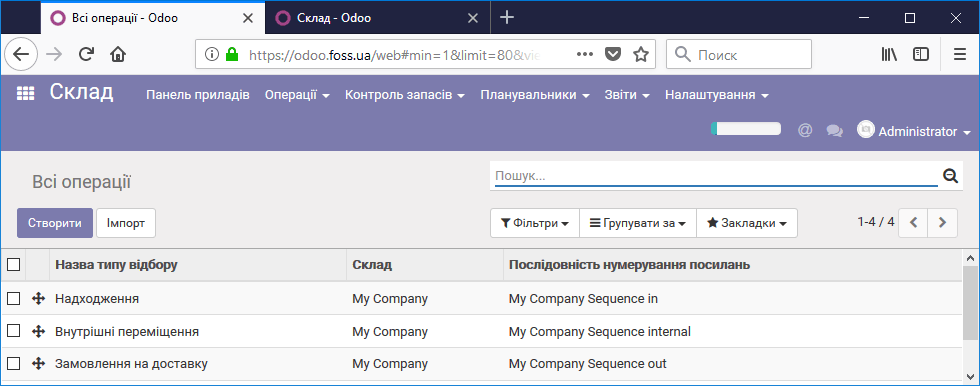 Default operation types
Accordingly, they are shown on the dashboard.
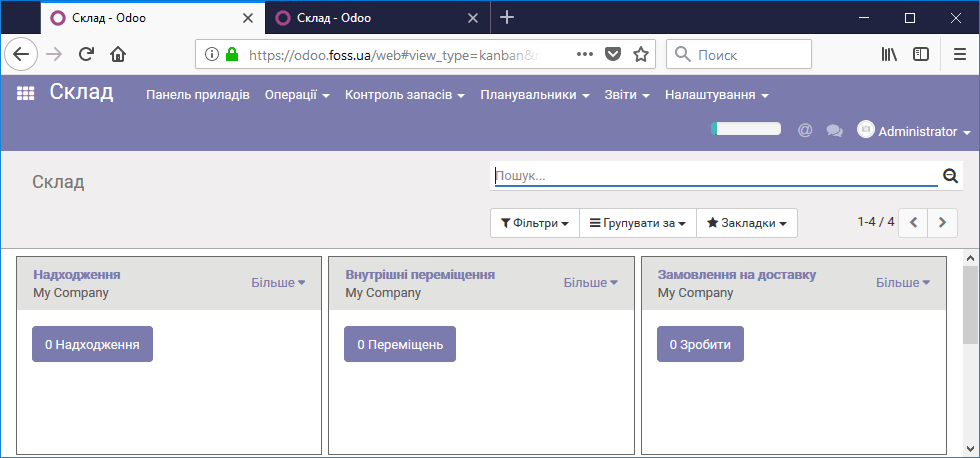 Operation types shown on the Dashboard
It makes sense to add extra operations if warehouse staff will perform them regularly. As an example, let us create an additional operation for an internal move of a product from the location where products are stored by default to the location we created.
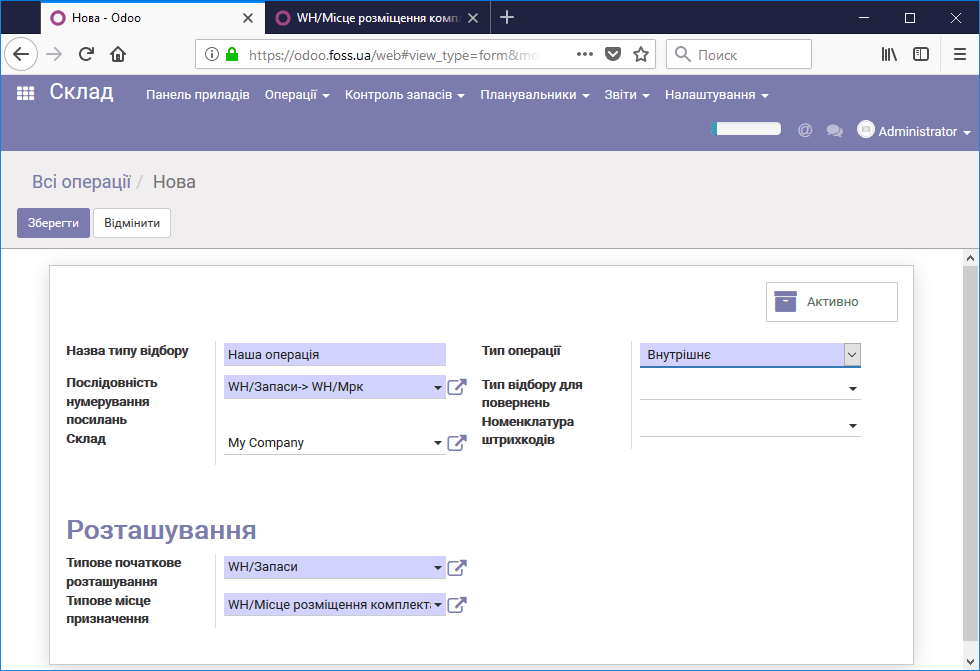 Creating an additional operation
As a result, the Our operation window is added to the dashboard.
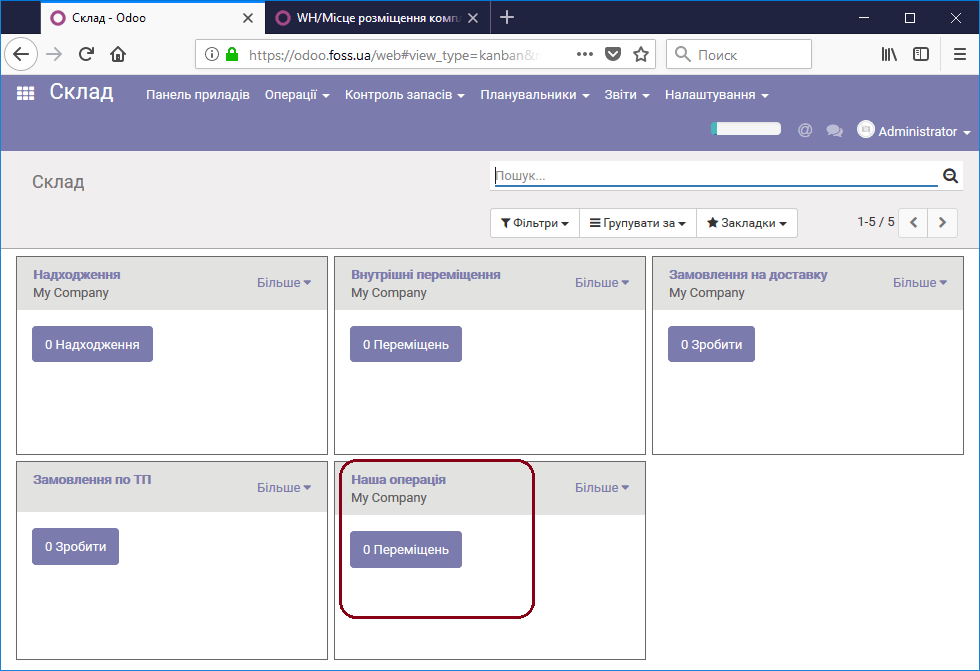 Dashboard with an additional operation
Now we can quickly perform product move operations by clicking More and Create in the Our operation window.
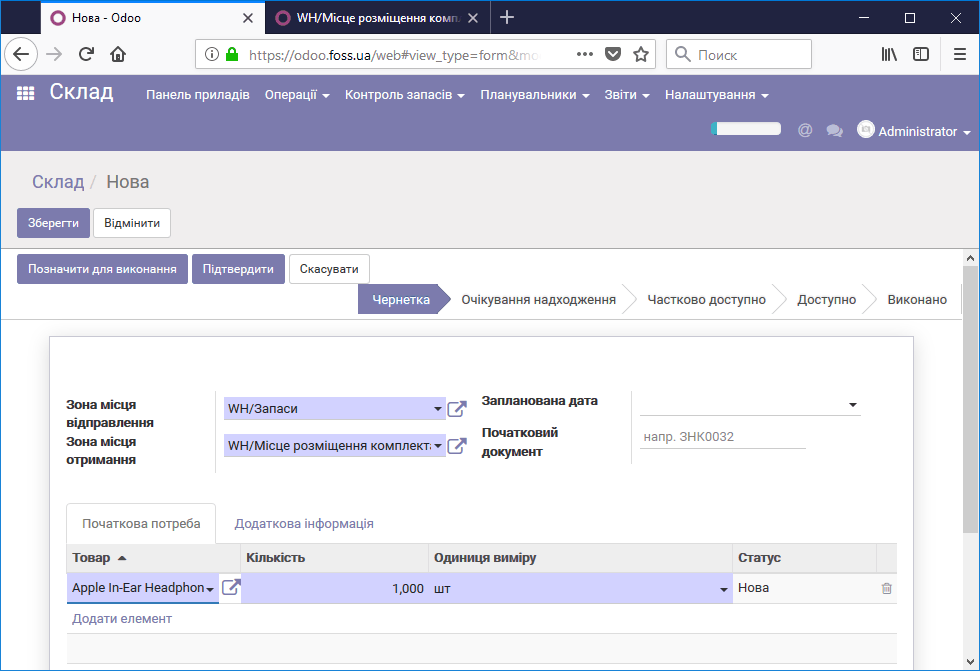 Moving products
Product categories
For convenient work with products, they can be divided into categories. Categories can be nested in one another.
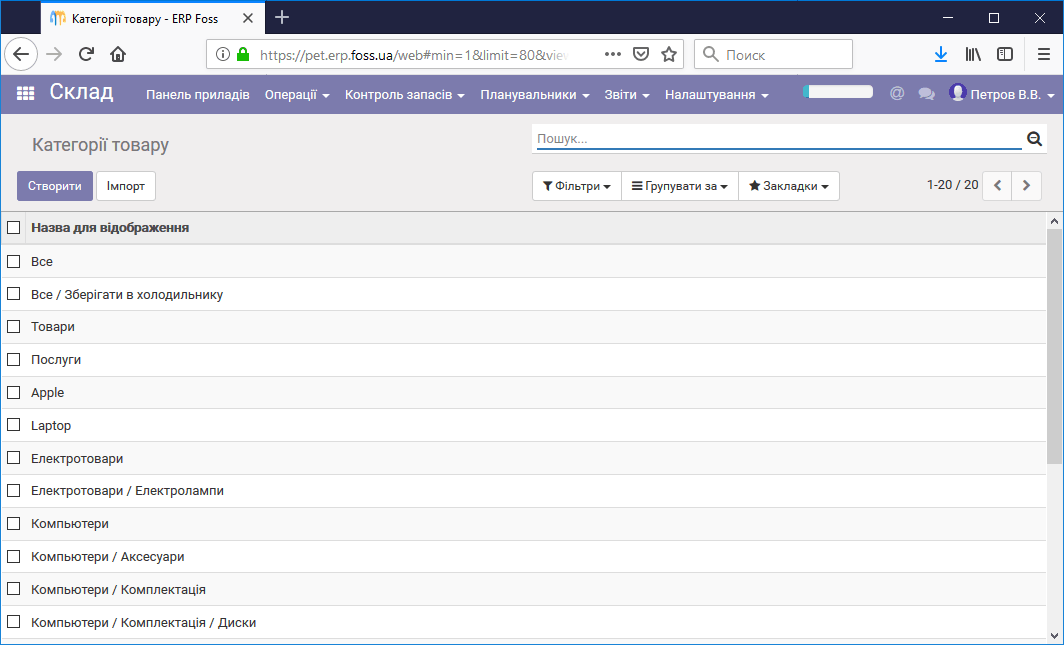 List of categories
Units of measure
The program can support an unlimited number of units of measure. Different units of measure are available with the appropriate settings.
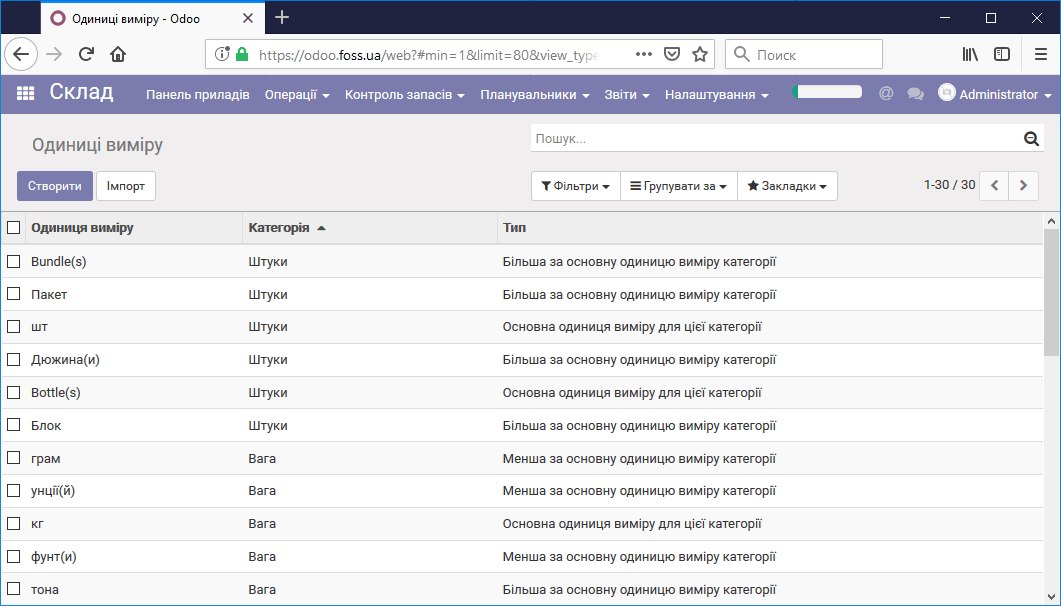 Units of measure
Unit of measure categories
Each unit of measure belongs to a corresponding category; categories can be created without limits.
Unit of measure categories