Reports in the point of sale terminal
Introduction
In the "Cash terminal" module, the point of sale (POS) terminal, you can view and/or configure several reports on sales made at the cash register.
Sessions
To view the list of cash sessions, open the menu item "Orders/Sessions":
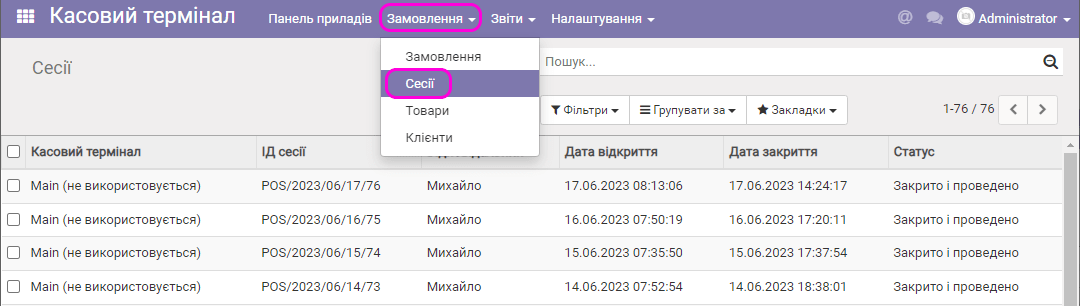
The list shows the POS terminal, the session number (ID), the salesperson, the session opening and closing dates, and the session status (open, closed, etc.).
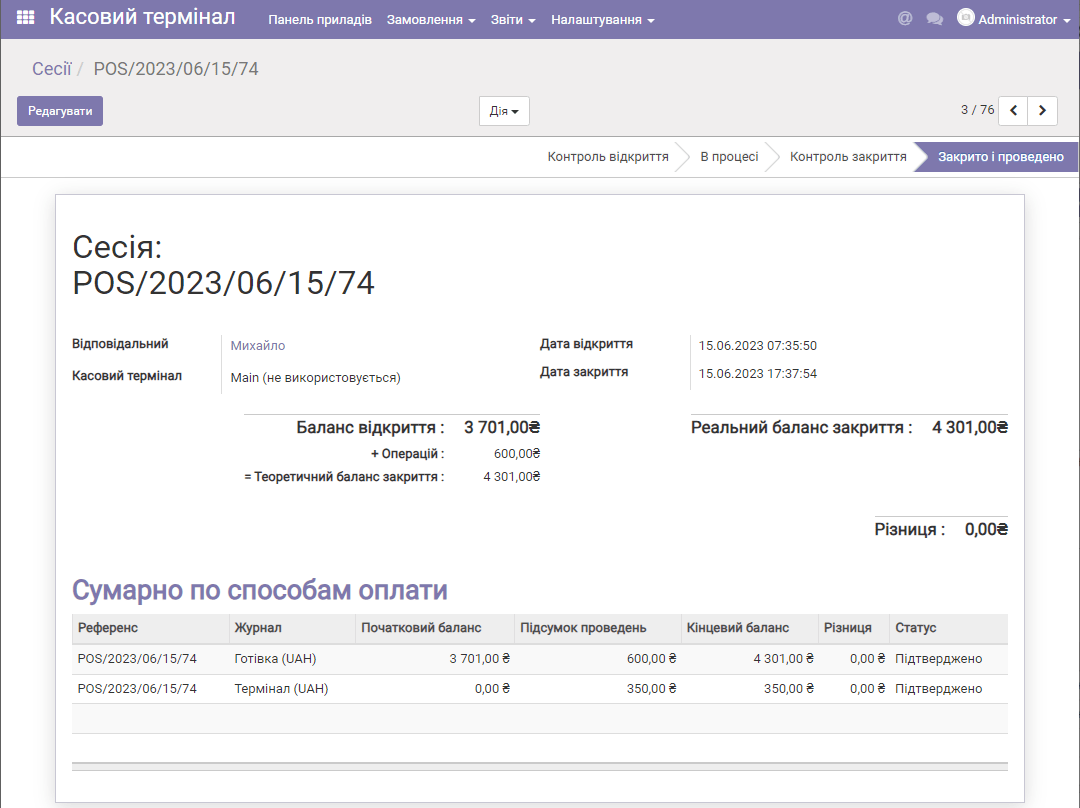
Click a row of this list to see the data for the selected session:
Orders
To view the list of orders made at your cash register (or registers), open the menu item "Orders/Orders":
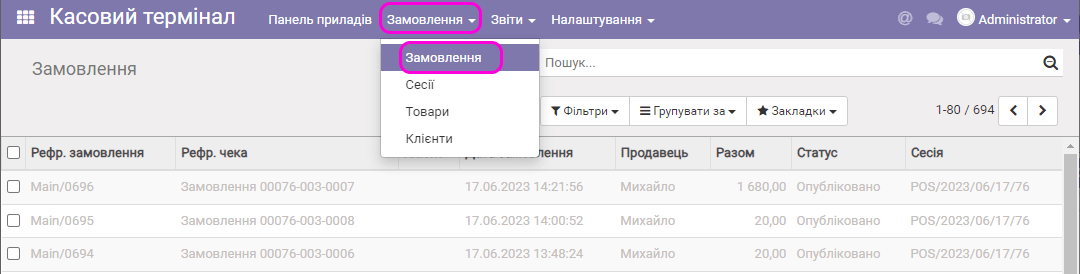
Click a row of this list to see the selected order:
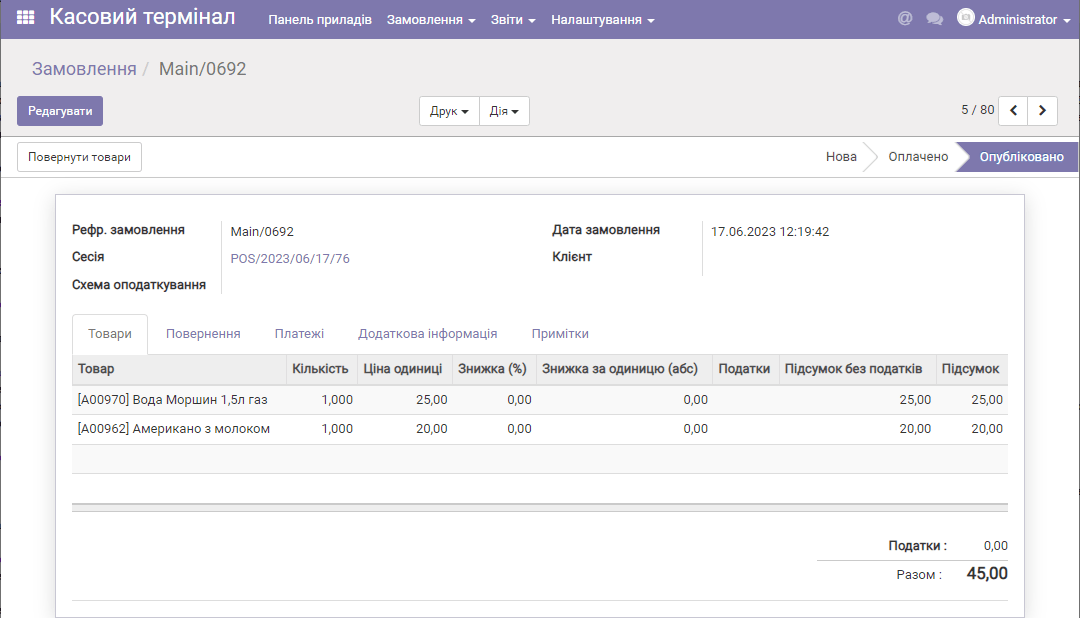
The order shows the list of purchased products and their total. You can also see the payment method (the Payments tab) and other information (Additional information), including the receipt number. The Print menu lets you print the PRRO (software cash register) receipt, if there is one.
Analytical sales reports
The program lets you create an analytical sales report that you can view from different angles. You can customize the report and save it for later use. To generate the report, select the menu Reports/Orders:
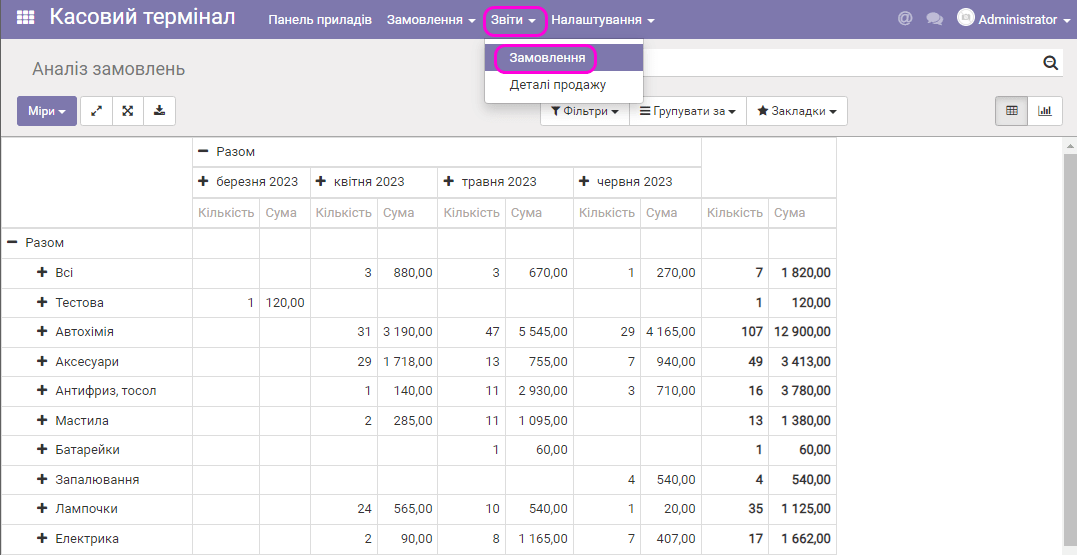
Then click "+" in the top row or in the left column and choose the next level of report detail, for example by products:
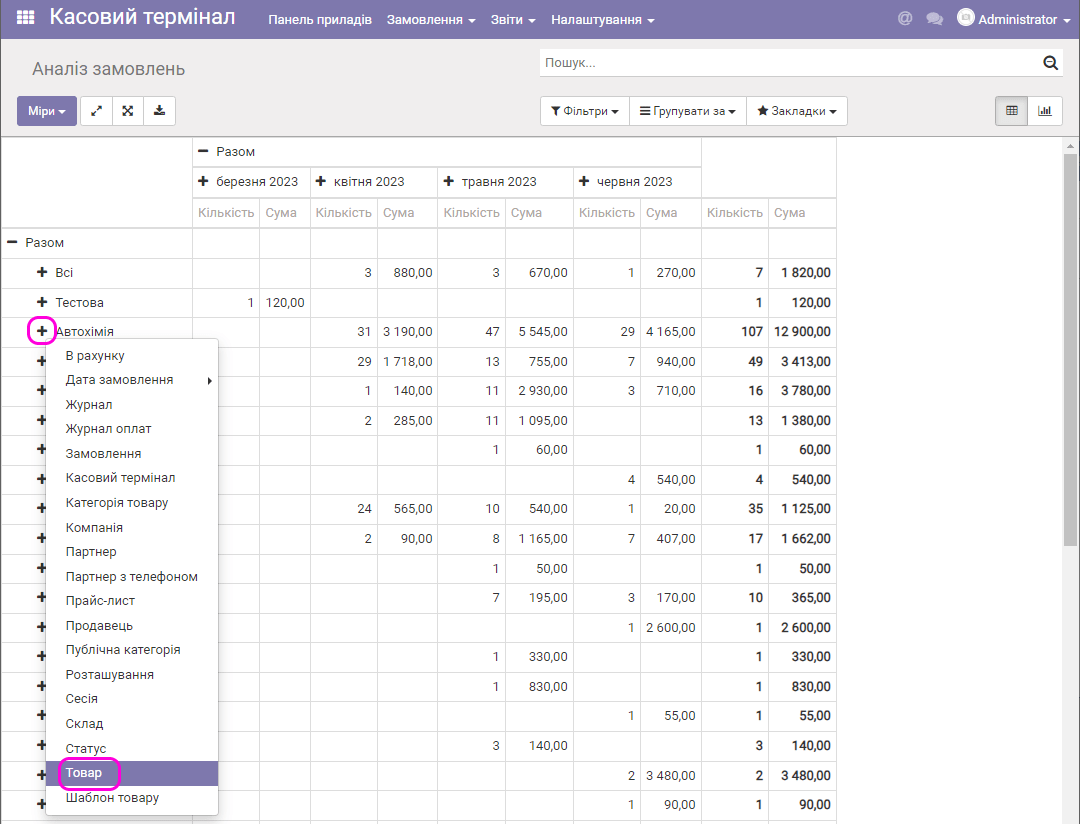
The result is a detailed report by products:
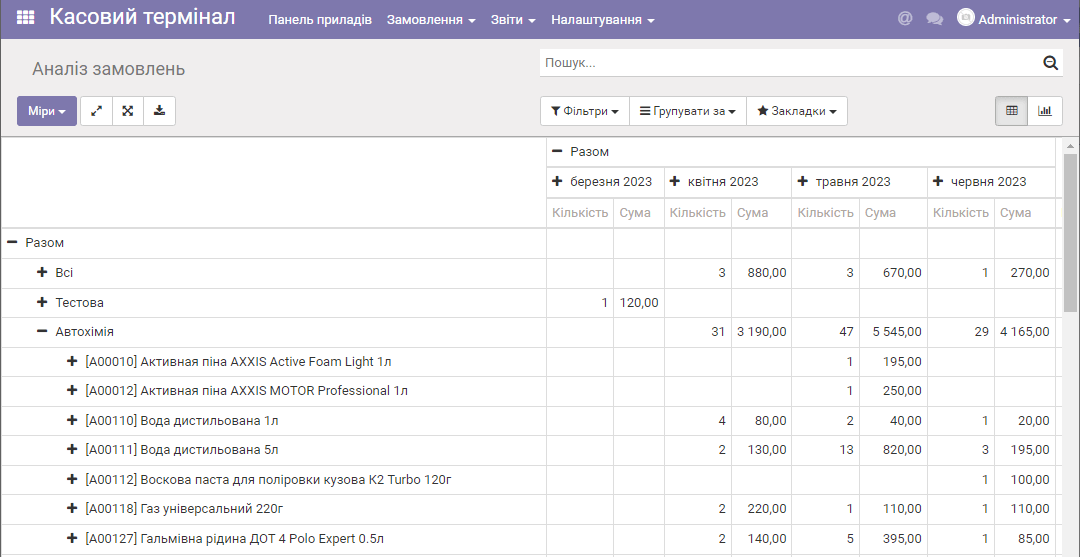
Use "-" to go back to the previous level of detail.
You can apply filters to the report, for example by order date range:
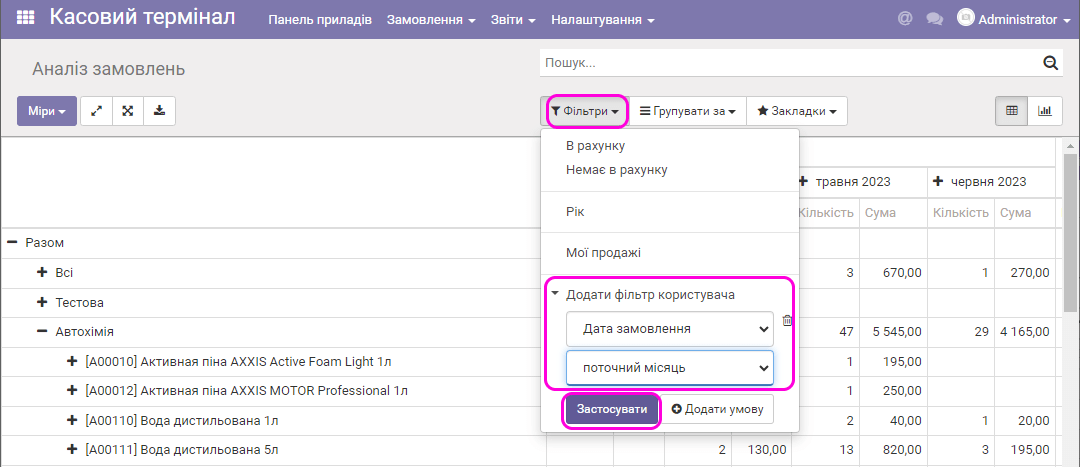
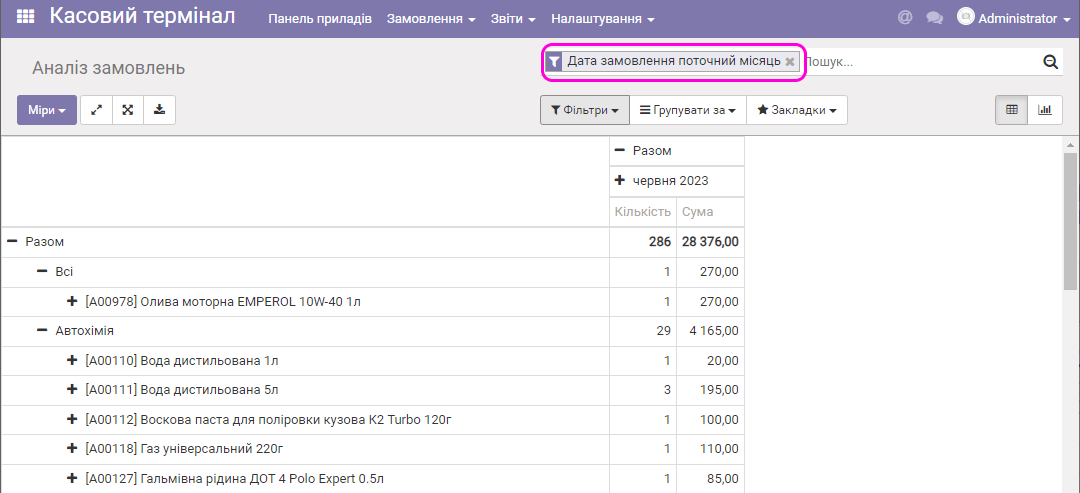
As a result, the report is filtered by the sales data of the current month.
The "Sales details" report for printing
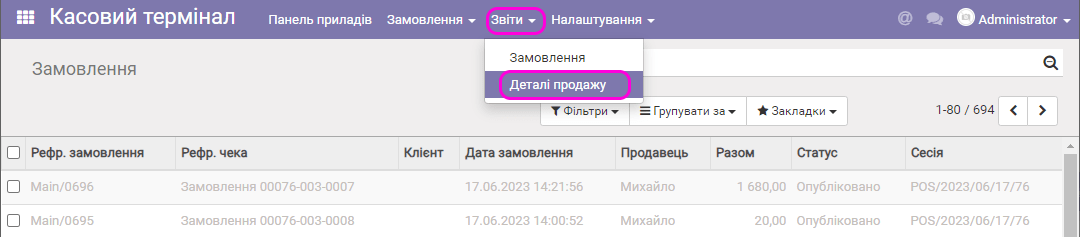
Another option is creating reports for printing (as PDF files). To do this, select the menu item "Reports/Sales details":
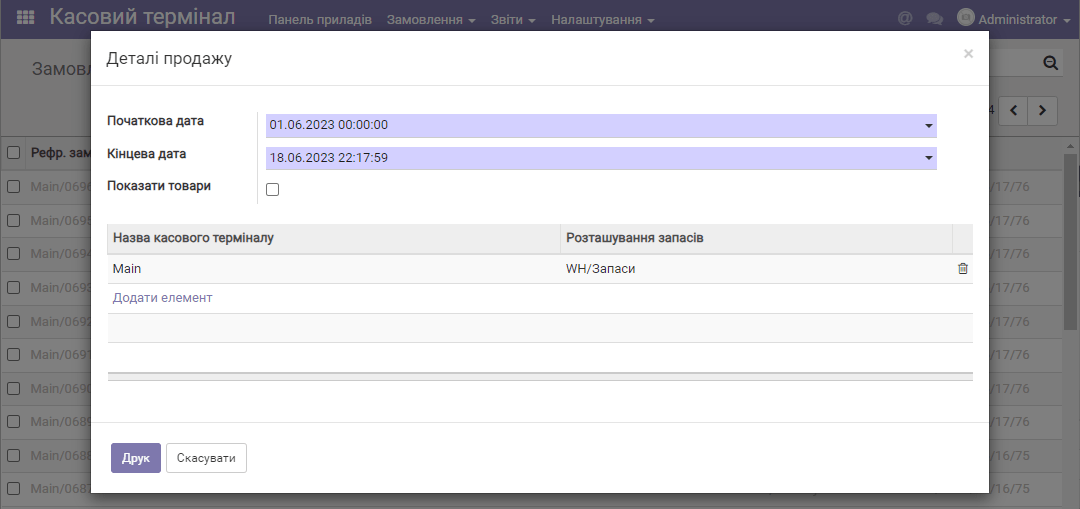
Then select the date range for the report, turn on or leave empty the Show products option, and add or remove the necessary cash registers. Click Print:
A PDF file of the report appears, showing the amount of payments processed through the cash register by different payment methods, as well as all data on service cash deposits and withdrawals.
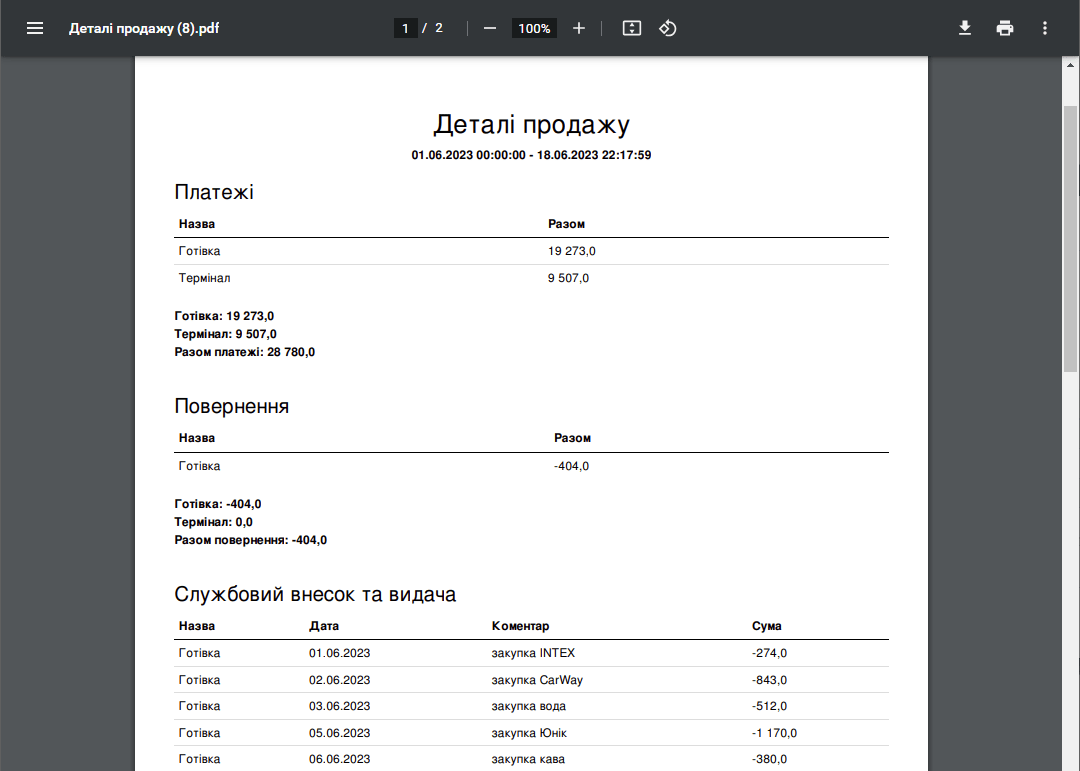
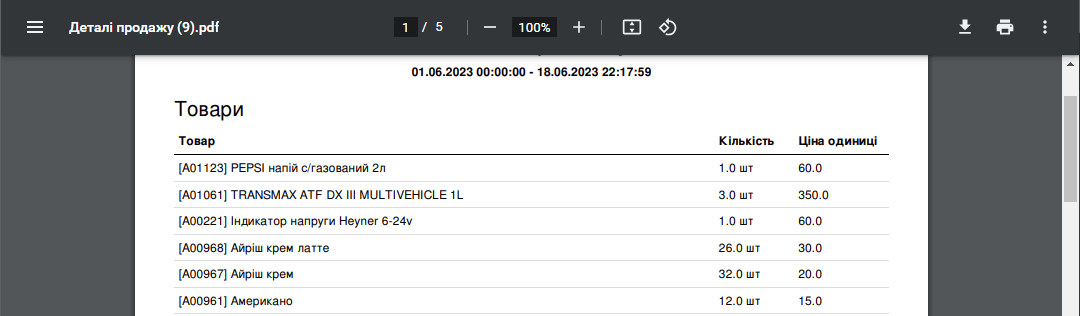
If the "Show products" option was turned on in the report settings, the report also shows all sales at the cash register for each product over the selected period: