Serial numbers, lots, packages
Serial numbers and lots
If you need to track each individual product, for example consumer electronics, use serial numbers. If you have a large quantity of products of the same type, use lots.
In the warehouse settings, select Track lots and serial numbers. For a product that is tracked by serial number, set the option as shown in the figure below.
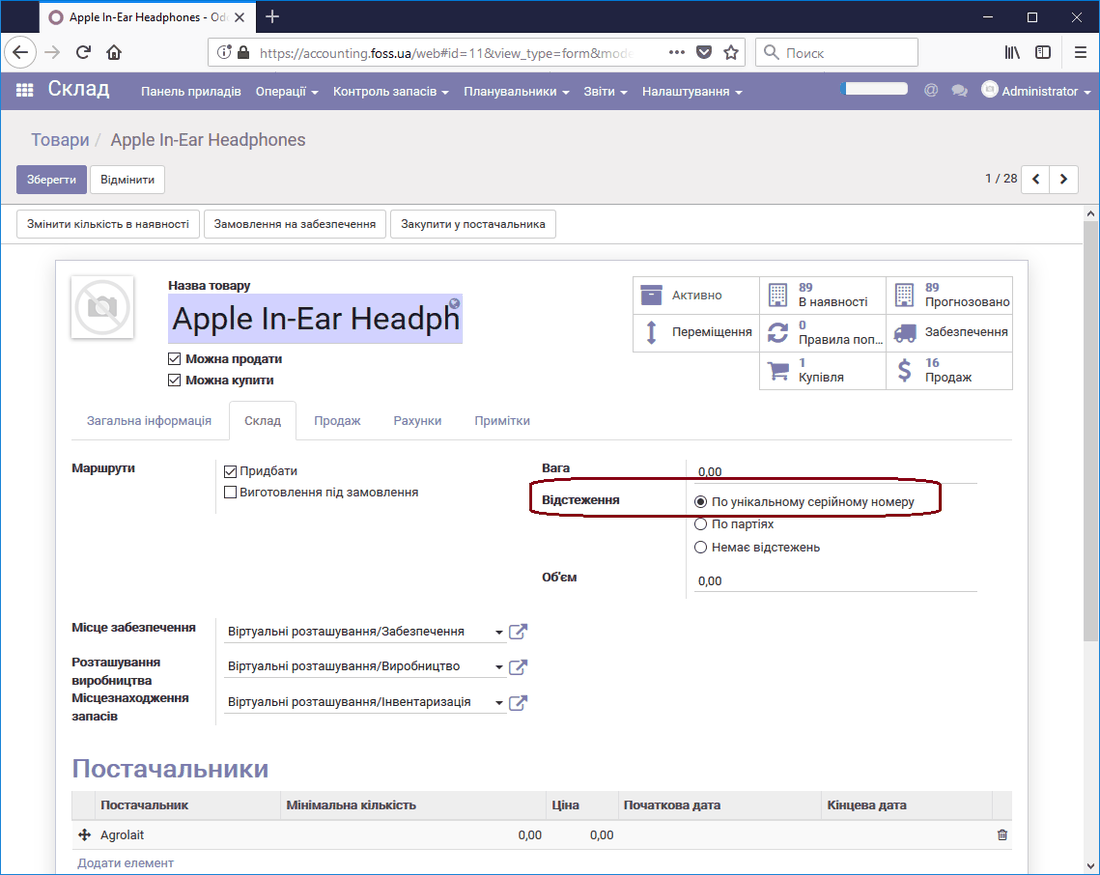 Tracking a product by serial number
In this case, when you move products you must specify a serial number for each product. For example, three units of a product have been purchased. Now, when performing the product delivery operation, click the Split lot button.
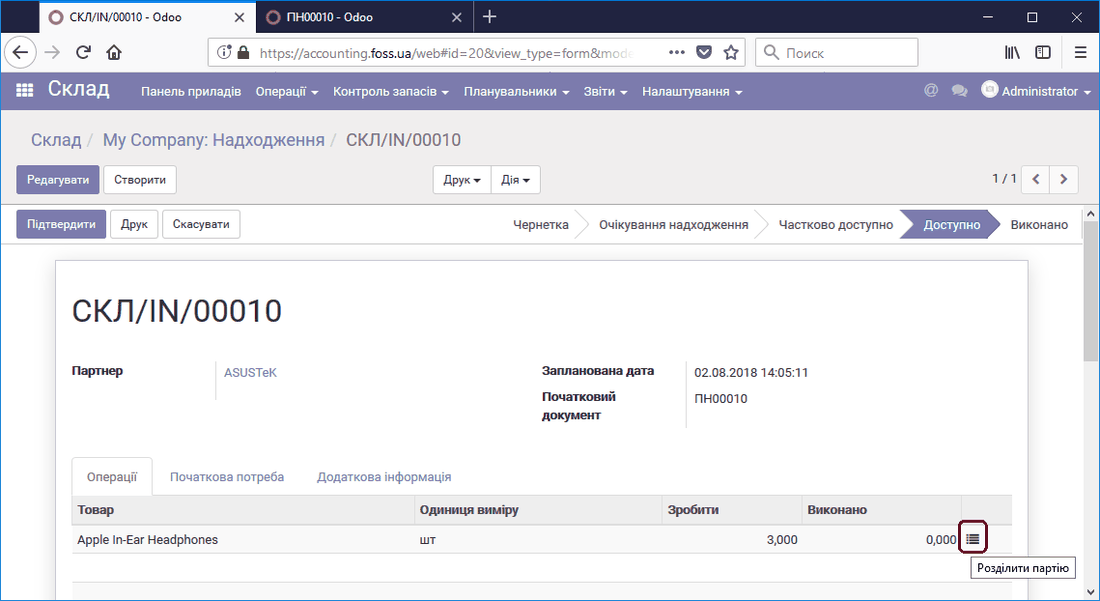 Receiving a product by serial numbers
The application prompts you to enter serial numbers for each of the products.
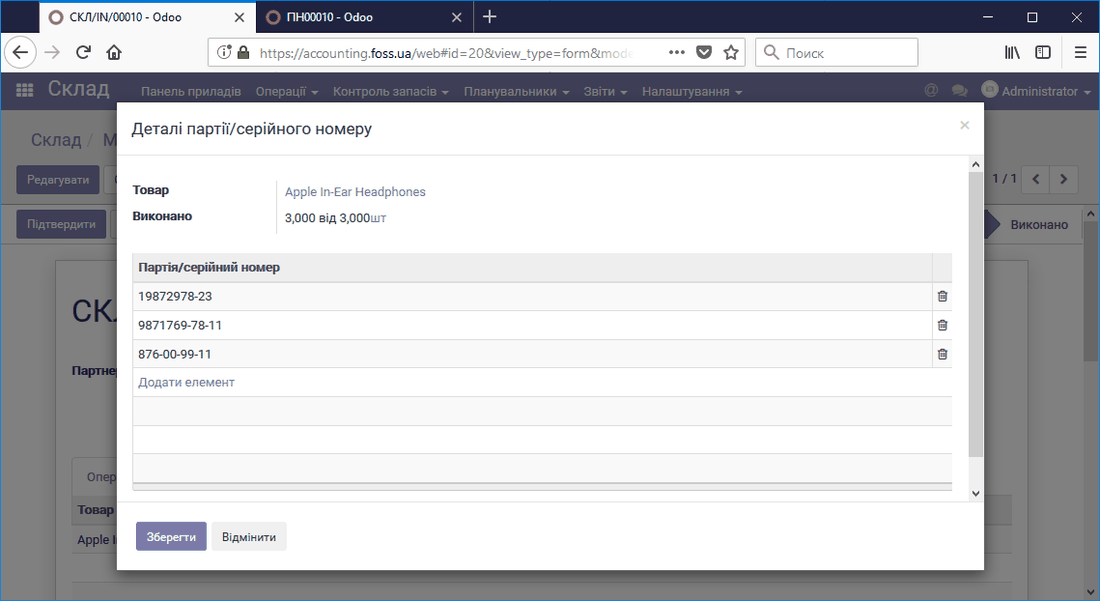 Entering serial numbers
As a result, we see the products with the corresponding serial numbers in Warehouse/Inventory control.
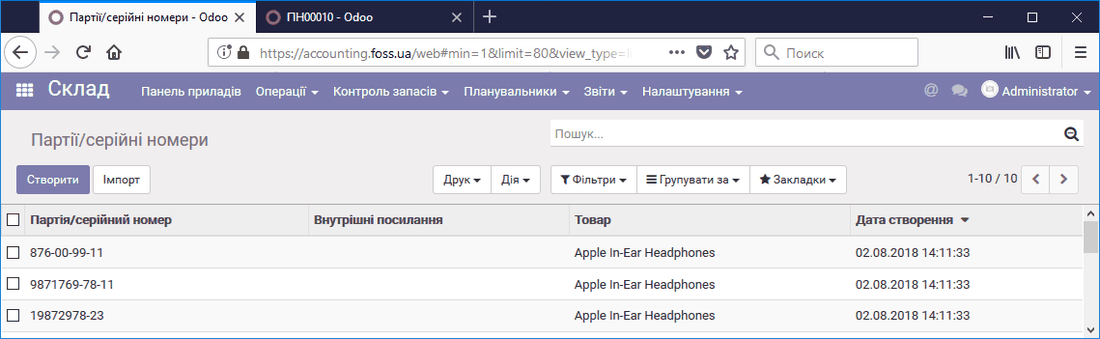 Products with serial numbers
When you ship a product to a customer, you also need to specify the serial number of that product.
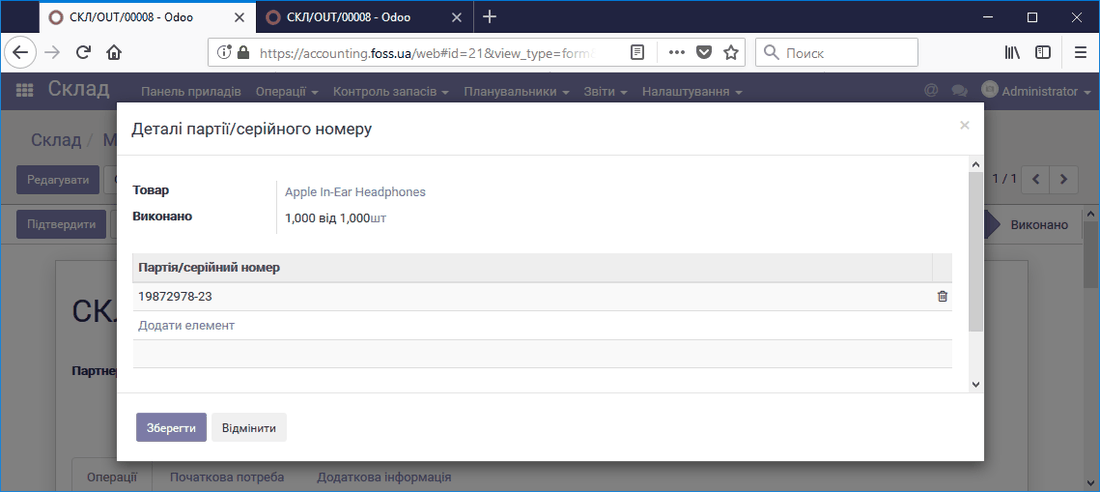 Shipping a product with a serial number
You can track the movement of a product by its serial number. To do this, go to Inventory control/Lots/Serial numbers and select the number you want to track.
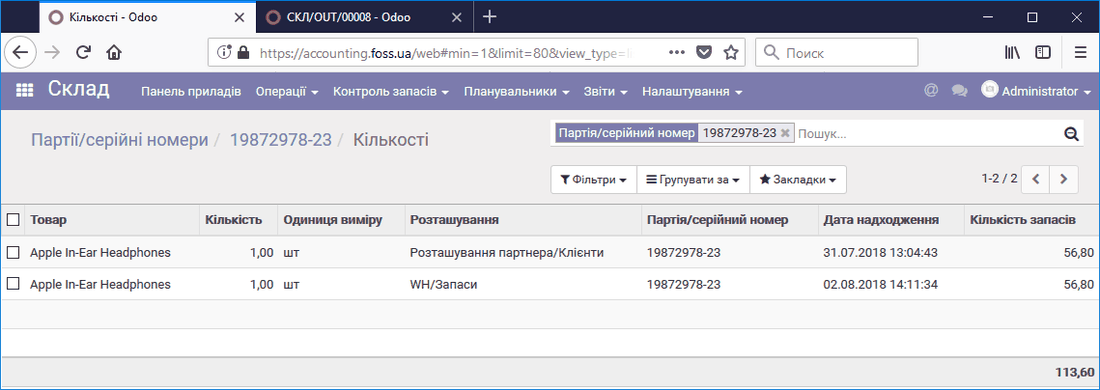 Movement of a product with a serial number
To track product lots, set the option for the product as shown in the figure below.
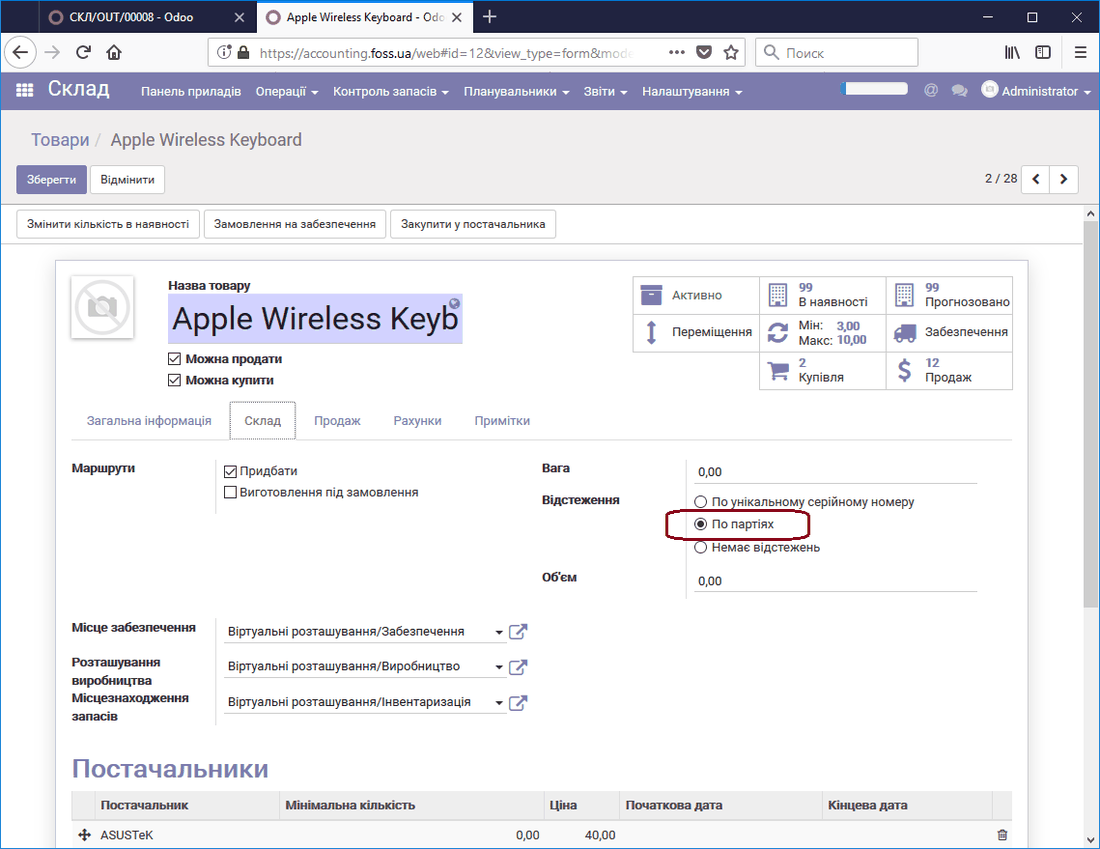 Product tracked by lots
Now, when you purchase such a product in some quantity, the units of this product belong to a particular lot. For example, we purchased 10 units of a product and specified that we have two lots of the product (Lot001 and Lot002) with five units in each.
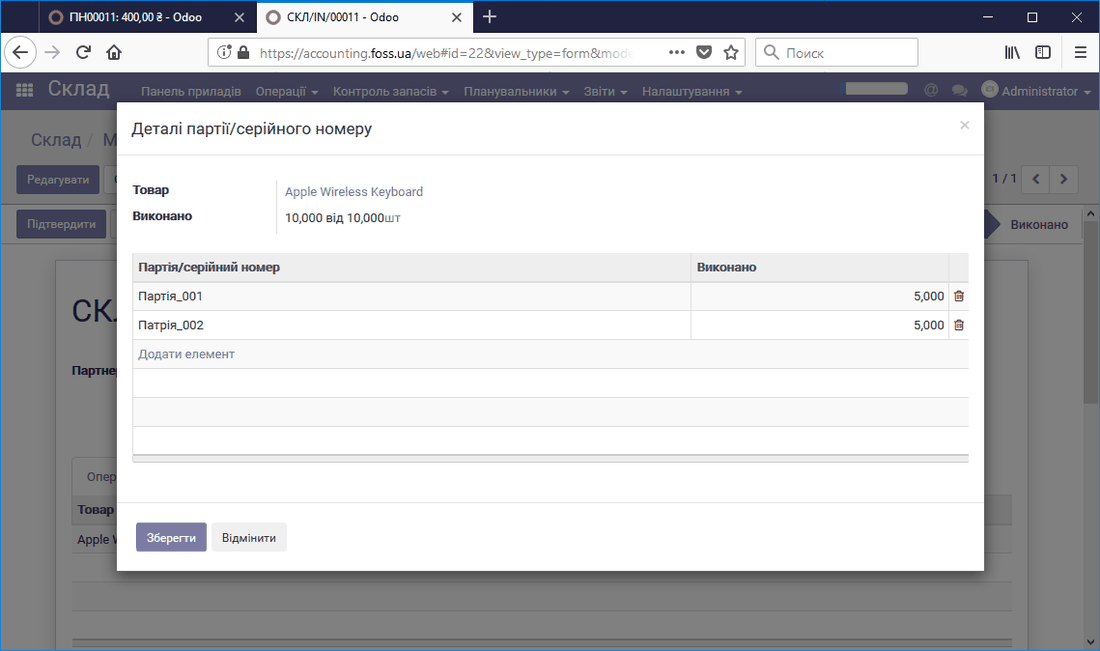 Product lots
You can track lots in the same way as serial numbers.
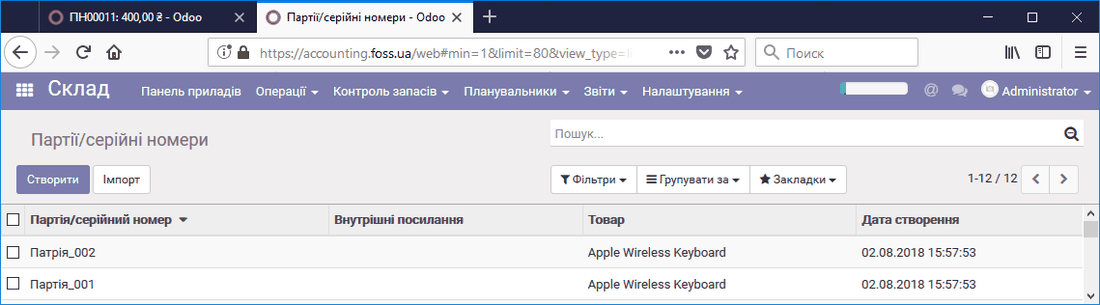 Tracking product lots
Expiration dates
Some products have an expiration date. To track product expiration dates, select the Expiration dates/Define expiration dates for serial numbers option in the Warehouse settings. After that, new properties are added to the product. You can get an explanation of each property by pointing at it with the cursor.
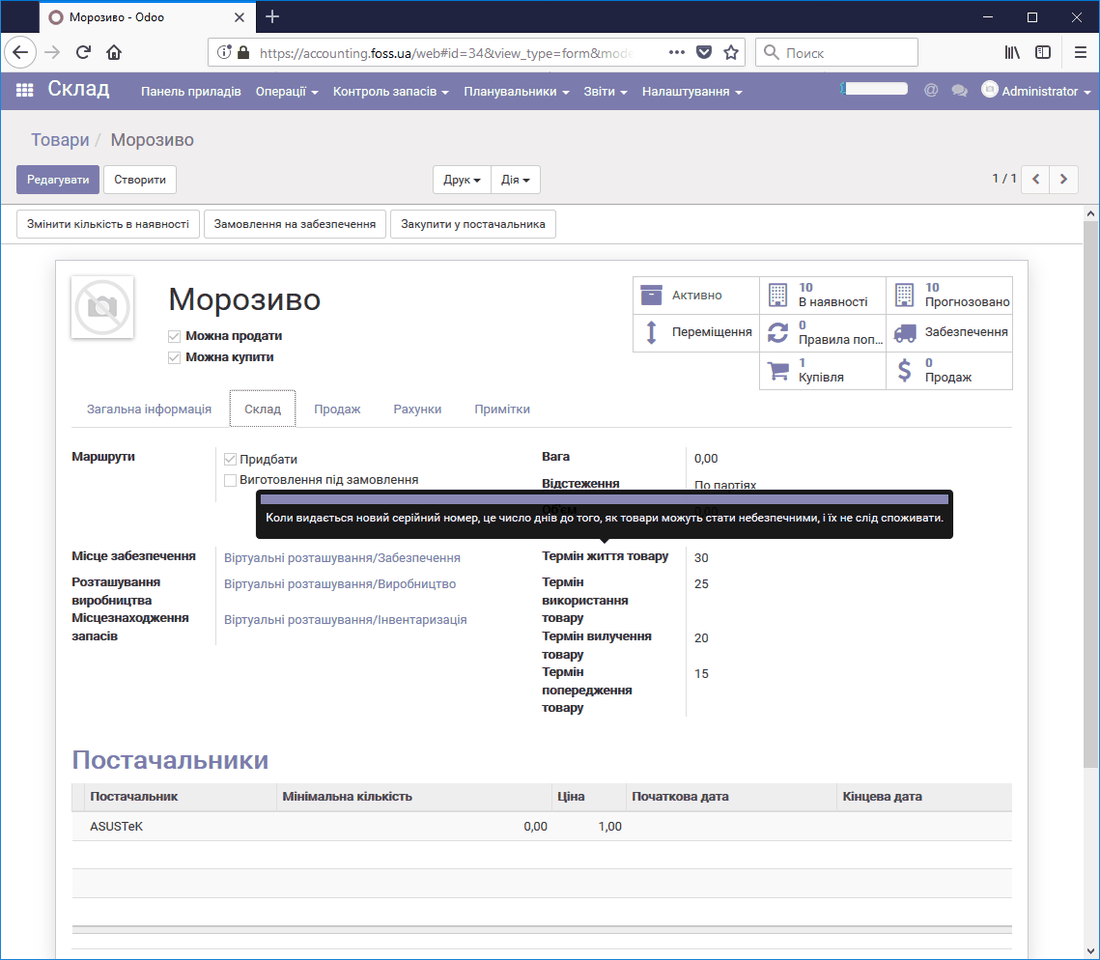 Product expiration dates
Now, if we receive a product with these properties set and assign a lot or serial number to it, then when we open this lot we get the data as absolute dates based on these properties.
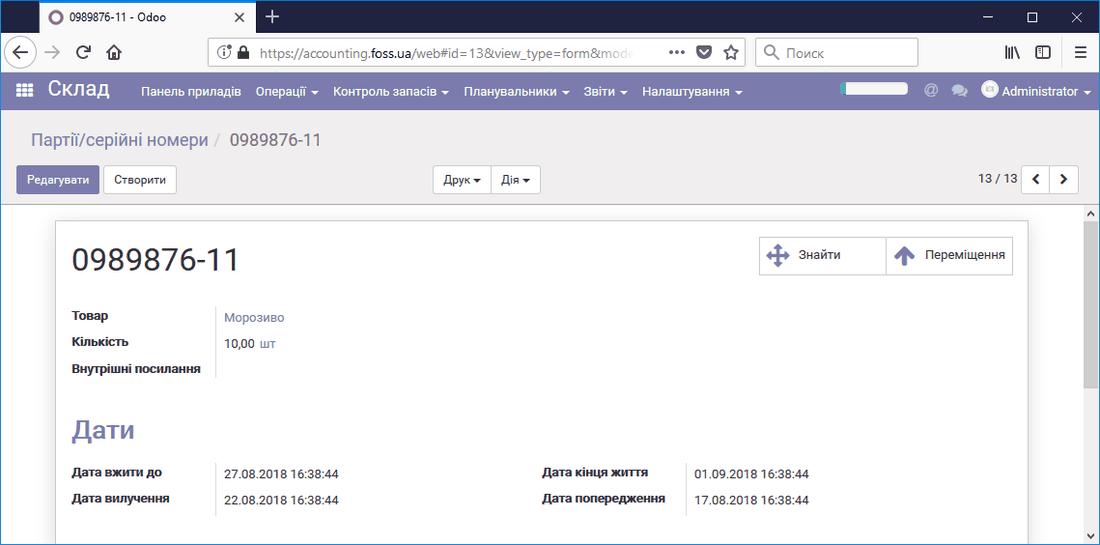 Expiration dates of a product lot
Using filters, we can select products and their lots by specified dates.
Packages
To use packages, select Keep track of packaging during packing: pallets, boxes, ... in the Warehouse settings.
 Package settings
Now, when shipping a product to a customer, you can pack products into packages. After you save the settings, a Packages item is added to the Inventory control section. It contains the list of packages and their locations.
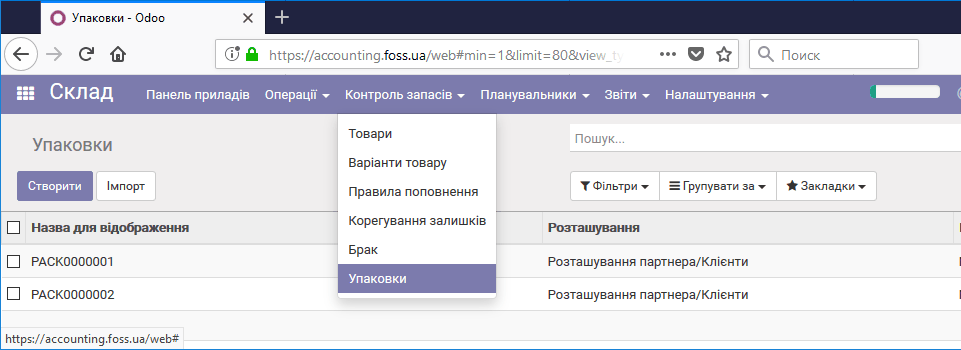 List of packages
Let us look at how to work with packages. For example, a sales order for several units of a product, which must be packed before being sent to the customer, has been created and confirmed from the Sales module. We have a delivery operation for six (3+2+1) units of the product. We want to pack them into two packages and send them to the customer. To do this, click Edit, specify how many products to pack into the first package, and then select Pack.
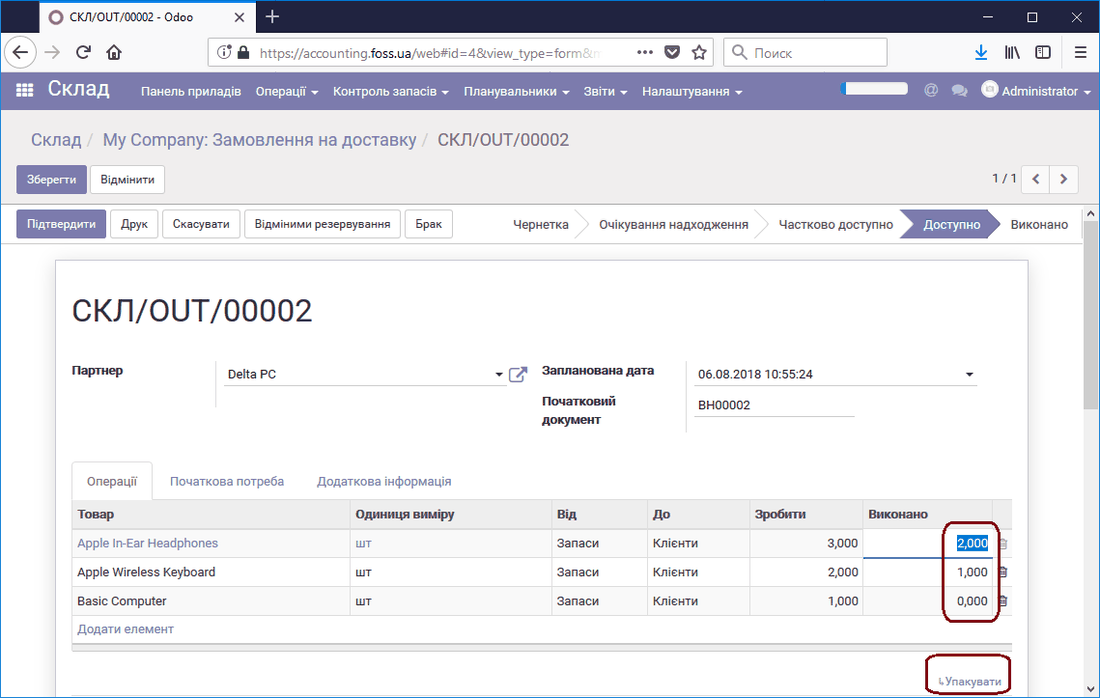 Creating a package
After the packing operation, we see that our products are placed in package PACK0000003. You can also pack the remaining products and then click Confirm for the delivery.
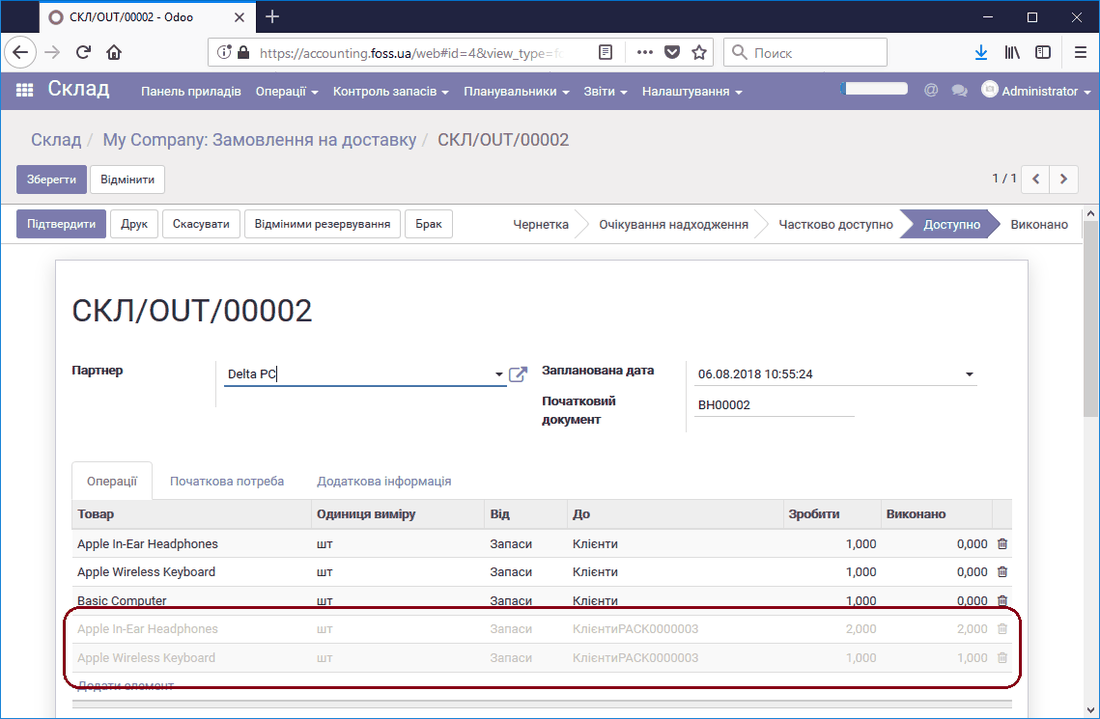 Products in a package
The delivery is made in two packages.
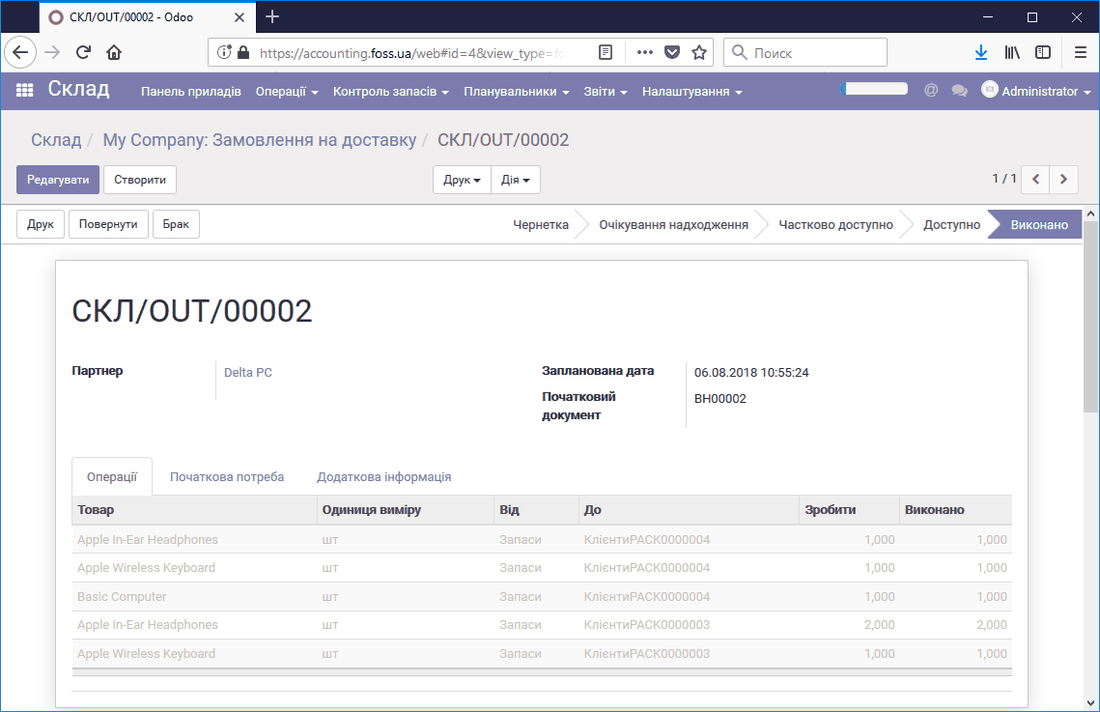 Delivering products in packages
We can view the contents of a package by opening it from the Inventory control/Packages section.
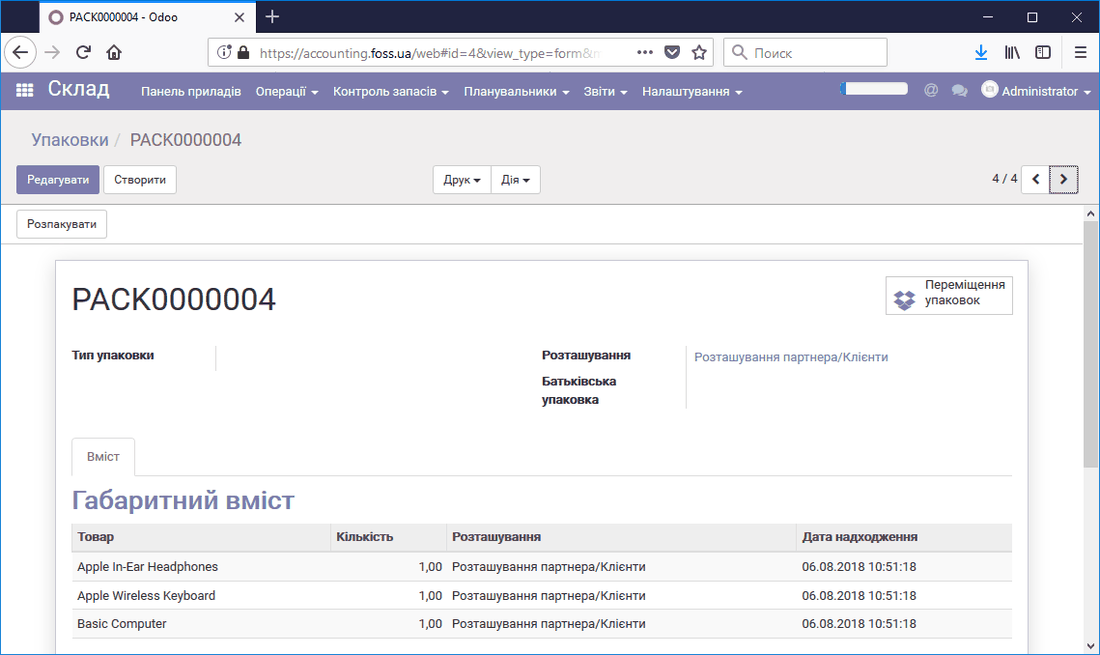 Package contents
You can also print the package barcode and its contents.
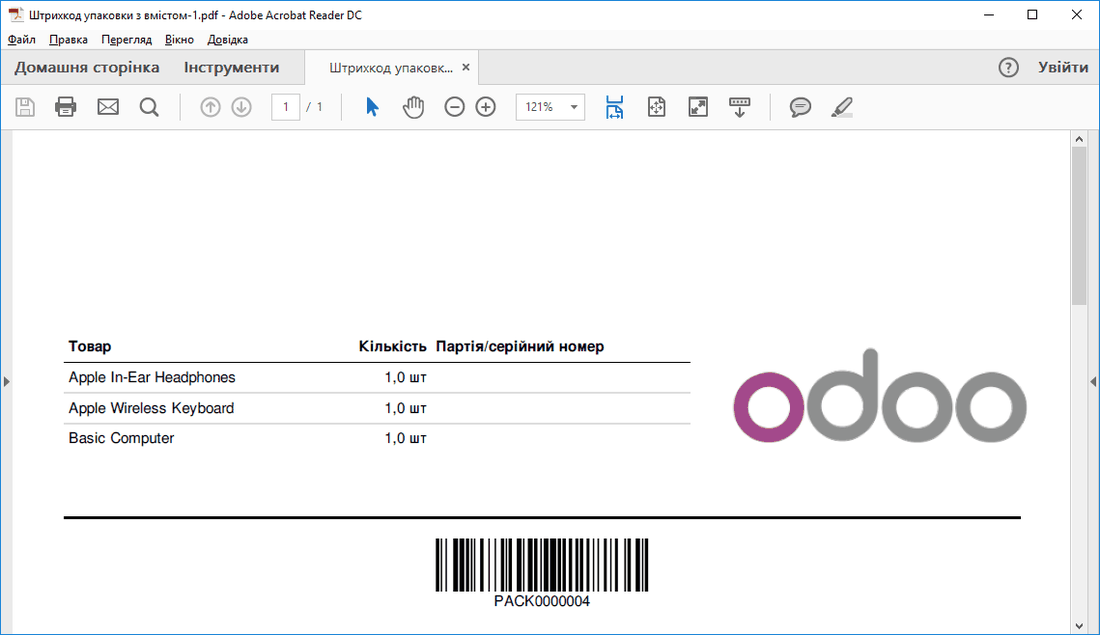 Package barcode with contents
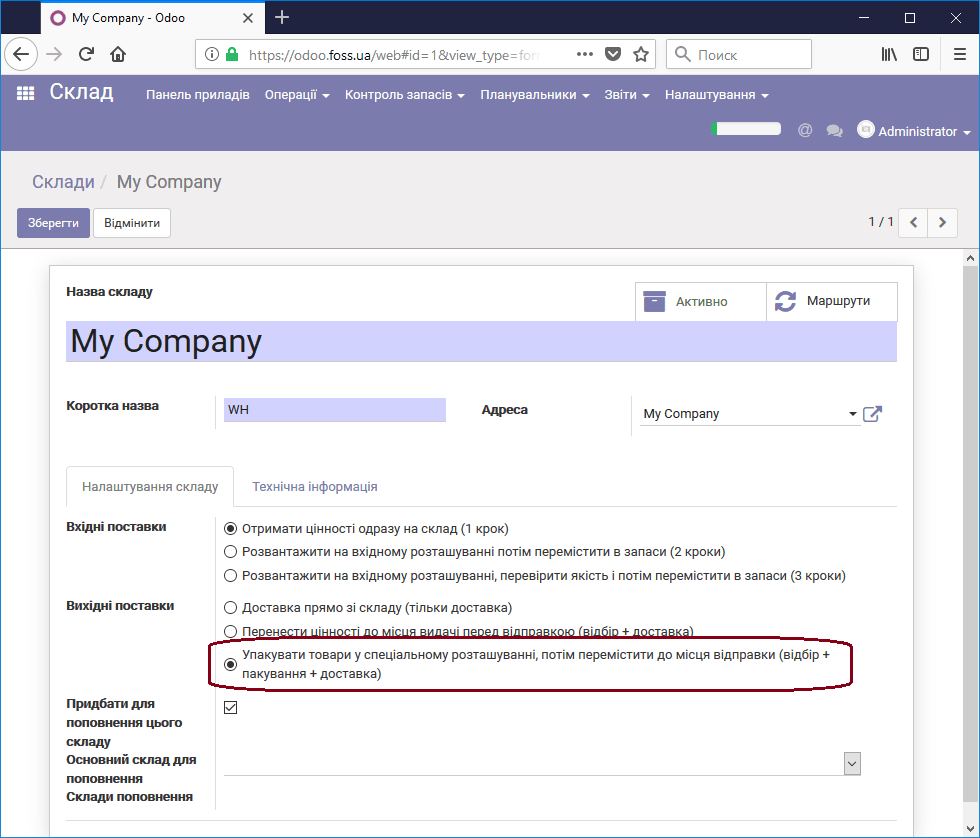
Packages can be nested inside one another, but this requires delivering products to customers using a packing zone. To use a packing zone, you need to configure the warehouse accordingly, after first allowing the use of routes.
Product owners
To store products at your warehouse that are owned by someone other than you, select the Manage inventory owners (advanced) option. Now you can create a receipt operation for products by clicking Moves on the dashboard.
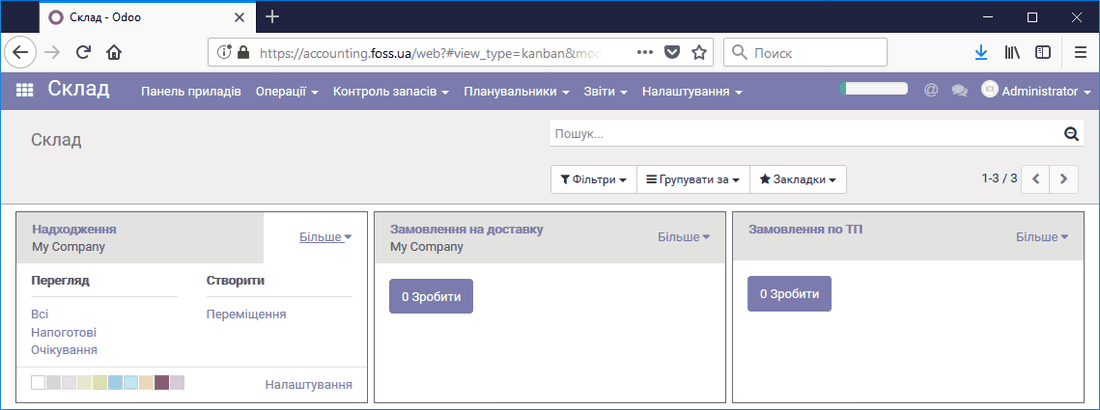 Receipt of a partner's products
Select the product owner and confirm the move.
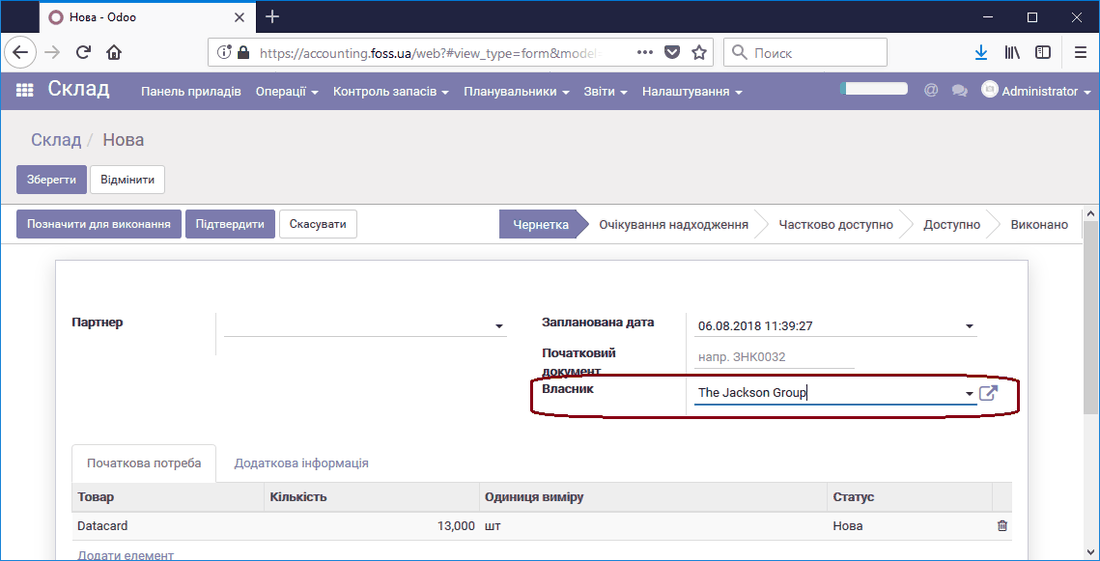 Selecting the product owner
Now, for example, when valuing product stock, you can see who the actual owner of the product is in the Owner column.
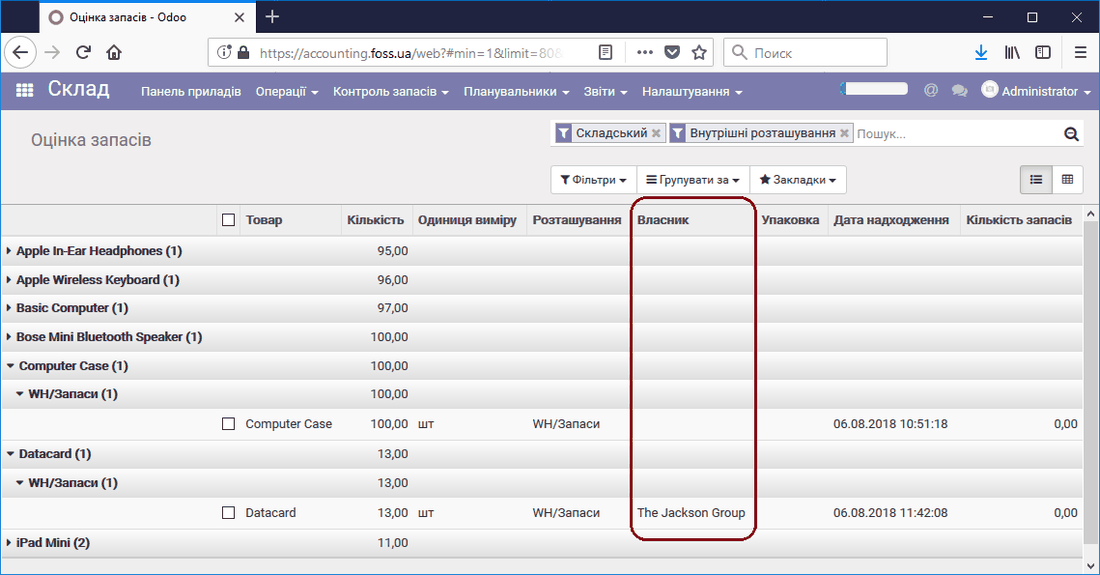 Product owners