Customers and suppliers
Introduction
The application has a list of partners, which are conventionally divided into Customers and Suppliers. You can view these lists from several modules. For example, in the "Sales" module you can view the list of Customers, but if you remove the "Customers" filter, you see the list of all partners. Accordingly, the "Purchases" module shows Suppliers, and the "Accounting" module shows both, but in different menu items. If you open a customer record, you can view and edit its properties.
Note: This description covers only the properties that need explanation. Depending on the application settings, some properties may not be described in this document.
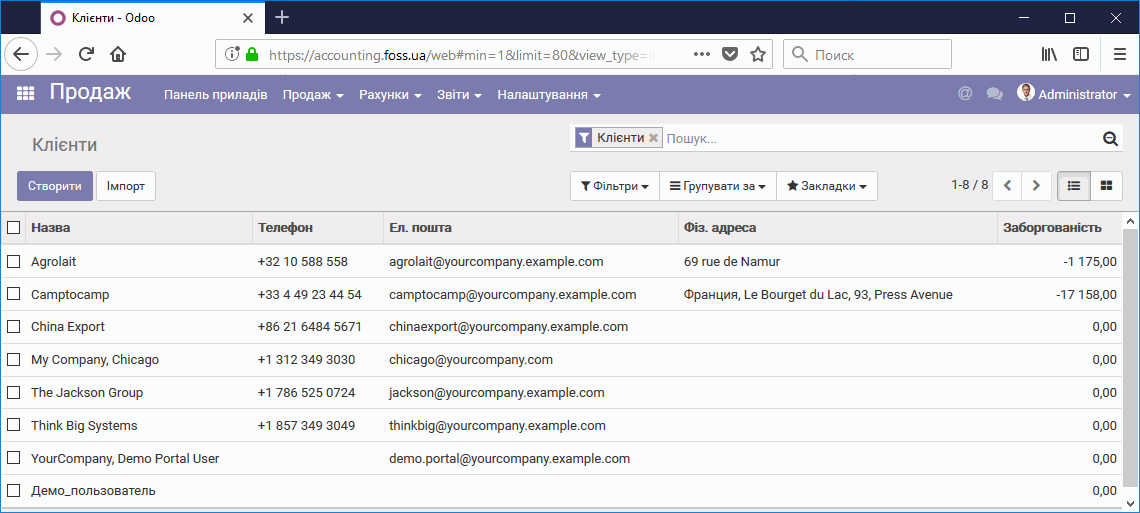
Customer list
Partner template
The partner template describes the partner's properties and defines the actions you can perform with it.
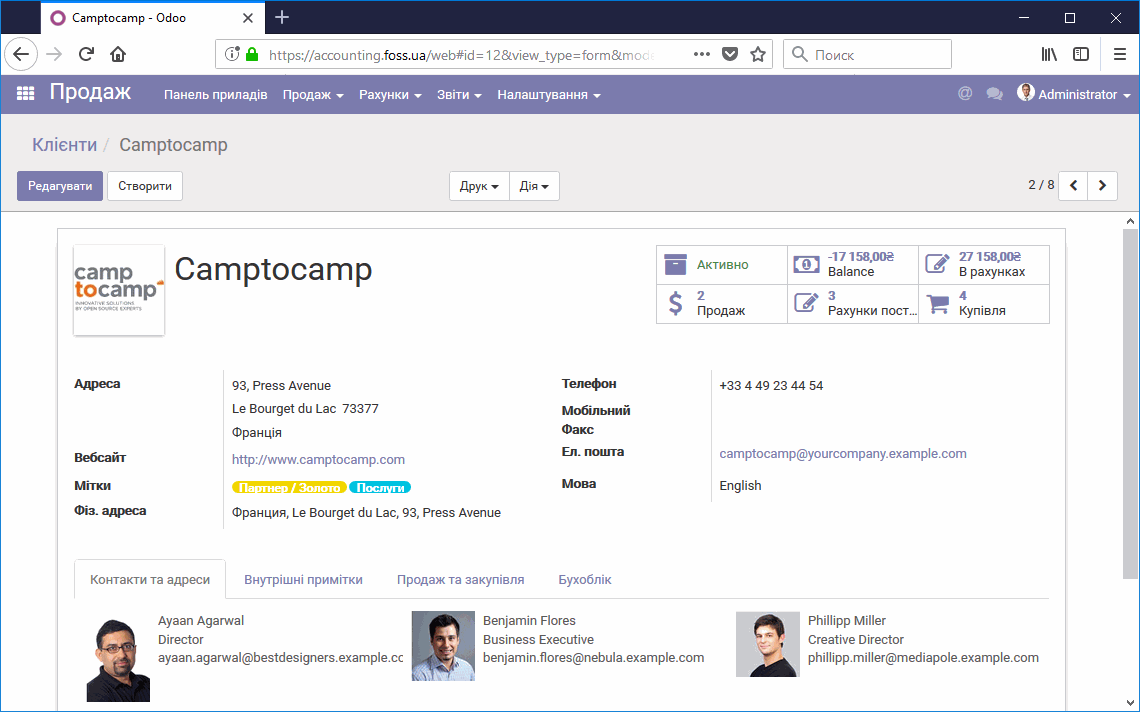
Partner template
Partner menu
You can edit the partner template (Edit), create a new partner (Create), print the list of expected payments (Print), and perform some actions with the partner template (Action).
Note. You can delete a partner only if no mutual settlements or product deliveries have been made with them.
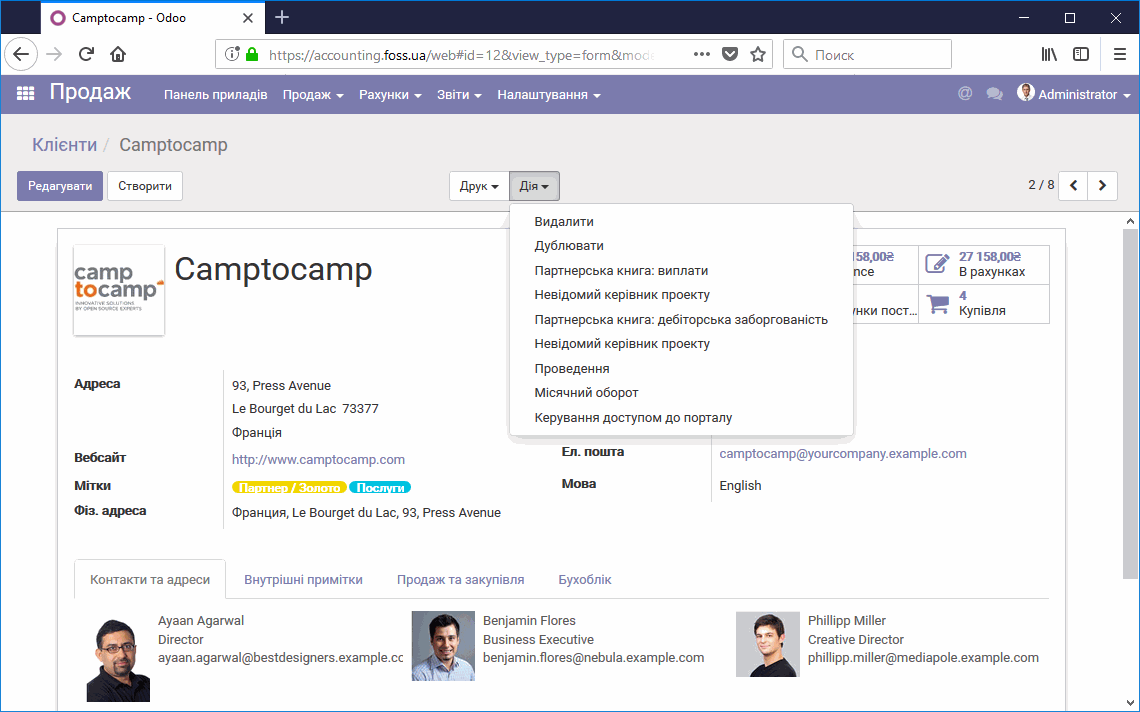
Actions on the partner template
Partner properties
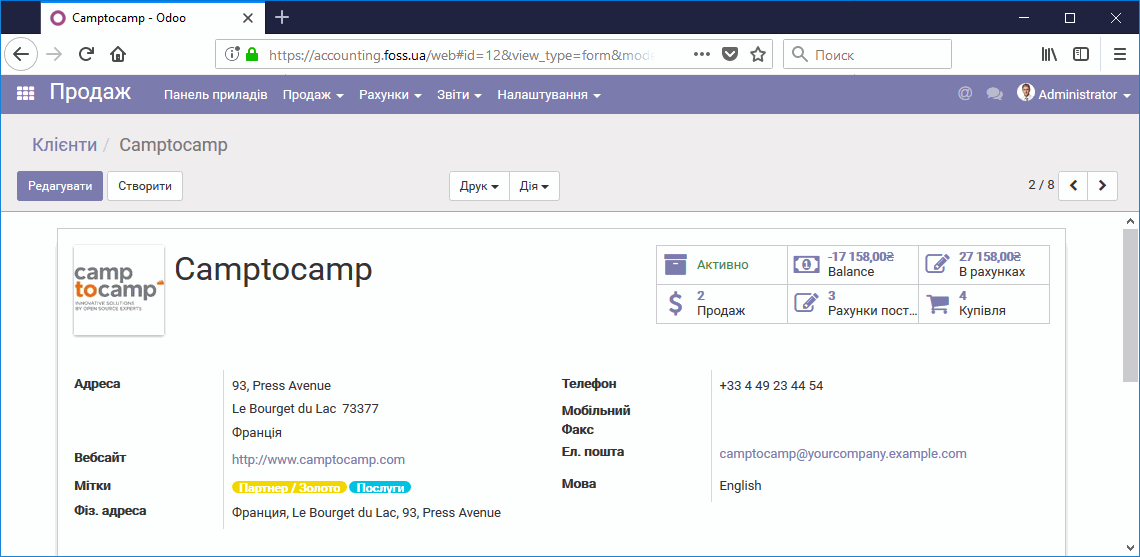
In the upper left corner you can place your partner's logo. In the partner properties, you can enter all of the partner's data, including the language used to communicate with them. All correspondence with your partner is conducted automatically in the selected language. For example, requests for quotations are sent in the selected language. The upper right corner shows clickable icons that describe the state of the partner.
- Active – indicates that work with this partner is available. You can change it to the "Archived" state. In this case, work with the partner is unavailable, but all information about them is preserved.
- Balance – the balance of mutual settlements with the partner. In this example, they owe us UAH 17,158.00.
- Invoiced – the amount invoiced to this partner as a customer.
- Sales – the number of sales to this customer. More...
- Supplier invoices – the number of invoices received from this partner as a supplier.
- Purchases – the number of purchases from this supplier. More...
Click any of the icons to get more detailed information. You can also fill in all the partner data in the main window of the template.
- Tags – each partner can have several tags assigned, which let you assign it to several groups at once.
Partner properties
"Contacts and addresses" tab
The "Contacts and addresses" tab provides information about this partner's contact persons and correspondence addresses.
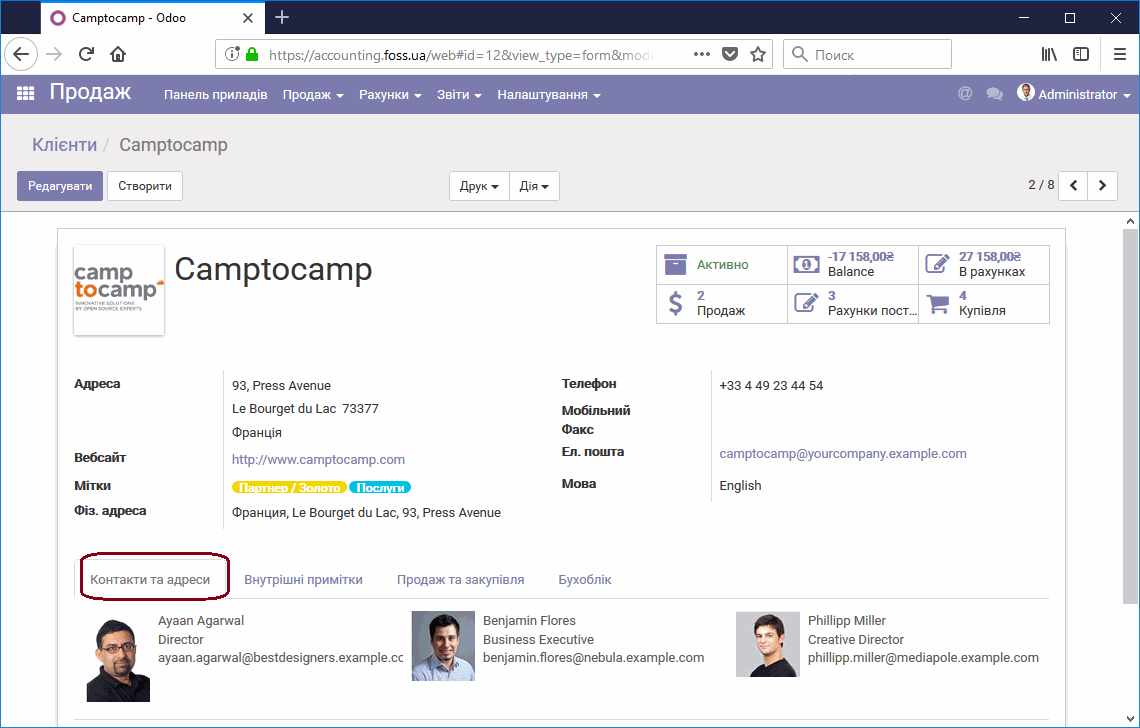
Contacts and addresses
"Internal notes" tab
On this tab you can enter additional information about the partner.
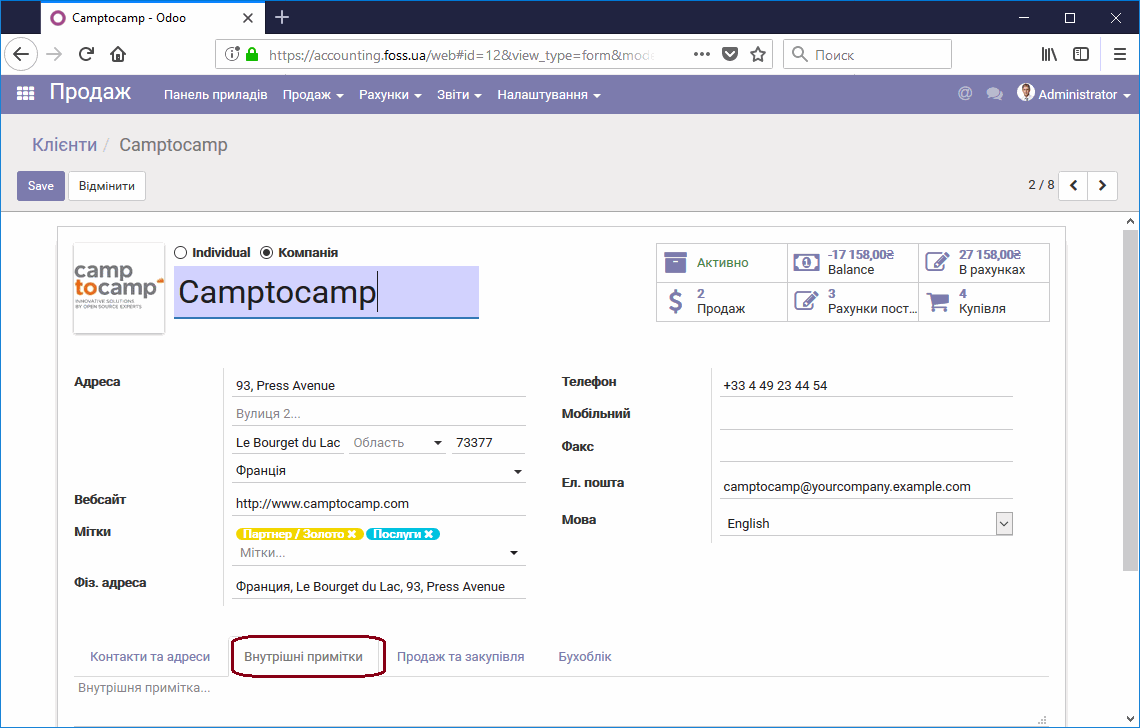
Internal notes
"Sales and purchases" tab
This tab holds data about the partner both as a customer and as a supplier.
- Is a customer/Is a supplier – as mentioned above, a partner can be both a customer and a supplier at the same time. A customer buys products from us, and a supplier sells products to us.
- Salesperson – the internal user responsible for work with this customer.
- Emails and notifications – Never: do not send email to this partner. All messages: send all messages.
- Mailing Opt-Out – this partner has opted out of mass mailings.
- Bounce – a counter of rejected emails for this partner.
- Sales price list – sales to this customer use the specified sales catalog instead of the default catalog. In this way, you can assign each customer a personal product price and discounts.
- Internal reference – you can assign the partner your own code, which you can use later to work with them.
- Bank account(s) – the partner's bank account details.
- Credit card(s) – the partner's credit card details.
- Customer location – this location is used for temporary storage of products before they are shipped to the customer.
- Supplier location – this location is used when receiving products from this supplier.
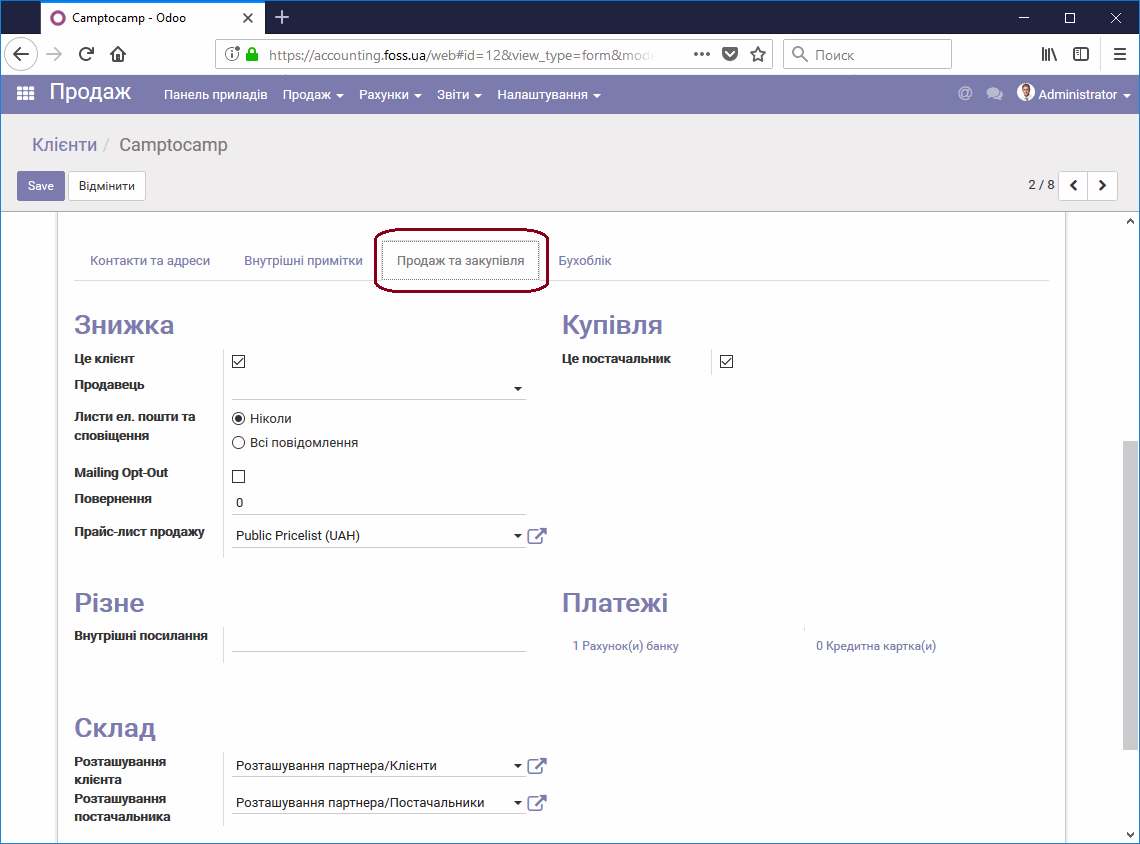
Sales and purchases
"Accounting" tab
This tab is used to enter and view accounting information about this customer.
- Customer payment terms – you can assign each customer their own payment terms for delivered products.
- Supplier payment terms – you can assign each supplier their own payment terms for delivered products.
- Accounts receivable – the amount the customer owes us. Calculated by the application.
- Accounts payable – the amount we owe the supplier. Calculated by the application.
- Degree of trust in this debtor – a subjective parameter of the degree of trust in this customer. You can later use it to set up filters for your customers.
- Taxation scheme – specify the taxation system the customer is on. The application takes it into account when issuing invoices.
- Certificate number – the VAT certificate number. It is later used when working with tax invoices.
- EDRPOU code – the partner's EDRPOU code, or the TIN (IPN) for a sole proprietor (FOP).
- TIN – the individual taxpayer number.
- Receivable account – the number of the accounting account that is later used for accounting entries.
- Payable account – the number of the accounting account that is later used for accounting entries.
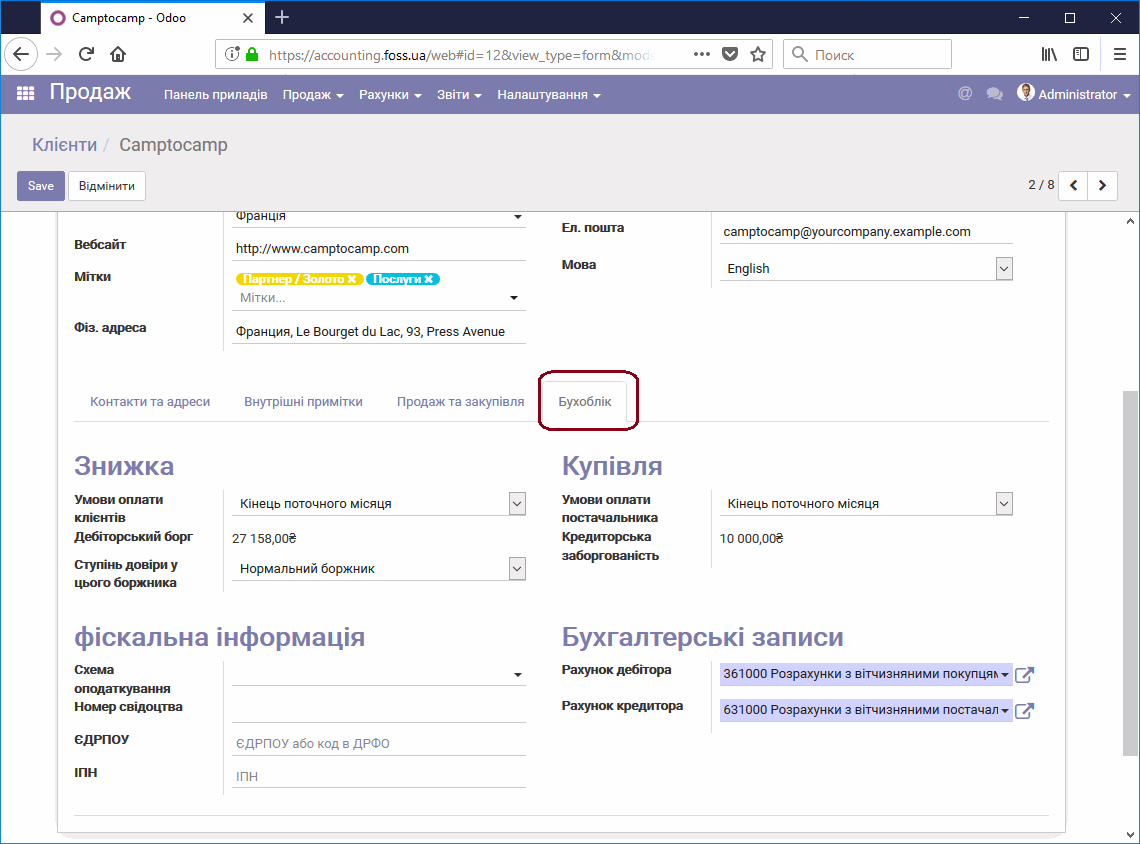
Accounting